Pro Marketing
Pro Marketing shows the done-for-you marketing services the UpChannels team can run for you: social media posting, Google Ads, Facebook Ads, a website, or an online store. Nothing is bought or switched on inside the app. You read the packages, send a Request a Consultation form, and the team follows up with you. Open it from the sidebar: Growth → Pro Marketing (the last Growth item), or the Pro Marketing tile under Growth on Shortcuts.
Overview
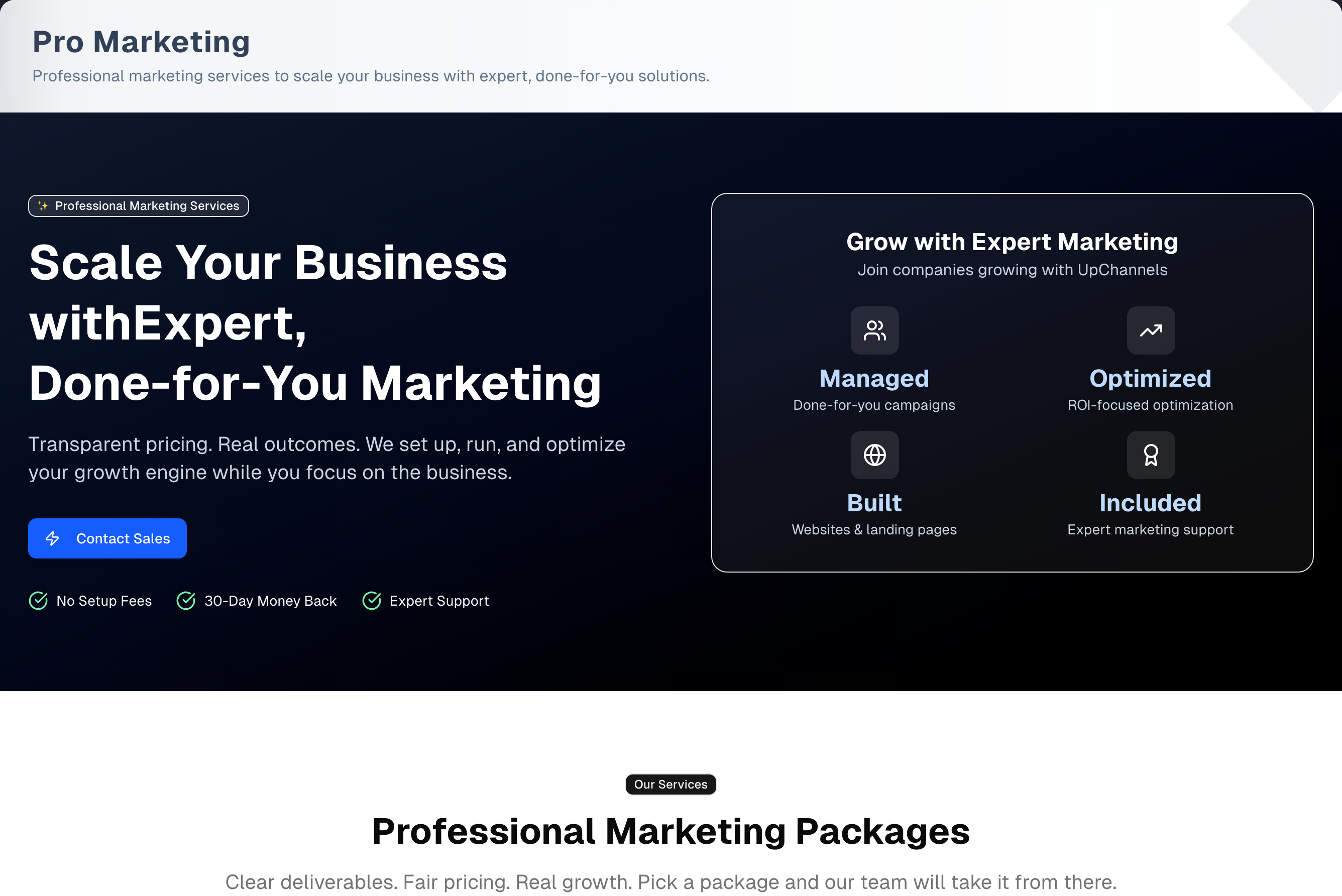
For businesses that want experts to run their social media, ads, website or store. The page is one long scroll with no tabs. From top to bottom:
- Hero: the headline, a Contact Sales button, three trust chips, and a card with four capability tiles.
- Professional Marketing Packages: five package cards, each with six deliverables, a price and a Contact Sales button.
- Closing call to action: "Ready to Transform Your Business?" with another Contact Sales button.
- Get Your Custom Marketing Plan: the Request a Consultation form.
Pro Marketing is on every plan. The "Pro" in its name has nothing to do with the Pro subscription plan.
Sections in detail
Hero
The headline reads "Scale Your Business with Expert, Done-for-You Marketing". Below it are the Contact Sales button and three chips: Done-for-you setup, Ongoing optimization and Expert Support. They describe how the packages work; they are not offers or guarantees. The card on the right, "Grow with Expert Marketing", holds four tiles: Managed, Optimized, Built and Included. These tiles describe what the team does. They are not statistics.
Service packages
| Package | Focus | Price shown |
|---|---|---|
| Pro Social Media Management | Facebook + Google Business Profile content and posting (12–16 posts a month) | $200/month |
| Pro Google Ads Management | Search and Performance Max campaign setup + optimization | $300/month |
| Pro Facebook Ads Management | Full-funnel campaigns, targeting and creative testing | $400/month |
| Pro Website Development (Display) | Fast, responsive website of up to 5 pages, no eCommerce | Setup $600 + $100/month |
| Pro eCommerce | Store build, catalog, payments and integrations (Shopify or WooCommerce) | Contact sales |
Each card lists six deliverables and has its own Contact Sales button. The price on the card is the price to go by — the website package includes a $600 setup charge — and the team confirms it when you talk to them.
Contact Sales buttons
There are seven Contact Sales buttons: one in the hero, one on each package card and one in the closing call to action. They all scroll down to the form. A package card's button also picks that package: a blue line above the form then reads "About: (package) — we'll send this with your request", and Clear removes it. The hero and closing buttons pick nothing and leave any choice you already made in place.
Request a Consultation form
The form sits under the heading "Get Your Custom Marketing Plan". The card promises: "Tell us about your marketing needs and we'll get back to you within 24 hours."
- All seven fields are required: Company Name, Business Location, Your Name, Phone Number, Email, Business Challenges & Goals and Previous Vendor. If you don't use another vendor, write "None".
- Email, your name, the company name and a phone number are filled in from your account and store profile. Only a stored phone number this form can send is used, so one with an extension in it leaves the box empty for you to fill in. Check them before you send.
- Get Started sends the request. The form is then replaced by "Thank you!", with a Send another request button if you need to send a second one.
- Your request goes to the UpChannels team with your username or email, the page it came from and the package you picked added at the end — added when the request is filed, so they are never part of what your message has room for. A copy of your request is emailed to you only when the Email box holds the address you sign in with, at most once a day for this form, and the "Thank you!" panel says whether one was sent.
Step by step: request a consultation
- Compare the package cards: their deliverables and prices.
- Click any Contact Sales button to jump to the form, or scroll down to it.
- Check the details filled in from your account, and fill in Business Location and Previous Vendor. If you came from a package card, check the blue "About:" line above the form.
- In Business Challenges & Goals, describe your goals.
- Click Get Started and wait for "Thank you!".
Tips & best practices
- Use a package card's own Contact Sales button. The package then travels with your request, and the blue "About:" line above the form shows which one.
- Share your biggest challenge and any past results so the team can recommend the right package.
- Pro eCommerce has no listed price. It is quoted for your store, so describe your catalog and platform.
- The sidebar's Growth header has a green ? icon. It opens Growth Guide & Tips, a one-page summary of the Growth tools, Pro Marketing included. It is a link, so you can reach it with Tab and open it with Enter.
Troubleshooting
| Issue | Fix |
|---|---|
| Get Started does nothing and the browser points at a field | Every field is required. Fill in all seven, including Business Location and Previous Vendor ("None" is fine) |
| "Please provide a valid phone number. Digits and + ( ) - . only, and no extension." | Shown under Phone Number before anything is sent. Use digits with spaces, dashes, brackets, dots or a plus sign only (no letters such as "ext"), and 7 to 20 digits (a plus sign goes only in front and doesn't count as one) |
| "Please provide a valid email address." | Enter a full address with a dot after the @, for example name@company.com |
| An error starting "Please fill in" | The field it names has only spaces in it. Type real text |
| The form disappeared after sending | That's the "Thank you!" panel: your request went through. Click Send another request to get the empty form back |
| Contact Sales doesn't scroll | Scroll down to "Get Your Custom Marketing Plan" yourself |
| "403 - Forbidden" when opening the page | Your menu settings hide this page. Ask the store owner to show it again in Settings → Team |
What's next
- Prefer DIY ads? See Ads & Sales (sidebar Growth → Ads Insights)
- Run your own campaigns: Growth → SMS Campaigns
- Build your reputation: Reviews (sidebar Growth → Reviews Booster)
Detailed reference
Every button, icon, field and message on this page, for when you need the exact detail. Each panel starts closed — open the one you need.
Page header and toolbar
| Control | Where | What it does | Notes |
|---|---|---|---|
| Pro Marketing (sparkles icon) | Sidebar → Growth, last item | Opens this page | Every plan. No "Pro" or "Premium" tag beside it. Hover tooltip: the item's own description if your menu has one, otherwise "Access advanced marketing tools and strategies." Hidden for a team member whose menu visibility hides it |
| Pro Marketing tile (rocket icon) | Shortcuts → Growth group, last tile | Opens this page | Hidden when your menu visibility hides the page |
| Browser tab title "Pro Marketing Services" | Browser tab | Names the page in the tab and in history | — |
| Title Pro Marketing and description "Professional marketing services to scale your business with expert, done-for-you solutions." | Top banner | Text only | The header has no buttons: no Demo, no tour, no export |
Section: Hero
| Control | Where | What it does | Notes |
|---|---|---|---|
| Badge "✨ Professional Marketing Services" | Hero, top left | Label only | — |
| Headline "Scale Your Business with Expert, Done‑for‑You Marketing" | Hero, left | Text only | The second line is light blue |
| "Transparent pricing. Real outcomes. We set up, run, and optimize your growth engine while you focus on the business." | Under the headline | Text only | — |
| Contact Sales (lightning icon, blue) | Hero, under the paragraph | Scrolls smoothly down to the Request a Consultation form | Always available. Does not open a dialog or pick a package |
| Chip "Done-for-you setup" (green check) | Row under Contact Sales | Text only | Describes the packages below, which the team sets up and runs. Not an offer |
| Chip "Ongoing optimization" (green check) | Same row | Text only | Describes the packages below. Not an offer |
| Chip "Expert Support" (green check) | Same row | Text only | — |
| Card "Grow with Expert Marketing", "Join companies growing with UpChannels" | Hero, right (below the text on narrower screens) | Text only | Holds the four tiles below |
| Tile Managed, "Done-for-you campaigns" (people icon) | Right card, tile 1 | Text only | The four tiles describe what the team does. They are not figures or results |
| Tile Optimized, "ROI-focused optimization" (trend icon) | Right card, tile 2 | Text only | — |
| Tile Built, "Websites & landing pages" (globe icon) | Right card, tile 3 | Text only | — |
| Tile Included, "Expert marketing support" (award icon) | Right card, tile 4 | Text only | — |
Section: Service packages
Heading: badge "Our Services", title "Professional Marketing Packages", and "Clear deliverables. Fair pricing. Real growth. Pick a package and our team will take it from there." Wide screens show three cards in the first row and two in the second. Narrower screens, including phones and most tablets, show one card per row. Each card has an icon, a title, a blue subtitle, a description, six deliverables with green checks, the price at bottom left and Contact Sales at bottom right. No card carries a "Popular" badge, and the cards have no pictures.
| Package (icon) | Subtitle and description | Six deliverables | Price shown |
|---|---|---|---|
| Pro Social Media Management (speech bubble) | "Facebook + Google Business Profile content & posting". "We plan, create, and publish high‑quality posts that keep your brand active and top‑of‑mind where your customers spend time." | Editorial calendar and content themes; 12–16 posts per month (FB + GBP); Light community monitoring; Reusable brand templates; Hashtag/keyword set up; Monthly performance summary | $200/month |
| Pro Google Ads Management (magnifier) | "Search and Performance Max campaign setup + optimization". "Professional Google Ads management focused on efficient lead generation with clear reporting and continuous optimization." | Account & conversion tracking setup; Keyword research and negative lists; Compelling ad copy and extensions; Bid and budget optimization; A/B testing and insights; Monthly performance report | $300/month |
| Pro Facebook Ads Management (megaphone) | "Full‑funnel campaigns, targeting, and creative testing". "Launch and scale Facebook campaigns with the right audiences, creative, and structure to drive measurable results." | Pixel and conversion API setup; Audience building and lookalikes; Creative variations and copy testing; Retargeting and prospecting mix; Weekly optimization cadence; Clear, visual reporting | $400/month |
| Pro Website Development (Display) (monitor) | "Fast, responsive 5‑page website. No eCommerce." "A clean, conversion‑ready website that showcases your brand and services with ongoing care and support." | Custom responsive design (up to 5 pages); On‑page SEO basics and analytics; Hosting, security, and backups; 1 content update per month; Lead/contact form with email alerts; Performance optimization | Setup $600 + $100/month |
| Pro eCommerce (globe) | "Store build, catalog, payments, and integrations". "A turnkey eCommerce storefront tailored to your catalog and workflows (Shopify/WooCommerce)." | Theme setup and brand styling; Product/catalog and collections; Payments, tax, and shipping rules; Email and analytics integrations; Basic fulfillment workflows; Migration support as needed | "Contact sales" (no amount) |
| Control | Where | What it does | Notes |
|---|---|---|---|
| Contact Sales (arrow icon), five buttons | Each card, bottom right | Scrolls smoothly down to the Request a Consultation form and picks that card's package: the blue "About: (package) — we'll send this with your request" line appears above the form | Always available. The package travels with your request. Clear on the blue line removes it, and another card's button replaces it |
Section: Closing call to action
| Control | Where | What it does | Notes |
|---|---|---|---|
| Heading "Ready to Transform Your Business?" | Dark band below the packages | Text only | — |
| "Talk to sales and we'll recommend the package that fits how your shop actually runs." | Under the heading | Text only | Fixed marketing text, the same for every store |
| Contact Sales (large, lightning icon) | Centre of the band | Scrolls smoothly down to the form just below | Always available. It picks no package, and leaves a package you chose from a card in place |
| Chip "Talk to a person first" (shield icon) | Under the button | Text only | Nothing is bought on this page; the button starts a conversation |
| Chip "Quick Setup" (clock icon) | Under the button | Text only | — |
| Chip "Dedicated Support" (heart icon) | Under the button | Text only | — |
Section: Request a Consultation form
The section is headed "Get Your Custom Marketing Plan", with the line "Share your business details and we'll recommend the right marketing package to help you grow." It holds a white card titled Request a Consultation, with the line "Tell us about your marketing needs and we'll get back to you within 24 hours." This page shows no Close button on the form.
When you arrive from a package card, a blue line sits above the card: "About: (package name) — we'll send this with your request", with a Clear button that removes it.
Fields:
| Field | Required | Default | Rules and error text |
|---|---|---|---|
| Company Name | Yes (red asterisk) | Your store's name | Placeholder "Your company name". Only spaces gives "Please fill in Company Name." The box stops at 200 characters; anything longer that still arrives is refused with "Company Name is too long. Please keep it to 200 characters — nothing has been sent." |
| Business Location | Yes | Empty | Helper text "City, State or full address". Placeholder "e.g., San Francisco, CA". Only spaces gives "Please fill in Business Location." The box stops at 500 characters |
| Your Name | Yes | Your display name, otherwise your name from your profile | Placeholder "Your full name". Only spaces gives "Please fill in Your Name." The box stops at 200 characters |
| Phone Number | Yes | Your mobile phone, otherwise your business phone — but only a stored number this form can send. One with "ext" in it, or longer than 30 characters, is left out and the box starts empty with its placeholder showing | Placeholder "+1 (555) 123-4567". Only digits, spaces, dashes, brackets, dots and a plus sign in front, with 7 to 20 digits. Otherwise "Please provide a valid phone number. Digits and + ( ) - . only, and no extension." appears under the box, the box is outlined, and nothing is sent; changing the box clears it |
| Yes | Your sign-in email | Placeholder "you@company.com". The browser checks the shape first. The app also needs a dot after the @ and at most 254 characters, so "me@shop" gets "Please provide a valid email address." | |
| Business Challenges & Goals | Yes | Empty | Four-line box with a "… / 2,000" count under it. Placeholder "Tell us about your business challenges and what you're hoping to achieve...". The box stops at 2,000 characters, and all 2,000 are yours: the blank line, "[Submitted by: …]" (your username or email) and "[From: Pro Marketing — (package)]" are added on top when the request is filed |
| Previous Vendor | Yes | Empty | Placeholder "What software/vendor are you currently using?". "None" is fine. Only spaces gives "Please fill in Previous Vendor." The box stops at 200 characters |
Filled-in values appear once your profile loads, and only in fields that are still empty. They never overwrite what you typed.
Buttons and states:
| Control | Where | What it does | Notes |
|---|---|---|---|
| Get Started | Full width, bottom of the form | Sends the request to the UpChannels team | The browser stops the send while any field is empty |
| "Submitting..." with a spinner | On Get Started while sending | Shows the request is on its way | The button and every field are locked until it finishes |
| "Thank you!" panel (green check), "We've received your message and will get back to you shortly.", then either "A copy has been sent to …." or "No confirmation email was sent — our team will get in touch at …. A copy goes only to the email you sign in with, once a day." | Replaces the whole form card | Confirms the request was received, says whether a copy was emailed, and names the address the reply will go to. The fields are cleared | A copy is emailed when the Email box holds the address you sign in with, at most once a day for this form. Send another request brings the empty form back, filled in again from your account. There is no Close button here, because the form is not in a dialog on this page |
| Red error box | Above Get Started | Shows why the send failed (see Messages you may see) | What you typed stays in place. Fix it and click Get Started again |
What happens after you send:
- The UpChannels team receives your seven answers as a new lead to follow up.
- The request is tagged Pro Marketing, with the package name when you came from a package card, so it can be told apart from the same form's requests on Messages, SMS Campaigns, Marketplace and Billing. The tag is also written at the end of your message.
- If the Email box holds the address you sign in with, UpChannels emails you a copy: subject "We got your request: Pro Marketing", followed by the package when you picked one, listing what you sent. Replying to it reaches team@upchannels.com. It goes at most once a day for this form and never to an address that isn't your sign-in email. The "Thank you!" panel says which happened. No other notification is sent.
Sub-page: Growth Guide & Tips
A read-only help page for the whole Growth section, with one card per tool. It is not opened from Pro Marketing. Open it with the green ? icon on the sidebar's Growth header. It reads none of your store's data and has no plan or role gate, but an owner can hide Guide & Tips from one person in Settings → Team: the green ? icon then disappears for them, and the page itself shows "403 - Forbidden".
| Control | Where | What it does | Notes |
|---|---|---|---|
| Green ? icon (tooltip Open Guide & Tips; screen-reader label "Open Growth Guide & Tips") | Sidebar, Growth header row, left of the arrow | Opens Growth Guide & Tips | Shown when the Growth section has a Guide & Tips item, which the standard menu does. The icon is hidden when the owner has hidden Guide & Tips for you, and the page itself then shows "403 - Forbidden". It is a link: Tab reaches it and Enter opens it. Using it does not open or close the Growth section. "Guide & Tips" is not listed as a normal Growth item, and it has no tile on Shortcuts |
| Growth header tooltip "Grow your business with marketing and customer engagement tools." | Sidebar, hover on Growth | Tooltip only | — |
| Panel icon (screen-reader label "Toggle Sidebar") | Top bar, far left | Hides or shows the sidebar | Keyboard: Ctrl+B (⌘+B on Mac) |
| Breadcrumb Growth | Top bar | Plain text, not a link | Hidden on narrow screens |
| Breadcrumb Guide & Tips | Top bar | Current page, not clickable | — |
| Title "Growth Guide & Tips" and "Tools to win and keep customers — messaging, campaigns, reviews, ad intelligence, and partnerships. Expand any module for its workflow, key features, and tips." | Top of the page | Text only | Badges "Updated" and "Growth" are labels, not buttons |
| Card header row (any card) | Each card | Click to expand. Shows Workflow, Key features and Tips, then an Open … link to the tool's page (for example Open Customers). Click again to collapse. The chevron turns | All eleven cards start closed |
The eleven cards, in order:
| Card (icon) | Summary line and chips | Workflow | Key features | Tips |
|---|---|---|---|---|
| Customers (people) | "Manage customer profiles, segment them into groups, and build audiences for campaigns." Chips: Customers, Marketing Groups | Filter list (search • individual • company) → Add / edit (profile • tags • consent) → Group (tag & assign members) → Build audience (segment → group) | Search by name, email or phone; Customer groups (tags); Consent flags; Per-customer SMS; Bulk loyalty assign; Customer detail modal | "Build groups from segments": "Filter customers, then save them as a reusable group to target with campaigns." "Mind consent flags": "Marketing consent controls who SMS campaigns are allowed to reach." "Restore instead of re-adding": "An archived customer keeps their phone and email on file, so adding them again offers Restore customer, with their history." |
| Complaints (warning bubble) | "The complaint book: what went wrong, who owns it, whether it is late — and the pattern over months, which is the part worth having." Chips: Open, Waiting, Resolved, Overdue | Log it (category • severity • one line) → Own it (the answer-by date is set for you) → Work it (notes • photos • status) → Say what was done (resolution • root cause) → Read the pattern (Reports → Lost sales) | Numbered complaints with an answer-by date; Severity sets the deadline; Start one from an order, a review or a text; Photos and a timeline; Root cause, which is what turns eleven into one fix; Overdue worked out live, never stored | "Log it even when you fixed it on the spot": "One complaint tells you nothing; three months of them tell you what to change." "Write the root cause, not the apology": ""Saturday route overbooked" is worth more than "customer upset"." "Removing one needs a manager": "It asks first, and … can put it back from the Removed tab." |
| Messages (chat bubbles) | "A shared SMS inbox with customer context beside every conversation." Chips: Threads, Conversation, Customer panel | Select thread (left panel) → Read & reply (center panel) → Check customer (profile & orders) → Refresh (latest messages) | Threaded conversations; Customer panel (profile + orders); Desktop notifications; 90-day cache purge; Integration status check | "Use customer context": "Open the customer panel to see profile and past orders before you reply." "Set up SMS first": "Messages needs the Twilio integration connected before it can send or receive." |
| SMS Campaigns (megaphone) | "Send real SMS and MMS campaigns to customer groups — immediately or on a schedule, with consent handled for you." Chips: Draft, Scheduled, Sent | Set up (profile • audience) → Write message (personalize • image) → Handle consent (capture unconsented) → Send or schedule (now • later) → Track (delivery status) | Real Twilio SMS/MMS send; Audience via customer groups; Consent-capture prompt; Send now or schedule; Uncapped scheduled dispatch; MMS image support; Recipient dedupe & E.164; Draft / Scheduled / Sent tabs | "Consent is handled at send": "If some recipients aren't opted in, you're prompted to capture consent before anything goes out." "Schedule big sends": "Scheduled campaigns lock in their audience and dispatch via cron — without the immediate-send cap." "Personalize each text": "Merge fields like first name and business name into the message body." |
| Reviews (star) | "Connect Google Business, read reviews across your locations, and reply inline." Chips: Reviews, Profiles, Reply | Connect (Google Business) → Select profiles (business locations) → Load reviews (paginate • refresh) → Reply (inline response) | Google Business OAuth; Multi-profile; Rating summary; Inline replies; Pagination; Refresh & disconnect | "Reselect generic names": "If a business shows a generic name, fix it via Change Profiles." "Automate the ask": "Use the SMS Campaigns review-request preset to request reviews from happy customers." |
| Ads Insights (bar chart) | "Google Ads performance analytics with a securely connected account." Chips: Weekly Reports, Performance Comparison | Connect (Google Ads) → Open tabs (weekly • comparison) → Analyze (metrics & trends) | Google Ads OAuth (server-side tokens); Tabbed insights; Performance comparisons; Weekly reports | "Connect once": "Make sure the integration reads Connected before you start analyzing." "Compare periods": "Use comparisons to confirm an optimization actually moved the numbers." |
| Competitors (target) | "Discover competitors and study their ads and search demand." Chips: Discover, Google Ads, Facebook Ads, Search Trends | Search & discover (company lookup) → Google Ads intel (creatives) → Facebook intel (ads library) → Search trends (interest over time) | Competitor discovery; Google Ads intelligence; Facebook ads library; Google search trends | "Benchmark creatives": "Save the angles that are working so you can test them yourself." "Cross-check timing": "Line up ad pushes against search-trend spikes for timing insight." |
| Local Vibes (map pin) | "City-specific news and events, tailored to your industry profile." Chips: News, Events | Load profile (organization • industry) → Keywords (from profile settings) → Read & act (share • plan promos) | Industry-driven keywords; Local news; Local events; City-scoped content | "Tune keywords": "Update industry profile keywords for sharper, more relevant results." "Ride local events": "Align promotions with nearby events for a lift." |
| Partners (handshake) | "Find complementary local businesses and run partner outreach end to end." Chips: Plan, Search, Reach Out, Follow Up | Plan types (who complements you) → Search (local businesses) → Reach out (message templates) → Follow up (track engagement) | Partner-type templates; Local business discovery; Outreach templates; Follow-up tracking | "Lead with value": "Reciprocity wins more partnerships than a cold ask." "Work the follow-up": "Track outreach so promising partners don't go cold." |
| Loyalty Program (gift) | "Build loyalty programs and enroll customers to drive repeat business." Chips: Programs, Create | Create program (rules • rewards) → Define tiers (points • thresholds) → Enroll (customers • groups) → Track (redemptions • members) | Multiple programs; Point-based rewards; Tiers; Bulk enrollment; Redemption tracking | "Start simple": "One clear earn-and-burn rule beats a complex scheme you can't explain." "Enroll in bulk": "Assign whole customer groups to a program at once." |
| Pro Marketing (briefcase) | "Bring in the UpChannels pro team for advanced strategy and hands-on execution." Chip: Packages | Scope (goals • channels) → Plan (strategy • timeline) → Execute (campaigns • reporting) | Service packages; Strategy & planning; Execution support; Performance reporting | "Bring data": "Share past performance and target cohorts to speed up the ramp." |
- Some card names are shorter than the sidebar labels in the standard menu: Customers is Customers Nurturing, Messages is Communications Hub, Reviews is Reviews Booster, Competitors is Competitors Monitor and Partners is Partners Network.
- The Request a Consultation form has no budget field. Mention your budget in Business Challenges & Goals.
Messages you may see
| Message | When it appears | What to do |
|---|---|---|
| "Submitting..." (with a spinner) | On Get Started while the request is sending | Wait. The fields are locked until it finishes |
| "Thank you!" / "We've received your message and will get back to you shortly." / "A copy has been sent to …" or "No confirmation email was sent — our team will get in touch at …. A copy goes only to the email you sign in with, once a day." | After a successful send. It replaces the form | Nothing more to do. Send another request brings the form back if you need to send a second one |
| The browser's own "fill out this field" bubble (wording varies by browser) | Get Started with any of the seven fields empty | Fill in every field, including Business Location and Previous Vendor |
| The browser's own email bubble, for example about a missing "@" | The email is not shaped like an email address | Correct the email |
| "Please fill in Company Name." / "Please fill in Business Location." / "Please fill in Your Name." / "Please fill in Previous Vendor." | A field holds only spaces. The browser accepts spaces, but the app rejects them. The message names the box by its label. (An Email with only spaces is treated as empty, so the browser's own bubble appears instead. Phone Number is checked before anything is sent, so spaces there get the phone message under that box.) | Type real text in that field |
| "Please provide a valid email address." | The email has no dot after the @ (for example "me@shop"), or is longer than 254 characters | Use a full address such as name@company.com |
| "Please provide a valid phone number. Digits and + ( ) - . only, and no extension." | The phone has letters or other symbols, or fewer than 7 or more than 20 characters once spaces, dashes, brackets and dots are removed. Shown under the box, before anything is sent | Enter a plain number such as +1 (555) 123-4567 |
| "Failed to submit form. Please try again later." | UpChannels could not save the request, or its server is not set up to receive these requests yet | Try again later. If it keeps failing, contact UpChannels support another way |
| "Something went wrong" / "Something went wrong. Please try again." | The send failed with no readable reason | Check your internet connection and try again |
| "Your request didn't reach UpChannels. Check your connection and try again." | The request never reached UpChannels (offline or blocked) | Check your connection and try again |
| "Your request wasn't sent: UpChannels answered with an error (…). Please try again in a moment." | An error page came back instead of UpChannels' own answer, for example during an update (the number is the error code) | Try again in a moment. If it repeats, contact UpChannels support |
| "403 - Forbidden" / "You do not have permission to view this page. Contact your organization owner." | Opening the page in a store with more than one active person, when your menu visibility hides it — however you reach it: a link in the app, a bookmark or a typed address. The sidebar row and the one Shortcuts card, Pro Marketing, are gone too | Ask the owner to show it again in Settings → Team |
| "Loading..." | Briefly, while the app checks you may open the page | Wait |
| "Redirecting to onboarding..." | You are signed in but have not set up a store yet | Finish onboarding first |
| "Redirecting..." | Your free trial has ended. You are taken to Plan & Billing | Choose a plan there |
Who can use what
| Who or what | Pro Marketing |
|---|---|
| Any plan (Basic, Pro, Premium, free trial) | Full access. No upgrade screen and no plan tag in the sidebar |
| Owner, manager or staff | The same for everyone. No role checks on the page or the form |
| A team member whose menu visibility hides the page, in a store with more than one active person | Sees "403 - Forbidden" however they reach it — a link in the app, a bookmark or a typed address. The sidebar row goes as well, and so does the one Shortcuts card, Pro Marketing. Pro Marketing has no demo page to fall back on. The owner changes this in Settings → Team |
| A store with one active person | Never blocked by menu visibility. Someone switched off or removed in Team doesn't count as that person, and is not exempt |
| Trial has ended | Sent to Plan & Billing, like every other page |
| Signed in with no store yet | Sent to onboarding |
| Buying a package | Not possible in the app. There is no checkout or add-on switch, and nothing is billed from this page. Everything goes through the UpChannels team after you send the form |
Growth Guide & Tips has no plan or role gate. An owner can still hide Guide & Tips for one person in Settings → Team: the green ? icon disappears for them and the page shows "403 - Forbidden".
Common questions
Can I buy a Pro Marketing package or add it to my plan in the app? No. The page only shows the packages and collects a consultation request. There is no checkout and no add-on switch. The UpChannels team arranges the service with you after you send the form.
Do I need the Pro plan for Pro Marketing? No. The page and the form are on every plan, including Basic and the free trial. The "Pro" in the name is not the Pro subscription plan.
I clicked Contact Sales on the Google Ads card. Does the team know that's the package I want? Yes. A package card's Contact Sales button carries that package with your request, and the blue "About:" line above the form shows it before you send. Clear removes it; the hero and closing buttons pick nothing.
How do I know my request went through? Will I get an email? The form is replaced by "Thank you!" and "We've received your message and will get back to you shortly.", then a line naming the address you typed. If that is the email you sign in with, it reads "A copy has been sent to …" and a copy of your request arrives by email (once a day at most for this form). Otherwise it reads "No confirmation email was sent — our team will get in touch at …", and the panel is the only confirmation. The form says the team will get back to you within 24 hours.
Why won't Get Started send my request? All seven fields are required, including Business Location and Previous Vendor ("None" is fine). The phone may use only digits, spaces, dashes, brackets, dots and a plus sign, with 7 to 20 digits (a plus sign goes only in front and doesn't count as one); a number your profile cannot lend this form, such as one with an extension, is left out of the box rather than filled in and then refused. The email needs a dot after the @. A field with only spaces is rejected with "Please fill in" and the box's name.
How do I send a second request? Click Send another request on the "Thank you!" panel. The empty form comes straight back, filled in again from your account — no reload needed.
Does the website package have a setup fee? Yes. The card lists "Setup $600 + $100/month". Go by the card price and confirm the quote with the team.
My Plan & Billing page shows a "Google Ads Management" add-on. Did I buy that here? No. Pro Marketing packages can't be bought in the app. A few long-time stores still have an older "Google Ads Management" add-on on their subscription. It can no longer be bought. Ask the UpChannels team if you have questions about it.
Is there a demo or guided tour for Pro Marketing? No. The page has no Demo button, demo page or guided tour.