Settings Overview
Settings (the gear at the bottom of the sidebar) opens one page, Company Account Settings, with a rail of 15 sections. Settings is for owners only: the store's owner, anyone with the owner role and the store's only active member (see Who can open Settings below). Anyone else who opens a settings page sees "Redirecting..." and lands on Shortcuts, so nobody can quietly change how the store bills, texts or pays. Being let in is not the same as being able to change everything: several switches need the Owner switch itself. The one exception to the redirect is the standalone Plan & Billing page, which every signed-in user can open so an expired trial can still be paid. For anyone who may not change billing it is read-only, with a note to ask the owner; if the store has no owner at all, the note names UpChannels support. A store's first person is made its owner. A manager cannot make an owner, so if the store's only owner has been switched off, contact UpChannels support.
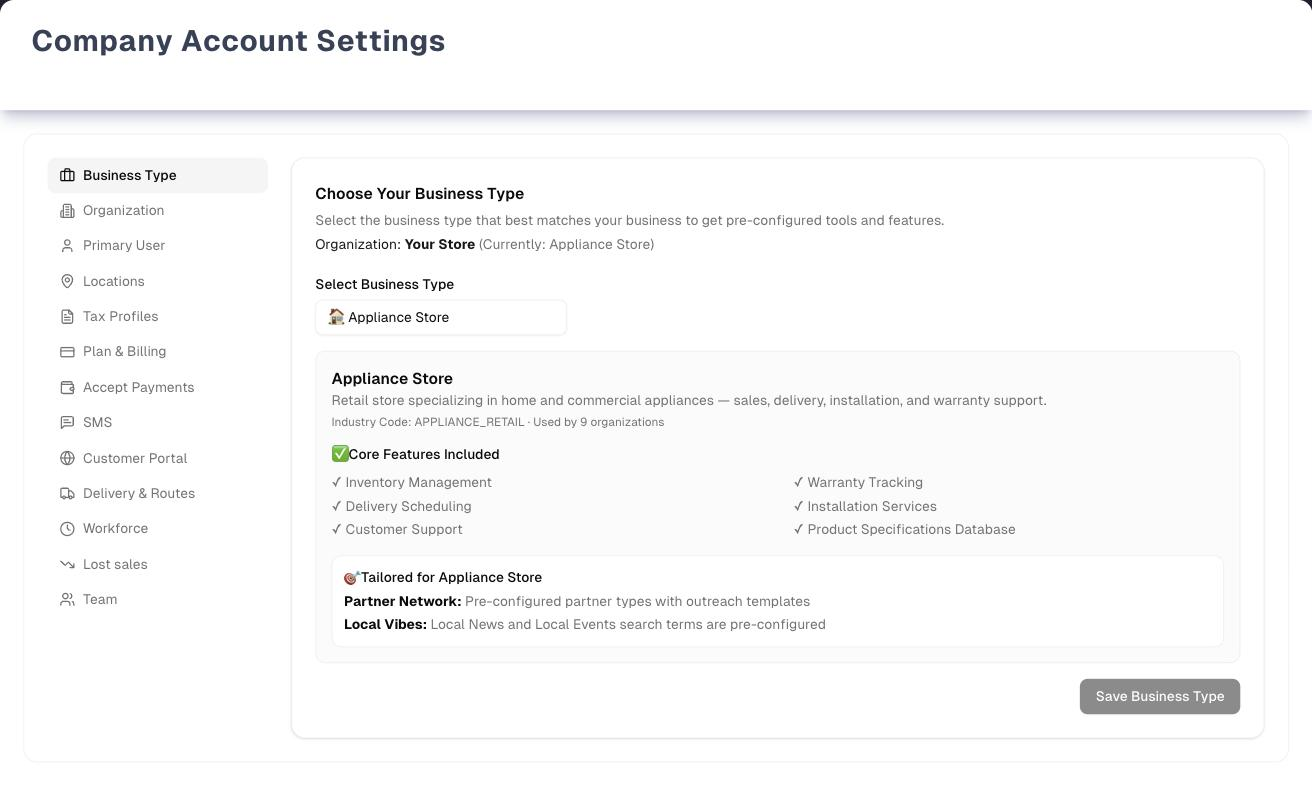
The screenshot is the Settings demo: a sample store ("Your Store", an appliance store) with invented data. Open it with Demo at the top right of Settings. The picture shows 13 rail entries; the live rail has 15, with Bank Connections after Accept Payments and AI after Lost sales.
The sections
| Section | What it holds | Full guide |
|---|---|---|
| Business Type | The industry your store follows. Other features read it: the Dashboard's widgets, the procurement import templates, partner types and outreach templates, Local Vibes search terms, and the default Lost sales lists until you set your own. Saving only links the type; nothing is copied or overwritten | Below |
| Organization | Store name and phone (printed on invoices and receipts, unless a location has its own name on invoices), description, business time zone, invoice terms & conditions, and the company logo. There is no address here: each location has its own | Below |
| Primary User | Your own profile, whoever is signed in: name, email (with email verification), phones, job title and department | Below |
| Locations | Your stores and warehouses: address, phone, email, opening hours, Google review link, and the business name each store's invoices print. With several stores, each one's paperwork can carry its own name ("Amy's Discount Mountain View") while the organization keeps one. Adding one needs a free location licence (each main plan covers one location, and so does a free trial). A location needs a full street address to take in-person card payments | Below |
| Tax Profiles | The tax rate new sales and special orders start with: normally the default profile's active rules, added together. Add, edit and delete profiles here; your first one is created in onboarding | Below |
| Plan & Billing | What you pay UpChannels: plan, add-ons, user packs, invoices, cancellation | Plan & Billing |
| Accept Payments | What your customers pay you: Stripe connection, card readers, payouts, fees, disputes | Accept Payments |
| Bank Connections | Link your bank so Bank Reconciliation can match its feed against your books | Bank Reconciliation |
| SMS | Your messaging set-up, monthly quota and usage history | SMS set-up |
| Customer Portal | Turn the portal on and choose the automatic customer notifications (by email, and optionally by text) | Customer Portal |
| Delivery & Routes | The delivery switch, the day-before reminder, capacity, self-scheduling, auto-close and pricing zones | Delivery & Routes |
| Workforce | Pay period, overtime, clock records, time clock tablets, and what managers and staff may do | Workforce |
| Lost sales | The lists your team picks from when logging a walk-in or call (why a visit ended without a sale, where the visitor came from), complaint categories, and texting people back when what they asked for arrives | Walk-ins |
| AI | AI for your store on or off, and the daily summary: on or off, the hour it arrives and which managers get it | Settings → AI |
| Team | Add people, set roles and passwords, hide menu items per person, and the pay details Workforce uses | Team & menu visibility |
Bank connections also have a page of their own at the same address Stripe and Finance → Bank Reconciliation link to; it shows the same pane as the Bank Connections section.
AI is a section of Settings like the others: open it from the rail, or with /settings?tab=ai (the older address /settings/ai opens it too). It switches AI on or off for your store and sets up the daily summary. It used to be a page of its own, AI Settings, reached from the sidebar's Sales group; that sidebar item is gone. See Settings → AI.
Plan & Billing is what your store pays UpChannels. Accept Payments is what your customers pay your store. Each label names the direction the money moves.
Moving around Settings
- On a wide screen the rail sits on the left. On a narrower screen, such as a phone or an upright tablet, it becomes a strip of buttons across the top that scrolls sideways.
- Link straight to a section with
/settings?tab=plus the section's link name, for example/settings?tab=locationfor Locations (every link name is listed under Page header and toolbar in the reference below). Such a link switches the section whether you follow it from another page or from inside Settings. Clicking a rail entry updates the address too, so a refresh or a bookmark brings back the section you were on. Your browser's Back button leaves Settings rather than stepping back through the sections you looked at. - Save before you switch sections. Leaving Business Type, Organization or the Create New Location form throws away unsaved edits, with no warning.
- Saves are confirmed in a green bar at the top of the page (Business Type confirms inside its own section as well), and errors show in a red bar with Retry. The Edit Location and Edit Tax Profile dialogs show their own errors inside the dialog, just above the buttons, and stay open so you can fix the problem and save again.
Who can open Settings
- Let in: the store's owner (the Owner switch in Team is on), anyone with the owner role and the store's only active member. People switched off or removed in Team don't count, so if everyone else has been switched off, the one person left is let in. Inside Settings there are no manager or staff levels: getting in is all or nothing — but what you can then change is not (next two bullets).
- Everyone else sees "Redirecting..." and is sent to Shortcuts. Signed-out visitors go to the sign-in page.
- The sidebar Settings button, and the Shortcuts tiles General Settings and Billing Management, show to everyone Settings opens for: the Owner switch, the owner role, or the store's only active member. What you can change once inside still depends on which of those you are.
- The on/off switches in Accept Payments, Customer Portal and Delivery & Routes, and several Team controls, work only for people whose Owner switch is on. The Workforce settings also work for anyone with the owner role. Anyone else who opens those panes sees the switches greyed out, with "Only the organization owner can change this."
- The standalone Plan & Billing page is open to every signed-in user, but changing anything there — subscribing and paying included — needs the Owner switch or the owner role. Everyone else sees it read-only.
Settings that change what other people see
A few switches here decide whether a feature exists for your team at all:
| Switch | Effect |
|---|---|
| Delivery & Routes → Enable Delivery & Routes | Off hides Routes and delivery scheduling for everyone in the organization, and driver links already sent stop working |
| Customer Portal → Enable customer portal | Off means staff cannot send portal links, and existing links show an unavailable page |
| Workforce → Enable Workforce | Off stops the time clock, timesheets and pay runs. Team → Workforce and Team → My Hours stay in the sidebar while your plan includes Workforce (Premium, or a free trial); on other plans they show only while this switch is on |
| Workforce → Permissions | Decides what managers and staff may do in Workforce, including whether managers see pay rates at all |
| Team → User Visibility Settings | Hides individual menu items for one person. See Team & menu visibility |
All three feature switches default on. Only the owner can flip the Delivery & Routes and Customer Portal switches; the Workforce switch also works for anyone with the owner role. Every section stays in the rail whatever your plan. A section your plan does not include explains the plan boundary inside its pane: "The customer portal is included in Pro and Premium", "Workforce is included with Premium", and, for card payments, "Card payments is an add-on".
Tips
- Set the Business Timezone first (Organization). Until it is set, date filters on screen follow each viewer's own browser time zone, while walk-ins, delivery windows and the driver app use UTC.
- A logo change saves on its own, at once. It does not save anything else in Organization, and it keeps what you have typed there, so you can add the logo first and save the rest afterwards.
- Load Template fills Invoice Terms with appliance-store wording (safety, warranty, "late fees (12% APR)", returns). Edit it to match your store, then Save Organization.
- On invoices, the order's location phone wins over the Organization Phone. The Organization Phone is used only when that location has no phone.
- To change the tax rate new orders start with, edit the rules of your Default profile. The rate is the sum of its active rules.
Troubleshooting
| Problem | Why | What to do |
|---|---|---|
| No Settings button in the sidebar | It shows to everyone Settings opens for, so you are not one of them: no Owner switch, no owner role, and not the store's only active member | Ask the owner to make the change, or to give you the Owner switch in Team |
| Opening Settings lands on Shortcuts | You are not the owner, an owner by role, or the store's only active member | Ask the owner to make the change, or to give you the Owner switch in Team |
| Create New Location opens License Limit Reached (or Subscribe to add more locations with no subscription) | Every location licence is in use. A free trial carries one, like a single plan, so a trial store can create its first location and meets this on the second. A store that moved across with more than one keeps a licence for each, so it meets this on the next one | Add a main plan in Plan & Billing (one plan = one location) |
| Save in Edit Location or Edit Tax Profile leaves the dialog open | The save was refused, and the reason is in a red note just above the buttons | Read the note, fix what it names and save again |
| I cannot clear my name or my email in Primary User | They are required: saving with one of them empty shows a message under the field and saves nothing | Type the value back in. Phones, job title and department can be cleared |
| Save Organization shows "Organization name is required" | The store needs a name. The phone is optional | Type a name and save again |
| The Default badge moved to another profile | Only one profile can be the Default. Turning Default Profile on and saving turns it off on the one that had it | Nothing to do. To move it back, edit that profile and turn Default Profile on |
| "Nothing was changed: only the store owner can change locations." (or "…tax profiles.") | You are the store's only active member but have neither the Owner switch nor the owner role, so Locations and Tax Profiles are view-only for you | Contact UpChannels support |
What's next
- What you pay us: Plan & Billing
- What customers pay you: Accept Payments
- Your people, roles and menus: Team & menu visibility
- Delivery rules: Delivery & Routes
- Portal emails: Customer Portal
- First-time set-up of business type, locations and tax: Onboarding
Detailed reference
Every button, icon, field and message on this page, for when you need the exact detail. Each panel starts closed — open the one you need.
Page header and toolbar
| Control | Where | What it does | Notes |
|---|---|---|---|
| Settings (gear icon, label under it) | Sidebar, bottom row next to Support and Ask AI | Opens Settings on the Business Type section. Highlighted while you are on any settings page | Shows to everyone Settings opens for: the Owner switch, the owner role, or the store's only active member. The button and the page answer the same question, so it is never missing for someone Settings would let in |
| "Loading..." | Whole settings area | Shown while the app checks whether you may use Settings | Every settings page |
| "Redirecting..." | Whole settings area | Shown briefly before someone who may not use Settings is sent to Shortcuts. A signed-out visitor is sent to the sign-in page | Every settings page except the standalone Plan & Billing page |
| Loading card: title "Company Account Settings", "Loading your profile information...", spinner "Loading profile..." | Page body | Shown while your profile, the organization, its locations and tax profiles load | Also after Retry, Reload Profile and Save Primary User Profile: the whole page is swapped for this card, so every section reloads afterwards |
| Title Company Account Settings | Top of page | Page heading | — |
| Subtitle "Manage your personal information and organization settings" | Under the title | — | — |
| Red bar "Error: …" (alert icon) | Top of the settings card, above the rail | Shows the latest page-level error: loading failures, verification-email errors, and errors from Organization, Locations and Tax Profiles saves | Stays until a successful Retry or reload. Verification-email errors clear after 5 seconds. Errors raised while an Edit Location or Edit Tax Profile dialog is open appear in the dialog instead, not here |
| Retry (refresh icon) | Inside the red bar | Clears the error and reloads your profile, the organization, its locations and tax profiles | Always in the red bar. Unsaved edits in the open section are lost |
| Go to Login | Inside the red bar | Opens the sign-in page, remembering this one. Signing in brings you back to Settings | Only when the error says "Please login" |
| Green bar (check icon) | Top of the settings card | Confirms the last save from Business Type, Organization, Primary User, Locations or Tax Profiles, plus "Verification email sent" and "Your email has been verified" | Disappears after 5 seconds. Business Type confirms inside its own section too |
| Rail (screen-reader name "Settings sections") | Left column on wide screens; on narrower screens a strip of buttons above the content that scrolls sideways | Each entry swaps the section on the right and writes it into the address, so a refresh or a bookmark comes back to the section you were on. The active entry is tinted | The address is replaced rather than added to, so the browser Back button leaves Settings instead of stepping back through the sections you looked at. A refresh opens the section named in the address, else Business Type |
| Switching sections | Rail | The section you leave is closed. Unsaved edits in Business Type, Organization and the Create New Location form are lost, with no warning. Unsaved Primary User edits survive | Each section reloads its data when you open it again |
Section links /settings?tab=… | Address bar | Opens that section, and switches to it whenever the address changes | An unknown name leaves the rail where it is (Business Type when the page has just loaded). A link followed from inside Settings switches the section too |
| Business Type (briefcase icon) | Rail, 1st | Opens the business type picker. Link: /settings?tab=industry | The section Settings opens on |
| Organization (building icon) | Rail, 2nd | Opens Organization Settings. Link: /settings?tab=organization | — |
| Primary User (person icon) | Rail, 3rd | Opens your own profile. Link: /settings?tab=user | — |
| Locations (map pin icon) | Rail, 4th | Opens the location cards or the create form. Link: /settings?tab=location | — |
| Tax Profiles (document icon) | Rail, 5th | Opens the tax profile cards. Link: /settings?tab=tax | — |
| Plan & Billing (credit card icon) | Rail, 6th | Heading "Billing & Subscription", "Manage your subscription plan and billing information", then your subscription. Link: /settings?tab=billing | See Plan & Billing |
| Accept Payments (wallet icon) | Rail, 7th | Heading "Card Payments (Stripe)". Link: /settings?tab=payments | Always listed. Without the add-on the pane shows "Card payments is an add-on". See Accept Payments |
| Bank Connections (bank icon) | Rail, 8th | Heading "Bank Connections (Plaid)", "Securely link your business bank accounts to import transactions and reconcile them against your sales, purchases, and expenses." Link: /settings?tab=integrations | Always listed. Without the Bank feeds add-on the pane shows "Bank feeds add-on", and any bank already connected still has its Disconnect. See Bank Reconciliation |
| SMS (message icon) | Rail, 9th | Heading "SMS Messaging", "Messaging setup, monthly quota, and usage history". Link: /settings?tab=sms | See SMS set-up |
| Customer Portal (globe icon) | Rail, 10th | Heading "Customer Portal". Link: /settings?tab=portal | Pro and Premium. See Customer Portal |
| Delivery & Routes (truck icon) | Rail, 11th | Heading "Delivery & Routes". Link: /settings?tab=delivery | Every plan. See Delivery & Routes |
| Workforce (clock icon) | Rail, 12th | Heading "Workforce". Link: /settings?tab=workforce | Premium. See Workforce |
| Lost sales (downward trend icon) | Rail, 13th | Heading "Lost sales". Link: /settings?tab=lost-sales | Lower-case "sales" in the label. See Walk-ins |
| AI (sparkles icon) | Rail, 14th | Heading "AI settings", "AI is included in every plan. Switch it on or off for your store, and choose when the daily summary arrives and who gets it." Link: /settings?tab=ai; /settings/ai opens it too | Every plan, whether AI is on or off (its switch is here). Only the owner can change it. See Settings → AI |
| Team (people icon) | Rail, 15th | Heading "Team Management", "Manage team members and their menu visibility settings". Link: /settings?tab=team | Checks your owner access a second time ("Loading..." while it checks). See Team & menu visibility |
Other ways into Settings
| Control | Where | What it does | Notes |
|---|---|---|---|
| General Settings / Billing Management | Shortcuts page, Get Started group | Open Settings / the standalone Plan & Billing page | Show to everyone Settings opens for: the Owner switch, the owner role, or the store's only active member |
| Location Management (gear icon) | Inventory → Transfer, page header | Opens Settings on Locations | — |
| Amber note "Date ranges currently use each viewer's browser timezone (…). Set your business timezone in Organization settings so date filters and reports match across your team." with the link Organization settings | Orders list | Opens Settings on Organization, with the Business Timezone drop-down on screen. Link: /settings?tab=organization | Only while no business time zone is set. X (Dismiss) hides it for good in this browser |
| Note "Walk-in days and times follow UTC until your business time zone is set in Organization settings." | Walk-ins page | Opens Settings on Organization. Link: /settings?tab=organization | Only while no business time zone is set |
| SMS settings (back arrow) | SMS usage page | Opens Settings on SMS | — |
| Go to Billing (See plans during a free trial, or with no plan) | License Limit Reached dialog | Opens the standalone Billing & Subscription page | Works the same from inside Settings and from Menu Visibility |
| Upgrade Plan (red) | Locations and Team licence panels, when over the limit | Opens the standalone Plan & Billing page | Only when over the limit |
| Upgrade plan / Upgrade to Pro | Workforce page when your plan does not include Workforce / an order's Customer portal link dialog when your plan does not include the portal | Open the standalone Plan & Billing page | Upgrade plan shows only to the owner or someone with the owner role |
| "Trial ends …" (or "… plan starts …" once a plan is chosen) | Sidebar, near the top, during a free trial | Opens the standalone Plan & Billing page | Only while the trial is running |
| Check Details | "Unlock Pro & Premium Features" and "Unlock Premium Features" banners on pages your plan does not fully include (for example Orders, Customers, Products, Expenses, Profit & Loss) | Open the standalone Plan & Billing page | Only when your plan does not include that page's feature |
| Team Management | Sales → Schedule, page header | Opens the standalone Menu Visibility page | Shown to everyone; anyone who may not use Settings is sent to Shortcuts |
| Edit in Team Management | Team → Workforce, Team tab | Opens the standalone Menu Visibility page | Owner (or owner role) only |
| Connect a bank in Settings, Disconnect a bank in Settings and the "Settings → Bank Connections" link | Finance → Bank Reconciliation | Open Settings on Bank Connections | Both buttons show to the owner: Connect a bank in Settings when no bank is connected, Disconnect a bank in Settings when the Bank feeds add-on is off and a bank is still connected. The link sits in the warning shown when a bank needs reconnecting. Everyone else is told to ask their owner |
| Customer Portal menu item | Sales section of the sidebar | Opens the standalone Customer Portal settings page | Shown to whoever may open Settings — the same people the Settings tile is shown to — and only when the portal is switched on or your plan includes it (Pro, Premium or a free trial) |
| Open portal settings | An order's Customer portal link dialog | Opens the standalone Customer Portal settings page | Only when the link could not be made because the portal is switched off |
| Open delivery settings | Routes page | Opens the standalone Delivery & Routes settings page | Owner only, when Delivery & Routes is turned off |
| Open Workforce settings | Workforce page | Opens the standalone Workforce settings page | Owner (or owner role) only, when your plan includes Workforce but it is turned off |
Tab: Business Type
| Control | Where | What it does | Notes |
|---|---|---|---|
| Spinner "Loading industry profiles..." | Section body | Shown while the list of business types and your store's current one load | Each time you open the section |
| Heading Choose Your Business Type (briefcase icon), "Select the business type that best matches your business to get pre-configured tools and features." | Section top | — | — |
| "Organization: … (Currently: …)" | Under the heading | Names the store you are editing and its saved business type | "(Currently: …)" appears only once a business type is saved |
| Select Business Type drop-down (placeholder "Select a business type...") | Section body | Lists every available business type with its emoji (🏷️ when it has none), alphabetically, with Other / General Business always last. Choosing one shows its details below; it does not save | Starts on the saved business type |
| Details panel: emoji (🏢 when none), name, description (or "Business type for … businesses"), "Industry Code: … • Used by … organizations" | Below the drop-down (blue) | Preview of the chosen business type | Only when one is selected |
| "✅ Core Features Included" and a ticked list | Details panel | The features that business type lists. Display only | Only when the type has a feature list |
| "🎯 Tailored for …" box: "Partner Network: Pre-configured partner types with outreach templates" and "Local Vibes: Local News and Local Events search terms are pre-configured" | Details panel | Display only | The same text for every business type |
| Save Business Type (save icon; "Saving..." with spinner) | Bottom right | Links the selected business type to your store and shows Business type "…" saved successfully! for 5 seconds; the "Currently" line updates and the green bar at the top of the page says Business type changed to "…".. Nothing is copied or overwritten: each feature reads the business type the next time its page loads | No confirmation. Hidden until a type is selected and your store has loaded. Shown even when the selection equals the saved type; saving again is harmless. Only an owner can save |
| Yellow box "Organization Required": "You need to be associated with an organization to set an industry profile. Please complete your organization setup first." | Section bottom | Explains why there is no Save button | When your store could not be loaded |
| Red box No Business Types Available: "No business types could be loaded from the backend. Contact UpChannels support." | Replaces the section | — | Only when the list really came back empty |
| Red box Business types could not be loaded with the reason under it (usually "Failed to load data. Please refresh the page.") | Replaces the section | Says the list could not be read, rather than claiming your store has none | When the read failed. Refresh; contact support if it repeats |
| Red box / green box with a message | Section top | This section's own errors and confirmations (see Messages) | — |
What the business type changes (each feature reads it live):
- the Dashboard's widget pack;
- the template set offered on the procurement Import tab;
- the tax rate a new order starts with when no tax profile applies (8% when the business type sets none);
- partner types and outreach templates in Partners;
- Local Vibes news and event search terms;
- the Lost sales reason, source and complaint lists, only until you set your own in Settings → Lost sales;
- the catalog look-up features when you add, edit or import products (for example Link / Refresh from catalog and Enrich from UpChannels Catalog), which the appliance business types turn on;
- whether delivery planning treats your jobs as deliveries, service visits or both;
- the words the customer portal uses for orders, appointments, deliveries, technicians and the store, where the business type sets its own.
It does not create product categories.
Tab: Organization
| Control | Where | What it does | Notes |
|---|---|---|---|
| Heading Organization Settings (building icon), "Edit your organization information and settings" | Section top | — | — |
| "No Organization Assigned": "Your account is not linked to an organization." | Replaces the form | — | When no store loaded |
| Red bar "Error: …" with Retry (refresh icon) | Section top | Save, upload and reload errors. Retry re-reads the organization | Retry is greyed out while reloading. Save and reload errors also show in the page's red bar, so they appear twice. Logo errors show only here and clear after 4–5 seconds |
| Green bar (check icon) | Section top | Save, reload and logo confirmations | Hides after 3–5 seconds |
| Box "Current Organization: …" with ID, Type, Created, Updated | Above the form (grey) | Read-only: your organization's ID (useful when contacting support), its type (for example "Company"), and when it was created and last changed | Always |
| Organization Name (building icon), placeholder "Enter organization name", helper "Shown on invoices and receipts. A location with its own Name on invoices (in Locations) prints that instead." | Basic Information | The store name. Printed at the top and foot of invoices, receipts and service sheets, and as the sender name on emailed invoices, for every order whose location has no Name on invoices of its own. The sidebar updates straight after saving | Required: saving with it empty shows "Organization name is required" under the field and writes nothing |
| Organization Phone (phone icon), placeholder "(555) 123-4567", helper "Shown on invoices and receipts when the order's location has no phone. Leave it blank to print no number." | Basic Information | Formats as you type to (555) 123-4567, up to 10 digits. On invoices the order's location phone wins; this number is used only when that location has none | Optional: clearing it and saving removes the number, and a store that has never had one can save everything else here |
| Description (placeholder "Organization description") | Basic Information | Free text | Can be cleared: clearing it and saving removes the description |
| Business Timezone drop-down | Basic Information | Options: "Eastern — America/New_York", "Central — America/Chicago", "Mountain — America/Denver", "Arizona, no DST — America/Phoenix", "Pacific — America/Los_Angeles", "Alaska — America/Anchorage", "Hawaii — Pacific/Honolulu", "UTC". A store with no time zone yet opens on a greyed "Choose a time zone" that can't be picked. Helper: "Sets where a day starts and ends for reports and date-range filters, the same for everyone on your team. While no time zone is set, date filters use each viewer's browser time zone and the server (timesheets, walk-in visit dates, delivery routes) uses UTC." | Every store holds one time zone: once one is set, the box offers only zones, so it can be changed but never cleared. Not required — a store with no zone yet can save its name, phone and terms without choosing one, and the save leaves it unset. Shows the zone the reports use, including one stored with the business address. A zone not on the list stays selected under its own name. A saved zone applies at once in this browser: the next page you open shows its dates and times in it, without a reload. Another computer picks it up within a second of opening a page (the first page it opens may still show the old zone) |
| Invoice Terms & Conditions (large text box). Placeholder "Enter your invoice terms and conditions. Supports basic markdown formatting:" with examples of bold, italic, bullet points and numbered lists. Helper: "This text will appear on all invoices. Supports markdown formatting (bold, italic, lists)." | Invoicing Settings | Printed at the bottom of invoices, with bold, italic and lists applied | Can be cleared |
| Load Template (document icon, small) | Right of the Invoice Terms label | Fills the box with a built-in appliance-store template: "1. Safety & Usage", "Buyer Responsibilities", "Warranty Limitations", "Payment & Fees" (including "late fees (12% APR)"), "Returns & Exchanges", "Service & Repair", "Liability Disclaimers". Does not save | When the box already has text, the browser asks "This will replace your current terms. Continue?" — OK replaces, Cancel keeps your text. Click Save Organization afterwards |
| Logo preview | Company Logo | Shows the current logo; clicking it opens the original image in a new tab (tooltip "Open original") | With no logo: a faded UpChannels logo and "No logo set — showing default preview." |
| Choose File (plus icon) | Company Logo | Opens the file picker. The chosen image uploads and becomes the store logo at once, with no Save needed. Shows "Logo updated successfully" here and at the top of the page; the sidebar logo updates too. The logo appears on invoices and receipts, service and dispatch sheets, procurement prints, and the customer portal | Helper "PNG, JPG, WEBP, SVG. Max 5 MB." Larger files and other types are refused. Anything you have typed in this section and not yet saved stays in the fields |
| Remove (trash icon) | Company Logo, next to Choose File | Deletes every logo uploaded for the store and clears the logo at once, with no confirmation. Shows "All organization logos removed" here and "Logo updated successfully" at the top of the page; the sidebar logo updates too | Only when a logo is set. Anything you have typed and not yet saved stays in the fields |
| Save Organization (save icon; "Saving...") | Form footer | Saves name, phone, description (removing it when you leave it empty), time zone and invoice terms, keeping the logo. "Organization updated successfully!" shows in the section and at the top of the page | Greyed out while saving. Refused for anyone who is not an owner |
| Reload Organization (refresh icon; "Reloading...") | Form footer | Throws away unsaved edits and re-reads the organization. The section shows "Organization data reloaded successfully" | Nothing is saved, so the top of the page stays quiet |
Tab: Primary User
This section edits the signed-in person's own profile, whoever opened Settings. It is not a separate "primary" account.
| Control | Where | What it does | Notes |
|---|---|---|---|
| Heading Primary User Profile (person icon), "Manage your personal information and contact details" | Section top | — | — |
| "Organization:" and a badge with the store name | Top of the form | Shows which store your account belongs to | Only when the store loaded |
| First Name (placeholder "Enter your first name"), Last Name ("Enter your last name") | Personal Information | Your name | A name already on file can't be emptied: saving with it blank shows "First name is required" / "Last name is required" under the field, and nothing is saved. If your account was set up without one, the box is blank and doesn't hold up the rest of the page; fill it in whenever you like and it is saved from then on |
| Email Address (placeholder "Enter your email") | Contact Information | The email you sign in with | Changing it and clicking Save moves your sign-in address too, and the message says so: "User profile updated. You now sign in with the new email address." The old address is written to as well — "Your UpChannels sign-in email has been changed" — so a change nobody there asked for is noticed at the mailbox that was being watched. The change is also kept in the audit log, with who made it. Required: an empty or badly formed address shows "Invalid email address" under the field, and nothing is saved. An address that already has an UpChannels login is refused, and your profile keeps the rest of the save |
| Badge Verified (check) or Not verified (cross) | Next to the Email Address label | Whether your sign-in email has been confirmed | Does not follow what is typed in the box until you save. A saved new address is confirmed straight away, so it stays Verified |
| Verify greyed out with "Save the new address first." | Right of the email box | Waits while the box holds an address you haven't saved | The link always goes to your saved sign-in address, so Save Changes first, then send it |
| Verify, then Resend ("Sending" with spinner) | Right of the email box | Sends "Welcome to UpChannels • Verify your email address", with a Verify email address button that lasts 24 hours, to your saved sign-in address — never to an address typed in the box but not saved. The green bar says "Verification email sent" and the button becomes Resend | Clicking the emailed button confirms that address, and only that address: if the account's email has changed since the link was sent, nothing is confirmed and Settings says so. On success it returns you to Settings (Business Type) with "Your email has been verified". A link that is expired, damaged or could not be checked also brings you back to Settings, with an amber note saying which, so Verify is right there |
| Mobile Phone (placeholder "(555) 123-4567"), Business Phone ("(555) 987-6543") | Contact Information | Format as you type, up to 10 digits | Optional: clearing one and saving removes it |
| Job Title ("Your job title"), Department ("Your department") | Work Information | Your job title and department | Optional: clearing one and saving removes it |
| Save Primary User Profile (save icon; "Saving...") | Form footer | Saves the fields above and reloads the whole settings page. "User profile updated successfully!" | Greyed out while saving. An optional field left empty is saved as empty; a required one blocks the save with a message under the field. Other errors show in the red bar at the top of the page |
| Reload Profile (refresh icon) | Form footer | Throws away unsaved edits and reloads everything on the settings page, showing the loading card meanwhile | — |
Tab: Locations
Every location that has not been deleted is listed, active and inactive. Each main plan (Basic, Pro or Premium) covers one location, and so does a free trial. So a trial store can create its first location here; a second one needs a plan. A store that moved across with several keeps a licence for each of them, so nothing it already has is over the limit — but it cannot add another until it subscribes. A store whose trial has ended and that never subscribed has no licence at all.
| Control | Where | What it does | Notes |
|---|---|---|---|
| Heading Organization Locations (map pin icon), "Manage all locations for your organization (… locations)" | Section top | The count includes inactive locations | When at least one location exists |
| Red line "Please assign your user to an organization to create locations" | Under the heading | Explains why Create is greyed out | Only when no store is loaded |
| Create New Location (building icon) | Section header, right | With a free location licence, replaces the list with the Create New Location form. Otherwise opens License Limit Reached | Greyed out with no store, and while your licence details are still loading, so you are never told the limit is reached before UpChannels knows |
| Panel Location License Usage (info icon): "… of … locations used", "… available", and a bar | Under the header | Location licences in your plan against locations in use | Only with a subscription or an active trial. A trial reads "0 of 1 locations used / 1 available" before its first location and "1 of 1 / 0 available" after. The bar is always full: blue with room left, amber at 0 available; the whole panel turns red when you are over. Inactive locations count. The same shop entered twice counts once: when a store has such a duplicate, the panel adds "N cards below are the same shop entered twice, so they are not counted here" |
| "You have … more locations than your current plan allows. Please purchase … additional main plans to cover all locations." and Upgrade Plan (red) | Inside the licence panel | Upgrade Plan opens the standalone Plan & Billing page | Only when locations outnumber licences |
| Location card: name, badge Active (green) or Inactive (grey), badge Warehouse (blue), badge Same shop as another card (amber), and the type (Store, Warehouse, Office, Distribution Center or Service Center) | Card grid | Read-only summary | The Warehouse badge shows when the type is Warehouse. The amber badge shows on the later of two cards with the same name and address — the same shop entered twice — so you can tell which is the duplicate |
| Card body: description, address ("No address provided" when empty), "Added 1 Sep 2026", email, phone | Card | Read-only | Street Address 2 is not shown. The phone reads the way people write it, for example (555) 123-4567. A number that is not a plain US one — an international number, or one with an extension — is shown exactly as it was saved. The opening hours read as one line, for example "Mon 09:00–17:00, … · closed Sun". Description, email and phone appear only when set |
| Edit Location (pencil icon) | Card footer | Opens Edit Location: … | — |
| Delete Location (trash icon, red; "Deleting..." with spinner) | Card footer | Opens the Delete Location confirmation | Greyed out while that location is being deleted. A location that still holds stock cannot be deleted at all: the save is refused with "There is still stock at …. Deleting it would take those units out of your inventory figures without a trace. Move the stock to another location first, or switch this one off instead of deleting it." Units that have been sold, used or scrapped do not count, and neither do stock rows that are all zero |
| Empty state: heading Location Settings, "Create and manage your location information and settings", panel "Location License Usage" ("0 of … locations used", "… available"), "No Locations Found", "No locations are configured for your organization. Create your first location to get started." | Section body | Shown when the store has no locations | The licence panel shows only with a subscription or an active trial, and a trial reads "0 of 1 locations used / 1 available" — Create First Location works |
| Create First Location (building icon) | Empty state | Same as Create New Location, licence check first | Greyed out, with "Please assign your user to an organization first", when no store is loaded |
Create New Location form (replaces the list; heading Create New Location, "Add a new location to your organization"). Fields:
| Field | Required | Default | Rules and error text |
|---|---|---|---|
| Location Name (label shows an asterisk), placeholder "Enter location name", helper "This location name will be shown in the Inventory Management and Sales management features" | Required | Empty | Creating with it empty, or with only spaces, shows "Give the location a name." in the dialog and writes nothing. Spaces around the name are trimmed off |
| Location Type: Store, Warehouse, Office, Distribution Center, Service Center | — | Store | Warehouse adds the Warehouse badge |
| Name on invoices (placeholder "e.g. Amy's Discount Mountain View"), helper "The business name printed on invoices, receipts and service sheets for orders at this location, and the sender name on invoices you email. Leave it blank to use the Organization Name." | No | Empty | Spaces around it are trimmed off. Blank prints the Organization Name. It replaces the name at the top and foot of the printed invoice, the online invoice and receipt, the service sheet and the emailed PDF, and the email's sender name, subject and sign-off, for orders at this location. An order with no location prints your main location's. The Location Name above stays the short label in pickers and reports |
| Description (placeholder "Enter location description") | No | Empty | — |
| Email (placeholder "location@company.com") | No | Empty | Format not checked. Printed on invoices for orders at this location, ahead of the organization-wide email |
| Location Business Phone (placeholder "(555) 123-4567"), helper "Shown on invoices and receipts. A US number is tidied to (555) 123-4567. Anything else — a country code, an extension — is kept exactly as you type it." | No | Empty | A US number is written out as you build it and saved as its ten digits. A number with a +, an extension, or more than ten digits is left exactly as you typed it, in the box and in the record — so what you see is what is saved either way. Printed on invoices for orders at this location, ahead of the Organization Phone |
| Google review link (placeholder "https://g.page/r/…/review"), helper "Shown to customers after they leave feedback in the customer portal. Find it in your Google Business Profile under "Ask for reviews"." | No | Empty | Must start with https://, else "Google review link must start with https://" (in a red note just above the buttons; nothing is saved) |
| Opening hours — seven rows, Monday first, each with an opening time, a closing time and a Closed tick | No | Monday–Saturday 09:00–17:00, Sunday closed | As in Edit Location. Creating the location saves them. The daily brief reads only your main location's hours (your oldest active location), so a new location's hours count there only when it is your store's only active location; then they are confirmed if you changed a day from this starting week |
| Street Address: Google address search (placeholder "Start typing address (e.g., 177 Park Ave, San Jose)...") | No | Empty | Picking a suggestion that includes a street number fills Street, City, State and ZIP; a suggestion without one only fills Street, with the whole address in it. You can also just type. A status badge Verified, Unverified or Needs street number appears; it is advice only and never blocks saving. Street, city, state and ZIP are all needed before the location can take in-person card payments |
| Verify Address ("Verifying...") with "Click to verify this address with Google" | — | — | Under the search box while typed text is not yet verified |
| "Address Verified" with Show Details / Hide Details | — | — | After a successful check: shows Full Address, Street, City, State, ZIP and Country |
| Street Address 2 (placeholder "Suite 100") | No | Empty | Not shown on the card |
| City (placeholder "New York") | No | Empty | — |
| State (placeholder "Select state") | No | Empty | The 50 US state codes; no DC or territories |
| ZIP Code (placeholder "10001") | No | Empty | Digits only, up to 5 |
| Country | — | United States | Always greyed out |
| Active Location switch | — | On | Off marks the location Inactive: it drops out of the location picker on new orders and does not count as your active location in the set-up checklist. Inactive locations still use a licence |
Buttons:
| Control | Where | What it does | Notes |
|---|---|---|---|
| X (no label) | Form top right | Closes the form without saving | — |
| Cancel | Form footer | Closes without saving | — |
| Create Location (save icon; "Creating..." with spinner) | Form footer | Creates the location, returns to the list and shows "Location created successfully!" at the top of the page | Greyed out while saving. On an error the form stays open and the message shows in a red note just above the buttons |
Tab: Tax Profiles
New Tax Profile adds one — for a second tax area, or to replace a profile you deleted. Your first profile is created in onboarding. Rates are typed as percentages. New sales and special orders normally start with the rate of the default active profile, which is the sum of its active rules.
| Control | Where | What it does | Notes |
|---|---|---|---|
| Green bar "✅ …" | Section top | Save and delete confirmations | Hides after 3–5 seconds |
| Heading Tax Profiles (receipt icon), "Manage tax configurations and rules for your organization" | Section top | — | — |
| "… profiles total" | Header, right | How many profiles exist | — |
| New Tax Profile (plus icon) | Header, right of the count | Opens New Tax Profile, an empty version of the edit dialog | Hidden for anyone the page opens read-only. Only the store owner can actually add one — see the owner message below |
| Card "No Tax Profiles": "Your organization doesn't have any tax profiles configured yet.", "Tax profiles define how taxes are calculated for transactions." and New Tax Profile | Section body | The button opens New Tax Profile | When the store has no profiles |
| Profile card: name, badge Default (green), badge Active or Inactive, "… of … rules active" | Card header | Read-only summary | At most one profile in the store carries the Default badge |
| Total Tax Rate (percent icon) "…%" | Card body | The sum of the active rules, to three decimals: the rate new orders start with when this profile is used | — |
| "Tax Rules" list: each rule's name, rate "…%" and "Active" or "Inactive" | Card body | Read-only. Inactive rules are greyed and left out of the total | "No tax rules configured" when there are none |
| Pencil icon (tooltip Edit) | Card header, right | Opens Edit Tax Profile: … | — |
| Trash icon (tooltip Delete; "Deleting" with spinner) | Card header, right | Opens Delete Tax Profile | On the store's only profile it is greyed out with the tooltip "Cannot delete the last tax profile. At least one must exist." |
Tabs: Plan & Billing, Accept Payments, Bank Connections, SMS, Customer Portal, Delivery & Routes, Workforce, Lost sales, AI
Each of these sections has its own guide with every control. The same pane also opens on its own settings page.
| Control | Where | What it does | Notes |
|---|---|---|---|
| Plan & Billing | Rail | "Billing & Subscription": your plan, add-ons, user packs, invoices and cancellation | Also at the standalone Plan & Billing page, which every signed-in user can open, read-only unless you're the owner. Plan & Billing |
| Accept Payments | Rail | "Card Payments (Stripe)": the card-payments switch, Stripe account, card readers, payouts, fees and disputes | Stripe sends you back to the standalone Accept Payments page after set-up. Only the owner can change it. Accept Payments |
| SMS | Rail | "SMS Messaging": the messaging status card and the usage history | Also a standalone SMS page. SMS set-up |
| Customer Portal | Rail | The portal switch and automatic customer notifications (email, and optionally text) | Pro and Premium ("The customer portal is included in Pro and Premium"). Only the owner can change it. Customer Portal |
| Delivery & Routes | Rail | The delivery switch, day-before reminder, capacity, self-scheduling, auto-close and pricing zones | Every plan. Only the owner can change it. Delivery & Routes |
| Workforce | Rail | The Workforce switch, pay period, overtime, permissions and time clock tablets | Premium ("Workforce is included with Premium"). Only the owner, or someone with the owner role, can change it. Workforce |
| Bank Connections | Rail | Connected banks, each account's book scope, Connect a bank, Reconnect and Disconnect | Needs the Bank feeds add-on to connect or reconnect; disconnecting always works. Only the owner can change banks. Bank Reconciliation |
| Lost sales | Rail | Walk-in reasons, sources, complaint categories and texting back | Walk-ins |
| AI | Rail | "AI settings": AI for this store and the Daily summary (on or off, Send at, Who receives it) | Every plan. Only the owner can change it; anyone else Settings lets in sees it greyed. The address /settings/ai opens this section. Settings → AI |
Tab: Team
Team is covered control by control in Team & menu visibility. In short:
| Control | Where | What it does | Notes |
|---|---|---|---|
| Heading Team Management, "Manage team members and their menu visibility settings", card "Users Profile and Settings" | Section top | — | "Loading..." while your owner access is checked again |
| User License Usage panel, and Upgrade Plan when over the limit | Top of the card | Seats used against seats in your plan: 2 per main plan (location) plus 5 per user pack | Switched-off people still count; people you removed with Delete do not |
| Create User | Next to "Users" | Creates a sign-in straight away with a password you choose. No invitation email is sent. New people start as Staff unless you turn on Owner in the form, which creates a co-owner | Owner switch only. Greyed out while your seat count is still loading. With no free seat it opens License Limit Reached, or Subscribe to add more people during a free trial |
| Search box "Search users..." and the user list (badges Owner, Manager) | Left column | Pick the person to edit | — |
| User Profile card | Right column | Name, email, phones, Default Location, New Password, Active, Owner, Role (Manager / Staff), Delete and Save | Delete removes the person and frees their user seat. The Owner switch is greyed for the store's last owner |
| User Visibility Settings card | Right column | Per-person Visible switches for each menu item, saved instantly; Reset to Default Menu | Owners always see every item |
| Worker Details card | Right column | Job title, hourly and overtime rate, payroll employee code, field worker, skills and service areas used by Workforce and Schedule | Owner switch only |
Dialog: Edit Location
Title Edit Location: … (pencil icon), "Update the location information and settings". It scrolls when taller than the screen.
Fields:
| Field | Required | Default | Rules and error text |
|---|---|---|---|
| Location Name (asterisk, same helper as the create form) | Required | Current value | Saving with it empty, or with only spaces, shows "Give the location a name." in the dialog and writes nothing. Spaces around the name are trimmed off |
| Location Type | — | Current value | Changing to or from Warehouse adds or removes the Warehouse badge on save |
| Name on invoices (same placeholder and helper as the create form) | No | Current value | As on the create form. Clearing it and saving puts the Organization Name back on this location's invoices. Invoices already sent keep the name they were sent with; reprinting an order uses the name saved now |
| Description, Email | No | Current values | Email format not checked |
| Phone (placeholder "(555) 123-4567"), same helper as the create form | No | Current value | Same as "Location Business Phone" on the create form |
| Opening hours — seven rows, Monday first, each with an opening time, a closing time and a Closed tick | No | What the location has, or Monday–Saturday 09:00–17:00 with Sunday closed for one that has never been edited | Ticking Closed empties that day's times; unticking it puts 09:00–17:00 back. A day that is open needs both times and a close after its open, or the save is refused with, for example, "Friday closes before it opens." Walk-ins spreads its end-of-day visits across these hours and leaves a closed day out, and Close of day does the same. On your main location (your oldest active one, the only one the daily brief reads), saving the dialog also confirms these hours for the brief: its opening-hours card stops asking, and a morning they mark closed gets no brief. That is when you changed a day here, or when the hours were already other than setup's Monday–Saturday 09:00–17:00 with Sunday closed (then a save of anything else confirms them too). Setup's week left as it was is never confirmed by a save, so changing only the phone confirms nothing: if those are your real hours, answer Yes, 9 to 5, Mon to Sat on the brief's opening-hours card. Saving another location's hours changes nothing for the brief |
| Google review link (same helper as the create form) | No | Current value | Must start with https://: "Google review link must start with https://", shown in a red note just above the buttons, with nothing saved |
| Street Address 1 (placeholder "123 Main Street") | No | Current value | A plain text box: no Google address search here |
| Street Address 2, City, State, ZIP Code | No | Current values | Same rules as the create form |
| Country | — | United States | Always greyed out |
| Active Location switch | — | Current value | Off marks the location Inactive |
Buttons:
| Control | Where | What it does | Notes |
|---|---|---|---|
| X (corner), Esc, or a click outside | Dialog | Closes without saving | Edits are discarded |
| Cancel | Footer | Closes without saving | — |
| Save Changes (save icon; "Saving..." with spinner) | Footer | Saves every field, closes the dialog, updates the card and shows "Location updated successfully!" at the top of the page | Greyed out while saving. On an error the dialog stays open and the message shows in a red note just above the buttons. On your main location (your oldest active one), the opening hours it saves count as confirmed for the daily brief, unless they are setup's week left as it was (see Opening hours above) |
Dialog: Delete Location
| Control | Where | What it does | Notes |
|---|---|---|---|
| Title Delete Location, "Are you sure you want to delete "…"? This action cannot be undone." | Confirmation | — | Opened from a card's Delete Location |
| Cancel | Footer | Closes; nothing changes | — |
| Delete (red) | Footer | Removes the location from Settings and from every location picker, and shows "Location deleted successfully!" | A location that still holds stock is refused, with the message under Delete Location in the Locations panel. Orders and staff at the location are not checked. There is no restore button |
Dialog: License Limit Reached
Opened by Create New Location or Create First Location when no location licence is free. Team's Create User opens the same dialog for users (see Team & menu visibility). During a free trial, or with no plan at all, it is worded for subscribing instead of for buying a licence.
| Control | Where | What it does | Notes |
|---|---|---|---|
| Title License Limit Reached (warning triangle), "You've reached your location license limit." | Header | — | Users version: "You've reached your user license limit." During a free trial: Subscribe to add more locations with "Your free trial covers 1 location. Choose a plan to add more." — the number is what your trial actually covers, so a store that moved across with three locations reads "3 locations" (users: Subscribe to add more people, "Your free trial covers 2 users…"). With no trial and no plan: Subscribe to add locations with "Your store doesn't have a plan yet. Choose one to add locations." If your plan could not be read at all: We couldn't check your plan with "Your plan couldn't be read just now, so we can't tell whether you can add more locations." |
| "Locations Used" (map pin) "… / …" and a bar | Body | Current usage | A trial store that already has its one location shows "1 / 1". Left out when your plan could not be read, because there are no figures to show |
| "How licenses work": "Main Plan: Each plan covers 1 location with 2 users included"; "User Packs: Each add-on pack adds 5 users"; "Total Users: (Locations × 2) + (User packs × 5)" | Body (blue) | Explains the licence maths | — |
| "To add more locations, please upgrade your subscription by purchasing additional location licenses." | Body | — | Locations version. During a free trial, or with no plan: "Every plan covers 1 location with 2 users. Subscribe first, then add locations and user packs from the billing page.", and the button reads See plans. Either button opens the Billing & Subscription page |
| Cancel | Footer, left | Closes | X, Esc and a click outside also close |
| Go to Billing (credit card icon) | Footer, right | Closes and opens the standalone Billing & Subscription page | Reads See plans during a free trial or with no plan. Works the same wherever the dialog was opened from |
Dialog: Edit Tax Profile / New Tax Profile
One dialog does both. Editing: Edit Tax Profile: … (pencil icon), "Update the tax profile settings and rules". Adding: New Tax Profile (plus icon), "Add a tax profile and its rules", with every box empty and no rules yet.
Fields:
| Field | Required | Default | Rules and error text |
|---|---|---|---|
| Name (placeholder "Name shown to users") | Yes | Current name; empty on a new profile | The save button stays greyed out while it is empty |
| Default Profile switch | — | Current value; on for the store's first profile, otherwise off | Marks the profile new orders start with. Turning it on and saving turns it off on the store's other profiles, so exactly one is the Default |
| Active switch | — | Current value; on for a new profile | Off: the profile is not offered on new orders. If the default profile is inactive, orders fall back to the first active profile |
| "Tax Rules" "(Used to identify options when creating sales orders)" | — | — | Heading of the rules area |
| Rule Name (placeholder "State Sales Tax") | Yes | Empty on a new rule | The name shown on the card. Saving with a blank name is refused: "Give tax rule 1 a name." |
| Tax Rate (%) (placeholder "8.25", steps of 0.001) | Yes | 0 on a new rule | Type the percentage: 8.25 means 8.25%. An empty box becomes 0. From 0% to 50%; anything higher is refused when you save |
| Rule Active switch | — | On | Off keeps the rule but leaves it out of the total |
Buttons:
| Control | Where | What it does | Notes |
|---|---|---|---|
| X (corner), Esc, or a click outside | Dialog | Closes and discards every change, including rules added or removed | — |
| Add Rule (plus icon) | Rules area header | Adds an empty "Tax Rule …" block, active, at 0% | Saved only with Save Changes |
| Trash icon (red, no tooltip) | Each rule block, top right | Removes the rule from the dialog; Save Changes deletes it for good | No confirmation |
| "No tax rules added yet" / "Click "Add Rule" to create your first tax rule" | Rules area | — | When the dialog holds no rules |
| Cancel | Footer | Closes without saving | — |
| Save Changes (save icon; "Saving..." with spinner), or Create Profile on a new one | Footer | Saving: saves the profile, deletes removed rules, updates edited rules and adds new ones, then refreshes the card. Adding: creates the profile with its rules and puts the new card first. "Tax profile and rules updated successfully!" / "Tax profile added successfully!" in the section, and "Tax profile updated successfully!" / "Tax profile added successfully!" at the top of the page | Greyed out while saving or while Name is empty. The profile and all of its rules are written together: if anything is refused, nothing at all is written, and the dialog stays open with the reason in a red note just above the buttons |
Dialog: Delete Tax Profile
| Control | Where | What it does | Notes |
|---|---|---|---|
| Title Delete Tax Profile, "Are you sure you want to delete "…"?", "It goes out of your tax lists. Orders already taxed keep the tax they were charged, and nothing is erased from your records — UpChannels support can put it back." | Confirmation | — | Not offered on the store's only profile |
| "… tax rules go with it" (one rule: "1 tax rule goes with it"), "These stop being offered on new orders:", then up to three rules as "• … (…%)" and "• ... and … more rules" | Amber note | Tells you which rules leave your tax lists with the profile. The rules themselves are kept, so the tax on past orders is unchanged | Only when the profile has rules |
| "ℹ️ This is a default tax profile. Make sure you have another profile set as default before deleting this one." | Blue box | Reminder only; nothing enforces it | Only for a profile marked Default |
| Cancel | Footer | Closes | — |
| Delete Tax Profile (red) | Footer | Takes the profile and its rules out of Settings and out of new orders. Tax profile "…" removed, along with its … rules. (or Tax profile "…" removed.) in the section and "Tax profile removed." at the top of the page | There is no restore button in the app: ask UpChannels support to put a profile back |
Sub-page: standalone settings pages
Every page below sits behind the same owner check as Settings, except the Plan & Billing page.
| Page | What it shows | How you get there | Notes |
|---|---|---|---|
| Plan & Billing (heading "Billing & Subscription"; "Loading subscription…", "No organization found in session.") | The same subscription pane as the Plan & Billing section. Also completes a Stripe checkout when you come back from it | Upgrade Plan, Upgrade plan, Upgrade to Pro, Check Details, the sidebar's "Trial ends …" row, Shortcuts Billing Management; an expired trial is sent here | Open to every signed-in user, so an expired trial can still pay. Changing anything there — subscribing and paying included — needs the Owner switch or the owner role; everyone else sees it read-only with "Only the store owner can change billing. Ask your owner to subscribe or make changes here. If this store has no owner to ask, contact UpChannels support." |
| Accept Payments | The Accept Payments pane | Where Stripe returns you after set-up | Owner check |
| SMS ("SMS Messaging", "Your messaging setup, monthly quota, and usage history.") | The same SMS cards as the SMS section | — | Owner check |
| Customer Portal | The Customer Portal pane | Sales → Customer Portal menu item (shown to everyone Settings opens for, when the portal is on or the plan is Pro, Premium or a trial); Open portal settings in an order's Customer portal link dialog when the portal is off | Owner check |
| Delivery & Routes | The Delivery & Routes pane | Open delivery settings on the Routes page, shown to the owner while Delivery & Routes is turned off | Owner check |
| Workforce | The Workforce pane | Open Workforce settings on the Workforce page, shown to the owner (or someone with the owner role) while your plan includes Workforce but it is turned off | Owner check |
| Lost sales | The Lost sales pane | — | Owner check |
| Menu Visibility (breadcrumb "Settings › Users › Menu Visibility") | The same Team Management editor as the Team section | Team Management on Sales → Schedule; Edit in Team Management on Team → Workforce, Team tab | Owner check. The "Settings" and "Users" crumbs are plain text, not links. See Team & menu visibility |
| Bank Connections (Plaid) ("Securely link your business bank accounts to import transactions and reconcile them against your sales, purchases, and expenses.") | The same pane as the Bank Connections section: connected banks with their status, Connect a bank, Reconnect, each account's book scope (Primary (reconciled), Excluded, Unassigned) and Disconnect | The Bank Connections rail entry, or from Finance → Bank Reconciliation: Connect a bank in Settings, Disconnect a bank in Settings on the add-on card, or the "Settings → Bank Connections" link in the reconnect warning | Connecting and reconnecting need the Bank feeds add-on, which UpChannels turns on; disconnecting stays available without it, so Plaid's charges can always be stopped. Only the owner can connect or change banks. See Bank Reconciliation |
| Settings demo ("Company Account Settings — Demo") | Sample settings | Demo (top right of Settings), or its address | See the Demo mode panel |
Messages you may see
| Message | When it appears | What to do |
|---|---|---|
| "Loading..." | Opening any settings page while access is checked | Wait |
| "Redirecting..." | Someone who may not use Settings opens a settings page; they land on Shortcuts | Only the owner, owners by role and a store's only active member can use Settings. Ask the owner |
| "Loading your profile information..." / "Loading profile..." | The settings page is loading | Wait |
| "Error: No user data found. Please login first to access your profile." (with Go to Login and Retry) | No signed-in user when the page loaded | Click Go to Login and sign in; you come back to Settings |
| "Error: …" with Retry | Loading Settings failed, for example because your profile could not be read | Click Retry; contact support if it repeats |
| "Your email has been verified" | Back from the verification email's link | Nothing to do |
| "Email verification succeeded but backend update could not be confirmed." | Back from the link, but the confirmation could not be recorded | Click Verify again; contact support if it repeats. Shown in an amber note at the top of Settings, with Dismiss |
| "Failed to mark email as verified" | An error while applying the verified state | Open the link again or click Verify |
| "That verification link was for a different email address. Send a new one." | Back from a link that was sent before the sign-in address changed | Click Verify to send a fresh link to the address the account has now. Shown in the same amber note |
| "That verification link has expired. Click Verify to send a new one." | The verification link is over 24 hours old | Click Verify or Resend for a new link. The link brings you back to Settings and says this in an amber note, with Dismiss |
| "That verification link could not be read. Click Verify to send a new one." | The link was damaged in the email, or part of it is missing | Click Verify or Resend for a new link |
| "We could not check that link. Click Verify to send a new one." | Something went wrong while checking the link | Click Verify or Resend; contact support if it repeats |
| "Verification email sent" | After Verify or Resend | Check the inbox of your saved sign-in address; the link lasts 24 hours |
| "Failed to send verification email" | The email could not be sent | Try again later |
| "No authentication token found. Please sign in again." | Verify clicked after your session ended | Sign in again |
| "User profile updated successfully!" | Primary User saved | Empty fields were not saved |
| "Error: No authenticated user. Please login first." (with Go to Login and Retry) | Save Primary User Profile after your session ended | Click Go to Login and sign in; you come back to Settings |
| "Error: Failed to save user profile" or another error text | Save Primary User Profile failed | Try again |
Business type "…" saved successfully! | Business Type saved | Nothing to do |
| "Please select an industry profile and ensure you have an organization" | Saving Business Type with nothing selected or no store loaded | Pick a business type |
| "Nothing was changed: only the store owner can change the business type. If you are the owner, reload the page and try again." in the section's red box | The Business Type save was refused. Only an owner can change it | Ask an owner, or reload if you are one |
| "Failed to load data. Please refresh the page." | Business Type could not read your store or the list of business types | Refresh the page |
| "No Business Types Available": "No business types could be loaded from the backend. Contact UpChannels support." | The business-type list really is empty | Contact support |
| "Organization Required": "You need to be associated with an organization to set an industry profile. Please complete your organization setup first." | Business Type with no store loaded | Finish onboarding |
| "No Organization Assigned": "Your account is not linked to an organization." | Organization with no store loaded | Finish onboarding or contact support |
| "Organization updated successfully!" | Organization saved. It never appears after Reload Organization, which saves nothing | Nothing to do |
| "Organization data reloaded successfully" | Reload Organization or Retry worked. It shows in the Organization section only | Nothing to do |
| "No organization ID available to reload" / "Organization not found" / "No organization found to update" | Reload or save with no store loaded | Refresh the page; contact support if it repeats |
| "You don't have permission to update this organization. Only the store owner can change organization settings." | An Organization save or logo change was refused | Ask the owner |
| "Failed to save organization" / "Failed to reload organization" | Other Organization errors | Try again |
| "Organization name is required" | Save Organization with the name empty | Type a name; nothing was saved |
| "First name is required" / "Last name is required" / "Invalid email address" | Save Primary User Profile after emptying a name that was on file, or with the email empty or badly formed | Fix the field; nothing was saved. An account that never had a name on file isn't stopped |
| Browser prompt such as "Please match the requested format." (wording varies by browser) | Save Primary User Profile with an email the browser itself rejects | Fix the address |
| "This will replace your current terms. Continue?" | Load Template while terms already exist | OK replaces, Cancel keeps your text |
| "Logo updated successfully" | Logo uploaded. It shows in the Organization section and at the top of the page | Nothing to do |
| "Presign failed: …Unsupported content type…" | The logo is not PNG, JPG, WEBP or SVG | Use a supported file type |
| "Presign failed: …File too large…" | The logo is over 5 MB | Use a smaller file |
| "Presign failed: …Unauthorized…" / "Presign failed: …No organization in session…" | Your session ended, or no store is loaded | Sign in again |
| "Upload failed: …" / "Logo upload failed" | The upload itself failed | Try again |
| "All organization logos removed" | Remove clicked | Nothing to do |
| "Failed to remove organization logos" | Remove failed | Try again |
| "No logo set — showing default preview." | No logo yet | Upload one with Choose File |
| "Location created successfully!" / "Location updated successfully!" / "Location deleted successfully!" | A location was created, edited or deleted | Nothing to do |
| "Google review link must start with https://" | Creating or saving a location whose review link does not start with https:// | Fix or clear the link. The message is in a red note just above the buttons, and nothing is saved until it is fixed |
| "Give the location a name." | Creating or saving a location whose name is empty or only spaces | Type a name. The message is in a red note just above the buttons, and nothing is saved until there is one |
| "Organization ID is required to create a location" / "…to update a location" / "…to delete a location" | No store is loaded | Refresh the page |
| "No location selected for editing" | Saving the edit dialog with no location in it | Reopen Edit Location |
| "Failed to create location" / "Failed to update location" / "Failed to delete location" / "Failed to save location" | A location save failed | Try again |
| "Nothing was changed: only the store owner can change locations. If you are the owner, reload the page and try again." | Creating, saving or deleting a location without owner access (the store's only active member, with neither the Owner switch nor the owner role), or the location was deleted elsewhere after the page loaded | Nothing was saved. Contact UpChannels support. If you are the owner, reload the page |
| "Please assign your user to an organization to create locations" / "Please assign your user to an organization first" | No store is loaded | Finish onboarding |
| "No Locations Found": "No locations are configured for your organization. Create your first location to get started." | The store has no locations | Create First Location (needs a free location licence) |
| "Location License Usage": "… of … locations used", "… available" | With a subscription or active trial | Information only |
| "You have … more locations than your current plan allows. Please purchase … additional main plans to cover all locations." | More locations than licences | Upgrade Plan, or delete unused locations |
| "License Limit Reached": "You've reached your location license limit." | Creating a location with no free licence | Go to Billing and add a main plan (one plan = one location). During a free trial the dialog reads "Subscribe to add more locations" and the button See plans; with no trial and no plan, "Subscribe to add locations" |
| Badges Verified / Unverified / Needs street number; "Unable to verify this address. Please check the spelling or try a more complete address."; "Street number missing. "…" is a street or area, not a specific building. Type your full address and pick the suggestion that includes your street number (e.g., "2415 S Bell Blvd")."; "Address lookup is not set up, so addresses are not checked here. Type the address as usual."; "Loading address verification..." | The Street Address search on Create New Location | Pick a suggestion that includes the street number. None of these block saving |
| "Tax profile and rules updated successfully!" / "Tax profile updated successfully!" | A tax profile was saved | Nothing to do |
| "Tax profile added successfully!" | A tax profile was added | Nothing to do |
Tax profile "…" removed, along with its … rules. / Tax profile "…" removed. / "Tax profile removed." | A tax profile was taken out of your tax lists. Its rules and the tax on past orders are untouched | Nothing to do |
| "Cannot delete the last tax profile. At least one must exist." (tooltip) | Hovering the greyed-out delete on the only profile | Edit that profile instead |
| "Cannot delete the last tax profile. At least one tax profile must exist." | Deleting the last profile (normally prevented by the greyed-out button) | Edit that profile instead |
| "Cannot remove "…" because it is still being used by existing records." | Removing the profile was refused because other records use it | Contact support |
| "No organization assigned" / "No organization found for your session." | A tax delete (the first) or save (the second) with no store loaded | Refresh the page |
| "Failed to save tax profile" / "Failed to delete tax profile" | A tax save or delete failed | Try again. A failed save changes nothing, so the card still shows what is stored |
| "Nothing was changed: only the store owner can change tax profiles. If you are the owner, reload the page and try again." | Adding, saving or deleting a tax profile without owner access (the store's only active member, with neither the Owner switch nor the owner role), or the profile was deleted elsewhere after the page loaded | Nothing was added, saved or deleted. Contact UpChannels support. If you are the owner, reload the page |
| "A tax rule you edited no longer exists. Reload the page to see the current rules." | Saving a profile one of whose rules was deleted elsewhere (for example in another tab) after Edit Tax Profile opened | Nothing was saved. Reload, then edit the profile again |
| "Enter a name for the tax profile." / "Give tax rule … a name." | Saving with the profile name or a rule name blank | Fill the name in; nothing was saved |
| "Enter a tax rate for "…" of 0% or more and no more than 50%." | Saving a rule with a rate above 50% (or a rate the box could not read). The named rule is checked even if you did not touch it this time, so a rate typed wrongly long ago has to be corrected before the profile can be saved again | Type a percentage between 0 and 50; nothing was saved |
| "A tax profile can hold up to 50 rules. Remove some and save again." | Saving a profile with more than 50 rules | Remove the rules you no longer charge; nothing was saved |
| "Another tab just made a different profile the default one. Reload the page and try again." | Two tabs (or two people) turned Default Profile on for different profiles at the same moment | Reload to see which profile is the Default now, then change it if you want |
| "This tax profile no longer exists. Reload the page to see the current profiles." | The profile was deleted elsewhere after Edit Tax Profile opened | Reload the page |
| "No Tax Profiles": "Your organization doesn't have any tax profiles configured yet." | The store has no profiles | Click New Tax Profile to make one |
| "No tax rules configured" / "No tax rules added yet" | A profile with no rules | Edit, then Add Rule |
| "Only the organization owner can change this." | A switch in Accept Payments, Customer Portal or Delivery & Routes, seen by someone whose Owner switch is off; in Workforce, by someone who is neither the owner nor has the owner role | The owner makes the change |
Who can use what
| Who | What they can do in Settings |
|---|---|
| Owner (Owner switch on) | Everything, including the owner-only switches in Accept Payments, Customer Portal, Delivery & Routes and Workforce, Team's Create User, passwords, Worker Details and Reset to Default Menu, and bank connections. Sees the sidebar Settings button and the Shortcuts tiles General Settings and Billing Management |
| Owner by role (Owner switch off) | Opens every settings page, from the sidebar Settings button like anyone else, can save Business Type and Organization, and can change the Workforce settings. The switches in Accept Payments, Customer Portal and Delivery & Routes are greyed out with "Only the organization owner can change this." Also sees the sidebar Settings button and the two Shortcuts tiles |
| Only active member of a store (no Owner switch, no owner role; anyone else is switched off or removed in Team) | Can open Settings from the sidebar Settings button, but Organization saves are refused with the permission message and Business Type saves are refused with "Nothing was changed: only the store owner can change the business type." and nothing is saved. Adding, saving or deleting a location or tax profile is refused with "Nothing was changed: only the store owner can change locations." (or "…tax profiles.") and nothing is saved. Owner-only switches are greyed out. Also sees the sidebar Settings button and the two Shortcuts tiles |
| Managers and staff | Cannot open Settings: "Redirecting..." then Shortcuts. Because Primary User is inside Settings, they cannot edit their own profile here. They can open the standalone Plan & Billing page, read-only |
| Gate | Effect |
|---|---|
| Plan | Business Type, Organization, Primary User, Locations and Tax Profiles work on every plan. Customer Portal needs Pro or Premium, Workforce needs Premium; a free trial counts as Premium |
| Add-ons | Accept Payments needs the card-payments add-on; Bank Connections needs the Bank feeds add-on |
| Location licences | Adding a location needs a free licence: one per main plan, and one during a free trial. Inactive locations count. A store with no trial and no subscription has none |
| Business Type and Organization saves | Refused for anyone who is not an owner, with the permission messages above |
Demo mode (/settings/demo)
- Open it: Demo (Play icon, amber) at the top right of Settings, or type
/settings/demoafter your UpChannels address. The demo sits behind the same check as the rest of Settings, so it opens for the Owner switch, the owner role or the store's only active member; everyone else sees "Redirecting..." and lands on Shortcuts. Demos are exempt from hidden menu items, but not from this check. - Header: "Company Account Settings — Demo", "A sample store's settings, populated with demo data. All actions are disabled."
- Banner: "Demo settings. A sample store — the numbers, the plans and the Stripe account are invented, and every control is disabled.", with Take a Tour.
- Still works: the rail entries (they switch the pane), Take a Tour and Exit Demo Mode. Disabled: every other button, switch and field.
- Leave: Exit Demo Mode (back arrow, header right) opens the live Settings page.
- Guided tour: five steps, which walk the rail: "Every setting your store has", "Organization", "Locations", "Tax Profiles" and "Team". It starts by itself the first time you open the demo, and switches the section for each step.
What the panes show:
| Rail entry | Demo pane |
|---|---|
| Business Type | "Choose Your Business Type", "Organization: Your Store (Currently: Appliance Store)", a read-only box "🏠 Appliance Store", its description, "Industry Code: … · Used by 9 organizations", "✅ Core Features Included" (Inventory Management, Warranty Tracking, Delivery Scheduling, Installation Services, Customer Support, Product Specifications Database), "🎯 Tailored for Appliance Store", and a greyed-out Save Business Type |
| Plan & Billing | A trialling store: "Trial Period" (trial ends October 2, 2026, greyed Request to Extend), "STEP 1 Choose one Main Plan" with sample Premium, Pro and Basic plans and greyed Subscribe buttons, and "STEP 2 Optional: Choose one or more Add-ons". See Plan & Billing |
| Accept Payments | "Card Payments (Stripe)" with Enable card payments shown on; a connected Stripe account (Connected, Charges enabled, Payouts enabled, with Manage Stripe account and Update business details); a Card-present locations card with Enable on the location that has none; two card readers with their device type, Stripe reader ID and an online / offline badge, and the Registration code / Location / Label (optional) form; Balance & payouts with Recent payouts; Platform fees reading "0.50% + $0.25 per card charge"; and "No disputes." See Accept Payments |
| Bank Connections | "Bank Connections (Plaid)" with one connected bank, First Community Bank, an Active badge and a last-synced time; two sample accounts tagged Primary (reconciled) and Excluded; a greyed Disconnect; and a Connect a bank card with its greyed button. See Bank Reconciliation |
| Organization | "Organization Settings" with a sample name, phone, description, business time zone and invoice terms, and greyed Reload Organization and Save Organization |
| Primary User | "Primary User Profile" with a sample owner's name, email, phones, job title and department |
| Locations | "Location Settings" with two sample locations (a store and a warehouse), each with greyed Edit Location and Delete Location, and a greyed Create New Location |
| Tax Profiles | A sample Default profile with three rules and its Total Tax Rate, and a second profile with no rules |
| SMS | "SMS Messaging" with a sample number, messages sent this month and the allowance |
| Customer Portal | "Customer Portal" with Enable customer portal shown on. See Customer Portal |
| Delivery & Routes | "Delivery & Routes" with Enable Delivery & Routes shown on and a sample daily delivery capacity. See Delivery & Routes |
| Workforce | "Workforce" with Enable Workforce shown on and a sample pay period. See Workforce |
| Lost sales | Sample complaint categories and an "Answer by (days)" value. See Walk-ins |
| AI | "AI is not part of this demo. Open Settings and choose AI in the rail to see your store's own." with Open Settings |
| Team | "Team Management" with three sample people, a greyed Create User and sample User Visibility Settings switches |
Differences from the live page: its own header (with Exit Demo Mode) replaces the live title and subtitle; no green or red status bars; Business Type is a read-only box, not a drop-down; each pane is a shorter sample of the live one; the active rail entry is grey rather than tinted; and on narrower screens the rail is a list above the pane rather than a sideways-scrolling strip.
Common questions
Why can't I see Settings in the sidebar? The sidebar Settings button shows to everyone Settings opens for: people whose Owner switch is on (Settings → Team), someone with the owner role, and the only active member of a store. Managers and staff in a store with other active people cannot use Settings at all: they have no button, and a Settings address sends them to Shortcuts.
Where do I change the address printed on invoices? In Locations. Invoices print the address and phone of the order's location; the Organization section has no address field. The Organization Phone is printed only when the location has no phone.
Why does Create New Location open "License Limit Reached"? Each main plan covers one location, and every licence is in use. A free trial carries one licence too, so a trial store can create its first location but not a second (a store that moved across with several keeps a licence for each, and adds no more until it subscribes). Add a main plan in Plan & Billing, or delete an unused location (inactive locations still count).
How do I add a tax profile or change the tax rate on new orders? Your first profile comes from onboarding; New Tax Profile in Tax Profiles adds another (only the store owner can). To change the rate new sales and special orders start with, open Tax Profiles, click the pencil on the Default profile, change or add rules with Add Rule, and Save Changes. The rate is the sum of the active rules.
I changed my email in Primary User. Do I sign in with the new one now? Yes, as soon as Save succeeds — with the same password, and reset links go to the new address too. If the address already has an UpChannels login the change is refused, the message says so, and you keep signing in with the old one.
Why do my staff see different dates in the same report? The business time zone is not set. Until it is, date filters follow each viewer's own browser time zone, while walk-ins and delivery use UTC. Set Business Timezone in Organization and click Save Organization.
My unsaved changes disappeared. Why? Switching rail sections throws away unsaved edits in Business Type, Organization and the Create New Location form, so save before you switch. The logo is the exception to worry about less: it saves on its own, and what you have typed in the rest of Organization stays in the fields.
How do I add a team member? Open Team and click Create User (owner only). You choose their password; no invitation email is sent. See Team & menu visibility.