Delivery & Routes Overview
Delivery & Routes turns the orders you already took into a day's work: a board of what is going out, a route in a sensible order, a link the driver opens on their own phone, and a signed record at the door that lands back on the order.
Delivery Routing & Dispatch is part of every UpChannels plan, and it is on for every store unless the owner turns it off. There is one switch — Enable Delivery & Routes in Settings → Delivery & Routes. With it off, Routes disappears from the sidebar and the Routes page explains itself instead of loading. Orders also lose their Delivery tab and the Schedule delivery… action, Create Order stops suggesting zone fees, and driver links you already sent stop working. Existing appointments are kept, and they come back when the switch is turned on again.
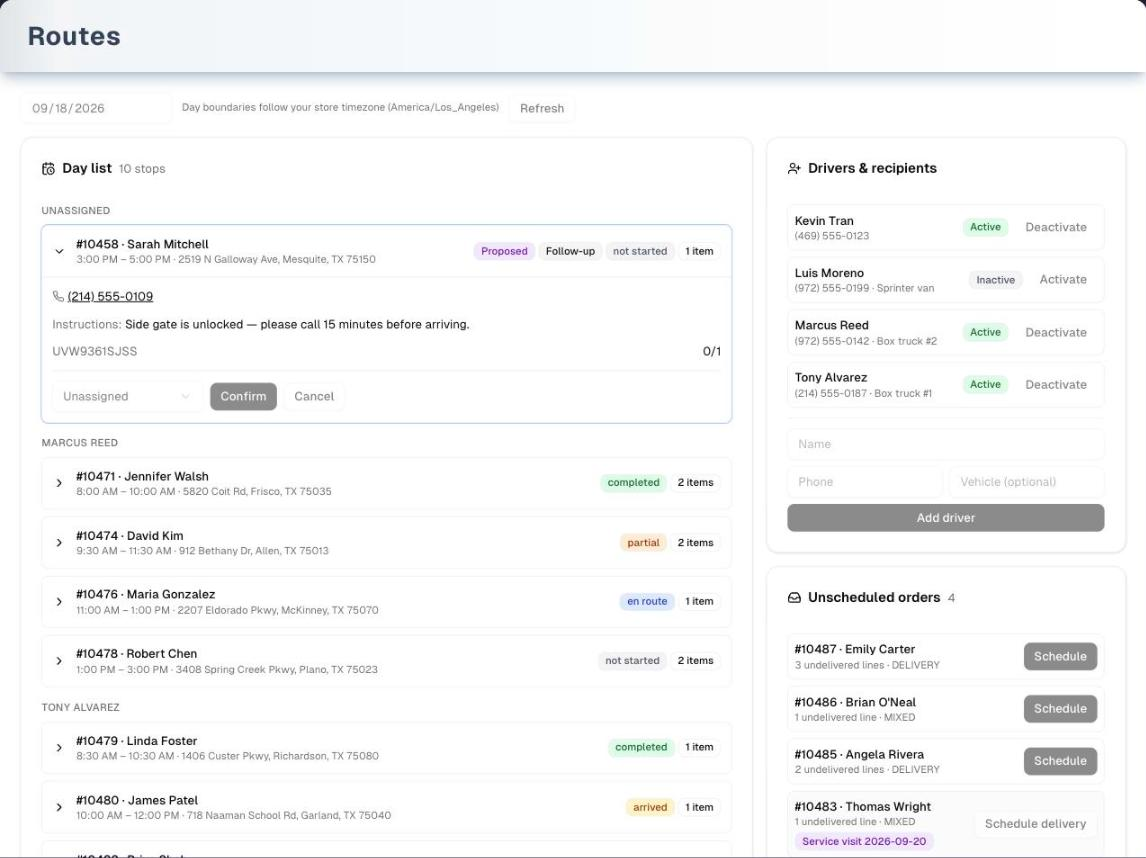
Pages in this section
The path an order takes
- It is sold as a delivery. On Create Order → Sell, set Fulfillment Options to Local Delivery or Mixed (Delivery + Service). Create Order starts at Store Pickup and ✅ Completed; as soon as you choose a delivery, it moves Order Status to 🚚 Pending Delivery for you and says so under the box. Pick another status yourself and it stays as you set it — but ✅ Completed, 🚛 Shipped and 📦 Delivered all count the goods as handed over at the sale, so an amber note warns you that the order cannot be scheduled on a route afterwards. If the address has a zip that is in one of your pricing zones, a ticked checkbox offers to add the delivery fee. If the driver is collecting the money at the door, leave Payment 1 at the amount the form filled in and its Status at Pending: the order saves, with an amber note reminding you it is saved as unpaid. Nothing about the address stops the order being created — a distance that cannot be worked out, no Google Maps set up, an address beyond 25 miles or in none of your zones, and a zone list that could not be read all leave Create Order working as usual.
- It is scheduled. You can schedule from the Routes board, or from the order itself with ⋯ More actions → Schedule delivery…. Pick a date, a time window and, if you already know, a driver. The appointment lands on that day's board and the customer is told. An order can have only one open appointment at a time.
- The day is arranged. One click gathers the day's un-routed deliveries and service visits, geocodes the addresses, puts the stops in order and saves the route. You can still drag the order around by hand afterwards.
- It is dispatched. Copy the driver's route link or text it to any phone. The link is good for 48 hours and needs no app and no login.
- It happens. The driver taps En route and Arrived, then works the proof-of-delivery flow: what was delivered, photos, a signature, haul-away, notes. Every tap streams back to the board.
- It lands back on the order. The order's Delivery tab keeps the appointments, the proof-of-delivery photos, the signature and the activity log. A partial delivery raises a follow-up for the rest; a failed attempt puts the order back in Unscheduled orders with a Failed — reschedule badge, and booking it in again cancels the failed visit. Only the owner can Reopen a completed or partial delivery, and reopening never changes stock.
- The customer is kept in the loop. They get a tracking page of their own. They also get automatic messages when the delivery is scheduled, rescheduled, on the way, delivered or partly delivered: by text when they allow SMS, otherwise by email. The day before, they get a reminder too, unless you turn it off.
Cancelling an order with ⋯ → Cancel order, or deleting it with ⋯ → Delete order, cancels its open delivery appointment and takes the stop off the route automatically, but only once the cancel or delete has gone through: a refused delete leaves every appointment as it was. Deliveries that were already completed or partly completed stay on record, and an order that has one cannot be deleted. Changing the order's status to Cancelled while editing it does not touch the appointment, so cancel that stop on the Routes board yourself.
Who sees what
| Person | Where they work | What they can see |
|---|---|---|
| Office / dispatcher | Routes in the app | The whole day: every stop, every driver, the map, the queue of unscheduled orders |
| Driver | A private link on their own phone (/drive/…) | Only their own stops for one day, only for 48 hours |
| Customer | A tracking link (/track/…), or the Customer Portal if you run it | Their own order's delivery timeline and delivery photos |
Nobody in the second or third row signs in to UpChannels. The link is the credential, which is why it expires and why UpChannels never puts analytics or chat widgets on those pages.
What the settings decide
All of these live in Settings → Delivery & Routes, and only the organization owner can change them. Anyone else who can open Settings sees them greyed out. The four switches save the moment you flip them, with no confirmation, even when you turn the whole feature off. Everything else saves with its own card's button. Each card keeps its own edits: saving one — or flipping a switch — leaves what you have typed in the others alone, and a card with changes you have not saved yet says Unsaved changes next to its button.
| Setting | What it does | Default |
|---|---|---|
| Enable Delivery & Routes | The one gate. Turning it off hides the Routes page, the route arranger, the order's Delivery tab and Schedule delivery…. It also stops zone-fee suggestions and makes outstanding driver links stop working | On |
| Day-before delivery reminder | Emails the customer the evening before a confirmed delivery, with their window and a link to follow the truck. The app checks every 5 minutes and sends from 5pm in your store's time zone, so a delivery booked earlier that day waits for the evening rather than going out at once. Turning it off stops the reminder for every store, the Customer Portal included. If you run the portal, the portal's own Day-before reminder (Settings → Customer Portal) has to be on as well; the link then goes to the portal and the reminder can also go by text | On |
| Missed delivery message | When the driver records a delivery as Not delivered, tells the customer at once that it could not be completed and that you will be in touch to book another — by text if they accept texts, otherwise by email. The window it names is the one attempted. If you run the portal with Customer self-scheduling (portal) on, the link lets them pick a new window themselves, while the order still has goods to deliver. Once per visit | On |
| Daily delivery capacity | A soft limit on deliveries per day (0–500). The board warns Over capacity when a day has more, and portal self-scheduling only offers days with room. Staff scheduling is never blocked. Empty means no limit | No limit |
| Customer self-scheduling (portal) | Lets customers with a portal link pick their own window. They can only choose within the Delivery days, Time windows, Lead time, Booking horizon and Blackout dates you set, and only on days with capacity left. It works only if you run the Customer Portal (Pro or Premium). These rules never limit staff. The switch saves instantly, but the days and windows need Save availability | Off. Mon–Fri, 9:00–12:00 and 13:00–17:00, lead time 1 day, horizon 21 days |
| Route auto-close | Open routes always close overnight. Set a time to close today's route earlier; it closes within about 15 minutes of that time. Unfinished stops return to the pool for re-routing. Separately, whatever you set here, a stop stuck at En route or Arrived resets to Not started 12 hours after its window ended | Overnight only |
| Delivery pricing zones | Zip-code zones with a surcharge (e.g. Zone 2 +$75). When you create a Local Delivery or Mixed order on Create Order → Sell and the address contains a 5-digit zip listed in a zone, a ticked checkbox offers to add the fee. Untick it to skip. While ticked, the fee is a line on the order, taxed at the order's rate, and it is in the Order Summary total and the auto-filled payment, so the order is saved with the total you see. Open Create Order again after you change zones to price with the new ones | None |
Day boundaries on the board, the driver's times, the customer's window, the Schedule delivery dialog and an order's Delivery tab are all computed in your store's time zone. With none set they part company: the board, the Schedule delivery dialog and the Delivery tab fall back to the time zone of the computer looking at them — and the board says so — while everything worked out on the server (the driver's day, Arrange day and the customer's tracking page) falls back to UTC and says nothing. Two people in different zones then see two different answers, and the driver may see a third.
Stop statuses
The board and the map pins use the same status names (the board writes them in lower case, for example "en route"). The driver's phone uses friendlier labels for some of them.
| Status | On the driver's phone | Means |
|---|---|---|
| Not started | Up next | Scheduled, nobody has set off |
| En route | En route | The driver tapped that they are on the way |
| Arrived | Arrived | The driver is at the door |
| Completed | Done | Proof of delivery captured; everything was delivered |
| Partial | Partial | Some lines delivered, some not — the office gets an automatic follow-up for whatever is still to be handed over |
| Failed | Not delivered | The visit handed nothing over, with a reason. No follow-up is raised. The stop stays under the date it was attempted, and the order goes back to the top of Unscheduled orders with a Failed — reschedule badge. Scheduling it again books the next attempt and cancels the failed visit |
| Cancelled | — | The appointment was called off |
Troubleshooting
- "Every product line is already delivered" when you schedule. The order was sold as ✅ Completed, 🚛 Shipped or 📦 Delivered, which counts the goods as handed over at the sale. That order has nothing left to schedule. Create Order moves a delivery order to 🚚 Pending Delivery by itself, and warns in amber if you set a handed-over status on one.
- No Schedule delivery… and no Delivery tab on an order. They appear only when Delivery & Routes is on and the order is a sale (not a quote, scrap or return) with Local Delivery or Mixed fulfillment. You can change Fulfillment in the order's Overview while editing. Schedule delivery… is also hidden while the order is in Edit mode, because the header then shows only Cancel and Save.
- "This order already has an active delivery appointment". An order can have only one open appointment. Reschedule or cancel it on the Routes board. A visit the driver recorded as Not delivered does not count: scheduling the order replaces it.
- The zone-fee checkbox does not appear. Check that Delivery & Routes is on, fulfillment is Local Delivery or Mixed, and the address includes a 5-digit zip listed in a zone with a fee above $0 (a zone with no fee offers nothing). A zone you have just saved reaches Create Order the next time it opens, within about a minute; an order already on screen keeps the zones it opened with. If your zones could not be read at all, Create Order falls back to the last list that worked; with no earlier list it offers no fee and does not move the Order Status for you, though the order still saves — reopen the page to try the read again.
- Stopping the day-before reminder. This switch stops it everywhere, portal or no portal. If your store runs the Customer Portal, turning off Day-before reminder in Settings → Customer Portal stops it too — that switch also covers service appointments, so use this one if deliveries are all you want quiet.
- Every setting is greyed out. Only the organization owner can change these settings. The Enable card says "Only the organization owner can change this."
What's next
- Work the day: Routes board
- What the driver and the customer see: Driver link & proof of delivery
- Sell an order for delivery: Create an order
- Let customers book their own window: Customer Portal
- Other store settings: Settings
Detailed reference
Every button, icon, field and message on this page, for when you need the exact detail. Each panel starts closed — open the one you need.
Page header and toolbar (Settings → Delivery & Routes)
| Control | Where | What it does | Notes |
|---|---|---|---|
| Delivery & Routes (Truck icon) | Settings, left list of sections, between Customer Portal and Workforce | Opens the Delivery & Routes settings in the right-hand pane. The selected entry is highlighted | Settings opens for the store's owner, and for the only active member left in a store. Opening is not the same as saving: every card here saves only for the owner (see Who can use what). On small screens the list becomes a strip you scroll sideways |
Direct link /settings?tab=delivery | Browser address bar | Opens Settings with Delivery & Routes already selected | An unrecognised tab name just opens the default section |
Standalone page /settings/delivery | Browser address bar, or Open delivery settings on the Routes page when the feature is off | The same cards, full width, without the Settings list or the "Company Account Settings" title | Same access rules as Settings |
| Heading Delivery & Routes (Truck icon) with "Schedule deliveries, arrange the day's stops — deliveries and service visits — into an optimized route, and dispatch it as a secure link to any driver's phone." | Top of the section | Heading only | Shown once the settings have loaded |
| "Loading delivery settings…" (spinner) | In place of the cards | Shown while the settings load | |
| Red error box + Retry | In place of the cards | Retry loads the settings again | Shows the error, or "Failed to load delivery settings" |
| Green line | Inside the card that was saved | Confirms that card's save (texts under Messages you may see) | Stays until the next save or refused save anywhere on the page |
| Red line | Inside the card that refused | Explains why that card could not be saved | Replaces any earlier green line, including one in another card, so the page never shows a stale success beside a failure |
| Unsaved changes (amber) | Next to a card's save button | That card holds edits that have not been saved | Goes as soon as the card is saved, or its fields are put back to what is saved |
| Everything greyed out while saving | Every card | While any save is running, every switch, field and button in the section is disabled | No spinner is shown |
How saving works
- The four switches (Enable Delivery & Routes, Day-before delivery reminder, Missed delivery message, Customer self-scheduling (portal)) save the moment they are flipped. There is no confirmation, not even when you turn the whole feature off.
- Every other field is a draft until you press its card's own button: Save capacity, Save availability, Save auto-close (or Clear), or Save zones.
- A save reloads only the card that was saved. Editing zones and then flipping the reminder switch keeps the zone edits exactly as typed — press Save zones whenever you are ready.
- While any save is running, every control on the page is held still for a moment, and the button being saved reads "Saving…".
Section: Enable Delivery & Routes
| Control | Where | What it does | Notes |
|---|---|---|---|
| Card Enable Delivery & Routes — "On for every store. Turn it off to hide delivery scheduling, the route arranger and the Routes page for this organization." | Card 1 | Heading only | Always shown |
| Switch (label Enabled / Disabled; clicking the word also flips it) | Card 1 | Turns Delivery & Routes on or off for the whole organization. Saves immediately. The sidebar shows or hides Routes without a page reload | Owner only. Disabled for everyone else and while a save runs. Default On |
| What turning it off changes | Whole app | Routes leaves the sidebar, and the Routes page shows "Delivery & Routes is turned off" instead of the board. Orders lose the Delivery tab and ⋯ → Schedule delivery…. Create Order stops offering the zone fee. Driver links already sent stop working. New scheduling is refused with "Delivery & Routes is disabled for this organization" | Appointments are not deleted, and they come back when you switch it on again. Day-before reminders stop for appointments already confirmed, on portal stores too |
| "Only the organization owner can change this." | Card 1, beside the switch | Explains why the switch is greyed out | Shown to anyone who can open Settings but is not the store's owner. Only this card shows the explanation. The other cards are simply greyed out |
Section: Day-before delivery reminder
| Control | Where | What it does | Notes |
|---|---|---|---|
| Card Day-before delivery reminder — "Emails the customer from 5pm the evening before a confirmed delivery, with their time window and a link to follow the truck. Evening means 5pm in your store timezone — or 5pm UTC if you have not set one under Settings → Organization. Included in every plan. Turning it off stops the reminder for every store, the Customer Portal included. If your store runs the portal, the portal's own Day-before reminder must be on as well, the link then goes to the portal, and it can also go by text — either way a customer is only ever reminded once." | Card 2 | Heading only | See the rows below for the timing |
| Switch (label On / Off) | Card 2 | Turns the day-before delivery reminder on or off. Saves immediately | Owner only. Default On. Off stops the reminder on every store, portal or not. On a portal store the portal's own Day-before reminder must be on too, so either switch stops it |
| What the customer receives | Their inbox | Email with subject "Reminder: your delivery is tomorrow" and heading "Your delivery is tomorrow". The text reads "A friendly reminder: your delivery for order #… is tomorrow (…)." with the window (for example 9:00 AM–12:00 PM), plus a View details button | The words "delivery" and "order" can follow your business type's own terms. A customer with no email gets nothing on stores without the portal (email only) |
| When it is sent | Automatic | The app checks every 5 minutes for confirmed appointments whose window starts tomorrow in the store's time zone, but sends nothing until 5pm there. So the reminder leaves on the first check from 5pm the evening before, whether the delivery was booked weeks ago or that same afternoon | Evening is measured in the store's time zone; a store that has not set one is measured in UTC, like the driver link and the customer's tracking page. A delivery confirmed after about 11:55 pm the night before is too late to be reminded, and a delivery booked for today was never covered |
| Where the link goes | The View details button | Stores without the portal: the customer's delivery tracking page. Stores running the portal: the order's portal page | |
| Enable Delivery & Routes off | Whole app | No day-before delivery reminder goes out, whatever the two reminder switches say | Service-appointment reminders from the Customer Portal are unaffected |
| Stores running the Customer Portal (portal on and a Pro or Premium plan) | Settings → Customer Portal | Both switches have to be on: this one and the portal's own Day-before reminder. If Also send by text (SMS) is on there and the customer allows SMS, a text goes out as well as the email | Either switch off stops it. The portal switch also covers service appointments; this one covers deliveries only |
| "Only ever reminded once" | — | Once per appointment per channel | A portal store with texts on can send one email and one text for the same appointment |
Section: Missed delivery message
| Control | Where | What it does | Notes |
|---|---|---|---|
| Card Missed delivery message — "When the driver records a delivery as Not delivered, tells the customer straight away that it could not be completed and that you will be in touch to book another — by text if they accept texts, otherwise by email. If your store runs the portal with customer self-scheduling on, the link lets them pick a new window themselves. Included in every plan." | Card 3 | Heading only | — |
| Switch (label On / Off) | Card 3 | Turns the message on or off. Saves immediately | Owner only. Default On. Off means the customer hears nothing from the app after a failed visit, so contact them yourself |
| What the customer receives | Their phone or inbox | Text: "…: we couldn't complete your delivery for order … (…). We'll be in touch to book another. Details: …" with the window that was attempted. Email subject "We couldn't complete your delivery — order …", with a View details button | When the link goes to your portal, Customer self-scheduling (portal) is on and the order still has goods to deliver, it says "Pick a new time here, or we'll be in touch to book another:" and the email button reads Pick a new time. When every item was already handed over, the portal cannot book the order, so the message keeps "We'll be in touch" |
| How it is sent | Automatic | The moment the driver's proof of delivery is recorded as Not delivered | By text first when the customer accepts texts and has a phone number, otherwise (or if the text cannot be sent) by email. Sent once per visit, so a second failed visit sends a second message |
| Where the link goes | — | Stores running the portal: the order's portal page. Otherwise the customer's delivery tracking page | — |
| Ready to schedule (Customer Portal) | Settings → Customer Portal | An order whose customer was sent this message is not also sent the portal's "ready — pick a delivery date" invitation for the same failed visit | With this switch off, an order never invited before can get that invitation instead, when every item is in stock |
Section: Daily delivery capacity
| Control | Where | What it does | Notes |
|---|---|---|---|
| Card Daily delivery capacity — "Soft limit on deliveries per day — the board warns dispatchers when a day is overbooked, and the customer portal's self-scheduling (when enabled) offers only days with room. Leave empty for no limit." | Card 4 | Heading only | |
| Number field (placeholder No limit) | Card 4 | Deliveries per day. Empty means no limit | Whole numbers 0–500; 0 is accepted. Owner only |
| Save capacity | Card 4, right of the field | Saves the number ("Daily delivery capacity saved."). With the field empty it clears the limit ("Daily delivery capacity cleared.") | A decimal or negative number: "Capacity must be a whole number (or empty to clear)". Above 500: "capacityPerDay must be an integer 0–500 (or null to clear)" |
| What capacity does | Routes board, customer portal | The board shows an amber Over capacity (…/…) badge on a day with more appointments than the limit. Portal self-scheduling offers only days with room | A warning only. Staff scheduling (the Schedule delivery dialog and the board) is never blocked by capacity |
Section: Customer self-scheduling (portal)
| Control | Where | What it does | Notes |
|---|---|---|---|
| Card Customer self-scheduling (portal) — "Let customers with a portal link pick their own delivery window. Customers are only offered the days, windows and lead time below, never a blackout date, and never a day that is already at capacity — all in your store's timezone. Your own staff can book any day and time from the board or an order; the days, windows and blackout dates do not restrict them, though the board still flags a day that is over capacity, and — while this is on — the Schedule delivery dialog notes when a booking falls outside what customers are offered." | Card 5 | Heading only | The card names who each rule binds. Capacity is the only setting both kinds of booking share, and even there staff are warned, not blocked |
| Switch (label Enabled / Disabled) | Card 5, top | Lets portal customers pick their own delivery window. Saves immediately, separately from the fields below. Its answer appears just under it, and flipping it leaves the days, windows, lead time, horizon and blackout dates you are editing exactly as you typed them | Owner only. Default Off. Has an effect only if the store runs the Customer Portal (portal on, Pro or Premium plan). The portal's Ready to schedule message also needs it on |
| Delivery days — chips Mon Tue Wed Thu Fri Sat Sun | Card 5 | Click a chip to include or exclude that weekday (filled means included). Draft until saved | Default Mon–Fri. Saving with none selected: "Pick at least one delivery day" |
| Time windows — rows of two time pickers, "… to …" | Card 5 | The windows offered to customers on each delivery day. Draft until saved | Default 09:00–12:00 and 13:00–17:00. Both times must be filled and the end must be after the start, or saving fails |
| Remove | End of each window row | Deletes that window from the draft | Shown only when there is more than one window |
| Add window | Below the windows | Adds a row set to 09:00–12:00 | Hidden once there are 6 windows |
| Lead time (days) — hint "Earliest bookable day (1 = tomorrow)." | Card 5 | How many days ahead the earliest bookable day is. 0 means today | Whole numbers 0–30. Default 1. An emptied field saves as 0, which lets customers book today |
| Booking horizon (days) — hint "How far ahead customers can book." | Card 5 | How many days ahead customers can book | Whole numbers 1–90. Default 21. An emptied field saves as 0 and is rejected |
| Blackout dates (placeholder "2026-12-25, 2027-01-01") — hint "Comma-separated YYYY-MM-DD dates that are never offered." | Card 5 | Dates never offered to customers | Must be YYYY-MM-DD dates separated by commas. Duplicates are removed and the dates are sorted on save |
| Save availability | Card 5, bottom | Saves days, windows, lead time, horizon and blackout dates together ("Delivery availability saved.") | Owner only. Does not change the self-scheduling switch |
| Who these rules apply to | — | Only customers booking in the portal | Staff scheduling from an order or the board accepts any date and time. While the switch above is Enabled, the Schedule delivery dialog adds an amber note when the booking falls outside these rules, and goes ahead. With it Disabled there is no offer to fall outside, so no note appears |
Section: Route auto-close
| Control | Where | What it does | Notes |
|---|---|---|---|
| Card Route auto-close — "Open routes always close overnight; set a time (your store timezone) to close them earlier each day, and unfinished stops return to the pool for re-routing. Separately, a stop left at 'en route' or 'arrived' goes back to 'not started' 12 hours after its delivery window ended — that runs for every store, whether or not you set a time here." | Card 6 | Heading only | The two halves are independent: see the last two rows |
| Time picker | Card 6 | The daily close time, in the store's time zone. Draft until saved | Empty by default, meaning overnight only |
| Save auto-close | Card 6 | Saves the time ("Route auto-close time saved."). With the field empty it clears the time ("Auto-close cleared — routes now close overnight only.") | An unreadable time: "Auto-close time must be HH:mm (24-hour)" |
| Clear | Card 6, right of Save auto-close | Empties the field and saves "no auto-close time" straight away | Shown only when the field has a value |
| What closing does | Automatic, every 15 minutes | Closes any open route whose date has passed. With a time set, it also closes today's route once the store's clock reaches that time. Unfinished stops go back to the unscheduled pool. Delivered and partial stops stay as history | Can run up to about 15 minutes after the set time |
| Stuck status reset | Automatic, every 15 minutes | A stop still at En route or Arrived 12 hours after its window ended goes back to Not started. The order's Delivery tab logs a note "Stale driver status auto-reset by the hygiene sweep" | Happens regardless of this setting |
Section: Delivery pricing zones
| Control | Where | What it does | Notes |
|---|---|---|---|
| Card Delivery pricing zones — "Zip-code zones with a delivery surcharge (e.g. Zone 2 +$75). When a new delivery order ships to a matching zip, the fee is offered on Create Order as a ticked line anyone can untick before saving. …" | Card 7 | Heading only | The card goes on to say that anyone can change the fee's amount afterwards, but taking the line off needs the owner or a manager, and once the goods have left it cannot be removed at all: refund the order, or create a return |
| Zone name field (placeholder Zone label) | Each zone row | The zone's name, used in the fee line "Delivery fee — …" | Required: "Every zone needs a label". Cut to 60 characters on save |
| Zip field (placeholder Zip codes (comma-separated)) | Each zone row | The zips in this zone | At least one: 'Zone "…" needs at least one zip code'. Entries that are not 3–10 letters, digits, spaces or dashes are silently dropped on save; at most 500 per zone. Only 5-digit zips can ever match an order |
| $ + fee field (placeholder Fee) | Each zone row | The surcharge added to the order | 0 or more ('Zone "…" needs a surcharge of 0 or more'), up to 10,000 ('Zone "…" needs a surcharge between 0 and 10000'). An empty fee saves as $0. A $0 zone offers no fee on Create Order: no checkbox appears for it |
| Remove | End of each zone row | Deletes the row from the draft | Takes effect only after Save zones |
| Add zone | Card 7, bottom | Adds a row named "Zone …" (the next number) with no zips and a $50 fee | At most 50 zones can be saved |
| Save zones | Card 7, bottom | Saves every zone row ("Delivery zones saved."). Saving with no rows clears all zones | Owner only. After saving, the fields show the cleaned list, so dropped zips disappear |
| Where the fee shows up | Create Order → Sell | See the Create Order panel | Create Order re-reads your zones (and whether Delivery & Routes is on) whenever the last read is more than a minute old, so opening the page a minute after a change prices with the new zone — no browser reload needed. If that read cannot be made, the zones from the last one that worked are used rather than none. Where there is no earlier answer to fall back on, no fee is offered and the Order Status is not moved for you, but the order is still created normally. A form already on screen keeps the zones it opened with |
Section: Create Order → Sell (delivery controls)
Only the delivery-related controls are listed here. The rest of the form is on Create an order.
| Control | Where | What it does | Notes |
|---|---|---|---|
| Page description "Build, price, and submit a new retail order. Orders default to Store Pickup with Completed delivery status." | Create Order header | Tells you the defaults | Accurate for a counter sale. Choosing Local Delivery or Mixed moves an untouched Order Status to 🚚 Pending Delivery |
| Fulfillment Options: Store Pickup / Local Delivery / Shipping / Service / Mixed (Delivery + Service) | Sell → Step 1: Order Basics. The select has no label on screen; it shows the current choice | Sets how the order is fulfilled. Only Local Delivery and Mixed make it a delivery order, meaning it gets a Delivery tab, can be scheduled, and can appear in Unscheduled orders on the Routes board | Default Store Pickup. Shipping is not a delivery order for Delivery & Routes |
| Checkbox "Delivery zone … (zip …): add $… delivery fee" (teal box) | Sell → Step 1, under Fulfillment Options | Ticked, the order carries an extra line "Delivery fee — …", quantity 1, priced at the zone fee and taxed at the order's tax rate. Untick it to skip the fee | Shows only when Delivery & Routes is on, at least one zone exists, fulfillment is Local Delivery or Mixed, and the delivery address contains a 5-digit number listed in a zone. The last 5-digit group in the address is used, and the first zone that lists it wins. It ticks itself again whenever the matched zone or zip changes. A $0 zone shows no checkbox, because it has nothing to add |
| (Zone fee and totals) | Order Summary and Payment | While the box is ticked, the Order Summary lists "Delivery fee — …" and includes the fee and its tax in the Subtotal, Tax and Total. The amount due and the auto-filled Payment 1 amount include it too | The order is saved with the same total, so a Payment 1 auto-filled from the screen pays it in full. The fee earns no loyalty points and pricing rules ignore it |
| Order Status: 📦 Delivered / 🚛 Shipped / 🚚 Pending Delivery / ⚙️ Processing / ✅ Completed / ❌ Cancelled | Sell → Step 1, next to the fulfillment select (also unlabelled on screen) | ✅ Completed, 📦 Delivered and 🚛 Shipped take stock off the shelf at the sale and count the goods as handed over. 🚚 Pending Delivery and ⚙️ Processing only reserve the stock | Default ✅ Completed. Choosing Local Delivery or Mixed moves it to 🚚 Pending Delivery on its own while Delivery & Routes is on, and the grey line "Set to 🚚 Pending Delivery so this order can be scheduled on a route. Change it if the goods are leaving with the customer now." appears underneath. Going back to another fulfillment puts it back to ✅ Completed, unless you picked a status yourself, in which case nothing moves again. The driver's proof of delivery takes the stock off. Orders sold as Completed, Delivered or Shipped cannot be scheduled ("Every product line is already delivered") |
| Address box (MapPin icon, Google suggestions) | Sell → Step 2. For an existing customer it sits under the heading Address with the placeholder "Delivery Address". For a new customer the placeholder is "Delivery Address" too | The order's address. Picking a Google suggestion verifies it and works out the distance | On Sell the address is genuinely optional: Create Order does not require one for a Local Delivery order, and the box carries no asterisk. The same box on the Others tab is marked "Delivery Address *" and is enforced (10 characters or more). Up to 200 characters. For an existing customer, the saved address is checked with Google automatically once you leave the box — never letter by letter while you type. An address that arrives on its own, when you pick another customer in Step 2, is checked as soon as it appears — for each customer in turn, whether the one before was found or not. Nothing carries over: the tick and the distance card belong to the address on screen. The box is never locked while Google is working; a line under it reads "Checking the address with Google — you can keep typing." Without Google Maps set up, a plain text box shows with "Address lookup is not set up, so addresses are not checked here. Type the address as usual. The delivery distance is not worked out, and the order can still be created." |
| Verify Address / Verifying... with "Click to verify this address with Google" | Under the address field | Checks the typed address with Google | Shown while the address has text and is not yet verified |
| "Address Verified" + Show Details / Hide Details | Under the address field | Shows or hides Full Address, Street, City, State, ZIP and Country | Shown once verified |
| "🚚 Delivery Distance" card with ✓ In Delivery Zone or ⚠ Outside Zone, Distance, Est. Travel Time and "From: …" | Under the address field | Driving distance and time from the selected store location | "Delivery Zone" here is a fixed 25-mile radius, unrelated to your pricing zones. Beyond it: "⚠️ This address is outside our standard 25-mile delivery zone. Additional delivery charges may apply. You can still create the order." This card never adds a fee, and never stops an order being created |
| Amber note "Payment 1 covers the whole amount due but is not marked Completed, so this order is saved as unpaid. Mark it Completed once the money is taken." | Sell → Step 6, under Payment 1 Status | Says the order is being saved unpaid | Shown when the whole amount due — the total less any loyalty credit, the zone fee included — is entered against a Payment 1 that is not Completed, on an order the goods have not left on yet (🚚 Pending Delivery or ⚙️ Processing). It is a note, not a refusal: collect-on-delivery saves. On a sale the customer takes away (✅ Completed, 🚛 Shipped, 📦 Delivered) the same entry is refused instead, with the red line "Payment 1 Status: Payment status should be Completed when payment amount matches total"; moving the Order Status to Pending Delivery clears that line at once |
| Customer Notes (placeholder "Notes visible to the customer (shown on invoice and delivery documents)", hint "✅ Visible to customer • Shown on invoice and delivery documents") | Sell → Step 5: Order Notes (Optional). The card starts collapsed; click its header or the arrow to open it | Customer-facing notes. Printed as "Customer notes" on the Service sheet | Not sent to the driver |
| Shipping Notes (placeholder "Special shipping instructions, delivery preferences, etc.", hint "📦 Visible to customer • Shown on invoice for shipping coordination") | Sell → Step 5: Order Notes (Optional) | Customer-facing delivery notes. Printed as "Delivery / service notes" on the Service sheet | Not copied into the driver's instructions. Those come from the customer's saved address or the Schedule delivery dialog |
| "📍 Delivery:" and "Fulfillment:" lines | Sell → Order Summary | Show the address and the fulfillment in short lower-case form (for example "delivery" or "mixed") | Display only |
Dialog: Order details — delivery actions
These are the places delivery shows up in an order's details window (Sales → List → open an order).
| Control | Where | What it does | Notes |
|---|---|---|---|
| ⋯ button (screen-reader label More actions) → Schedule delivery… (Truck icon) | Order header, right | Opens Schedule delivery — #… (next panel) with the store's drivers loaded | Shown only when Delivery & Routes is on, the order is a sale (not a quote, scrap or return), and its fulfillment is Local Delivery or Mixed. Hidden while the order is in Edit mode (the header shows Cancel and Save instead). Any staff member can use it |
| ⋯ → Cancel order | Order header | After you confirm, cancels the order. It also cancels the order's open delivery appointment and frees its route stop | Offered only on sales that are not already Completed, Cancelled or Refunded. Only while Delivery & Routes is on; with it off the appointment is left as it was. No separate delivery message. Completed or partial deliveries are left as history. Setting the status to Cancelled in Edit mode does not cancel the appointment |
| ⋯ → Delete order | Order header | After you confirm, deletes the order. In the same step its open delivery appointments are cancelled (logged as cancelled) and their stops come off the route | The owner and managers only. Refused when any delivery on the order was completed or partly completed: the toast Failed to Delete Order says "Order has proof-of-delivery records; cancel it instead of deleting." A refused delete changes nothing: an open follow-up appointment stays booked and stays on its route |
| Print ▾ → Service sheet (clipboard icon) | Order header | Prints a paper service and delivery sheet with "Customer notes", "Delivery / service notes" (from Shipping Notes) and a customer signature line | Not on quotes, returns or scrap orders. A paper alternative, separate from the driver's proof of delivery |
| Delivery tab | Tab strip: Overview · Items · Payment · Delivery · Notes | Opens the order's delivery history (see Tab: Delivery) | Same conditions as Schedule delivery…, except the tab stays visible in Edit mode |
| Fulfillment select (Edit mode): Store Pickup / Local Delivery / Shipping / Installation / Service / Mixed | Overview → order details | Switching to Local Delivery or Mixed and saving turns an existing order into a delivery order | Not on scrap orders. Does not add a zone fee, and does not change the order status the way Create Order does — both are only offered when the order is created. Scheduling still fails if the goods were counted as handed over at the sale |
| Delivery Address (Edit mode, placeholder "Full address") | Overview → customer | Edits the street line of the customer's saved address (their first address on file), saved when you press Save | Outside Edit mode it shows the full address, or "No address on file". This changes the customer record, not just this order. An appointment keeps its own copy of the address, taken when it was scheduled, so editing afterwards does not move a stop already scheduled |
| Removing the zone-fee line | Items | Removes the fee like any other line | Needs manager access, and it is blocked once the goods have left. Staff see "Removing an item from an order needs manager access. Ask the owner or a manager to remove it." |
Dialog: Schedule delivery — #…
Opened from an order's ⋯ → Schedule delivery…. The Routes board uses the same dialog.
Fields:
| Field | Required | Default | Rules and error text |
|---|---|---|---|
| Title "Schedule delivery — #…" | — | The order number | Uses the last 6 characters of the order's ID when it has no number |
| Date | Yes | Today's date in your store's time zone | Clearing it gives "Pick the delivery date." |
| Window from | Yes | 09:00 | Read in your store's time zone, named under the two boxes: "Times are in your store's time zone (America/Chicago)." With no store time zone set it reads and names this computer's instead: "Times are in this computer's time zone (America/Los_Angeles) — your store has none set." An empty time gives "Pick a start and end time for the window." |
| Window to | Yes | 12:00 | Must be after Window from: "The window end must be after its start" |
| Amber note under the times, for example "Sunday is not one of your delivery days. You can still book it." | — | — | Only while Customer self-scheduling (portal) is Enabled, and only when the day, the date or the window is outside what it offers. A note only: it never stops the booking |
| Red note at the top, for example "Not delivered Mon, Sep 21 · Not home. Scheduling books a new delivery and cancels that visit." | — | — | Only when the order's last delivery visit was recorded as Not delivered and nothing else is booked. It names the day attempted, in your store's time zone, and the driver's reason |
| Driver (optional): Unassigned or a driver's name | No | Unassigned | Only active drivers are listed |
| Driver instructions (optional) (placeholder "Gate code, stairs, call on arrival…") | No | Empty | Shown to the driver. If left empty, the customer address's saved delivery instructions are used |
Buttons:
| Control | Where | What it does | Notes |
|---|---|---|---|
| Cancel | Dialog footer | Closes without saving | Disabled while scheduling |
| X (close) | Dialog, top right | Closes without saving | Pressing Esc or clicking outside the dialog does the same |
| Schedule / Scheduling… | Dialog footer | Creates a confirmed appointment covering every product line still to deliver. It copies the address, logs "scheduled" (and "assigned" if you picked a driver) and sends the customer a "delivery scheduled" message. Then it closes, shows the toast Delivery scheduled "The appointment is on the Routes board." and switches to the Delivery tab | Errors show in a red box at the top of the dialog. Capacity, delivery days, windows and blackout dates are not enforced here — with customer self-scheduling on, a booking outside them gets an amber note and goes through. If you were already on the Delivery tab, the list may not refresh until you switch tabs or reopen the order |
Tab: Delivery (order details)
A read-only history of the order's deliveries. You schedule from the header or the Routes board. This tab has no reschedule or cancel-appointment controls of its own: to move a delivery to another day or window, open its row on the Routes board and click Reschedule.
| Control | Where | What it does | Notes |
|---|---|---|---|
| "Loading delivery history…" (spinner) | Tab body | Shown while loading | |
| Red notice bar | Above the tab's sections | Shows a load error ("No organization", "Failed to load"), a failed Reopen or a photo that could not be removed (for example "Only the person who added a photo, or a manager, can remove it.") | The appointments, photos and activity stay on screen underneath. Dismiss (×) clears the message. A load error also offers Try again, which reloads the tab in place |
| Delivery appointments (Truck icon) | Tab body | Lists every appointment for this order, newest first | |
| "No delivery appointments yet — use More actions (⋯) → “Schedule delivery…” at the top of this window, or the Routes board." | Delivery appointments | Routes board is a link to the Routes page | Only when there are no appointments. The link opens today's board, not a particular day, and it is the tab's only link to Routes |
| Window, e.g. "Sep 18, 9:00 AM – Sep 18, 12:00 PM" | Each appointment | The delivery window | Shown in your store's time zone, which is named under the heading: "Times in your store's time zone (America/Chicago)". With no time zone set it falls back to this computer's and says so: "Times in this computer's time zone (America/Los_Angeles) — your store has none set" |
| Badge Follow-up | Each appointment | The appointment was created automatically for what was left after a partial or failed delivery | System-created appointments only |
| Booking badge (lower case): proposed, confirmed, rescheduled, completed or cancelled | Each appointment | The appointment's booking status | Green for completed, grey for cancelled |
| Driver badge (lower case): not started, en route, arrived, completed, partial or failed | Each appointment | How far the driver has got | Green completed, orange partial, red failed |
| "Signed by …. …" / "Received by …. …" | Each appointment | Who took the delivery, followed by the driver's notes | "Signed by" where a signature was captured; a name with nothing signed reads "Received by" (older deliveries only) |
| View signature | Each appointment | Opens the signature image in a new browser tab through a short-lived private link | Only when a signature exists. If the link cannot be fetched, the reason appears under the button, for example "Could not open the signature: Forbidden". If the browser blocked the new tab, it says so and asks you to allow pop-ups for this site |
| Reopen / Reopening… | Each appointment | Asks for a reason (next panel), then reopens the delivery. The driver status goes back to arrived, the booking status to confirmed, and the outcome is cleared. Photos, signature and notes are kept. Stock is not changed. Logs "delivery reopened" with the reason | Organization owner only, and only on appointments whose driver status is completed or partial |
| Proof-of-delivery photos (Camera icon): one button per photo, labelled "… · file name" (for example "before · …", "after · …", "damage · …") | Tab body | Opens that photo in a new tab through a short-lived private link | Section shown only when photos exist. A photo that cannot be opened says why under its own button, and the other buttons are unaffected. A removed photo is not listed |
| × beside a photo ("Remove … · …") | Tab body | Asks "Remove … · …?" ("The picture is deleted for good, from this order and from the customer's tracking page. The Activity records who removed it."), then Remove or Keep it | The person who added the photo, the owner or a manager. The driver's proof-of-delivery photos record nobody who added them, so only the owner or a manager sees the × on those. A photo cannot be changed once it is added: its picture, file name, date, kind (before, after, damage), who can see it and the order it is on stay as they were, so a damage photo can never be turned into one the customer sees. A wrong one is removed instead. Logs "photo removed" with the photo's type and file name |
| Activity | Tab body | Up to the 50 latest delivery events, newest first. Each shows the time in your store's time zone, the event in lower case (for example "scheduled", "assigned", "notify sent", "cancelled", "delivery reopened", "note", "en route", "haul away", "damage reported", "photo removed"), and who did it | "Who" is shown in words: "Staff · " and the team member's name, "Driver · " and the driver's name, "Customer (portal)" or "System" ("Staff" or "Driver" alone when the name can't be found, for example someone since removed). A reason, a note, or a damage report's description follows after " · " |
| "No delivery activity." | Activity | Empty state |
Dialog: Reopen this delivery? (browser prompt)
| Control | Where | What it does | Notes |
|---|---|---|---|
| Prompt text "Reopen this delivery? POD history is preserved; stock is NOT changed — use returns/adjustments for corrections. Reason (required):" | The browser's own prompt window | Asks for a reason | Opened by Reopen on the Delivery tab |
| Reason box | Prompt | The reason saved with the reopen, shown in Activity | Required |
| OK | Prompt | Reopens the delivery with that reason | An empty reason does nothing and shows no message |
| Cancel | Prompt | Closes without reopening |
Sub-page: Routes while Delivery & Routes is off
| Control | Where | What it does | Notes |
|---|---|---|---|
| Card "Delivery & Routes is turned off" / "It is part of every UpChannels plan and on for every store unless the owner turns it off — which is the case here." | Routes page, instead of the board | Explains why there is no board | The sidebar item is hidden, so you only get here from a bookmark or typed address |
| "Turn it on in Settings → Delivery & Routes." + Open delivery settings | Inside the card | The button opens the Delivery & Routes settings page | Owner only |
| "Ask the organization owner to turn it on in Settings → Delivery & Routes." | Inside the card | Tells others who to ask | Everyone except the owner |
| Demo (Play icon) | Page header, right | Opens the Routes demo | Still shown while the feature is off. See Routes board |
Automatic customer messages
These five go out on their own when a delivery changes. The app has no switch to turn them off, and they are separate from the day-before reminder.
- Channel: a text first, when the customer allows SMS and has a phone number. If there is no text or it fails, an email, when they have an email address.
- Link: the order's Customer Portal page if you run the portal, otherwise the delivery tracking page. The email button reads Track your delivery (View your delivery for Delivered).
- How often: once per appointment. A reschedule sends again for each new time.
- Each message sent is logged as "notify sent" in the order's Delivery tab.
| When | Email subject | Message |
|---|---|---|
| Delivery scheduled | "Your delivery is scheduled — order …" | "…: your delivery for order … is scheduled for …. Track it here: …" |
| Delivery rescheduled | "Your delivery was rescheduled — order …" | "…: your delivery for order … was moved to …. Details: …" |
| Driver on the way | "Your delivery is on the way — order …" | "…: your delivery is on the way (window …). Follow along: …", plus " Estimated arrival: about … minutes." when known |
| Delivered | "Delivered — order …" | "…: order … was delivered. Photos and details: …", plus " Balance due — pay securely here (link valid 24h): …" when the order is unpaid and card payments are set up |
| Partly delivered | "Partial delivery — order …" | "…: part of order … was delivered today; we'll follow up to schedule the rest. Details: …" |
| Day before (the reminder switch) | "Reminder: your delivery is tomorrow" | "A friendly reminder: your delivery for order #… is tomorrow (…)." with a View details button |
Messages you may see
Settings → Delivery & Routes
| Message | When it appears | What to do |
|---|---|---|
| "Delivery & Routes enabled — the Routes page is now in your sidebar." | The Enable switch was turned on | Nothing. Routes is in the sidebar |
| "Delivery & Routes disabled. Outstanding driver links stop working until re-enabled." | The Enable switch was turned off | Turn it back on to bring back the board and driver links |
| "Day-before delivery reminders are on." / "Day-before delivery reminders are off." | The reminder switch was flipped | Off stops them everywhere. On a portal store, "on" also needs Customer Portal → Day-before reminder on |
| "Missed delivery messages are on." / "Missed delivery messages are off." | The Missed delivery message switch was flipped | Off: contact customers yourself after a failed visit |
| "Daily delivery capacity saved." / "Daily delivery capacity cleared." | Save capacity with a number / with the field empty | — |
| "Customer self-scheduling enabled — eligible portal orders can now pick their own window." / "Customer self-scheduling disabled." | The self-scheduling switch was flipped | Save days and windows separately with Save availability |
| "Delivery availability saved." | Save availability | — |
| "Route auto-close time saved." / "Auto-close cleared — routes now close overnight only." | Save auto-close, or Clear (or saving an empty field) | — |
| "Delivery zones saved." | Save zones | Open Create Order again to price with the new zone |
| "Capacity must be a whole number (or empty to clear)" | Save capacity with a decimal or negative number | Enter a whole number, or leave it empty |
| "capacityPerDay must be an integer 0–500 (or null to clear)" | Capacity above 500 | Use 500 or less |
| "Auto-close time must be HH:mm (24-hour)" | Save auto-close with an unreadable time | Pick a time with the picker |
| "Every zone needs a label" | Save zones with a blank zone name | Fill in the name |
| 'Zone "…" needs at least one zip code' | A zone row with no zips | Add zips, or Remove the row |
| 'Zone "…" needs a surcharge of 0 or more' | A negative fee | Enter 0 or more |
| 'Zone "…" needs 1–500 zip codes' | Every zip in the row was invalid and dropped, or there are more than 500 | Use 5-digit zips separated by commas |
| 'Zone "…" needs a surcharge between 0 and 10000' | Fee above 10,000 | Lower the fee |
| "zones must be an array of at most 50" | More than 50 zones | Merge zones |
| "Blackout dates must be YYYY-MM-DD, separated by commas" | A badly formatted blackout date | For example: 2026-12-25, 2027-01-01 |
| "Pick at least one delivery day" | Save availability with no day chips selected | Select at least one day |
windows must be 1–6 valid {start,end} HH:mm ranges | A window's end is not after its start, or a time is blank | Fix the window times |
| "leadTimeDays must be an integer 0–30" | Lead time out of range or a decimal | Use 0–30 |
| "horizonDays must be an integer 1–90" | Horizon empty, 0, above 90 or a decimal | Use 1–90 |
"days must be ISO weekdays 1–7", "blackoutDates must be YYYY-MM-DD strings", "selfScheduling must be a boolean", "availability must be an object", "availability contained no recognized keys", "notifications.reminder must be a boolean", "autoCompleteTime must be HH:mm (or null to clear)", Body must include { enabled }, … | A malformed save (should not happen from the page) | Reload the page and try again |
| "Only the organization owner can change delivery settings" | A save by someone who is not the owner | Ask the owner |
| "Unauthorized" / "No organization associated with this account" | Session expired, or the account has no store | Sign in again |
| "Failed to update delivery settings" / "Failed to update delivery capacity" / "Failed to update delivery availability" | The save could not be written | Try again; contact support if it keeps happening |
| "Update failed" / "Something went wrong" | A save failed for another reason | Try again |
| "Failed to load delivery settings" (with Retry) | The settings could not load | Press Retry |
| "Only the organization owner can change this." | A non-owner is viewing the settings | Ask the owner |
Create Order (delivery-related)
| Message | When it appears | What to do |
|---|---|---|
| "Delivery zone … (zip …): add $… delivery fee" (checkbox) | The delivery address's zip matches a pricing zone | Leave ticked to charge the fee, untick to skip it |
| "🚚 Delivery Distance" with "✓ In Delivery Zone" or "⚠ Outside Zone" | A verified address, with a store address known | Information only. This is a fixed 25-mile radius, not your pricing zones |
| "⚠️ This address is outside our standard 25-mile delivery zone. Additional delivery charges may apply. You can still create the order." | Address more than 25 miles away | Information only. No fee is added by this, and the order still saves |
| "Calculating delivery distance..." | The distance is being worked out | Wait |
| "📍 Select an address from the dropdown to calculate delivery distance" | A typed address not yet picked from the suggestions | Pick the Google suggestion |
| "Unable to verify this address. Please check the spelling or try a more complete address." | Google could not match it | Correct the address |
| "Street number missing. "…" is a street or area, not a specific building. Type your full address and pick the suggestion that includes your street number (e.g., "2415 S Bell Blvd")." | Only a street or area was picked | Pick a full address |
| Amber note "We could not work out the driving distance for this address. You can still create the order." with a Why? link | The distance lookup failed, was refused or got no answer (it is given up on after about eight seconds) | Nothing to do: create the order as usual. Why? names the reason and adds "If this keeps happening, contact UpChannels support to switch on the Google Maps services this check uses." |
| Amber note "Payment 1 covers the whole amount due but is not marked Completed, so this order is saved as unpaid. Mark it Completed once the money is taken." | The whole amount due is entered against a Payment 1 left at anything but Completed, on an order at 🚚 Pending Delivery or ⚙️ Processing | Nothing to do if the driver is collecting at the door. Mark the payment Completed from the order once the money is in |
| Red line above Create Order reading "Payment 1 Status: Payment status should be Completed when payment amount matches total" | The same entry on a sale the customer takes away: ✅ Completed, 🚛 Shipped or 📦 Delivered | Mark the payment Completed, change the Amount, or move the Order Status to 🚚 Pending Delivery. The line goes the moment you do, without pressing the button again |
| "Address lookup is not set up, so addresses are not checked here. Type the address as usual. The delivery distance is not worked out, and the order can still be created." | No Google Maps key | Type the address in full |
| "Loading address verification..." | Google Maps has not loaded yet | Nothing to do. The address box works either way; the order can still be saved |
| "Address must be less than 200 characters" | The address is longer than 200 characters | Shorten it. Put gate codes and directions in Driver instructions when you schedule the delivery |
Order details — Schedule delivery and the Delivery tab
| Message | When it appears | What to do |
|---|---|---|
| Delivery scheduled "The appointment is on the Routes board." (toast) | Scheduling worked | — |
| "The window end must be after its start" | Window to is not after Window from | Fix the times |
| "Pick the delivery date." | The Date box is empty | Pick a date |
| "Pick a start and end time for the window." | Window from or Window to is empty | Fill both times |
| "windowEnd must be after windowStart" | The server found the window end not after its start (the dialog normally catches this first) | Fix the times |
| "Every product line is already delivered" | Nothing left to deliver. Most often the order was sold as ✅ Completed, 🚛 Shipped or 📦 Delivered, which counted the goods as handed over at the sale. A line is counted the way proof of delivery counts it, so a product without inventory tracking that is already marked delivered counts as handed over, and is never put on a second stop | Nothing to schedule on this order. Create Order files a delivery order as 🚚 Pending Delivery unless you choose otherwise, and warns you when you do |
| "Everything on this order has come back to the store, so there is nothing to deliver." | Every product on the order was returned in full. The order can still read ✅ Completed when the delivery fee was kept | Nothing to schedule. If the customer is getting a replacement, add it to the order (or a new one) and schedule that |
| "This order already has an active delivery appointment" | The order already has an open appointment. A visit recorded as Not delivered is not one — scheduling replaces it | Reschedule or cancel it on the Routes board |
| "Only DELIVERY or MIXED fulfillment orders can be scheduled for delivery" | The order's fulfillment was changed away from Local Delivery or Mixed | Set Fulfillment to Local Delivery or Mixed |
| "Cannot schedule a CANCELLED order" / "Cannot schedule a REFUNDED order" | The order is cancelled or refunded | — |
| "Delivery & Routes is disabled for this organization" | The feature is switched off | The owner turns it on in Settings → Delivery & Routes |
| "Order not found" / "Driver not found" | The order or driver was removed meanwhile | Reload |
| "orderId, windowStart and windowEnd are required" | The request was missing the date or times (the dialog normally catches this first) | Pick a date and times |
| "Failed to create the appointment" / "Failed to create the appointment manifest" / "Failed to schedule" / "Request failed" | The appointment could not be saved | Try again |
| "No delivery appointments yet — use More actions (⋯) → “Schedule delivery…” at the top of this window, or the Routes board." | The order has no appointments | Schedule one |
| "No delivery activity." | No delivery events yet | — |
| "Loading delivery history…" | The Delivery tab is loading | — |
| "Only the organization owner can reopen a delivery" | A non-owner tried to reopen (the button is normally hidden) | Ask the owner |
| "A reason is required to reopen a delivery" | An empty reason reached the server | Enter a reason |
| "Appointment … is not locked …" | Reopen on a delivery that is not completed or partial (for example already reopened) | Nothing to reopen |
| "Appointment not found" / "Reopen failed" | The reopen failed | Shown in the bar above the tab, which stays put; press Dismiss and try again, or check the delivery's status below it |
| Failed to Delete Order "Error: Order has proof-of-delivery records; cancel it instead of deleting." (toast) | ⋯ → Delete order on an order with a completed or partial delivery | A partly delivered order can be cancelled with ⋯ → Cancel order instead: that releases only the undelivered stock, and the delivered units can still come back later with Create return. A fully delivered order is marked Completed and can be neither deleted nor cancelled; correct it with a refund or a return |
Who can use what
| Who | Settings → Delivery & Routes | Delivery on Create Order | Schedule delivery and the Delivery tab | Reopen |
|---|---|---|---|---|
| Organization owner (the account marked as owner) | Opens it and can change everything | Yes | Yes | Yes |
| The only active member left in a store, whatever their role | Opens it, but every control is greyed out, with "Only the organization owner can change this." in the Enable card. A save sent anyway is refused: "Only the organization owner can change delivery settings" | Yes | Yes | No (button hidden) |
| Manager or staff | Cannot open Settings, unless they are that only active member. They see "Redirecting..." and land on Shortcuts | Yes | Yes. Any staff member can schedule | No |
Other rules:
- Plan: no plan gate. Delivery Routing & Dispatch is in every plan, and the only gate is the owner's Enable Delivery & Routes switch.
- Customer self-scheduling only reaches customers if the store runs the Customer Portal, which needs Pro or Premium.
- Delete order (which also cancels the delivery) is for the owner and managers only, and it is refused on an order that has a completed or partial delivery. A refused delete leaves the order's appointments untouched.
- Removing a line from an order, including the zone-fee line, needs manager access.
- Removing a delivery photo (the × on the order's Delivery tab) is for the person who added it, the owner or a manager. The driver's proof-of-delivery photos record nobody who added them, so they are a manager's to remove.
Demo mode (/settings/demo and related demos)
This page has no demo of its own. The related demos behave as follows.
Settings demo (/settings/demo)
- Open it: Demo at the top right of the live Settings page, or by typing the address. The demo sits behind the same check as the rest of Settings, so anyone it does not let in sees "Redirecting..." and lands on Shortcuts.
- Header: "Company Account Settings — Demo", with "A sample store's settings, populated with demo data. All actions are disabled." and an Exit Demo Mode button (back arrow) that returns to Settings.
- Banner: "Demo settings. A sample store — the numbers, the plans and the Stripe account are invented, and every control is disabled."
- Delivery & Routes: clicking it shows a short sample of this pane — Enable Delivery & Routes shown on, and a sample daily delivery capacity. The demo stops there: no availability, auto-close or zones. Open the real Settings page for those.
- Guided tour: five steps, which walk the rail (Business Type, Organization, Locations, Tax Profiles, Team). Take a Tour in the banner replays it.
- Leave: Exit Demo Mode.
Create Order demo (/sales/create/demo, opened with the Demo button with a Play icon in the Create Order header)
The Fulfillment Options and Order Status selects show the same choices as the live form. There is no zone-fee checkbox and no distance card, because the address fields are read-only. Tour steps that cover delivery:
| # | Tab | Tour step | What it points at |
|---|---|---|---|
| 2 | Sell | Step 1: Order Basics | The Order Basics block: store location, fulfillment method (pickup, delivery, shipping, or service), order status, extra discount and cashier |
| 3 | Sell | Step 2: Customer Information | The customer block: contact info, delivery address and communication preferences, and the "Existing Customer" toggle |
| 6 | Sell | Step 5: Order Notes | The notes card: Customer Notes, Shipping Notes and Internal Notes. The step says Shipping Notes print on the invoice and the Service sheet for the customer and do not reach the driver, and that a driver's instructions come from the customer's saved delivery address or the Schedule delivery dialog |
| 9 | Sell | Order Summary | The summary panel, including the delivery address and the totals |
The full tour is described on Create an order.
Other demos
- Orders demo (
/orders/demo): a sample order list. Rows expand in place, but there is no order details window, so there is no Delivery tab, no ⋯ menu and no Schedule delivery. - Routes demo (
/routes/demo): see Routes board.
Common questions
Why does scheduling say "Every product line is already delivered"? The order was sold with Order Status ✅ Completed, 🚛 Shipped or 📦 Delivered. Those statuses count the goods as handed over at the moment of sale, so there is nothing left to deliver on that order. Create Order sets a Local Delivery or Mixed order to 🚚 Pending Delivery for you, and shows an amber warning if you choose a handed-over status instead, so this only happens when you pick one of those statuses yourself.
Why is there no "Schedule delivery…" in the ⋯ menu? It shows only when Delivery & Routes is on and the order is a sale (not a quote, scrap or return) with Local Delivery or Mixed fulfillment. It is also hidden while the order is in Edit mode. To make an existing order a delivery, edit it, set Fulfillment to Local Delivery or Mixed, and save.
Which switch stops the day-before delivery reminder? This one, on every store. Turning off Day-before delivery reminder in Settings → Delivery & Routes stops it whether or not you run the Customer Portal, and so does turning off Enable Delivery & Routes. On a portal store the portal's own Day-before reminder (Settings → Customer Portal) must be on as well for it to go out, so switching that off stops it too — but that switch also silences service-appointment reminders, so use the Delivery & Routes one if deliveries are all you want quiet.
When exactly does the day-before reminder go out? From 5pm on the day before the delivery, read in your store's time zone — or 5pm UTC if you have not set one under Settings → Organization. The app checks every 5 minutes from then until midnight. It only goes to confirmed appointments whose window starts tomorrow, so booking a delivery for tomorrow at lunchtime still means the reminder leaves that evening, and a delivery confirmed in the last few minutes before midnight is too late for one.
Can I stop the "scheduled", "on the way" and "delivered" messages? Not from the app. Those five automatic messages have no switch. They go by text when the customer allows SMS and has a phone number, otherwise by email.
Is the zone fee in the order total on Create Order? Yes. While the zone-fee box is ticked, the Order Summary lists the fee and includes it, with its tax, in the Total. The auto-filled Payment 1 amount includes it too, and the order is saved with that same total. The fee is taxed at the order's tax rate, like the other lines.
Can staff book a delivery outside the delivery days, windows or capacity? Yes. Delivery days, time windows, lead time, horizon, blackout dates and capacity limit customers booking in the portal. Staff scheduling from an order or the Routes board accepts any date and time. The board only shows an Over capacity warning.
Does Reopen put stock back? No. Reopen (owner only) sets the delivery back to arrived and confirmed so it can be worked again, keeping the photos, signature and notes. Stock is not changed. For corrections, use a return or an inventory adjustment.