Workforce (Time Clock, Timesheets, Schedule, Pay & Requests)
Workforce is a PIN time clock on a store tablet, timesheets you approve, a weekly schedule you publish, time-off requests and questions about hours you answer, a pay run that works out what each person is owed, and your team's hours next to the same period's sales. Owners and managers work in Team → Workforce (the Today, Timesheets, Schedule, Pay, Requests and Team tabs), every employee sees their own time, their published week and their own requests in Team → My Hours, and the owner sets it up in Settings → Workforce. The Team group sits in the sidebar just above Finance.
UpChannels works out what to pay. It does not file payroll taxes, and it does not send money: you pay your team the way you already do, and UpChannels hands you the numbers and the record.
Want to look around first? The amber Demo button at the top right of the Workforce page opens a sample two-store shop with a guided tour, on any plan and for any role.
Overview
Staff clock in and out on a shared counter tablet with a personal PIN; there is no login. Each shift becomes a time entry: clock-in, clock-out, breaks, store, and where it came from (Kiosk, Phone, Added by hand or Auto clock-out). Managers check the entries on Today and Timesheets, fix what needs fixing with a reason, and approve the rest.
- Roles: the Owner can do everything. Managers are the people you give the Manager role in Settings → Team (Team Management); what they can do is set on the Permissions card. Everyone else is Staff: they clock in and out and see their own hours in My Hours. Which tabs a manager sees follows those switches.
- Days and weeks follow your store's time zone. A shift counts on the day it started, even if it runs past midnight.
- Breaks: a paid rest break stays in worked time; an unpaid meal break is taken out of it.
- Overtime line: UpChannels flags hours against the line you set. It does not advise on state or local rules.
- Approval marks an entry's hours as checked. Editing an entry clears its approval, and every change is recorded.
- Schedule is the weekly roster: rows are people, columns are days, one shift per person per day. It opens on this week. Nobody else sees the draft until you Publish, and a published shift for a field worker is also their availability in the job scheduler.
- Requests is the two conversations a shop actually has about hours: "can I have Friday off" and "my hours are wrong". Somebody asks, a manager answers, and the thread keeps what was said. There is no leave balance: UpChannels does not accrue days, so a request is a question, not a withdrawal from an allowance.
- Pay turns a finished period into a pay run: lock the period, build the lines, check them, finalize, mark paid. Locking freezes the entries so the numbers can't move under you. Time off a manager approved as paid is priced at that person's hourly rate and lands on the run for the period the leave ends in, once.
Step by step: turn Workforce on
- Be on Premium. Workforce is included with Premium, and a free trial has full access. On any other plan the Workforce page and Settings → Workforce say "Workforce is included with Premium" and offer the owner Upgrade plan.
- Workforce is on by default. On Premium or a trial, Team → Workforce and Team → My Hours are in the sidebar whether or not the switch is on. If the owner turned it off, the Workforce page says "Workforce is turned off": the owner clicks Turn on Workforce right there, or switches Enable Workforce on in Settings → Workforce. That switch saves the moment you flip it.
- Pay period (Settings → Workforce): choose the Frequency (Every week, Every two weeks, Twice a month or Every month), the date A period starts on, the day the Work week starts, and Rounding (none by default; applied to each shift's total at clock-out).
- Overtime line: set Weekly, after (hours) (40 by default), an optional Daily, after line, Auto clock-out after (hours) (14 by default; it closes a forgotten shift and flags it for review, and 0 means never), and Flag shifts longer than (hours) with no unpaid meal break (6 by default; checked at clock-out).
- Records: Photo on clock in and out is on by default. The tablet's front camera takes a photo with each clock-in and clock-out; it is kept with the time record and is not a face scan.
- Post finalized pay runs to Finance (Payroll & Wages) is off by default. Switch it on and a finalized pay run writes one journal entry — totals only, no names — to the Payroll & Wages line of your Profit & Loss, and marking the run paid records the money leaving. Anyone who can see Finance sees those totals, so leave it off if you would rather keep pay out of the books your bookkeeper reads.
- Click Save settings. It saves steps 3 to 6 together; nothing in those cards is saved until you click it.
Step by step: choose what managers and staff can do
The Permissions card on Settings → Workforce has two columns of switches, listed here in the order the card shows them. A switch at its default says "(default)". Save permissions saves your changes and Reset to defaults puts every switch back and saves straight away, without asking. The switches change both the buttons people see and what UpChannels lets them do.
| Managers can | Default |
|---|---|
| See who is in and timesheets (the Today and Timesheets tabs) | On |
| Edit and approve entries (every edit still needs a reason and is recorded) | On |
| Lock a pay period (reopening one stays owner-only) | On |
| See pay rates and dollar amounts (off means hours only, the Pay tab is hidden, and rates are hidden on Team) | Off |
| Build a pay run draft (needs See pay rates and dollar amounts; greyed out until that is on) | Off |
| Add bonuses, advances, deductions (needs See pay rates and dollar amounts; greyed out until that is on) | Off |
| Publish the schedule (texts or emails staff; feeds the job scheduler for field workers) | On |
| Decide time-off requests (approve or decline, and the days are marked off) | On |
| Resolve hours disputes (answer a question about a shift) | On |
| Set and reset clock PINs | On |
| Manage time clock tablets (open, rotate or revoke kiosk links) | Off |
| See people at all stores (off means only their own stores from Team Management) | Off |
| Staff can | Default |
|---|---|
| Clock in and out on the tablet and see their own hours | Always |
| See their own pay estimate (on My Hours, labelled as an estimate) | On |
| See the whole team's published schedule (off means only their own shifts) | On |
| Request time off (from My Hours; a manager answers it) | On |
| Raise an hours dispute (say a shift's hours are wrong, from My Hours) | On |
| Clock in from their own phone (recorded as Phone, with no photo; off means kiosk only) | Off |
The Staff can switches apply to managers too, for their own My Hours. The owner always has all of them.
Always owner only: turning Workforce on or off, changing its settings and these permissions, making someone a manager and setting pay rates in Team Management, typing a chosen clock PIN or setting an owner's or another manager's PIN, and the last three steps of a pay run — Finalize, Mark paid and Reopen. A manager can lock a period and build the draft; only the owner signs it off.
Nobody answers their own request, not even the owner. A request approved by the person who made it is not an approval, so the Your answer box never appears on your own request — it says "Somebody else has to answer your own request." instead — and UpChannels refuses it if something tries.
Step by step: set clock PINs (Team tab)
- Open Team → Workforce and pick the Team tab. The table lists each person's Role, Home store, Field worker flag and Clock PIN (Set or Not set). People allowed to see pay also see the Hourly rate and OT rate columns.
- Click Set PIN (or Reset PIN) next to a person.
- Managers click Generate a PIN. The new 4-digit PIN is shown once, so write it down and give it to the person. Managers can do this for staff and for themselves.
- The owner can generate a PIN too, or type a chosen one (4 to 6 digits, not one repeated digit like 1111 or a straight run like 1234) and click Save PIN. Only the owner sets or removes an owner's PIN or another manager's PIN; a manager sees "Owner sets this PIN" on those rows (their own row still has Set PIN / Reset PIN).
- Remove PIN takes a PIN away, after you confirm. That person can't clock in or out on the tablet until a new PIN is set.
Every PIN in your organization is different, because the PIN is how the tablet knows who is punching. Role, rates, home store and the field-worker flag are edited in Team Management (the owner's Edit in Team Management button); the Team tab only shows them.
Step by step: set up a counter tablet
- Open Time clock tablets: at the bottom of the Team tab (the owner, and managers allowed to Manage time clock tablets), or on Settings → Workforce (owner; it shows there while Workforce is on). On the Today tab, Open kiosk link takes you to the Team tab where this card is.
- If your tablet isn't listed, click Use another terminal as a time clock, pick the Store, give it a Name (for example "Counter tablet"), and click Add tablet.
- Click Open kiosk link, then Copy or Open the link and open it in the tablet's browser. Allow the camera when the browser asks.
- Leave the tablet on the time clock screen. It remembers its link, so after a restart the
/clockpage on that tablet opens it again. A link lasts 180 days; after that, open a new kiosk link.
Looking after a tablet:
- Rotate stops every open copy of the tablet's link at once and gives you a new link to open on the tablet. Use it if a link was shared outside the store or a tablet went missing.
- Revoke stops the tablet working as a time clock until you open a new kiosk link.
- Last seen shows when each tablet last checked in, and the badge reads Time clock, Revoked or Not a time clock (another terminal at the store that isn't set up as a clock; Open kiosk link turns it into one).
- Wrong PINs: 10 wrong PINs within 10 minutes lock that tablet for 5 minutes. While it is locked, the tablet shows the time it unlocks, and even a correct PIN has to wait. A wrong PIN right after it unlocks, still inside those 10 minutes, locks it again.
Step by step: clock in and out on the kiosk
- Enter your PIN (4 to 6 digits) on the keypad and tap OK. No login is needed.
- The tablet greets you ("Hi Marcus") and shows your status with big buttons:
- not clocked in: Clock in
- on the clock: Start paid rest break, Start unpaid meal break or Clock out
- on a break: End break (end the break before you clock out)
- On Clock in and Clock out (when Photo on clock in and out is on), the front camera takes a photo automatically after a short countdown. It is kept with your time record for 3 years and is not a face scan. Breaks take no photo. If the camera can't open, a Take photo button appears instead.
- The confirmation ("You're in, 9:02 AM" or "You're out, 5:31 PM") shows your hours today and this week. The tablet goes back to the PIN pad after 4 seconds, or tap Back now.
Wrong person on screen? Tap Not you? Start over. The screen also clears itself if someone walks away mid-punch, and the kiosk never shows anyone else's hours. When a person gets within 2 hours of the weekly line, the kiosk says so ("Within 2 h of the 40.0 h overtime line your store set for this week."), and past it, "Past the 40.0 h overtime line your store set for this week."
Step by step: publish the week's schedule
The Schedule tab is a week at a time: rows are your people, columns are the seven days, one shift per person per day. What is on screen is a draft — nobody else sees it, not your staff and not the job scheduler — until you click Publish. Open Team → Workforce and pick the Schedule tab.
- Pick the week and the store. The tab opens on this week; ▶ takes you to next week, the arrows move a week at a time, and Back to this week returns you. The store filter shows one store or All stores; on an All stores week each store gets its own colour, and the legend above the grid says which is which. A week that belongs to one store holds only that store's shifts, and each store's week and the All stores week are separate drafts — put a shift at another store on the All stores week instead.
- Copy last week if the week rhymes with the last one. It takes the week before (what was published, or the draft if it was never published), moves every shift forward seven days and replaces this week's draft with it — there is no confirmation, so use it before you start adjusting, not after.
- Add or change a shift. Click a cell — an empty one shows Add — to open Add a shift, or Edit shift on a cell that already has one. The fields are Person, Day, Starts, Ends, Unpaid break starts and Break ends ("Leave both empty for no break."), the Store, a short Label ("What they are on — Counter, Delivery, Workshop.") and a Note for them. Add shift or Save shift puts it in the draft; Remove shift takes it off. On a week that belongs to one store the Store picker is fixed to that store and says so: "This week is one store's. Use the All stores week to mix them."
- Read the totals. Each row ends with that person's scheduled hours for the week, with an amber OT soon pill within 2 hours of the overtime line you set in Settings → Workforce and a red over the line you set pill once past it (hover it for the numbers). It flags hours against the line you set; it says nothing about anyone's overtime rules. Each column ends with the day's total across everyone.
- Show worked hours overlays what the time clock actually recorded on the same cells, so last week's plan can be read against what happened. The worked minutes come from the same entries Timesheets and the pay run use, so the three never disagree.
- Publish. It goes straight out, with no confirmation. The week is snapshotted, the shifts go out to everyone on it — a text where you have SMS and the person has a mobile number, an email otherwise — and each person sees it on their My Hours (the link in the message opens the week you just published, whichever week they are in). The status pill changes to Published with the day, and the toast is one line of what actually happened: "6 shifts published", then how many shifts were taken off, how many days were left alone because they were already booked off, how many people were told, and how many "could not be reached — tell them yourself". A message that fails never undoes the publish — the week is published either way, and the toast gives you the count so you can pass it on yourself.
- Change it and publish again as often as you need. Editing the draft does not move what is already published: the grid shows Published, with changes since until you press Publish again, and only then do the new hours go live. Every publish messages everyone on the week again, and every publish is recorded, with the week exactly as it stood before it.
For field workers, the published shift is also their availability in the job scheduler. Publish a week and the people flagged Field worker in Team Management show up on Sales → Schedule with today's hours, so the business has one schedule instead of two.
Publishing never cancels a day off. A day somebody already has off is left exactly as it is, and the toast counts it. To roster that day, the day off has to go first.
What the schedule will not let you do, and what it says when you try:
| It says | Why |
|---|---|
| "Dana already has a shift that day — one shift per person per day." (with that person's name) | One shift per person per day is the limit. Widen the one shift, or leave the gap in the middle unrostered. |
| "A shift has to end after it starts." | A shift is two clock times on one day, so it cannot run past midnight. A run that crosses midnight is rostered as the evening on one day and the morning on the next. |
| "That shift is at another store. Use the All stores week to mix them." | A Main St week holds no Warehouse shift. Switch the filter to All stores to roster both in one grid. |
| "The break has to sit inside the shift." | The unpaid break has to start after the shift starts and end before it ends. |
| "There is nothing in this week to publish." | The week is empty (the Publish button is greyed out then). Add a shift, or Copy last week, first. |
Print week prints the grid alone — no menus, no chrome — for the staff room wall. It prints what is on screen, draft or published.
Step by step: answer time off and questions about hours
Open Team → Workforce and pick the Requests tab. The tab is there for the owner and for managers you left Decide time-off requests or Resolve hours disputes on. Needs an answer is at the top, then Answered.
- Open a request. Click the row. A side panel shows who asked, what for, the days or the shift, and the whole thread underneath.
- Time off: in Your answer, set Answer to Approve or Decline, and click Send answer. Approving marks those days off for that person, so the schedule leaves them alone and the job scheduler knows they are not available. Declining needs a Note, and the note goes on the thread for them to read.
- A question about hours: set Answer to Answer it (the request then shows Resolved) or Decline; both need a note. Open the shift on Timesheets first if it needs changing — every change you make while the question is open is added to the thread by itself, saying who changed what and why.
- Add a note without answering, any time: type in the Add a note box and click Add note. The person who asked can write back.
- Paid time off: a person can ask for days to be paid, with the hours they are asking for. If you approve it, those hours are paid at their own hourly rate on the pay run for the period the leave ends in — once, and never twice. The hours on the run are the ones you approved, not the ones anybody typed later.
There is no leave balance in UpChannels and nothing counts down: each request stands on its own, and what is fair is your call.
Approving never fights the schedule. A day somebody has off is left alone when you publish a week, and the toast counts it. Withdrawing a request gives back exactly the days that request took — never a day you set by hand.
Step by step: ask for time off, or say your hours are wrong (My Hours)
Anyone can do this from Team → My Hours on their phone, as long as the owner left the switch on.
- Request time off: pick the First day and the Last day, tick Ask for it to be paid if you want it paid and say how many Hours to pay, and fill in What is it for? ("A wedding out of town."). Click Send request.
- It appears under Time off and questions as Waiting until a manager answers, and then as Approved, Declined or Resolved, with whatever they wrote.
- Messages opens the thread. Write back any time; a line signed UpChannels is UpChannels saying what happened, usually that a manager changed the shift you asked about.
- Withdraw takes a request back — while it is waiting, and even after it was approved. Leave a finished pay run has already paid cannot be withdrawn.
- My hours are wrong sits under a shift in This period. Fill in What is wrong? ("I stayed until six, this says five.") and click Send. The shift is flagged for review, so it stops counting as clean, and your manager sees it on Timesheets and on Requests.
| It says | Why |
|---|---|
| "You have already asked for one of those days." | One of those days is already on a request that is waiting or approved. Withdraw that one first, or pick other days. |
| "There is already an open question about that shift." | You have asked about that shift and nobody has answered yet; add to that thread instead. |
| "Paid time off needs the hours to pay. Enter them, or ask for the days unpaid." | Enter the hours you are asking to be paid for, or untick Ask for it to be paid. |
| "Ask for a shorter stretch — up to 61 days at a time." | Split a longer stretch into more than one request. |
| "That leave has been paid, so it cannot be withdrawn." | A finished pay run already paid it; ask your manager about a correction on the next run. |
Step by step: run pay
A pay run is five steps in order: Lock, Build, check, Finalize, Mark paid. Open Team → Workforce and pick the Pay tab. The tab opens on the last period that has finished, because a pay run is always about a period that is over; ◀ steps further back, ▶ comes forward again, and Back to the last period returns you to where you started.
- Finish the timesheets first. Work through Needs a look first on Timesheets and Approve N clean entries. A period will not lock while an entry is unapproved or someone is still on the clock; the Pay tab lists what stands in the way.
- Lock the period. Lock period freezes it: the shifts on those days can no longer be edited, deleted or added to, so the numbers can't move while you work. You can lock a period only once its last day is over in your store's time zone. Managers can lock if you left Lock a pay period on; only the owner can undo it.
- Build the run. Build pay run prices the locked hours: regular and overtime split week by week against the line you set, at each person's hourly rate, with overtime at their OT rate (or 1.5× their hourly rate when no OT rate is set). It adds any approved paid time off whose last day falls in this period, at that person's own hourly rate — 8 approved hours for somebody on $20 an hour is $160 — then any bonus dated on or before the last day, subtracts any deduction, and proposes a repayment on each open advance. Anyone with hours but no hourly rate on file (and no bonus, deduction or approved paid leave) is listed underneath instead, unpriced, so you can add the rate and build again.
- Check the lines. Click a person to open their row and see the arithmetic: hours per day, the rates used, which bonus and deduction rows went in, and each advance with what was owed before and what is coming back this time. Approved paid time off has its own Paid leave column in the table, its own block in the opened arithmetic ("8.00 h × $20.00 = $160.00") and its own term in the Net pay sum, so the line adds up to what Net pay says. While the run is locked but not yet finalized, anyone with Add bonuses, advances, deductions can click Change beside a repayment and take less back this period. Change a bonus, an advance or a deduction with Bonus, advance or deduction, then click Build again — rebuilding is free, and the previous numbers stay in the record.
- Finalize (owner). This signs the run off, straight away with no confirmation. The bonuses and deductions on it are used up so they can never land on a second run, the repayments are written (each person's advance balance drops by what came back), and — if you switched Post finalized pay runs to Finance on — the totals post to the Payroll & Wages line of your Profit & Loss.
- Export CSV or Download PDF, once the run is finalized. The CSV has one row per person:
employee_id(the Employee code (for payroll export) you filled in for that person in Team Management, blank when none),name,period_start,period_end,regular_hours,overtime_hours,regular_rate,overtime_rate,hours_pay,pto_hours,pto_pay,bonuses,advance_repayment,deductions,net_pay. It opens in Excel, Numbers or Google Sheets, and it is the file to hand to whoever runs your payroll or writes the cheques. The PDF is a summary of the run for your own records; it opens your browser's print window, where you save it as a PDF. - Pay your team the way you already do — bank transfer, cheque, cash — then Mark paid (owner). It records today's date in your store's time zone as the day the money went out, with no date picker and no confirmation, so click it on the day you pay, not before. A paid run is closed: if something was wrong, put the correction on the next run.
Reopen (owner, with a reason) puts a locked or finalized run back to Open: the shifts become editable again, the bonuses and deductions go back to unused, the repayments this run wrote are removed so the advance balances go back up, and any ledger entry is cleared. A paid run can never be reopened.
Bonuses, advances and deductions
Bonus, advance or deduction on the Pay tab records money that isn't hours. Pick the Person and What is it, enter the Amount and the Date, and add an optional Note:
- Bonus — an amount and the date it applies to. It is added to the next run whose last day is on or after that date.
- Advance — money handed over before payday. Enter the amount and how much Comes back each pay run. Each run then proposes the smaller of what is still owed and that per-period amount, and never more than what is left after the person's deductions, so nobody is ever paid below $0.
- Deduction — an amount taken off the next run; the note is where you say why.
Underneath, the dialog lists everything recorded for that person, with the balance still owed on each advance. A row a finished run has used is badged on a finished run and has no Edit or trash-can button — it is part of that run's record now, so a correction goes on the next run. The trash can removes a row at once, with no confirmation. The repayments a run wrote are listed too, and belong to their run the same way. An advance that has been repaid in part can no longer be deleted, and its amount cannot be edited below what has already come back.
Only the owner, and managers you gave Add bonuses, advances, deductions to, can open this dialog, and the button goes away once the run on screen is paid.
Tabs in detail
Today
- Store filter, today's date and the current pay period.
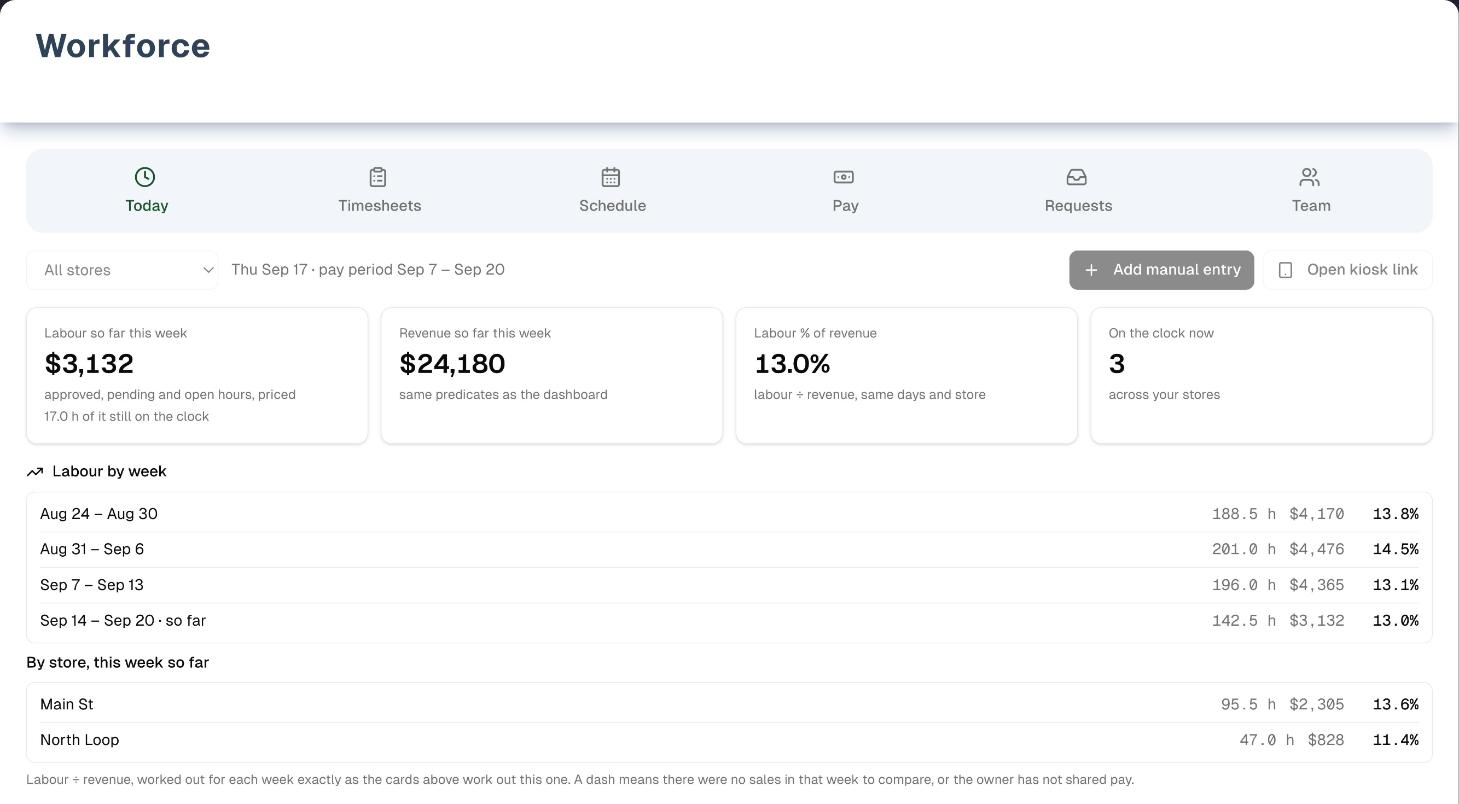
- Cards: Labour so far this week, Revenue so far this week, Labour % of revenue and On the clock now (see Labour % below).
- Fix rows (red): unapproved missed clock-outs from the last 7 days, for example "Dana R. — no clock-out yesterday" with "Auto-closed at Sep 15 12:00 AM · clocked in 10:00 AM" under it. Set clock-out opens the entry. Once someone has corrected it, the row reads "Dana R. — missed clock-out yesterday, edited since" and ends with "check it and approve", and the button becomes Review. People who can't edit entries see View.
- On the clock: a card for each person clocked in, with their clock-in photo, when and where they clocked in, Working, On meal break or On rest break with the minutes so far, hours today and this week, and an amber OT soon pill within 2 hours of your weekly line (red, "over the line you set", once past it). The board updates every 30 seconds.
- Labour by week, under the cards: this week so far and the three weeks before it, and — on All stores — this week store by store (see Labour % below).
- Add manual entry (managers who can edit entries) and Open kiosk link (managers who can manage tablets; it opens the Team tab, where the Time clock tablets card is).
Timesheets
- Store filter, the pay period picker (arrows for earlier periods, and Back to this period), the period's pay status (OPEN, LOCKED, FINAL or PAID) and the number of people and entries.
- Cards: labour, revenue and labour % this period, Needs a look, and Overtime hours (against the line you set).
- Needs a look first: entries that carry a flag and aren't approved, or are still on the clock from an earlier day. Each has a pill per reason (Still on the clock, Missed out, Auto-closed, Disputed when the person said on My Hours that the hours are wrong, Edited, Long shift for over 12 hours, No meal break for worked time past the meal-break hours you set without an unpaid meal break) and a Fix or Review button that opens the entry.
- Approve N clean entries approves, in one click and with no confirmation, every finished entry in the period (and the chosen store) that has no flags.
- Everything else, collapsed by person: Entries, Regular, OT, Unpaid breaks and Status (Pending, Approved or Partly approved). Click a person to see each of their entries. Regular and overtime hours are split week by week against the line you set.
- Add manual entry records a shift that was never punched; it needs a reason like any edit. It is hidden once the period is locked.
- What jobs cost: the period's service jobs, each priced from the hours recorded on it (owner, and managers with See pay rates and dollar amounts; see What a job cost below).
- Lock period (owner, and managers with Lock a pay period) closes the period for pay, with no confirmation. It is greyed out, with the reason on hover, until the period is over, nobody is on the clock and nothing needs a look. A locked period shows a banner saying so, and Add manual entry and Approve clean entries go away. The owner's Reopen period — which asks for a reason — brings it back. Once the period is paid the banner says so instead, and there is no Reopen.
Editing an entry
Opening an entry shows Clock in and Clock out (date and time, in your store's time zone), the Breaks (kind, start and end, with Add a break), the Store, Notes, and Reason for change (required, goes on the record), which needs at least 3 characters. A note can be replaced but not emptied.
- Save with reason saves the change. It clears the entry's approval and adds the Edited pill, so approve it again once it is right. It stays greyed out until you have changed something and typed a reason.
- Approve marks the entry as checked. It is greyed out while you have unsaved changes.
- Disputed hours appears on an entry somebody said is wrong, with their question and the thread; answer it on the Requests tab.
- History lists each punch (with its photo) and every change: who made it, when, what changed and the reason, for example "Amy changed clock-out 5:02 PM → 5:30 PM · “forgot to punch out”". Auto clock-outs show there too.
- Opened from Timesheets, an entry in a locked period opens read-only and says so; the owner reopens the period to change it. Opened from a Today Fix row, it still shows the form, and saving is refused with "This day is in a locked pay period. The owner has to reopen it before the entry can change."
Schedule
The Schedule tab is visible to the owner and to managers who can see timesheets or publish the schedule; only the owner and managers with Publish the schedule can change anything.
- The store filter, the week picker (arrows for other weeks, Back to this week) and a status pill: Draft — nobody sees it yet, Published with the day it went out, or Published, with changes since.
- Show worked hours, Print week, Copy last week and Publish.
- The grid: one row per person, one column per day of the week you set as your work week. Each person's name carries not scheduled or "3 shifts", and field worker where the flag is set. A cell shows the hours, the label, and the store's colour on an All stores week. An empty cell just means nobody is rostered there; it is not a record of time off.
- The row ends with the person's scheduled hours for the week, plus the worked hours when the overlay is on, and an OT soon or over the line you set pill when the hours get close to or pass the line you set. The last row, Every person, is each day's total.
- Underneath the buttons, a line repeats what a draft is: nobody else sees it until you publish.
- An empty week says "Nothing on this week yet. Copy last week, or pick a day to add the first shift." under the grid.
- An amber panel, "N shifts with nobody on the list above", lists draft shifts the grid has no cell for — somebody who has left the business, somebody at a store outside your access, or a person rostered twice on one day. One of these can stop the week saving, so take them off with Take it off, or Take all N off when there are several.
- Nobody to roster yet means there is nobody active whose home store you can see (the store filter does not change the rows). Add people in Team Management and give them a home store; the message says "the Team tab", but the Team tab only shows people, it does not add them.
Pay
The Pay tab is where a period becomes money owed. It is visible to the owner and to managers with See pay rates and dollar amounts.
- The pay period picker, opening on the last finished period, and a status pill: OPEN, LOCKED, FINAL or PAID, with a line beside it saying where the run is ("not locked", "not built yet", "4 people on the run").
- While the period is OPEN, the tab says what still stands in the way of locking — people on the clock, entries that need a look, or a period that is not over yet.
- The buttons follow the status and what you are allowed to do: Bonus, advance or deduction, Lock period, Build pay run (Build again after the first one), Finalize, Export CSV, Download PDF, Mark paid and Reopen.
- Four cards over the table: Gross, Net, People and Overtime.
- The lines table has one row per person: Person, Pay type, Regular h, OT h, Rate, OT rate, Hours pay, Paid leave, Bonuses, Advance repayment (with a chip showing the balance still owed), Deductions and Net pay, with a total row. Click a row to open the arithmetic behind it.
- A card under the table names anyone who worked in the period but has no hourly rate on file and nothing else to pay, so you can add the rate in Team Management and build again. They are not on the run. Someone with no rate who does have a bonus, a deduction or approved paid leave gets a line with the pay type No hourly rate instead, carrying only that money.
- Paid time off is in Gross and Net pay, and it has its own Paid leave column here, its own line in the opened arithmetic and its own column in the PDF and the CSV: the hours a manager approved, at that person's hourly rate. A person with no leave shows "—". Finalize refuses while approved paid leave for the period is missing from the run — build it again and it comes back on.
- Export CSV and Download PDF turn on once the run is finalized, so the file always matches a run somebody signed off. Download PDF builds from the lines on screen, so it waits for them to load.
Requests
The Requests tab is visible to the owner and to managers with Decide time-off requests or Resolve hours disputes. A manager sees only the kind they may answer, and only for the people at their stores, plus their own requests.
- Needs an answer first, then Answered. Each row says who asked, what for, the days or the shift, and carries a pill: Waiting, Approved, Declined, Resolved or Withdrawn. With both kinds in the list, a filter offers Everything, Time off and Hours dispute.
- Opening a row shows the thread and the Your answer box: an Answer choice (Approve / Decline for time off, Answer it / Decline for a question about hours), a Note, and Send answer. Declining and answering a question need a note; approving does not.
- Add a note (the box at the bottom) and its Add note button write on the thread without answering.
- A line signed UpChannels is UpChannels itself, recording what happened — for example "Morgan Reyes changed this entry: clock-out 5:02 PM to 5:30 PM - she stayed late" when somebody edits a shift a question is open about.
- Approving paid time off does not pay it there and then; it goes on the pay run for the period the leave ends in, at the person's own hourly rate.
- Your own rows appear with everybody else's, but with no answer box: they say "Somebody else has to answer your own request.", and your own waiting or approved request has Withdraw this request.
Labour %
The labour cards on Today (this week so far) and Timesheets (this period) put your team's hours next to the same days' sales. Pick a store in the filter to compare one store's labour with that store's sales.
| Card | What it shows |
|---|---|
| Labour | Approved, pending and open hours, priced at each person's hourly rate, with overtime hours at their OT rate (or 1.5× the hourly rate when no OT rate is set). Hours with no hourly rate on file are counted but not priced, and the card says how many. |
| Revenue | The money received on sales for the same days and store, less refunds — the same figure as the dashboard. A deposit taken this week on a sale not yet completed counts; a completed sale nobody has paid yet does not. The store is the one the sale belongs to |
| Labour % of revenue | Labour ÷ revenue, for the same days and store |
Labour by week sits under the cards on Today: this week so far and the three weeks before it, each with its hours, its labour cost and its labour %, for whichever store the filter is on. On All stores, a second list breaks this week down store by store. Every figure is worked out exactly as the cards above are, so the two can never disagree, and a dash means there were no sales in that week to compare.
Managers see dollar amounts only when See pay rates and dollar amounts is on. Otherwise the Labour card shows hours only ("hours only — the owner has not shared pay"), and Revenue and Labour % of revenue show a dash with "needs 'see pay'".
What a job cost
Timesheets → What jobs cost lists the service jobs of the pay period on screen and what the time on them cost. It is there for the owner and for managers with See pay rates and dollar amounts; without that permission the list does not appear at all.
A job's hours are the duration recorded when the job was completed — the Actual Duration (min) whoever finished it typed in on Sales → Schedule. Left blank, the job keeps a duration an earlier save had already recorded, and failing that its own Duration is logged, so a job completed in one click is still priced. They are not clock-in and clock-out times: the time clock and a job's recorded duration are two separate records, and a job's cost never comes from a punch. Those hours are priced once, at the hourly rate of the technician the job is assigned to.
- Each row is one job: what it was, the customer, the day, the technician, the hours recorded against it and what they cost.
- A job whose technician has no hourly rate on file is listed as No rate on file, with the reason in words, and is left out of the total. It is never shown as $0 — nobody guesses at a rate. Add the rate in Team Management and it prices itself.
- A job with nobody assigned to it says that instead, for the same reason.
- The total under the list is the priced jobs only — both the money and the hours beside it — and it says how many hours were recorded in all, with the line beneath naming the ones left out and why.
- The store filter narrows the jobs the same way it narrows the hours, and a manager only ever sees jobs at their own stores.
- The same figure is on the job itself — Sales → Schedule, open the job, Actual Times, Labour cost — and it is shown only where there is one to show.
Cost per route is not part of this. Delivery routes are not priced, and nothing on a route says what its hours cost.
My Hours (every employee)
- A greeting, the current pay period with the days left, and whether you are clocked in.
- Hours so far this period, including any hours over the line your store set, and Est. pay when the owner allows pay estimates and an hourly rate is on file. Entries a manager is still checking show as being reviewed.
- A badge on the hours card says where the period stands: Open, Locked ("closed for changes while pay is worked out"), Finalized or Paid. Est. pay stays an estimate throughout — before the run is finalized it says "estimate until the period is finalized", and afterwards "estimate from your hours". It is worked out from hours and rate alone, so it carries no bonus, deduction or advance repayment from the run.
- This period, a row per day with that day's hours, and each shift underneath it with its times. A day with two shifts on it adds both up.
- Time off and questions: Request time off starts a new one, and underneath are that person's own requests — Waiting first, then answered — each with Messages (the whole thread), Withdraw while it can still be taken back, and whatever the manager wrote. There is no balance and no allowance, because UpChannels has none: you ask for the days you want and a manager answers.
- My hours are wrong sits under a shift and opens a question about that shift alone. A shift you have already asked about says "You asked about this shift — waiting for your manager." instead of offering it again.
- The two controls follow the owner's switches (Request time off, Raise an hours dispute); with both off, the card does not appear at all.
- My week: the shifts your manager published, one week at a time, with the hours, any break, the label and the note. It opens on the week you are in — or on the week the link in your schedule message named — and two arrows step to the published weeks either side. The card says the week, your scheduled hours and the day it was published. A draft is never shown: an unpublished week reads "Not published yet" and points at the nearest published one. A week you are not on says "You are not on the schedule this week." With See the whole team's published schedule on, The rest of the team is listed underneath, grouped by day.
- Clocking in from a phone: when the owner switches on Clock in from their own phone, My Hours shows Clock in, Start paid rest break, Start unpaid meal break, End break and Clock out. A phone punch takes no photo, is recorded at the person's home store, and managers see that it came from the app (Phone). Otherwise My Hours asks the person to clock in and out on the store tablet.
Key features
| Feature | What it does |
|---|---|
| PIN time clock | Turns any store tablet or computer into the clock; staff punch with their PIN, no login |
| Punch photos | Taken automatically on clock in and out, kept 3 years with the time record; not a face scan |
| Auto clock-out | Closes a shift left open past your limit (14 hours by default) and flags it for review |
| Review flags | Still on the clock, Missed out, Auto-closed, Disputed, Edited, Long shift and No meal break, so you know which entries to check |
| Approve clean entries | Approves every finished, unflagged entry in the period in one click |
| Edit with a reason | Every change needs a reason and is recorded in the entry's history |
| Weekly schedule | A week per store (or all stores): rows are people, columns are days, one shift per person per day |
| Copy last week | Replaces the week's draft with the one before, moved forward seven days |
| Publish | Snapshots the week, tells everyone on it by text or email with a link to that very week, and puts it on their My Hours |
| One schedule | A published shift for a field worker is also their availability in the job scheduler |
| Show worked hours | Overlays what the clock recorded on the hours you planned |
| Labour % | Labour next to the same days' sales, for all stores or one |
| Labour by week | This week and the three before it side by side, and this week store by store |
| Cost per job | What the hours recorded on a completed job cost, at that technician's hourly rate |
| Phone clock-in | Optional, per the owner's switch; recorded as Phone, with no photo |
| Time-off requests | Somebody asks for days, a manager approves or declines, and approved days are marked off |
| Hours questions | "My hours are wrong" on a shift, answered on a thread that records every change to it |
| Paid time off | Hours a manager approved, paid at that person's hourly rate, on the run for the period the leave ends in |
| Lock a period | Freezes the period's shifts so the pay numbers can't move while you work |
| Pay run | Prices the locked hours, adds bonuses, takes deductions and advance repayments, and shows the arithmetic per person |
| Bonuses, advances, deductions | Money outside hours, with a running balance on each advance and a repayment you can change before you finalize |
| Export CSV / PDF | One row per person for whoever runs your payroll, plus a PDF summary of the run |
| Post to Finance | Optional: a finalized run posts totals only to the Payroll & Wages line of your Profit & Loss |
| Demo | A sample two-store shop with a nine-step guided tour, open to everyone |
Tips & best practices
- Set clock PINs before you open the kiosk link, so everyone can clock in on the first day.
- Keep PINs private: a PIN is how the tablet knows who is punching.
- Check Today each morning and fix red rows while the shift is still fresh in everyone's mind.
- At the end of each pay period, work through Needs a look first, then Approve clean entries.
- Add hourly rates in Team Management so labour % prices every hour.
- Rotate a tablet's link if the tablet goes missing or the link was shared outside the store.
- Staff who open Workforce are pointed to My Hours. You can hide the Workforce menu item from staff in Team Management (Settings → Team) like any other page.
- Build the week from Copy last week, then change the few cells that differ — it is faster than starting from an empty grid. Copy first: it replaces whatever the draft already holds.
- Publish the week once, not once per change. Every publish sends everyone on it a message.
- Turn Show worked hours on when you look back at a finished week: it is the quickest way to see where the plan and the clock parted company.
- Flag the people who go out on jobs as Field worker in Team Management, so their published shifts reach the job scheduler.
- Answer time off before you build the week's schedule: approved days are left alone when you publish, and unanswered ones are not.
- Fix the shift on Timesheets before you answer a question about it. The change lands on the thread by itself, so the answer and the correction stay together.
- Clear the Requests tab before you build a pay run: paid leave approved after the build means building again before Finalize will go through.
- Lock the period the morning after it ends, once the last shifts are approved. Nothing can drift after that.
- Build as many times as you like before you finalize; finalize only once you are happy with every line.
- Record an advance the day you hand the money over, with the amount one run may take back, and the repayments look after themselves.
- Keep Post finalized pay runs to Finance off unless everyone who can see Finance should see your payroll totals.
- Click Mark paid on the day the money really leaves: it stamps today, and that date is what the Finance entry uses.
Troubleshooting
| Issue | Fix |
|---|---|
| The Workforce page or Settings → Workforce says "Workforce is included with Premium" | The organization is not on Premium (or a trial). The owner clicks Upgrade plan. If Workforce is still switched on, Settings → Workforce also offers Turn off Workforce, and the tablets stop working until you upgrade |
| The Workforce page says "Workforce is turned off" | The owner clicks Turn on Workforce on that card, or switches Enable Workforce on in Settings → Workforce; anyone else asks the owner |
| "Workforce is for owners and managers" | That person is staff (or a manager whose every Workforce switch is off). Their own hours are on See My Hours; the owner can give a manager switches in Settings → Workforce |
| Workforce and My Hours aren't in the sidebar | They show whenever the plan includes Workforce (Premium or a trial) or Workforce is switched on. On another plan with the switch off they stay hidden; otherwise check the person's menu visibility in Team Management |
| The tablet says "This tablet link is no longer valid — ask a manager for a new one" | The link was rotated or revoked, or is more than 180 days old; open a new kiosk link from Time clock tablets |
| "Too many wrong PINs. This tablet unlocks at …" | 10 wrong PINs within 10 minutes lock the tablet for 5 minutes; wait until the time shown |
| "That PIN didn't match — …" | Check the PIN; the message says how many tries are left before the tablet locks. A manager can generate a new one on the Team tab |
| The tablet shows Offline or "The tablet can't reach UpChannels — check the Wi-Fi and try again." | Punches need an internet connection and are not saved while offline; check the Wi-Fi and punch again |
| The tablet says "The time clock is turned off for this store" | Workforce was turned off, or the plan no longer includes it; once it is back on, the tablet comes back by itself |
| Setting a PIN says "The time clock isn't set up on this server yet. Ask UpChannels support." (the tablet says "The time clock isn't set up correctly — tell a manager.") | A set-up problem on UpChannels' side, so no PIN can be saved and no tablet can punch. Nothing in the store can fix it; tell UpChannels support |
| A manager can't set someone's PIN ("Owner sets this PIN") | Only the owner sets an owner's PIN or another manager's PIN. A manager can still generate their own |
| No PIN buttons on a row, "UpChannels sets this PIN" | Contact UpChannels support |
| Staff have no clock buttons on My Hours | Phone clock-in is off by default; the owner switches on Clock in from their own phone |
| The Labour card says hours are not priced | Those people have no hourly rate on file; add one in Team Management |
| A manager sees hours but no dollar amounts | The owner switches on See pay rates and dollar amounts |
| What jobs cost isn't on Timesheets | It needs See pay rates and dollar amounts; the owner switches it on in Settings → Workforce |
| A job says No rate on file | The technician on it has no hourly rate on file; add one in Team Management and the job prices itself |
| A job you finished isn't on the list | Its day falls outside the pay period on screen, or the job had no length at all when it was completed — nothing in Actual Duration (min) and no Duration on the job either |
| A job has no Labour cost line | No hours were recorded against it, its technician has no hourly rate on file, or pay is not shared with you |
| "Nothing was approved — the entries changed since this list loaded, or the period is locked. The list has been refreshed." | Someone approved or changed those entries first, or the period was locked meanwhile. Check Needs a look first and the period's status, then approve again |
| Save with reason is greyed out | Change a time, break, store or note, and type a reason of at least 3 characters. A note can be replaced but not emptied |
| Staff can't see the week you built | It is still a draft until you click Publish. Once published it is on their My Hours straight away, whichever week they are looking at: the link in their message opens it, and the › arrow on My week steps to it |
| "Nobody to roster yet" on Schedule | Nobody active has a home store you can see. Add people and home stores in Team Management (Settings → Team) |
| "N shifts with nobody on the list above" on Schedule | The draft holds shifts for people who left, are outside your stores, or are rostered twice on a day; click Take it off or Take all N off |
| "Dana already has a shift that day — one shift per person per day." | Widen the one shift, or leave the middle of the day unrostered |
| "A shift has to end after it starts." | A shift sits on one day; roster a run that crosses midnight as the evening on one day and the morning on the next |
| "That shift is at another store. Use the All stores week to mix them." | A week that belongs to one store holds only that store's shifts; switch the filter to All stores. On a one-store week the shift dialog's Store picker is fixed and says the same thing |
| "The break has to sit inside the shift." | The unpaid break has to start after the shift starts and end before it ends |
| "There is nothing in this week to publish." | The week is empty; add a shift or Copy last week first |
| "There is no schedule the week before this one to copy." | Copy last week needs shifts on the week before; build this one by hand, or step back to a week that has some and copy forward from there |
| "A week holds 500 shifts at most — roster a store at a time." | Roster one store at a time with the store filter instead of putting everybody on the All stores week |
| A day you rostered did not publish | That person already had the day off, and publishing leaves a day off alone; the toast counts it |
| A field worker's published shift isn't on Sales → Schedule | That page shows today's availability only — today in your store's time zone — and only for people flagged Field worker in Team Management |
| Somebody has no Request time off button on My Hours | The owner switched Request time off off in Settings → Workforce; the same goes for Raise an hours dispute |
| The Requests tab isn't there | It needs Decide time-off requests or Resolve hours disputes; the owner switches them on in Settings → Workforce |
| "Somebody else has to answer your own request." | Nobody answers their own, whatever their role; ask another manager or the owner |
| "You have already asked for one of those days." | One of those days is already on a request that is waiting or approved; withdraw that one, or pick other days |
| "There is already an open question about that shift." | One open question per shift; add to the thread on the one already there |
| "That leave has been paid, so it cannot be withdrawn." | A finished pay run already paid it; put any correction on the next run |
| "Say why, so they know." | Declining and answering a question both need a note; approving does not |
| "Approved paid leave in this period is not on the run — build it again." | Somebody's leave was approved while the run was building; click Build again, then finalize |
| A day you approved is still rostered | Approving marks the day off in the job scheduler straight away, but a shift already published that day stays on the published week (and on their My Hours) until you take it off the week and publish again |
| "You can lock a period once its last day is over." | Wait until the period's last day has finished in your store's time zone |
| "Somebody is still on the clock in this period." | Find them on Today and clock them out, or fix the entry, then lock again |
| "N entries still need a look before this period can be locked." | Work through Needs a look first on Timesheets and approve the clean ones |
| "Something changed since this run was built — build it again." | A bonus, a deduction or approved paid leave moved after the build; click Build again, then finalize |
| "That would pay somebody less than $0." | Take less back with Change beside that person's repayment, or lower the deduction and Build again, then finalize |
| "This run is paid. Put a correction on the next one." | A paid run can't be reopened; add a bonus or deduction to the next run instead |
| "Another pay run already covers some of these days." | Your pay period settings moved after a run existed; reopen or work with the run that already holds those days |
| "A finished pay run already used this — put it on the next one." | The bonus or deduction is part of a finalized run's record; record a new row against the next run |
| "This advance has already been repaid in part — it has to stay." | Part of it has come back on a finished run; leave it and let the repayments finish, or add a bonus to settle the rest |
| "The amount cannot be less than what has already been repaid." | Raise the amount, or leave the advance as it is |
| The Pay tab isn't there | It needs See pay rates and dollar amounts; the owner switches it on in Settings → Workforce |
| Finalize, Mark paid or Reopen is missing | Those three are always owner-only, whatever the permission switches say |
| A pay line's Paid leave column shows money you did not expect | Somebody's approved time off ended in this period. Open the line to see the hours and the rate it was paid at, or check the Requests tab |
| Somebody who worked is not on the run | They have no hourly rate on file, so the card under the table names them instead; add the rate in Team Management and Build again |
| An entry can't be edited and says the period is locked | The owner reopens the period (with a reason) to change it |
| Download PDF does nothing, or the browser says "Please allow pop-ups for this site to download the PDF report." | Allow pop-ups for UpChannels in your browser and click it again |
| Nothing appears on the Payroll & Wages line of the P&L | Post finalized pay runs to Finance was off when the run was finalized, or the run is not finalized yet |
What's next
- Every employee's own page: Team → My Hours
- Add people, roles, rates and home stores: Settings → Team
- See pay on your bottom line: Reports → Profit & Loss
- Record wages paid outside a pay run: Finance → Expenses
- Dispatch the jobs your rostered field workers will do: Sales → Schedule
- See the sales behind labour %: Reports → Sales Report
- Check your business at a glance: Get Started → Dashboard
- Set your store's time zone and locations: Get Started → Onboarding
- How sample pages and guided tours work: Demo mode
Detailed reference
Every button, icon, field and message on this page, for when you need the exact detail. Each panel starts closed — open the one you need.
Page header and toolbar
| Control | Where | What it does | Notes |
|---|---|---|---|
| Team → Workforce (clock icon) | Sidebar, Team group above Finance | Opens the Workforce page | Listed when the plan includes Workforce (Premium or a trial) or Workforce is switched on |
| Title Workforce — "Your team's time clock, timesheets and clock PINs in one place." | Page header | Static | Same in every state below |
| Demo (Play icon, amber) | Header, right | Opens the sample Workforce page with a guided tour; nothing is saved | Shown to everyone in every state — no Premium, Workforce off, or staff. See Demo mode below |
| "Loading…" (spinner) | Page body | Checking what you may see | First load |
| Error text + Retry | Page body | Retry reads your access again | For example "Could not reach UpChannels — check your connection and try again" |
| Card Workforce is included with Premium — "Your current plan does not include Workforce." / "It adds a PIN time clock for your store tablet, timesheets you approve, and a pay run with the arithmetic showing." | Page body, instead of the tabs | Explains the plan gate | Plan is not Premium, a trial or complimentary. Every Workforce action is refused on these plans too |
| Upgrade plan | In that card | Opens Settings → Billing | Owner only |
| Card Workforce is turned off — "Your plan includes Workforce, but it is currently turned off for your store." | Page body | Explains the switch is off | Plan includes Workforce, switch off. The switch is on by default, so only an owner turning it off causes this |
| "Turn it on here, or in Settings → Workforce where the pay period, overtime and time clock tablets live." | Turned-off card | Guidance | Owner only |
| Turn on Workforce (shows "Turning on…") | Turned-off card | Switches Workforce on for the organization; the sidebar refreshes and the tabs appear without reloading | Owner only; greyed out while it runs. On failure a red line gives the reason, or "Could not turn on Workforce. Try again from Settings → Workforce." |
| Open Workforce settings | Turned-off card | Opens Settings → Workforce | Owner only |
| "Ask the organization owner to turn it on in Settings → Workforce." | Turned-off card | Guidance | Everyone except the owner |
| Card Workforce is for owners and managers — "Your own hours live in My Hours." | Page body, instead of the tabs | Explains the page is for owners and managers | Staff, and managers whose every Workforce switch is off |
| See My Hours | That card | Opens My Hours | |
| Tab Today (clock icon, green) | Tab bar, 1st | Opens Today | Needs See who is in and timesheets |
| Tab Timesheets (clipboard icon, blue) | Tab bar | Opens Timesheets | Needs See who is in and timesheets |
| Tab Schedule (calendar icon, indigo) | Tab bar | Opens Schedule | Needs Publish the schedule or See who is in and timesheets; only Publish the schedule can change it |
| Tab Pay (banknote icon, orange) | Tab bar | Opens Pay | Needs See pay rates and dollar amounts |
| Tab Requests (inbox icon, rose) | Tab bar | Opens Requests | Needs Decide time-off requests or Resolve hours disputes |
| Tab Team (people icon, purple) | Tab bar, last | Opens Team | Needs See who is in and timesheets, Set and reset clock PINs or Manage time clock tablets |
| Which tab opens first | — | A link ending ?tab=today, ?tab=timesheets, ?tab=schedule, ?tab=pay, ?tab=requests or ?tab=team opens that tab; otherwise the last tab you used in this browser; otherwise the first tab you may see | A tab you may not see is skipped. The last tab is remembered per browser, not per account |
Tab: Today
Who is on the clock right now, missed clock-outs to fix, this week's labour next to this week's sales, and the last four weeks of labour. It reloads by itself every 30 seconds while the browser tab is showing, and straight away when you come back to it.
| Control | Where | What it does | Notes |
|---|---|---|---|
| "Loading today…" / error + Retry | Tab body | Waits for your store's Workforce settings; Retry loads them again | First load, or when that load fails |
| Store filter (All stores + each store) | Toolbar, left | Narrows the whole tab — cards, Labour by week, Fix rows, On the clock — to one store | Lists only stores you may see. Goes back to All stores when you switch tabs or reload the page |
| Date line, e.g. "Thu Sep 17 · pay period Sep 7 – Sep 20" | Toolbar | Today and the pay period it belongs to, in the store's time zone | Read-only |
| Spinner ("Refreshing") | Toolbar, after the date | Shows a background refresh | During the 30-second reloads |
| Add manual entry (plus icon) | Toolbar, right | Opens Add a manual entry | Needs Edit and approve entries |
| Open kiosk link (tablet icon) | Toolbar, right | Reloads the page on the Team tab, where the Time clock tablets card is. It does not open a kiosk link itself | Needs Manage time clock tablets (managers: off by default) |
| Card Labour so far this week | Card row, 1st | Dollar cost of approved, pending and open hours this week so far; hours instead when pay isn't shared with you | Notes: "approved, pending and open hours, priced"; "X h not priced — no hourly rate on file"; "hours only — the owner has not shared pay"; "X h of it still on the clock" |
| Card Revenue so far this week | Card row, 2nd | The money received on sales for the same days and store, less refunds | Note "Revenue: money received from sales, less refunds — the same figure as the dashboard". Without see-pay: "—" and "needs 'see pay'". When the range starts before your store switched to counting revenue as the money received, a line under the cards says so |
| Card Labour % of revenue | Card row, 3rd | Labour ÷ revenue, same days and store, e.g. "13.0%" | Notes "labour ÷ revenue, same days and store"; "—" with "no money received on sales in this range yet"; "—" with "needs 'see pay'" |
| Card On the clock now | Card row, 4th | How many people are clocked in | Note "across your stores" or "at …" (the store) |
| "Labour figures could not load: …" | Under the cards | Says the labour figures failed | The rest of the tab still works |
| Labour by week (trend icon), "· store" when one is picked | Under the cards | One line per week: this week so far ("Sep 14 – Sep 20 · so far") and the three before, with hours, labour cost (with see-pay) and labour % | A dash in the % column means no sales that week, or pay not shared. Grey rows while loading; "The weeks could not be loaded: …" on failure |
| By store, this week so far | Under Labour by week | One line per store for this week: hours, cost, labour % | Only on All stores when more than one store has hours. At most 6 stores, then "The 6 busiest stores — pick a store above for the rest." A line may read "Another store" or "No store on the hours" |
| Footnote "Labour ÷ revenue, worked out for each week exactly as the cards above work out this one. Revenue: money received from sales, less refunds — the same figure as the dashboard. A dash means no money came in on sales that week, or the owner has not shared pay." | Under the lists | Explains the figures | Always |
| Red error box + Retry | Above the Fix rows | Why entries could not load, e.g. "Could not load time entries — check your connection and try again" or "Could not load who is on the clock — check your connection and try again" | Retry reloads |
| Fix row (red, "Fix" pill) — "Dana R. — no clock-out yesterday" | Above On the clock | One row per unapproved missed or auto-closed clock-out that started in the last 7 days, newest first. Detail line e.g. "Auto-closed at Sep 15 12:00 AM · clocked in 10:00 AM": these are the shifts the auto clock-out closed for someone who forgot to clock out | Only when there is at least one. Day words: "today", "yesterday" or "on Mon Sep 14". Follows the store filter and your stores |
| Same row once edited — "Dana R. — missed clock-out yesterday, edited since" / "clocked in 10:00 AM · out Sep 15 5:30 PM · check it and approve" | Fix rows | A corrected clock-out waiting for approval | Editing keeps the Missed out / Auto-closed flag; only approving clears the row |
| Set clock-out / Review / View | Each Fix row, right | Opens the entry panel. Set clock-out before anyone edited it, Review after, View (read-only) for people who can't edit entries | |
| On the clock (clock icon) | Section | A card per person clocked in, by name | "Nobody is on the clock right now." (or "…right now at …" for one store) |
| Clock-in photo or initials | Each card, left | The photo the tablet took at clock-in | Initials when there is no photo (phone punch, photos off, or it failed to load). Not clickable |
| "In since 9:02 AM · Main St" | Each card | When and where they clocked in | A shift from an earlier day reads "In since Wed Sep 16 10:00 PM" |
| Working / On meal break · 12 m / On rest break · 4 m | Each card, top right | What they are doing now | Meal = unpaid meal break; rest = paid rest break |
| "6 h 58 m today" (or "… this shift") | Each card, bottom left | Hours worked today, or the length of a shift that started on an earlier day | Uses your rounding setting |
| "38.5 h this week", amber "… · OT soon", red "… · over the line you set" | Each card, bottom right | Hours this week at every store | Amber within 2 hours of the weekly line, red once past it |
| Footnote "Updates every 30 seconds. The overtime pill flags hours against the line you set in Settings → Workforce." | Under the cards | Explains refresh and pill | Always |
Tab: Timesheets
One pay period at a time: entries that need a look first, everything else collapsed by person, labour cards, one-click approve, the lock and What jobs cost. Reloads every 30 seconds while showing.
| Control | Where | What it does | Notes |
|---|---|---|---|
| "Loading timesheets…" / error + Retry | Tab body | Waits for Workforce settings | First load or failure |
| Store filter (All stores + each store) | Toolbar, 1st | Narrows cards, lists, counts, Approve N clean entries and What jobs cost | Only stores you may see |
| ◀ ("Previous pay period") | Toolbar | One pay period back | Always available |
| Period label, e.g. "Sep 7 – Sep 20" | Between the arrows | The period on screen | Opens on the period that holds today |
| ▶ ("Next pay period") | Toolbar | One period forward | Greyed out on the current period |
| OPEN (blue) / LOCKED (amber) / FINAL (green) / PAID (green) | Toolbar | Where the period's pay run stands | Read-only |
| "5 people · 42 entries" | Toolbar | People and entries in the period and store filter | "Loading…" while loading |
| Back to this period | Toolbar | Back to the current period | Only on an earlier period |
| Spinner ("Refreshing") | Toolbar | Background reload | |
| Add manual entry (plus icon) | Toolbar, right | Opens Add a manual entry | Needs Edit and approve entries; hidden once locked, final or paid |
| Approve N clean entries (double tick) | Toolbar, right | Approves every finished, unflagged, unapproved entry in the period and store filter. No confirmation. Toast "Approved 12 clean entries" | Needs Edit and approve entries; hidden once locked. Greyed out while loading or when N is 0. Skips anything flagged and anyone still on the clock |
| Lock period (lock icon) | Toolbar, right | Freezes the period for its pay run. No confirmation. Toast "Sep 7 – Sep 20 is locked — build it on Pay" | Needs Lock a pay period. Hidden once the period is locked. Greyed out, with the first reason on hover: "You can lock a period once its last day is over.", "Somebody is still on the clock in this period." or "N entries still need a look before this period can be locked." |
| "Approving marks hours as checked; an edit clears the approval and goes on the record. Locking freezes this period so it can be paid on the Pay tab." | Under the toolbar | Explains approve, edit and lock | While OPEN; people who can lock also see the first thing blocking it |
| Amber banner "This period is locked for its pay run. Hours here cannot be edited or approved until it is reopened." | Under the toolbar | Why nothing can change | LOCKED or FINAL |
| Reopen period (unlock icon) | In the locked banner | Opens Reopen … ? | Owner only; never on a paid period |
| Banner "This period is paid. Its hours are the record of what was paid — put a correction on the next period." | Under the toolbar | A paid period is final | PAID; no Reopen |
| Cards Labour this period, Revenue this period, Labour % of revenue | Card row | As on Today, for the whole period | Same see-pay rules and notes |
| Card Needs a look | Card row | How many entries are in Needs a look first | "flagged entries below" or "nothing flagged"; amber border above 0 |
| Card Overtime hours | Card row | Overtime hours this period, e.g. "7.5" | Notes: top two people ("Marcus 4.5 · Rosa 2.0") or "none this period", and "against the line you set" |
| Red error box + Retry | Under the cards | Entries failed to load | |
| Needs a look first | Section | Flagged, unapproved entries, and shifts still open from an earlier day; most urgent first, then oldest | "Nothing flagged in this period." (or "… at …") |
| Pills Still on the clock, Missed out, Auto-closed (red); Disputed, Edited, Long shift, No meal break (amber) | Each row, left | Why the entry needs a look | Long shift = over 12 hours. No meal break = past your meal-break hours with no finished unpaid meal break. Disputed = the person said on My Hours the hours are wrong. Edited = changed by hand, and every manual entry. Rows with red pills are shaded red |
| "Tommy Nguyen · Tue Sep 15" + "9:30 AM → 4:00 PM · 6 h 30 m · Kiosk · North Loop" | Each row | The shift | May read "→ auto-closed …" or "→ still on the clock"; source Kiosk, Phone, Added by hand or Auto clock-out; store shown on All stores |
| Fix / Review / View | Each row, right | Opens the entry panel | Fix for an urgent row not yet edited, Review otherwise, View when you can't edit (no permission or locked period) |
| Everything else · N entries, collapsed by person | Section | Every other entry, one row per person | "No other entries in this period." |
| Columns Person, Entries, Regular, OT, Unpaid breaks, Status | Everything else | Regular and OT split week by week against your overtime line, counting all stores | Not sortable |
| Approved / Pending / Partly approved | Status column | Whether all, none or some of that person's entries are approved | |
| Person name (chevron) | Person column | Opens or closes that person's entries | Several can be open; not remembered |
| Entry line "Mon Sep 14 · 9:02 AM → 5:31 PM · 8 h 29 m · Kiosk" + Approved / Pending | Under an opened person | One line per entry | An open shift from today reads "→ still on the clock" |
| Review / View | Each entry line, right | Opens the entry panel | View when you can't edit |
| Footnote "Regular and overtime hours are split week by week against the line you set in Settings → Workforce, counting each person's hours at every store." | Under the table | Explains the split | Always |
| What jobs cost · hours recorded on the job, at the technician's rate | Bottom section | Service jobs in the period with time recorded, each priced at the assigned technician's hourly rate | Owner and managers with See pay rates and dollar amounts only; otherwise the section is simply not there |
| Columns Job (title + customer), Day, Technician, Hours, Cost | Job table | One row per job | Not sortable or clickable |
| No rate on file + reason ("no hourly rate on file for …", "nobody is assigned to this job"), or No hours recorded + "no hours were recorded against this job" | Cost column | An unpriced job | Never shown as $0 |
| "Total · 5 jobs", "8.50 h" + "of 10.00 h recorded", total cost | Last row | Priced jobs only | "of … recorded" only when some hours are unpriced |
| "1 job is not priced — each row above says why: no hourly rate on file, or nobody assigned to the job. Those 1.50 h are not in the total, and not in the hours beside it. Add the rate in Team Management." | Under the table | Explains the gap | When a job is unpriced |
| "The hours recorded against this job, priced at the technician's rate. The duration is the one entered when the job was completed. These are not clock-in and clock-out times." | Under the table | Explains the basis | Always in the section |
| "No time has been recorded against a job in this period. It lands here when somebody completes a job on Sales → Schedule and enters how long it took." | Job section | Empty state | No jobs |
| Error box + Retry | Job section | Reloads the jobs | On failure |
Tab: Schedule
One week of the roster: rows are people, columns are the days of your work week, one shift per person per day. What is on screen is the draft until Publish. Opens on this week.
| Control | Where | What it does | Notes |
|---|---|---|---|
| "Loading the schedule…" / error + Retry | Tab body | Waits for Workforce settings | |
| Store filter (All stores + each store) | Toolbar, 1st | Switches between the All stores week and one store's week — each is a separate draft, and a store's week holds only that store's shifts | Does not change the rows: rows are everyone whose home store you can see |
| ◀ ("Previous week") / ▶ ("Next week") | Toolbar | One week back or forward | No limit either way |
| Week label, e.g. "Sep 21 – Sep 27" | Between the arrows | The week on screen | |
| Draft — nobody sees it yet (grey) / Published · Sep 12 (green) / Published, with changes since · Sep 12 (amber) | Toolbar | Whether this week (for this store choice) is published, and whether the draft changed since | "Loading…" while loading |
| Back to this week | Toolbar | Returns to the current week | Only on another week |
| Spinner ("Refreshing") | Toolbar | Reload in progress | |
| Show worked hours (switch) | Toolbar, right | Adds what the clock recorded: "X h worked" in cells and under totals; an empty cell someone worked shows amber "X h worked, not rostered" | Off each time you open the tab. Everyone who sees the tab can use it |
| Print week (printer icon) | Toolbar, right | Opens the print dialog with a landscape page: "Staff schedule — week of …", the store, "Published …" or "Draft — this week has not been published", and a table of Person, each day ("9:00 AM – 5:00 PM (Counter)" or "—") and Week total | Everyone who sees the tab. Prints drafts too. Notes and worked hours are not printed |
| Copy last week (copy icon) | Toolbar, right | Takes the week before (published version, or draft if never published), moves it forward seven days and replaces this week's draft. No confirmation. Toast "12 shifts copied into this draft — publish when it is right". Nothing is published | Needs Publish the schedule. Greyed out while loading or saving. Empty week before: "There is no schedule the week before this one to copy." |
| Publish (send icon) | Toolbar, far right | Publishes at once, no confirmation: snapshots the week, puts it on each person's My Hours (the message links straight to that week), writes shifts into the job scheduler's availability, and texts (SMS set up and a mobile number) or emails everyone on the week — on every publish. Days already off are skipped. Toast e.g. "6 shifts published · 1 shift taken off · 1 day left alone — already booked off · 5 people told · 1 person could not be reached — tell them yourself" | Needs Publish the schedule. Greyed out when the draft is empty or not yet saved, or while saving. Parts of the toast after the first appear only when not zero. A failed message never undoes the publish |
| "What you see here is a draft — nobody else sees it. Publishing puts the week on each person's My Hours, texts or emails them, and makes a field worker's shift their availability in the job scheduler. A day somebody already has off is left alone. The weekly total flags hours against the line you set." | Under the toolbar | Explains draft vs published | Always |
| Store legend "Stores: Main St, North Loop" (coloured chips) | Above the grid | Colour key | All stores with 2 or more stores |
| "Loading the week…" / red error box + Retry | Grid area | Loading or failed week | |
| "Nobody to roster yet. Add your team on the Team tab, then come back and build the week." | Grid area | No active people in your store scope | Not caused by the store filter. People are added in Settings → Team; the Team tab only lists them |
| Headers Person, "Mon Sep 21" … "Sun Sep 27", Week | Grid header | Days follow the work-week start in Settings → Workforce | Scrolls sideways on small screens |
| Name + "not scheduled" / "3 shifts" + " · field worker" | First column | Who, how many shifts, and the Field worker flag | Sorted by name |
| Empty cell Add (plus icon; screen readers hear "Add a shift for … on …") | Grid cell | Opens Add a shift with that person and day | Needs Publish the schedule; read-only viewers see "—" |
| Filled cell ("Edit …'s shift on …, 9:00 AM – 5:00 PM") — range, "8.0 h · Counter · Main St", the note, and "X h worked" with the overlay | Grid cell | Opens Edit shift | The store's name and colour show only on an All stores week. Read-only viewers can't click it. Hours exclude the unpaid break |
| Weekly total "39.5 h" (+ "38.0 h worked"); OT soon (amber) / over the line you set (red) | Last column | Scheduled hours against your weekly line | Hover the pill: "42.5 h scheduled, past the 40.0 h line you set." or "…, within 2 h of the 40.0 h line you set." |
| Footer Every person | Grid footer | Each day's total ("—" when none) and the week total | |
| "Nothing on this week yet. Copy last week, or pick a day to add the first shift." | Under the grid | Empty week | |
| Amber panel "N shifts with nobody on the list above" — "Whoever these belong to has left the business, or works at a store outside your access. They are still in this draft — every save sends them back — and one belonging to somebody who has left will stop the week saving." | Under the grid | Lists draft shifts with no cell, as "Name (or 'Somebody not on this list') · Mon Sep 21, 9:00 AM – 5:00 PM · Counter · Main St" | Also catches a person rostered twice on one day |
| Take it off (trash icon) | Each line of the amber panel | Removes that shift from the draft at once. Toast "1 shift taken off the draft" | Needs Publish the schedule |
| Take all N off | Amber panel header | Removes every listed shift. Toast "N shifts taken off the draft" | Two or more listed; use it when several block saving |
Read-only viewers (managers with See who is in and timesheets but not Publish the schedule) get no Copy last week, Publish or Take it off, and cells don't open. Show worked hours and Print week still work.
Tab: Pay
One pay period and its pay run. Opens on the last finished period. The cycle is Lock → Build → Finalize → Mark paid.
Toolbar
| Control | Where | What it does | Notes |
|---|---|---|---|
| ◀ ("Previous pay period") | Toolbar, left | One period back | Always available |
| Period label, e.g. "Aug 24 – Sep 6" | Between the arrows | The period on screen, following Settings → Workforce | Store time zone |
| ▶ ("Next pay period") | Toolbar | One period forward | Stops at the current, still-running period |
| OPEN (blue) / LOCKED (amber) / FINAL (green) / PAID (green) | Beside the period | Where the run stands | OPEN = not locked |
| "not locked" / "not built yet" / "4 people on the run" / "Loading…" | Beside the pill | One-line status | |
| Back to the last period | Toolbar | Back to the last finished period | Only after you move away |
| Bonus, advance or deduction (plus icon) | Toolbar, right | Opens that dialog | Needs Add bonuses, advances, deductions. Hidden on a paid run. Shown even while OPEN |
| Lock period (lock icon; "Locking…") | Toolbar | Freezes the period's entries. Toast "Aug 24 – Sep 6 is locked" | Needs Lock a pay period; OPEN only. Greyed out while any reason is listed in the card below (no hover text here) |
| Build pay run / Build again (refresh icon; "Building…") | Toolbar | Prices the locked hours into lines. Toast "Pay run built" | Needs Build a pay run draft; LOCKED only |
| Finalize ("Finalizing…") | Toolbar | Signs the run off: uses up bonuses and deductions, writes advance repayments, posts to Finance if switched on. Toast "Pay run finalized" | Owner only; LOCKED and built. No confirmation |
| Mark paid ("Saving…") | Toolbar | Records the run as paid today (store time zone). Toast "Pay run marked paid" | Owner only; FINAL only. No date picker, no confirmation |
| Export CSV (spreadsheet icon) | Toolbar | Downloads "pay-run-…-to-….csv", one row per person | FINAL or PAID |
| Download PDF (download icon) | Toolbar | Opens a print window titled "Pay Run" and the print dialog; save as PDF there | FINAL or PAID; greyed out until the lines load. Blocked pop-ups: "Please allow pop-ups for this site to download the PDF report." |
| Reopen (unlock icon) | Toolbar | Opens Reopen … ? | Owner only; LOCKED or FINAL, never PAID |
Body
| Control | Where | What it does | Notes |
|---|---|---|---|
| "… is not locked yet" — "Lock the period once its last day is over, then build the run to see what everyone is owed." | Under the toolbar | Next step | OPEN |
| "You can lock a period once its last day is over." / "Somebody is still on the clock in this period." / "N entries still need a look before this period can be locked — the Timesheets tab has them." | In that card | Why Lock is greyed out | One line per reason |
| "Locking a period is up to the owner or a manager who may." | In that card | Why there is no Lock button | Managers without Lock a pay period |
| "Locked — nothing built yet" — "The hours in this period are frozen. Build the run to price them against each person's rate, with the bonuses, advances and deductions you have recorded." | Under the toolbar | Next step | Locked, never built. A manager without Build a pay run draft sees this and no Build button |
| Card Gross — "hours pay, paid leave and bonuses" | Built run | Run total before repayments and deductions | |
| Card Net — "after repayments and deductions" | Built run | Run total paid out | |
| Card People | Built run | Number of lines | |
| Card Overtime — "against the line you set" | Built run | Total overtime hours, e.g. "13.50 h" | |
| Columns Person, Pay type, Regular h, OT h, Rate, OT rate, Hours pay, Paid leave, Bonuses, Advance repayment, Deductions, Net pay | Lines table | One row per person | Not sortable |
| Person name (chevron) | Each line | Opens or closes the arithmetic under it | The person's Employee code from Team Management shows as "#1234" when set |
| Pay type "Hourly" / "No hourly rate" | Each line | "No hourly rate" = the line carries only money outside hours | |
| Rate / OT rate "$22.50/h" or "—" | Each line | Rates as they were when the run was built | |
| Paid leave / Bonuses / Deductions ("—" when none) | Each line | Paid leave is approved time off ending in this period, at that person's hourly rate | |
| Advance repayment + grey chip "$X left" | Each line | What comes back on advances this run, and what is still owed after it | Chip only with an open advance |
| Change ("Change repayment for …") | Advance repayment cell | Opens Advance repayment — … | Needs Add bonuses, advances, deductions; run LOCKED, not final or paid; person has an advance |
| "Total · N people" | Last row | Totals for Hours pay, Paid leave, Bonuses, Advance repayment, Deductions, Net pay | |
| Opened: Hours pay — "40.00 h × $20.00 + 4.00 h × $30.00 = $920.00" or "No hourly rate on file — this line carries only money outside hours." | Under a line | The hours arithmetic | |
| Opened: Paid time off — "8.00 h × $20.00 = $160.00" | Under a line | The approved leave this line pays | Only when the line has leave. With no hourly rate on file it reads "8.00 h approved leave, not priced — no hourly rate on file" |
| Opened: Day by day — "Mon Sep 8 · 8.50 h (8.00 h regular + 0.50 h overtime)" | Under a line | Hours per worked day | |
| Opened: Bonuses / Deductions — "$100.00 · Sep 3 · June sales bonus" (or "Recorded on this run") | Under a line | Which rows went in | Only if any |
| Opened: Advances — "From Sep 1 · $300.00 owed → $100.00 back on this run · $200.00 left · changed by hand" | Under a line | Each advance, before and after | "changed by hand" after Change |
| Opened: Net pay — "Hours pay $920.00 + paid leave $160.00 + bonuses $100.00 − advance repayment $100.00 − deductions $40.00 = $1,040.00" | Under a line | Net arithmetic | Every term the line was paid, so the stated total is the Net pay in the table. Terms worth nothing are left out |
| Footnote "Overtime is split week by week against the line you set, counting hours from … so a week that straddles the period start is not cut in half. Times are in …, punches rounded to the nearest N minutes." | Under a line | Explains the method | Rounding part only when rounding is on |
| "N person is not on this run" / "N people are not on this run" — "They worked in this period but have no hourly rate on file. Add one in Team Management, then build the run again." + "Name · 6.00 h" | Under the table | Names people left off | Only people with hours, no rate and nothing else to pay |
| "UpChannels works out what to pay. It does not file payroll taxes and it does not move any money — the CSV is for whoever pays people." (+ "This run is paid. Put a correction on the next one.") | Bottom | Disclaimer | Built runs; second sentence when PAID |
| Red error box + Retry / "Loading pay…" | Tab | Load problems |
CSV and PDF
| Item | What it contains | Notes |
|---|---|---|
| CSV columns | employee_id, name, period_start, period_end, regular_hours, overtime_hours, regular_rate, overtime_rate, hours_pay, pto_hours, pto_pay, bonuses, advance_repayment, deductions, net_pay | employee_id is the person's Employee code (for payroll export) from Team Management (blank when none). Hours to 2 decimals; money with 2 decimals and no $ sign; missing rate = empty cell. Sorted by name |
| CSV file name | "pay-run-YYYY-MM-DD-to-YYYY-MM-DD.csv" | |
| Title "Pay Run", then your business name and "· Pay period Aug 10 – Aug 23, 2026", columns Employee, Hours pay, Paid leave, Bonuses, Advance repayment, Deductions, Net pay, and a TOTAL row | Repayments and deductions print as negatives; empty columns print "-" | |
| PDF notes | "Hours pay is this period's regular and overtime minutes, priced at the rates on file when the run was built." · "Paid leave is approved time off, paid at each person's own hourly rate." · "Advance repayment and deductions are shown as negative: they come out of the pay." · "Some hours are not priced: there is no hourly rate on file for that person." (when so) · "This run is final. Bonuses, deductions and advance repayments on it have been counted." or "This run is marked paid." · "UpChannels works out what to pay. It does not file payroll taxes." | Under each name the PDF also spells out the hours, for example "40.00 h × $20.00 + 4.00 h × $30.00 + 8.00 h leave × $20.00" |
Tab: Requests
Time-off requests and "my hours are wrong" questions, waiting ones first. You see your own requests, plus the kinds your switches cover for people at your stores.
| Control | Where | What it does | Notes |
|---|---|---|---|
| "Somebody asks for days off, or says their hours are wrong, and you answer here. There is no leave balance to draw down: each request is answered on its own, and what you write goes on the thread they can read." | Top | Explains the tab | Adds "You can answer time-off requests." or "You can answer questions about hours." when you have only one of the two switches |
| Kind filter: Everything / Time off / Hours dispute | Top right | Filters the list | Only when both kinds are in the list |
| Needs an answer (N) | List | Waiting requests, newest first | Empty: "Nothing waiting. When somebody asks for time off, or says their hours are wrong, it lands here." |
| Answered (N) | List | Approved, declined, resolved and withdrawn | Empty: "Nothing answered yet." |
| Request row (whole card) | List | Opens the request side panel | Shows name, kind ("Time off" / "Hours dispute"), what ("Time off · Sep 21 – Sep 22" or "Hours on Fri Sep 11" — the day that shift falls on in the store's time zone; "A question about hours" only when the shift can no longer be read), their words in quotes, and chips |
| Waiting (amber) / Approved (green) / Declined (red) / Resolved (green) / Withdrawn (grey) | Row chips | Status | |
| "Paid, 8.0 h" / "Unpaid" | Row chips | Paid or not, with the hours asked for | Time off only |
| "N day" / "N days" | Row chips | Length | Time off |
| "Asked …" | Row chips | When it was asked | |
| "Answered by … …" ("a manager" when the name is unknown) | Row chips | Who answered, and when | Once answered |
| "Loading requests…" / red error + Retry | Tab | Loading or failure |
Tab: Team
The same active people as Team Management, filtered to your stores by home store (someone with no home store always shows). Only the clock PIN is changed here.
| Control | Where | What it does | Notes |
|---|---|---|---|
| Team (people icon) + head count | Card header | ||
| "N of M seats used · L locations × 2 + P packs × 5" | Card header | Seats used against your subscription (2 per location, 5 per add-on pack) | Owner only, with a subscription. The "+ P packs × 5" part shows only when you have add-on packs. Red when over |
| Refresh (and a spinner) | Card header | Reloads the list | Greyed out while loading |
| Edit in Team Management | Card header | Opens Team Management (Menu Visibility) | Owner only |
| Columns Person, Role, Home store, Hourly rate, OT rate, Field worker, Clock PIN, PIN buttons | Table | Rate columns only with See pay rates and dollar amounts. PIN buttons only with Set and reset clock PINs | |
| Person: name, "#" and their Employee code (when set), job title | Each row | Both come from Team Management | |
| Owner (blue) / Manager (green) / Staff (grey) | Role | ||
| Home store or "—" | Each row | ||
| Hourly rate "$22.50" or "—" | Each row | "—" = no rate on file, so never on a pay run | |
| OT rate "$33.75", "$33.75 (1.5×)" or "—" | Each row | "(1.5×)" = no OT rate on file, so 1.5 × hourly is used | |
| Field worker "Yes" or "—" | Each row | ||
| Set (green; hover "Set …" with the date) / Not set (amber; grey for an owner) | Clock PIN | Whether the person has a PIN the tablet accepts | |
| "Owner sets this PIN" | PIN buttons cell | Why there is no button | You are not the owner and the row is an owner or another manager |
| Set PIN / Reset PIN (key icon) | PIN buttons cell | Opens the PIN dialog | Owner: every row. Manager: staff rows and their own |
| Remove PIN | PIN buttons cell | Asks "Remove …'s clock PIN?" — "They can't clock in or out on the store tablet until a new PIN is set." with Cancel / Remove PIN. Toast "Clock PIN removed for …" | Only when a PIN is set; same row rule. Errors as a toast, e.g. "Failed to remove the PIN" |
| "Role, rates, store and field-worker flag are edited in Team Management. Only the PIN lives here. A person without an hourly rate is never on a pay run." | Card footer | ||
| "Loading the team…" / "No active team members yet." / "No active team members at your stores yet." / error + Retry | Card | States | "at your stores" for store-limited managers |
| Time clock tablets card | Below the Team card | See the Time clock tablets panel | Owner, and managers with Manage time clock tablets |
Dialog: Edit entry (side panel)
Opens from a Today Fix row, or Fix / Review / View on Timesheets. Slides in from the right. Titled "Edit entry — Dana Whitfield · Tue Sep 15", or "Entry — …" when read-only.
Header: "8 h 29 m worked", then Approved (green) or Pending / On the clock (grey), then the reason pills (red: Still on the clock, Missed out, Auto-closed; amber: Disputed, Edited, Long shift, No meal break) while unapproved.
Fields:
| Field | Required | Default | Rules and error text |
|---|---|---|---|
| Clock in (date + time) | Yes | The entry's clock-in | Store time zone. Moving it to another day carries the breaks along. "Enter a clock-in date and time." · "Clock-in cannot be in the future" |
| Clock out (date + time) | On a closed entry | The entry's clock-out | Open entry hint: "Leave empty while they are still on the clock. Setting it clocks them out; a time without a date is the first one after they clocked in." "Enter a clock-out date and time." · "A closed entry needs a clock-out date and time." · "Clock-out must be after clock-in." · "Clock-out cannot be in the future" · "A single entry cannot be longer than 24 hours" |
| Breaks — per row: kind (Unpaid meal / Paid rest), start, end, Remove | No | The entry's breaks, or "No breaks recorded." | Open entry hint: "Leave the end empty for a break that is still running." "Give every break a start time." · "Give every break an end time — the shift has a clock-out." · "Each break must sit inside the shift." · "A break cannot be in the future. Check its times, or add it once it has happened." · "Only one break can still be running." · "Two breaks overlap — give each break its own time" · "Each break needs a kind and must sit inside the shift" |
| Add a break (plus icon) | — | New row: Unpaid meal, empty times | |
| Store | No | The entry's store ("No store" when none) | Stores you can see. Hidden when you have no stores listed. "Unknown store" |
| Notes | No | The entry's note | Up to 2,000 characters. Can be replaced, not emptied |
| Reason for change (required, goes on the record) | Yes | Empty ("e.g. forgot to punch out") | At least 3 characters, up to 500. "Give a reason of at least 3 characters. It goes on the record." |
Buttons:
| Control | Where | What it does | Notes |
|---|---|---|---|
| Save with reason | Footer | Saves only what changed. Toast "Saved — the change and its reason are on the record". The entry loses its approval and gets Edited; the panel stays open and the history reloads. An open question about the hours gets a line on its thread | Greyed out until something changed and the reason has 3+ characters; the hint says why: "Change a time, break, store or note to save.", "Give a reason of at least 3 characters to save.", "A note can be replaced but not emptied. Change a time, break, store or the note text to save.", "The note cannot be emptied, so the saved note stays." Enter in a field also saves |
| Approve | Footer | Marks the entry as checked. Toast "Approved Dana Whitfield's entry"; the panel closes | Hidden when already approved or still on the clock. Greyed out with unsaved changes (hover "Save or undo your changes first"). Works on a Disputed entry too. If nothing was approved: "Not approved: the entry is still open, already approved, outside your stores or in a locked pay period." |
| Red error line | Above the buttons | Validation or server refusal | Clears when you edit |
| X (close), Esc, click outside | Top right | Closes; unsaved edits are dropped without warning | Not while saving |
| Read-only view (Clock in, Clock out "Still on the clock", Breaks e.g. "Unpaid meal 12:00 PM – 12:30 PM" / "None" / "still running", Store, Notes) | Panel body | Shown instead of the form | With one line saying why: "This pay period is locked. The owner can reopen it to change this entry." or "Only people who may edit entries can change or approve this one." The locked-period view appears only when the entry is opened from Timesheets: opened from a Today Fix row, an entry in a locked period still shows the form, and saving says "This day is in a locked pay period. The owner has to reopen it before the entry can change." |
| Disputed hours — "Somebody has said these hours are wrong, so this entry is not clean: “Approve clean entries” skips it. It stays flagged until the question is answered on the Requests tab, either way, or the person withdraws it." + the question and its thread | Panel body | Shows the open hours question; automatic lines are signed "UpChannels" | Disputed entries only. "Loading the question…"; "No open question to show. It has already been answered, or reading the thread needs permission to resolve hours disputes." |
| History | Panel bottom | Oldest first: punches ("punched IN · photo ✓" with the photo; "clocked in · Kiosk · no photo"; "clocked out · no photo"; "clocked in · Phone · no photo"; "clocked in · Added by a manager · no photo"; "clocked out · Auto clock-out · no photo"), "Amy added this entry by hand · “tablet was offline”", "Amy changed clock-out 5:02 PM → 5:30 PM, breaks, store Main St → Warehouse, note · “forgot to punch out”", "Amy edited the entry · “…”", "Amy approved" / "Amy approved (clean entry)", and auto clock-outs | "Loading the history…", "No changes recorded yet." Photos not clickable |
Dialog: Add a manual entry
From Add manual entry on Today or Timesheets. "For a shift that was never punched on the tablet. Times are in the store's time zone (…). The entry is marked as added by hand, and the reason goes on the record."
Fields:
| Field | Required | Default | Rules and error text |
|---|---|---|---|
| Person | Yes | "Choose a person" ("Loading the team…" first) | People at your stores. Picking one sets Store to their home store (or the tab's store). "Pick the person this entry is for." · "That person is not an active member of this organization." |
| Store | No | Their home store | Hidden when you have no stores listed |
| Clock in (date + time) | Yes | Today, empty time | Changing the date moves the clock-out date too until you set it. "Clock-in cannot be in the future" |
| Clock out (date + time) | No | Today, empty time | "Leave the time empty if they are still on the clock." — an empty time puts them on the clock now. For an overnight shift set the next day: "Clock-out must be after clock-in. For an overnight shift, set the clock-out date to the next day." "That person is already on the clock. Add a clock-out time, or clock them out first." |
| Breaks + Add a break / Remove | No | None | As in the entry panel |
| Notes | No | Empty | Up to 2,000 characters |
| Reason (required, goes on the record) | Yes | Empty ("e.g. tablet was offline") | 3 to 500 characters |
Buttons:
| Control | Where | What it does | Notes |
|---|---|---|---|
| Add entry | Footer | Creates the entry, marked Added by hand and flagged Edited so it lands in Needs a look. Toast "Manual entry added for Dana Whitfield — it is flagged for a look" | Greyed out until Person, clock-in date and time, and a 3-character reason are filled. Refusals: "This overlaps another entry for this person — fix that entry instead", "This day is in a locked pay period. The owner has to reopen it before the entry can change." |
| Cancel / X / Esc | Footer | Closes without saving | Not while saving |
Dialog: Reopen period
From Reopen period on Timesheets or Reopen on Pay. Owner only.
| Control | Where | What it does | Notes |
|---|---|---|---|
| Title "Reopen Sep 7 – Sep 20?" | Header | ||
| Locked run: "The run goes back to open and the hours in it can be edited again. The reason goes on the record." | Header | Status LOCKED | |
| Finalized run: "The run goes back to open: its lines are cleared, the bonuses and deductions it used are free again, and the repayments it wrote are removed. The reason goes on the record." | Header | Status FINAL | |
| Reason ("e.g. Dana's Friday shift was missing") | Body | Why it is reopened; goes on the record | Required, 3 to 400 characters |
| Cancel | Footer | Closes | Also click outside; not while saving |
| Reopen period | Footer | Reopens. Toast "Sep 7 – Sep 20 is open again" | Greyed out until the reason has 3 characters. Refusals in red, e.g. "This run is paid. Put a correction on the next one." |
Dialog: Add a shift / Edit shift
From a Schedule cell. "One shift per person per day. Nobody sees this until you publish the week." It saves into the week's draft, not the published week.
Fields:
| Field | Required | Default | Rules and error text |
|---|---|---|---|
| Person | Yes | The row you clicked | Changing it moves the shift. "Pick the person this shift is for." |
| Day | Yes | The column you clicked | One of the week's seven days; changing it moves the shift. "Pick the day this shift is on." |
| Starts / Ends | Yes | 09:00 – 17:00 for a new shift | Same day only. "Set a start time and an end time." · "A shift has to end after it starts." |
| Unpaid break starts / Break ends | No | Empty — "Leave both empty for no break." | Both or neither, inside the shift: "The break has to sit inside the shift." |
| Store | No | "No particular store" or the week's store | Hidden if you have no stores listed. Fixed on a one-store week: "This week is one store's. Use the All stores week to mix them." |
| Label | No | Empty — "What they are on — Counter, Delivery, Workshop." | Up to 40 characters; shown in the cell |
| Note for them | No | Empty | Up to 500 characters; shown in the cell and on their My Hours |
Buttons:
| Control | Where | What it does | Notes |
|---|---|---|---|
| Add shift / Save shift | Footer, right | Saves the week's draft with this shift. Toast "Shift saved to the draft — publish when the week is ready" | Refusals show in the red box, e.g. "… already has a shift that day — one shift per person per day." |
| Remove shift (trash icon) | Footer, left | Takes the shift off the draft at once, no confirmation. Toast "Shift removed from the draft" | Edit only |
| Cancel / X / Esc | Footer, right | Closes without saving | Not while saving |
Dialog: Bonus, advance or deduction
From the Pay tab. "Money outside the hours. It lands on the next pay run you build, and stays on the record once that run is finalized."
Fields:
| Field | Required | Default | Rules and error text |
|---|---|---|---|
| Person | Yes | "Choose a person" | People at your stores. Locked while editing a row. "Pick the person this is for." |
| What is it — Bonus ("Adds to the next run.") / Advance ("Money handed over now and taken back a bit at a time.") / Deduction ("Comes off the next run.") | Yes | Bonus | Locked while editing |
| Amount | Yes | Empty | Above $0: "Enter an amount above $0." |
| Date | Yes | Today (store time zone) | "Pick the date this happened." |
| Comes back each pay run — "Each run proposes this much, or whatever is left if that is less. You can change it on the line before finalizing." | Advance only | Empty | Above $0 and not more than the advance: "Say how much of the advance comes back each pay run." · "What comes back each run cannot be more than the advance." |
| Note ("e.g. June sales bonus") | No | Empty | Up to 200 characters; shows in the list and the pay line |
Buttons and list:
| Control | Where | What it does | Notes |
|---|---|---|---|
| Record Bonus / Record Advance / Record Deduction / Save changes | Footer | Saves. Toast "Bonus recorded for …" or "Bonus updated for …" | Greyed out with no person picked. Build again afterwards if the run was built |
| Close / Cancel edit | Footer | Closes, or leaves edit mode | Cancel edit while editing |
| "…'s bonuses, advances and deductions" | Below the form | Everything for that person, e.g. "Advance $300.00 · Sep 1 · $200.00 left · $100.00 a run · note", "Repayment $100.00 · Sep 6" | "Loading…", "Nothing recorded yet." An advance with no per-run amount says "no repayment set" |
| on a finished run | List row | Used by a finalized run; no Edit or remove | |
| Edit | List row | Loads the row into the form | Not on finished-run or repayment rows |
| Trash icon ("Remove …") | List row | Deletes the row at once, no confirmation. Toast "Bonus removed" (or Advance, Deduction) | Not on finished-run or repayment rows. "This advance has already been repaid in part — it has to stay." |
| Red refusals | Form | "A finished pay run already used this — put it on the next one." · "The amount cannot be less than what has already been repaid." · "That person is not an active member of this organization" |
Dialog: Advance repayment
From Change beside a repayment. Title "Advance repayment — …". "How much of each advance comes back on this run. It can never be more than what is still owed, and it cannot take the net below $0."
| Control | Where | What it does | Notes |
|---|---|---|---|
| One amount per advance, "Advance from …" (or "Advance"), with "$X still owed · $Y a period · note" | Body | How much comes back this run | Pre-filled with the proposal; 0 up to what is owed |
| "Net pay would be $X ($gross less $back back and $ded deducted)." | Body | Live preview | |
| "Each repayment must be between $0 and what is still owed." | Body (amber) | Blank, negative or above what is owed | |
| "That would pay somebody less than $0. Lower the repayment or the deduction." | Body (amber) | Net would go negative | |
| Cancel | Footer | Closes | |
| Save repayment | Footer | Saves and reloads the run. Toast "Repayment for … saved" | Greyed out while a warning shows |
Side panel: a request (… — Time off / … — Hours dispute)
Opens from a row on the Requests tab. Closes with its close control or a click outside (not while saving).
| Control | Where | What it does | Notes |
|---|---|---|---|
| Title "Dana Whitfield — Time off" / "… — Hours dispute", with what it is and its chips | Header | ||
| Their words in quotes; "The answer given: …" | Body | The request and any answer note | Answer note once answered |
| Your answer → Answer | Body | Time off: Approve / Decline. Hours: Answer it / Decline. The first is pre-selected | Only while Waiting, with the matching switch, not your own request |
| Note | Your answer | Goes on the thread | Up to 1,000 characters. Hint "Required. Say why, so they know." (Decline, Answer it) or "Optional — anything you add goes on the thread." (Approve) |
| Send answer | Your answer | Sends it. Approve: "Approved — N days are marked off, so the schedule leaves them alone." (+ "The hours go on the pay run for the period the leave ends in." when paid). Decline: "Declined — your note is on the thread for them to read." Answer it: "Answered — the entry is no longer marked disputed." | Greyed out while a required note is empty, with "Say why, so they know." beside it |
| "Approving marks those days off, so publishing a week cannot cancel them." (+ "The hours you were asked for go on the pay run for the period the leave ends in.") | Your answer | Time off with Approve chosen | |
| "Somebody else has to answer your own request." / "Answering this kind of request needs a permission you do not have." | Body | Why there is no answer box | Waiting requests only |
| Withdraw this request | Body | Withdraws your own request at once, no confirmation. Toast "Withdrawn — N days are back on the schedule" or "Withdrawn" | Your own, Waiting or Approved, not paid on a finished run |
| Thread | Body | The conversation, oldest first, with author and time; automatic lines signed UpChannels in italics | "Loading the thread…"; "Nothing said yet. Your answer, and anything you write here, lands on this thread." |
| Add a note ("They will read this.") + Add note | Bottom | Writes on the thread without answering. Toast "Added to the thread" | Up to 2,000 characters. Add note greyed out while empty |
| Red error lines | Panel | A refusal in words (see Messages) |
Dialog: Set clock PIN / Reset clock PIN
From Set PIN / Reset PIN on the Team tab. Title "Set clock PIN — …" or "Reset clock PIN — …". "The PIN is how … clock in and out on the store tablet. Each person's PIN is different."
| Control | Where | What it does | Notes |
|---|---|---|---|
| New PIN ("4–6 digits") — "Not one repeated digit (1111) or a straight run (1234)." | Body | Type a chosen PIN | Owner only. Digits only, up to 6 |
| "A new 4-digit PIN is picked and shown once. Only the owner can choose a specific PIN." | Body | Managers | |
| Generate a PIN (sparkles icon) | Footer | Picks a random 4-digit PIN and shows it once | Main button for managers |
| Save PIN | Footer | Saves the typed PIN. Toast "Clock PIN saved for …" | Owner only; greyed out until 4 to 6 digits. "Enter 4 to 6 digits" |
| Big digits + "Write this down — it won't be shown again." + Done | After Generate | Shows the new PIN once | Can't be closed by clicking outside while it shows |
| Red refusals | Body | "That PIN is already used by someone in this organization — choose another" · "Pick a PIN that is not one repeated digit or a straight run" · "The PIN must be 4 to 6 digits" · "Could not find a free PIN — try again" · "Only the owner can choose a PIN — generate one instead" · "Only the owner can set or remove the clock PIN of an owner or a manager" · "Failed to save the PIN" | A message ending "is not configured" means clock PINs are not set up on our side yet — contact UpChannels support |
Section: Time clock tablets (Team tab and Settings → Workforce)
"Any tablet or computer at the store can be the time clock: staff clock in with their PIN, no sign-in. Rotating a tablet's link stops every open copy of it at once."
| Control | Where | What it does | Notes |
|---|---|---|---|
| Tablet row: name · store, Time clock (green) / Revoked / Not a time clock, "Last seen 12 minutes ago" or "Not seen yet" | Card | Every terminal at your stores | Last seen updates about once a minute while the kiosk is open. A terminal with no store always shows |
| Open kiosk link | Tablet row | Makes a new 180-day kiosk link and shows it under the row. Toast "Kiosk link ready. Open it on the tablet." | On every row; on a revoked or not-a-time-clock row it makes it a working time clock |
| Kiosk link box ("Kiosk link for …") | Under the row | The link to open on the tablet | Shown only in this browser session after Open or Rotate |
| Copy | Link box | Copies the link. "Link copied" or "Could not copy — select the link and copy it instead" | |
| Open | Link box | Opens the link in a new browser tab | |
| Rotate | Tablet row | Asks "Rotate the link for …?" — "Every open link for this tablet stops working. Open a new kiosk link on the tablet afterwards." with Cancel / Rotate link. Toast "Every old link for … has stopped working. Open the new link on the tablet." | Live time clocks only |
| Revoke | Tablet row | Asks "Revoke …?" — "Every open link for this tablet stops working and it can no longer be used as a time clock until you open a new kiosk link." with Cancel / Revoke. Toast "… can no longer be used as a time clock." | Live time clocks only |
| "No tablets yet. Add the one at your counter below." / "Loading tablets…" / "Failed to load time clock tablets" + Retry | Card | States | |
| Use another terminal as a time clock | Card bottom | Opens the add form | — |
| Store | Add form | Where the tablet is | First store by default. No stores: "Add an active store in Settings → Locations first." |
| Name ("Counter tablet") | Add form | Tablet name | 1 to 60 characters: "Give the tablet a name of 1–60 characters" |
| Add tablet | Add form | Sets it up as a time clock (no link yet). Toast "… is set up as a time clock. Open its kiosk link on the tablet." | Greyed out when you have no active store. Refusals: "Pick the store this tablet is at", "That store is not an active store of yours", "Failed to add the tablet", "Failed to set the tablet up as a time clock" |
| Cancel | Add form | Closes the form | |
| "Time clock tablets" — "Turn Workforce on to set up a store tablet as a time clock." | Settings → Workforce | Placeholder | While Workforce is switched off |
Sub-page: Settings → Workforce
Settings opens for the owner and for the store's only active member (people switched off or removed in Team don't count); everyone else is sent to Shortcuts. Changing anything here is narrower — the owner only. The store's only active member, where that person has neither the Owner switch nor the owner role, can open this pane and change nothing on it: every control is greyed out, and "Only the organization owner can change this." sits beside the Enabled / Disabled switch at the top of the first card, which is the one place that sentence appears. Reach it from the Workforce item (clock icon) in the Settings menu. Header: "A PIN time clock on a store tablet, timesheets you approve, and your team's hours next to the same period's sales."
| Control | Where | What it does | Notes |
|---|---|---|---|
| "Loading Workforce settings…" / "Failed to load Workforce settings" + Retry | Top | Load states | |
| Workforce is included with Premium — "Your current plan does not include Workforce." / "Upgrade to Premium to turn Workforce on and set it up here." (+ "It is switched on for your store, so the time clock tablets stop working until you upgrade.") | Replaces the page | Plan gate | Plan without Workforce |
| Upgrade plan | Plan card | Opens Settings → Billing | |
| Turn off Workforce | Plan card | Switches Workforce off | Only while it is still on; always allowed |
| Green / red banner | Top | Result of the last save | |
| Enable Workforce — "On for every store. Turn it off to stop the time clock, timesheets and pay runs for this organization; Workforce and My Hours stay in the sidebar while your plan includes them." + switch Enabled / Disabled | Card 1 | Saves the moment you flip it. On: "Workforce is on — Workforce and My Hours are now in your sidebar." Off: "Workforce is off. Time clock tablets stop working until it is turned back on." | On by default. Somebody who can open the pane but not change it sees "Only the organization owner can change this." beside this switch — the only place on the pane that sentence appears; every other control is simply greyed out |
| Pay period — "How timesheets and pay runs are grouped. Days and weeks follow your store's time zone (…)." | Card 2 | ||
| Frequency: Every week / Every two weeks / Twice a month / Every month | Pay period | Default Every two weeks | |
| A period starts on — "Any first day of a pay period. Used for weekly and every-two-weeks pay." | Pay period | Anchors the periods | Required: "Pick the date a pay period starts on" |
| Work week starts (Sunday–Saturday) | Pay period | Start of each overtime week and roster week | Default Monday |
| Rounding: None — exact minutes / Nearest 5 minutes / Nearest 6 minutes (tenth of an hour) / Nearest 10 minutes / Nearest 15 minutes — "Applied to each shift's total at clock-out." | Pay period | Default none | |
| Overtime line — "UpChannels flags hours against the line you set. It does not advise on state or local rules." | Card 3 | ||
| Weekly, after (hours) | Overtime line | 1 to 168, default 40: "The weekly overtime line must be between 1 and 168 hours" | |
| Daily, after (optional) — switch + hours ("Off") | Overtime line | Adds a daily line | Hours box greyed out until the switch is on; then 8. 1 to 24: "The daily overtime line must be between 1 and 24 hours" |
| Auto clock-out after (hours) — "Closes a forgotten shift and flags it for review. 0 = never." | Overtime line | 0, or 2 to 24; default 14: "Auto clock-out must be 0 (never) or between 2 and 24 hours" | |
| Flag shifts longer than (hours) with no unpaid meal break — "Checked at clock-out." | Overtime line | 1 to 24, default 6: "The meal-break warning must be between 1 and 24 hours" | |
| Photo on clock in and out — "The tablet's front camera takes a photo with each punch. It is kept with the time record and is not a face scan." | Card 4: Records | Default on | |
| Post finalized pay runs to Finance (Payroll & Wages) — "Totals only, never names. Finalizing a pay run writes the wages to your books, and marking it paid records the money leaving. Anyone who can see Finance sees these totals." | Records | Default off | |
| Save settings — "Saves the pay period, overtime line and records above." | Below the cards | Saves changed fields: "Workforce settings saved." or "Nothing to save — no settings changed." | Errors show in the red banner |
| Permissions (shield icon) — "What managers and staff can do in Workforce. These switches change the buttons people see and what UpChannels allows them to do. Which pages a person sees stays in Team Management." | Card 5 | ||
| Managers can switches, in order: See who is in and timesheets ("Today and Timesheets tabs") · Edit and approve entries ("Every edit still needs a reason and is recorded") · Lock a pay period ("Reopen stays owner-only") · See pay rates and dollar amounts ("Off = hours only; Pay tab hidden; rates hidden on Team") · Build a pay run draft ('Needs "see pay"') · Add bonuses, advances, deductions ('Needs "see pay"') · Publish the schedule ("Texts staff; feeds the job scheduler for field workers") · Decide time-off requests · Resolve hours disputes · Set and reset clock PINs · Manage time clock tablets ("Open, rotate or revoke kiosk links") · See people at all stores ("Off = only their own store(s) from Team Management") | Permissions, left | Each switch changes the draft; nothing saves until Save permissions. A switch at its default shows "(default)" | Defaults in the table near the top of this page. The two "Needs see pay" switches are greyed out, note in amber, while See pay is off |
| "Finalize or mark a pay run paid · Reopen a locked period · Change these permissions" — "Always owner only" (Owner pill) | Permissions, left, last | Not a switch | |
| "Clock in and out on the tablet · See their own hours" — "Always" (Always pill) | Permissions, right, first | Not a switch | |
| Staff can switches: See their own pay estimate ("On My Hours, labelled as an estimate") · See the whole team's published schedule ("Off = only their own shifts") · Request time off · Raise an hours dispute · Clock in from their own phone ("Recorded as Phone, no photo. Off = kiosk only") | Permissions, right | As above | Apply to managers' own My Hours too. Phone punches show as Phone on timesheets |
| Save permissions | Permissions footer | Saves changed switches: "Permissions saved." | Greyed out when nothing changed |
| Reset to defaults | Permissions footer | Puts every switch back and saves at once, no confirmation: "Permissions reset to the defaults." | Greyed out when already at defaults |
| "Unsaved changes" | Permissions footer | Reminder | A switch differs from the saved value |
| Time clock tablets | Bottom | See the Time clock tablets panel |
Sub-page: Kiosk time clock (/clock)
The screen the counter tablet shows. No sign-in.
| Control | Where | What it does | Notes |
|---|---|---|---|
| "Opening the time clock…" | /clock, full screen | Finds the link saved on this tablet and opens it | Saved when a kiosk link is first opened; forgotten when it expires |
| "Open the time clock link a manager sent to this tablet" — "A manager opens it from Workforce → Team → Time clock tablets. After that, this tablet remembers it." | /clock, full screen | Nothing to click | No saved link, or it expired |
| "This time clock link is not valid — ask a manager for a new one" / "This link has expired — ask a manager for a new one" + "A manager can open a new link from Workforce → Team → Time clock tablets." | Full screen | Broken link, or older than 180 days | |
| Your business, store and tablet name, separated by dots (or "Time clock") | Header bar | ||
| Connecting… / Online (green) / Offline (red) | Header, right | Connection to UpChannels, checked every minute and when the network returns | Punches are not saved while offline |
| "Time clock", "Enter your PIN", big clock, the date and store (e.g. "Thursday, Sep 17 · Main St"), "No login needed. Your PIN is 4 to 6 digits." | PIN screen, left | Clock in the store's time zone | |
| PIN dots | PIN screen, right | How many digits are typed | |
| Keys 1–9, 0 | Keypad | Add a digit | Greyed out at 6 digits, while checking, or while locked |
| Clear | Keypad | Clears the PIN | |
| Delete key ("Delete last digit") | Keypad | Removes the last digit | |
| OK | Keypad | Finds whose PIN it is | Greyed out under 4 digits |
| Keyboard: digits, Backspace, Escape (clear), Enter (OK) | PIN screen | Same as the keypad | |
| Auto-clear | PIN screen | A half-typed PIN clears after 30 seconds | |
| "Right now", "Hi Marcus" (or "Hi there") | Person screen, left | ||
| Status: "Not clocked in" + "Tap Clock in to start your shift." (or "8.0 h today · 38.0 h this week"); "On the clock since 9:02 AM · 5 h 58 m so far · 38.0 h this week"; "On a paid rest break · started 12:00 PM" / "On an unpaid meal break · started …" + "Tap End break when you're back." | Person screen, left | Only this person's figures | |
| "Within 2 h of the 40.0 h overtime line your store set for this week." / "Past the 40.0 h overtime line your store set for this week." | Person screen (amber) | Near or past the weekly line | |
| Not you? Start over | Person screen | Back to the PIN pad | |
| Clock in / Start paid rest break / Start unpaid meal break / Clock out / End break | Person screen, right | The punch | Clock in when out; the three middle ones when on the clock; only End break on a break. Breaks take no photo |
| "Recording…" | Person screen | Punch in progress | |
| Auto-reset | Person / photo screen | Back to the PIN pad after 30 seconds idle (90 on the photo screen) | |
| "Clock in" / "Clock out", "Look at the camera" (or "Take a photo"), "Photo is taken automatically on clock in and clock out. Kept 3 years with your time record. Not a face scan." | Photo screen | Front camera; 2-second countdown, then the photo | When Photo on clock in and out is on |
| "Opening the camera…" / "Taking your photo in 2…" / "Taking your photo…" / "Photo taken" / "Saving your punch…" / "Take a photo to clock in" | Photo screen | Progress | |
| Take photo (camera icon) | Photo screen | Opens the tablet's own camera | Only when the browser camera is missing or refused |
| Cancel | Photo screen | Back to the person screen, no punch | Not while saving |
| "You're in, 9:02 AM" + "Have a good shift, …"; "You're out, 5:31 PM" + "Thanks, …"; "Rest break started 12:00 PM" / "Meal break started …" + "No photo on breaks"; "Break ended, 12:30 PM" + "Back on the clock"; "8.0 h today · 38.0 h this week" (overnight: "8.5 h this shift · …") | Done screen | Confirmation | Overtime notice repeats here |
| "Back to the PIN pad in N s" + Back now | Done screen | Back to the PIN pad | Automatic after 4 seconds |
| "The time clock is turned off for this store" — "Ask the owner to turn Workforce back on." | Full screen | Workforce off or plan lacks it; comes back by itself | |
| "This tablet link is no longer valid — ask a manager for a new one" — "A manager can open a new link from Workforce → Team → Time clock tablets." | Full screen | The tablet forgets the link | Rotated, revoked, expired, removed or disabled |
Messages you may see
Access and settings
| Message | When it appears | What to do |
|---|---|---|
| "Workforce is included with Premium — upgrade your plan to use it" | Any Workforce action on a plan without it | Upgrade to Premium |
| "Workforce is turned off for this organization" | Any Workforce action while it is off | Owner turns it on |
| "You do not have permission to do this" / "Only the organization owner can do this" | UpChannels refused a permission | Owner changes the Permissions switches, or does it |
| "Could not reach UpChannels — check your connection and try again" | Network failure | Check the connection, Retry |
| "Could not load time entries — …" / "Could not load who is on the clock — …" / "Could not load stores — check your connection and try again" | Today or Timesheets failed to load | Retry |
| "Too many time entries in this range to show" | More than 20,000 entries in range | Pick a narrower period or one store |
| "Workforce settings saved." / "Nothing to save — no settings changed." / "Permissions saved." / "Permissions reset to the defaults." | Settings saves | — |
| "Workforce is on — Workforce and My Hours are now in your sidebar." / "Workforce is off. Time clock tablets stop working until it is turned back on." | Enable switch flipped | — |
| "Only the organization owner can change this." | Beside the Enabled / Disabled switch on Settings → Workforce, for somebody who can open the pane but not change it. The rest of the pane is greyed out with no message of its own | Ask the owner |
| "Something went wrong — try again" | Unexpected failure | Try again; contact support if it repeats |
Entries, approval and locking
| Message | When it appears | What to do |
|---|---|---|
| "Approved 12 clean entries" | Bulk approve worked | — |
| "Nothing was approved — the entries changed since this list loaded, or the period is locked. The list has been refreshed." | Bulk approve found nothing to do | Check Needs a look first and the lock |
| "Saved — the change and its reason are on the record" | Entry saved | Approve it when right |
| "Approved … 's entry" (e.g. "Approved Dana Whitfield's entry") | Entry approved | — |
| "This day is in a locked pay period. The owner has to reopen it before the entry can change." | Change or add in a locked period | Owner reopens the period |
| "This person or entry is at a store outside your access, so you cannot change it." | Store-limited manager | Owner, or a manager with See people at all stores |
| "You do not have permission to edit or approve entries." | No Edit and approve entries | Owner turns it on |
| "This entry no longer exists. Refresh the list." | Entry was deleted | Refresh |
| "Sep 7 – Sep 20 is locked — build it on Pay" / "… is locked" | Lock worked (Timesheets / Pay) | Build the run on Pay |
| "This period is already locked." | Locked twice, e.g. two browser tabs | Refresh |
| "That is not a pay period in this business" | Lock of a date range that isn't a period | Refresh; check pay period settings |
| "… is open again" | Reopen worked | Fix, approve, lock again |
| "Give a reason of at least 3 characters — it goes on the record" | Reopen reason too short | Longer reason |
Schedule
| Message | When it appears | What to do |
|---|---|---|
| "Shift saved to the draft — publish when the week is ready" | Shift saved | Publish when done |
| "Shift removed from the draft" / "1 shift taken off the draft" / "N shifts taken off the draft" | Shifts removed | Publish to make it live |
| "N shifts copied into this draft — publish when it is right" | Copy last week | Check, then publish |
| "There is no schedule the week before this one to copy." | Copy last week on a week whose week before is empty | Build this week by hand, or copy forward from a week that has shifts |
| "N shifts published · …" | Publish worked; later parts say how many shifts were taken off, days left alone because they were already booked off, people told, and people who "could not be reached — tell them yourself" | Tell anyone unreachable yourself |
| "There is nothing in this week to publish." | Publish on an empty week | Add a shift or Copy last week first |
| "A week holds 500 shifts at most — roster a store at a time." | The draft grew past 500 shifts | Use the store filter and roster one store at a time |
| "Pick the person this shift is for." / "Pick the day this shift is on." / "Set a start time and an end time." / "A shift has to end after it starts." / "The break has to sit inside the shift." | Shift dialog, before it saves | Fill in or correct that field |
| "… already has a shift that day — one shift per person per day." / "That shift is at another store. Use the All stores week to mix them." | Shift dialog, or when the week saves | Widen the one shift, or switch the filter to All stores |
| "Every shift needs a person and a day." / "That person is not a member of this business." / "That shift is not in the week you are editing." / "A shift needs a start and an end time, like 09:00." / "That shift is not valid." | A shift in the draft was refused | Fix or take off that shift (often from the amber panel) |
| "That store is not one of yours" / "That store is outside your access" / "That week is no longer there" / "Pick a week that starts on a real date" | The week was refused | Refresh; check your store access |
Pay runs
| Message | When it appears | What to do |
|---|---|---|
| "Pay run built" / "Pay run finalized" / "Pay run marked paid" | Those buttons worked | — |
| "Repayment for … saved" | Repayment changed | Finalize when ready |
| "Bonus recorded for …" / "Bonus updated for …" / "Bonus removed" (or Advance, Deduction) | Money outside hours saved, edited or removed | Build again if the run was built |
| "Lock this period first." | Build or finalize an unlocked period | Lock it |
| "Build this run before finishing it." | Finalize before building | Build the run |
| "The hours changed while this was building — build it again." / "A pay rate changed while this was building — build it again." / "A bonus or deduction changed while this was building — build it again." / "A bonus or deduction was added while this was building — build it again." / "An advance changed while this was building — build it again." | Something moved during the build | Build again |
| "Approved leave changed while this was building — build it again." / "The paid leave on this run no longer matches what was approved — build it again." | Paid leave moved during or after the build | Build again |
| "Something changed since this run was built — build it again." | Finalize after a bonus, deduction or advance changed since the build | Build again, then finalize |
| "Approved paid leave in this period is not on the run — build it again." | Finalize after paid leave for the period was approved | Build again, then finalize |
| "That would pay somebody less than $0. Lower the repayment or the deduction." | Finalize or a changed repayment would leave a negative net | Take less back with Change, or lower the deduction and Build again |
| "You can lock a period once its last day is over." / "Somebody is still on the clock in this period." / "N entries still need a look before this period can be locked." | Lock refused | Wait for the period to end, clock them out, or approve the entries on Timesheets |
| "Another pay run already covers some of these days." | Lock after the pay period settings moved | Work with, or reopen, the run that already holds those days |
| "This run is finished — reopen it to change anything." | A change to a finalized run | Owner reopens |
| "Finish this run before marking it paid." / "This run is already marked paid." | Mark paid out of order or twice | — |
| "Finish this run before exporting it." | CSV before finalizing | Finalize first |
| "That person or entry is at a store outside your access" | Store-limited manager on pay | Owner does it |
| "That record is no longer there" / "That pay run is no longer there" | The screen was out of date | Refresh |
Requests
| Message | When it appears | What to do |
|---|---|---|
| "Added to the thread" | Note posted | — |
| "This person is at a store outside your access, so you cannot answer them." | Request from outside your stores | Owner, or turn on See people at all stores |
| "This request has already been answered." | Someone answered first | Refresh |
| "This request is no longer there. Refresh the list." | Withdrawn or removed meanwhile | Refresh |
| "That is not an answer this request can take." | Wrong answer for the kind | Pick one of the offered answers |
| "Write something before you send it." | Empty note | Type something |
| "Say why, so they know." | Decline or Answer it with no note | Write a note; approving needs none |
| "That leave has been paid, so it cannot be withdrawn." | Withdrawing leave a finished pay run has paid | Put any correction on the next run |
| "You do not have permission to do that." / "This is somebody else's request, so only they can change it." / "Something went wrong — try again." | Request refused | — |
PINs, tablets and the kiosk
| Message | When it appears | What to do |
|---|---|---|
| "Kiosk links are not available yet — they arrive with the time clock update." | The tablet feature isn't available on the server | Contact UpChannels support |
| "Tablet not found" / "Failed to make a kiosk link" / "Something went wrong" | Open kiosk link, Rotate or Revoke failed | Refresh and try again |
| "That PIN didn't match — N tries left before this tablet locks for 5 minutes" | Wrong PIN on the kiosk | Re-enter; a manager can reset the PIN |
| "Too many wrong PINs. This tablet unlocks at 3:15 PM." | 10 wrong PINs in 10 minutes | Wait until the time shown |
| "A PIN is 4 to 6 digits." | PIN of the wrong length | — |
| "You're already clocked in." / "You're not clocked in." / "You're on a break — end it first." / "You're not on a break." / "Pick a paid rest break or an unpaid meal break." | Their status changed (for example a phone punch); the screen refreshes | Tap the button now shown |
| "A photo is needed to clock in or out — try again." / "The photo didn't upload — try again." / "That photo couldn't be used — try again." | Photo problems | Try again; allow the camera |
| "This PIN's account isn't active at this store — ask a manager." | PIN belongs to someone no longer active | Manager checks Team Management |
| "Photos can't be saved right now, so this punch wasn't recorded — tell a manager." | Photo storage is down | Tell a manager; punch again later, or the owner turns photos off |
| "The time clock isn't set up correctly — tell a manager." | Setup problem on our side | Contact UpChannels support |
| "The tablet can't reach UpChannels — check the Wi-Fi and try again." | Kiosk offline | Fix the Wi-Fi, punch again |
| "Something went wrong — try again." | Kiosk, anything else | Try again |
Who can use what
| What | Owner | Manager (default) | Staff |
|---|---|---|---|
| See the Workforce tabs at all | Yes | Needs at least one of: timesheets, pay, publish schedule, time off, disputes, PINs, tablets | No — "Workforce is for owners and managers" |
| Today, Timesheets | Yes | See who is in and timesheets (on) | No |
| Add manual entry, Approve clean entries, edit and approve an entry | Yes | Edit and approve entries (on) | No |
| Lock period | Yes | Lock a pay period (on) | No |
| Reopen a period, Finalize, Mark paid | Yes | Never | No |
| Schedule tab (read) | Yes | Publish the schedule or See who is in and timesheets | No (their published week is on My Hours) |
| Change and publish the schedule | Yes | Publish the schedule (on) | No |
| Pay tab, dollar amounts, Revenue and Labour %, What jobs cost, rates on Team | Yes | See pay rates and dollar amounts (off) | No |
| Build pay run / Build again | Yes | Build a pay run draft (off) and See pay | No |
| Bonus, advance or deduction; Change repayment | Yes | Add bonuses, advances, deductions (off) and See pay | No |
| Export CSV, Download PDF | Yes | With the Pay tab | No |
| Requests tab | Yes | Decide time-off requests (on) or Resolve hours disputes (on) | No — they ask from My Hours |
| Answer a request | Yes, except their own | Matching switch, their stores only, never their own | No |
| Team tab | Yes | See who is in and timesheets, Set and reset clock PINs, or Manage time clock tablets | No |
| Generate a PIN | Everyone's | Staff and their own (Set and reset clock PINs, on) | No |
| Type a chosen PIN; set or remove an owner's PIN or another manager's PIN | Yes | No ("Owner sets this PIN") | No |
| Time clock tablets, Open kiosk link on Today | Yes | Manage time clock tablets (off) | No |
| Seats line, Edit in Team Management | Yes | No | No |
| People and stores in lists | All stores | Their home store and stores they can access, unless See people at all stores (off) | — |
| Settings → Workforce (all of it) | Yes | No | No |
| Staff switches on My Hours (phone punch, pay estimate, team schedule, time off, disputes) | Always | As the Staff switches say | As the Staff switches say |
| Demo | Everyone | Everyone | Everyone |
- Plan: Premium, an active free trial, or a complimentary plan. Everything else sees "Workforce is included with Premium", and the server refuses every action.
- Switch: Workforce on (the default). Off, the page says "Workforce is turned off" and tablets stop.
- The store's only active member: can open Settings → Workforce without the Owner switch or the owner role, but changes nothing there — every control is greyed out and "Only the organization owner can change this." sits beside the Enabled / Disabled switch. People switched off or removed in Team don't count.
Demo mode (/workforce/demo)
- Open it: the amber Demo button (Play icon) at the top right of the Workforce page. It shows in every state and works on any plan and for any role; it calls nothing and saves nothing.
- Header: "Workforce — Demo" — "The time clock, timesheets, roster, pay run and staff requests on one sample fortnight. Sample data; all actions are disabled."
- Banner: "Demo mode — a sample fortnight for a two-store appliance shop. All actions are disabled." with Take the tour, which restarts the tour from step 1.
- Sample: two stores (Main St, North Loop), "today" fixed at Thu Sep 17, 3:00 PM, pay period Sep 7 – Sep 20, schedule week Sep 21 – Sep 27, pay run for Aug 24 – Sep 6.
- Disabled: everything inside the tabs — filters, arrows, buttons, switches, cells — is shown but can't be clicked or tabbed to. Still works: the six tabs (all always shown), the tour, Take the tour and Exit Demo Mode.
- Leave: Exit Demo Mode (back arrow, header right) returns to the Workforce page.
- Tour: starts by itself the first time you open the demo. Each step switches to its tab and spotlights a part of it. It shows progress dots and "N of 9", with Back (from step 2), Skip, Next and Got it! on the last step. Keys: → or Enter next (Enter on the last closes), ← back, Esc close. Clicking the dark backdrop closes it. A step whose target can't be found within about 3 seconds is skipped.
| # | Tab | Tour step | What it points at |
|---|---|---|---|
| 1 | Today | The day, and the period it belongs to | The toolbar: store filter, date and pay period, Add manual entry, Open kiosk link |
| 2 | Today | Labour beside revenue, not on its own | The four cards |
| 3 | Today | Who is on the clock right now | The On the clock cards (and the Fix rows above) |
| 4 | Timesheets | Exceptions first, then one button | Needs a look first |
| 5 | Timesheets | What the jobs cost | What jobs cost |
| 6 | Schedule | Next week, before anybody sees it | The week grid |
| 7 | Pay | The pay run, with its arithmetic showing | The pay lines table |
| 8 | Requests | The two conversations about hours | The requests list |
| 9 | Team | Rates, PINs and the tablet at the counter | The team table |
Step texts, word for word:
- "Pick a store, and the whole tab narrows to it. Beside it is the org-local day and the pay period it falls in — day boundaries follow your store's timezone, never the browser's. Add manual entry covers the shift somebody forgot to clock; Open kiosk link moves to the Team tab, where the Time clock tablets card holds the address to open on the tablet itself."
- "What the hours cost so far this week, what the store sold in the same days at the same store, and the percentage between them. Labour % here is the dashboard's definition — the server works both figures out from one set of entries, so the cards and the weeks below them cannot disagree."
- "A card per open shift, with the clock-in photo the tablet took, how long they have been in today and where their week stands against the overtime line you set. Missed clock-outs from the last seven days sit above as red Fix rows, so nobody is paid for a shift that never ended."
- "Timesheets is one pay period at a time and it leads with what is wrong: a missed clock-out, a shift longer than the hours you allow, a day somebody edited by hand. Everything else is clean, collapsed by person, and approved in a single click — you only read the rows that need reading."
- "Every service job in the period, priced from the hours whoever finished it typed in, at that technician's rate. A job with nobody assigned is never quietly counted as $0 — the row says why it is not priced, and those hours stay out of the total."
- "People down, days across, one shift each. What is on screen is a draft: staff see nothing until you Publish, which also writes each field worker's shift into their dispatch availability. Copy last week fills the whole grid in one click, and the week total flags the overtime before you commit to it."
- "Lock the period, build the run, finalize, mark it paid. Every line shows the hours, the rate snapshot, the bonuses and the advance repayment that produced the net — expand a row and you get the sum written out. UpChannels works out what to pay; it does not file payroll taxes or move money."
- "“Can I have Friday off” and “my hours are wrong”, in one list, waiting ones first. There is no leave balance to draw down: each request is answered on its own, declining needs a note, and nobody — owner included — answers their own request."
- "The same people as Team Management, read-only here except the clock PIN. Somebody without an hourly rate is never on a pay run — the row shows a dash rather than pretending it is zero. Below, any tablet or computer in the store becomes the time clock from a link that expires."
Differences from the live page:
- The demo always shows all six tabs and every button; the live page follows your plan, the switch and your permissions.
- Today: the demo's status pill reads "On an unpaid meal" (live: "On meal break · 12 m"), durations read "6h 58m" (live "6 h 58 m"), cards show initials, not photos, and no OT pills appear. The footnote adds "It is 3:00 PM in this sample."
- Timesheets: Lock period looks available for a period that hasn't ended (live it would be greyed out). Card notes differ ("3 entries, most urgent first", "3 people"), row details differ, Tommy's Review is a filled button, and person rows don't open. What jobs cost shows "Not priced" where the live page shows No rate on file or No hours recorded, with a different footnote.
- Schedule: the demo opens on next week (the live tab opens on this week); times read "9:00a – 6:00p"; row headers lack "N shifts" and "field worker"; cells don't name the store; the overtime pill reads "2.5 h over the line you set"; the explainer is shorter.
- Pay: fixed at LOCKED with "5 people on the run", showing Build pay run, Finalize, Export CSV and Download PDF together (live: Build again and Finalize on a built locked run, exports only once final). Rows don't open, there is no "$X left" chip or Change, and the left-off card reads "Left off this run".
- Requests: rows are static (no side panel), dates read "Fri Sep 25 – Mon Sep 28", and the kind filter always shows.
- Team: seats "7 of 9 seats used · 2 locations × 2 + 1 pack × 5"; PIN buttons on every row including the owner; tablets show "Not enabled" and "Never seen"; the add-tablet form is always open with Tablet name ("Front counter iPad"), Store and Add tablet.
- Settings → Workforce and the kiosk are not in the demo.
Common questions
Why can't my manager see the Pay tab or any dollar amounts? See pay rates and dollar amounts is off for managers by default. Until the owner switches it on in Settings → Workforce → Permissions, managers see hours only: no Pay tab, a dash on Revenue and Labour % ("needs 'see pay'"), no What jobs cost, and no rate columns on Team. Build a pay run draft and Add bonuses, advances, deductions also need it.
Why is Save with reason greyed out on an entry? It needs a real change (a time, break, store or the note text) and a reason of at least 3 characters. The line under the buttons says which is missing. A note can be replaced but not emptied, so clearing the note alone doesn't count as a change.
Why is Lock period greyed out? A period locks only once its last day is over in your store's time zone, nobody in it is still on the clock, and every entry is approved. Hover the button on Timesheets, or read the list on the Pay tab, for the reason. Managers also need Lock a pay period.
I published next week but my staff can't see it on My Hours. My Hours opens on the week they are in. The › arrow on My week steps to the week you published, and the link in their text or email opens it straight away. They were told by text or email when you published; the toast says how many people were told and how many "could not be reached — tell them yourself".
Where does approved paid time off show up on a pay run? In the Paid leave column of the lines table, in its own Paid time off block when you open a line, as a term in the written-out Net pay sum, and as its own column in the PDF and the CSV. It is the hours a manager approved whose last day falls in this period, at that person's own hourly rate.
Can I undo a finalized pay run? The owner can click Reopen and give a reason: the lines are cleared, bonuses and deductions become unused, and repayments are removed. Once a run is marked paid it can never be reopened — put a correction (a bonus or deduction) on the next run.
The tablet says "This tablet link is no longer valid — ask a manager for a new one". What happened? The link was rotated or revoked, the tablet was removed, or the link is more than 180 days old. Open a new kiosk link from Time clock tablets (Team tab or Settings → Workforce) and open it on the tablet.
Why can't I approve my own time off, even as the owner? Nobody answers their own request. The panel says "Somebody else has to answer your own request."; another manager with Decide time-off requests answers it. You can still Withdraw this request.