My Hours
Team → My Hours is your own page. Everyone on the team has it (owners, managers and staff), and it only ever shows your own time, never anyone else's. Days and times are in the store's time zone, not your phone's. Your hours refresh by themselves every 30 seconds.
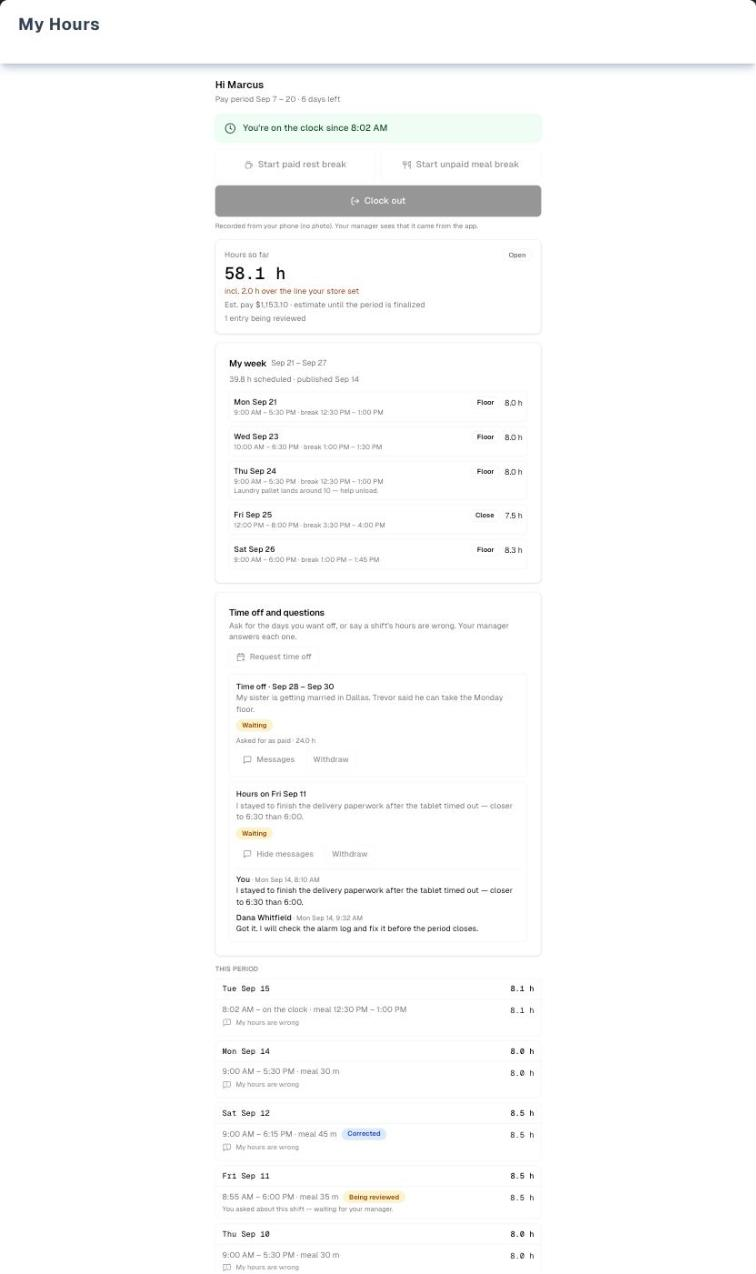
What is on it
| Card | What it tells you |
|---|---|
| Greeting and pay period | "Hi …" and the pay period you are in, for example "Pay period Sep 7 – 20 · 6 days left" |
| The clock banner | Whether you are on the clock, on a break or not clocked in, and since when. If you may clock in from your phone, the buttons for where you stand sit under it: Clock in when you are out; Start paid rest break, Start unpaid meal break and Clock out when you are in; End break while on a break. Otherwise it says "Clock in and out on the store tablet." |
| Hours so far | Your hours this pay period, including the shift you are on now. It also shows how many of them are over the overtime line your store set, whether the period is Open, Locked, Finalized or Paid, an estimate of the pay (see below), and how many entries are still being reviewed |
| My week | Your published schedule, one week at a time. It opens on the week you are in and the two arrows step to the published weeks either side, so next week is here the moment it is published. It shows each shift, its hours, its break and any note the manager left. A draft is never shown. If the owner allows it, the rest of the team's shifts are listed underneath |
| Time off and questions | The requests you have made, where each one stands (Waiting, Approved, Declined, Resolved or Withdrawn), your manager's note, and a message thread on each |
| This period | Every shift in the current pay period, one row per day with the newest first. Each shift shows its times, breaks and total, plus a pill when an entry was Corrected or is Being reviewed |
Clocking in from a phone is the owner's Clock in from their own phone switch (Settings → Workforce → Permissions). It is off by default. Owners always get the buttons. A phone punch is recorded as coming from the app, with no photo, at your home store, and your manager can see that.
Est. pay is only an estimate. It shows only when the owner lets staff see their pay estimate (on by default) and you have an hourly rate set. The page never shows the rate itself. Until the period is finalized it reads "estimate until the period is finalized"; after that it reads "estimate from your hours".
Step by step: ask for time off
- In Time off and questions, click Request time off. If the button is missing, the owner has turned off Request time off for staff.
- Set the First day and the Last day. Both start as tomorrow. Both days are included, and one request can cover up to 61 days.
- Say What is it for? A line is enough, and it is what your manager reads.
- To ask for paid days, tick Ask for it to be paid and enter the Hours to pay. That is the total for the whole request, not a daily figure, and it starts at 8. Leave the box unticked to ask for the days unpaid.
- Click Send request. The request shows Waiting until a manager answers. Click Messages on the row to add to the thread.
You can Withdraw a request while it is waiting. You can also withdraw it after it was approved, which puts the days back on the schedule, up until the leave is paid on a finished pay run. Withdraw takes effect at once, with no confirmation. You cannot edit a request, so to change one, withdraw it and ask again. You also cannot ask twice for a day that is already in a waiting or approved request.
Approved paid leave is priced at your hourly rate and is paid once, on the pay run for the period it ends in. There is no leave balance. UpChannels does not accrue days, so a request is a question, not a withdrawal from an allowance.
Nobody is texted or emailed when a manager answers. The requests list also does not refresh by itself, so reload the page to see a new answer.
Step by step: say a shift's hours are wrong
- Find the shift in This period and click My hours are wrong under it.
- The dialog shows the shift you picked. Describe What is wrong?, for example "I stayed to finish the delivery paperwork after the tablet timed out — closer to 6:30 than 6:00."
- Click Send. The question appears in Time off and questions as "Hours on" that shift's day, marked Waiting. The shift now reads "You asked about this shift — waiting for your manager." If the shift has not been approved yet, it also shows Being reviewed.
A shift can have only one open question at a time. You can ask about a shift in the current pay period even after it has been locked, finalized or paid; the question is recorded, but that shift does not show Being reviewed. Shifts from earlier pay periods are not listed on My Hours, so tell your manager about those.
If a manager changes that shift, UpChannels adds a line to the question's thread saying what changed, and the shift shows Corrected. Corrected appears on any shift a manager edited or added by hand, whether you asked about it or not. The manager closes the question as Resolved or Declined, with a note.
The page shows "Workforce isn't on for your organization" with one of two reasons. "It is turned off right now…" means the owner's Enable Workforce switch is off. "Workforce comes with the Premium plan, which your organization is not on…" means the store's plan does not include it. Nothing you clocked is lost. When Workforce comes back on, the page updates by itself within about 30 seconds.
Tips
- For a paid request that covers several days, change Hours to pay to the total you want, for example 24 for three 8-hour days. It does not multiply by the number of days.
- To see whether a manager has answered, reload the page. Hours refresh on their own, but requests and My week do not.
- The link in your "schedule published" text or email opens My week on the week it is about, not the week you are in. Signing in on the way doesn't lose it. Back to this week brings you back.
- Use Messages on a request to add detail later. You can add to a thread even after the request was answered or withdrawn.
- Changed your mind about approved time off? Withdraw puts those days back on the schedule, as long as the leave has not been paid yet.
Troubleshooting
| What you see | Why | What to do |
|---|---|---|
| No Clock in button, just "Clock in and out on the store tablet." | The owner has not allowed clocking in from a phone | Use the store tablet, or ask the owner to turn on Clock in from their own phone |
| No My week card at all | Your store has never published a week, or the schedule could not be loaded | Reload the page. If it is still missing, ask your manager whether the schedule is published |
| My week says "Not published yet" | The week on screen has not been published. If another week has been, the subtitle names it and the arrow goes there | Use the arrow, or ask your manager when this week goes up |
| No Est. pay line | The owner turned off See their own pay estimate, or no hourly rate is set for you | Ask the owner |
| No Request time off button or My hours are wrong links | The owner turned off Request time off or Raise an hours dispute. Under a shift you already asked about, the link is replaced by "You asked about this shift…" | Ask the owner |
| The Time off and questions card shows a red box and a Try again button, and the shifts say "Couldn't check whether you can raise a question about a shift." | Your requests could not be loaded, and none had loaded before. Until they do, UpChannels can't tell whether you may ask for time off or raise a question, so neither control is offered | Click Try again. If it keeps failing, reload the page, then tell your manager |
| "Couldn't refresh your hours: …" | An automatic refresh failed. The hours on screen are from the last good read | Click Retry, or wait for the next refresh |
| "You do not have permission to do this" | The store does not recognise your account as one of its people | Ask the owner to check your account in Settings → Team. A login that has been switched off never sees this — it is signed out instead |
| A red message under the punch buttons | The punch was refused, for example "You're already clocked in." The page re-reads so the banner shows where you really stand | Read the banner and punch again if needed |
What's next
- What managers and owners see: Workforce
- Where the hours become money: Workforce → Pay
- Where your account and hourly rate are kept: Settings → Team
- Try the page with sample data: Demo mode
Detailed reference
Every button, icon, field and message on this page, for when you need the exact detail. Each panel starts closed — open the one you need.
Page header and toolbar
| Control | Where | What it does | Notes |
|---|---|---|---|
| My Hours (user-check icon) | Left sidebar, Team group (above Finance) | Opens My Hours | Shown when the owner's Enable Workforce switch is on, or the plan includes Workforce (Premium or a free trial). A small Premium tag sits beside it when the plan is below Premium and no trial is running. The Team group disappears when both of its items are hidden |
| Title My Hours, subtitle "Your hours from the store time clock." | Page header | Display only | Always shown, including when Workforce is off |
| Demo (amber, Play icon) | Page header, right | Opens the demo with sample data and a guided tour | Everyone, including stores without Workforce. See Demo mode below |
| See My Hours | On Team → Workforce, in the card "Workforce is for owners and managers" ("Your own hours live in My Hours.") | Opens My Hours | Shown to people who have none of the manager tabs on the Workforce page, usually staff |
| Link in the "schedule published" text or email | Your phone or inbox ("See the week here: …") | Opens My Hours on the week that was just published | Sent when a manager publishes a week. Even a week published well in advance opens straight away; Back to this week returns to the week you are in. Tapping it on a phone you are signed out of takes you to the sign-in screen and then back to that same week |
| "Loading your hours…" (spinner) | Page body | Shown until the first answer arrives | First load only. Later refreshes update in place |
| Retry (in a red box) | Page body, in place of everything else | Loads the page again. Shows a spinner and is disabled while loading | When the first load fails. The box shows why (see Messages you may see) |
| Retry (in a red box "Couldn't refresh your hours: …") | Under the greeting, above the clock banner | Loads your hours again. Disabled with a spinner while loading | When an automatic refresh fails. The hours already on screen stay |
| Automatic refresh (no control) | Whole page | Re-reads your clock state, hours and shifts every 30 seconds while the browser tab is visible, and straight away when you come back to the tab. Also after every punch and every request you send or withdraw | Keeps running while Workforce is off, so the page comes to life by itself when it is turned on. Time off and questions and My week do not refresh this way |
Section: Greeting and pay period
| Control | Where | What it does | Notes |
|---|---|---|---|
| "Hi …" / "Hi there" | Top of the column | Greets you by first name | Uses your first name from your profile, or else the first word of your display name or name, or else your email address. "Hi there" when there is none |
| "Pay period … · … days left" | Under the greeting | The current pay period and how many days are left, today included. Reads "· last day" on its final day | For example "Sep 7 – 20", "Sep 28 – Oct 11" or "Dec 28, 2026 – Jan 10, 2027". The period comes from the pay period set in Settings → Workforce, in the store's time zone |
Section: Clock banner and phone punch buttons
| Control | Where | What it does | Notes |
|---|---|---|---|
| Green banner, clock icon: "You're on the clock since 9:02 AM" | Under the pay period line | You are clocked in, and since when | Reads "since Mon Sep 14, 9:02 AM" when the shift started on an earlier day, or just "You're on the clock" if the start time can't be read. Screen readers announce changes |
| Amber banner, coffee icon: "On your meal break since 12:30 PM" / "On your rest break since 3:00 PM" | Same place | You are on a break, which kind, and since when | Meal = unpaid meal break, rest = paid rest break. "You're on a break" if the start time can't be read |
| Grey banner, clock icon: "Not clocked in" | Same place | You are off the clock | — |
| "Clock in and out on the store tablet." | Under the banner | Tells you to use the tablet | Shown instead of buttons when you may not clock in from your phone. That is the owner's Clock in from their own phone switch, which is off by default. Owners never see this, because they can always punch from the page |
| Clock in (log-in icon, large) | Under the banner | Starts a shift from your phone. Toast "You're in, 9:02 AM", with a second line such as "46.5 h this week · OT soon" when you are near or past the weekly overtime line. The page re-reads | Only when you are clocked out and you may clock in from your phone (owners always can). Recorded as coming from the app, at your home store, with no photo, even if the store tablet asks for photos |
| Start paid rest break (coffee icon) | Under the banner, first (left of the pair on wider screens) | Starts a paid rest break, and the minutes still count as worked. Toast "Paid rest break started, 3:00 PM" | Only while you are clocked in and not on a break |
| Start unpaid meal break (utensils icon) | Under the banner, second (right of the pair on wider screens) | Starts an unpaid meal break, and the minutes do not count. Toast "Unpaid meal break started, 12:30 PM" | Only while you are clocked in and not on a break |
| Clock out (log-out icon, large) | Under the two break buttons | Ends the shift. Toast "You're out, 5:31 PM · 8.0 h today" with "40.0 h this week" underneath (plus "· OT soon" or "· over the line your store set"). A shift that started the day before reads "· 8.5 h this shift" instead of "today" | Only while clocked in. On a break the only button is End break |
| End break (play icon, large) | Under the banner | Ends the current break. Toast "Break ended, 1:00 PM" | Only while on a break |
| Any punch button while sending | — | All punch buttons are disabled while one punch is sending. The one you tapped shows a spinner | — |
| Red box under the buttons | Under the punch buttons | Says why a punch was refused (see Messages you may see). After a refusal the page re-reads, so the banner shows where you really stand, for example if the tablet or a manager already clocked you out | Stays while you are in the same clock state, and goes away once the state changes |
| "Recorded from your phone (no photo). Your manager sees that it came from the app." | Under the punch buttons | Explains how phone punches are recorded | Whenever the buttons are shown |
Section: Hours so far
| Control | Where | What it does | Notes |
|---|---|---|---|
| Heading "Hours so far" | Card, top left | — | — |
| Badge Open / Locked / Finalized / Paid | Card, top right | The state of this pay period. Hover text: Open = "This pay period is still open"; Locked = "This pay period is closed for changes while pay is worked out"; Finalized = "The pay for this period has been worked out"; Paid = "This pay period has been paid" | Open until a manager locks the period. Also shows Open if the state can't be read |
| Big number, for example "58.1 h" | Card | Total hours worked this pay period, to one decimal, including the shift you are on (counted up to the last refresh) | Unpaid meal breaks are not counted; paid rest breaks are. Entries a manager rejected are left out. Hours are split into regular and overtime the same way the pay run splits them |
| "incl. 2.0 h over the line your store set" (amber) | Under the big number | How many of those hours are overtime | Only when there is overtime. The line is set in Settings → Workforce (40 hours a week by default, with an optional daily line) |
| "Est. pay $1,153.10 · estimate until the period is finalized" / "Est. pay $… · estimate from your hours" | Card | An estimate of the pay for these hours at your rate, with overtime at your overtime rate | Only when you may see your pay estimate (the See their own pay estimate switch, on by default and always on for owners) and an hourly rate is set for you. The rate itself is never shown. The wording changes to "estimate from your hours" once the period is Finalized or Paid. Always in US dollars |
| "1 entry being reviewed" / "… entries being reviewed" | Card, bottom | How many of this period's shifts show Being reviewed | Only when there is at least one |
Section: My week
| Control | Where | What it does | Notes |
|---|---|---|---|
| Card "My week" with the week's dates, for example "Sep 14 – Sep 20" | Below Hours so far | Your published schedule for one week, using the store's time zone and week start day. It opens on the week you are in, or on the week the link in your schedule message named | The whole card is missing only when your store has published no week at all, or when the schedule can't be loaded. A week that is not published shows the card with "Not published yet" instead of disappearing |
| Red box in the My week card, with Try again | Top of the card body | Says the week could not be loaded, for example "Failed to load your schedule" | Only once the card is up: if an arrow cannot load the week it asked for, the week already on screen stays and this says why. Try again re-reads it |
| ‹ and › (arrow buttons) | Card title, right | Step to the published week before or after the one on screen | Greyed when there is no published week that way, and while a week is loading. They skip straight to a week that exists, so a week your store never rostered is never landed on. A week published before the store changed which day its week starts is skipped too — that week can no longer be opened |
| Back to this week | Card body, bottom | Returns to the week you are in now | Only after you have moved weeks, or arrived from a link that named one |
| "39.8 h scheduled · published Sep 14" / "Published by your manager · published Sep 14" | Under the card title | Your total scheduled hours (breaks taken out) and the day the week was published | "Published by your manager" when you have no shifts that week |
| "Not published yet · next published week Sep 21 – Sep 27" | Under the card title | The week on screen is not published, and names the nearest week that is | Reads "· last published week …" when the only published week is behind you, and just "Not published yet" when the week you arrived at is the only one |
| "Your manager hasn't published this week yet." | Card body | Stands in for the shift list on an unpublished week | — |
| Shift row: day, "9:00 AM – 5:30 PM · break 12:30 PM – 1:00 PM", the manager's note, a label badge such as "Floor", and the hours | Card body, one row per shift | Display only | The break part shows only when the shift has a break set, the note only when the manager wrote one, and the badge only when the shift has a label. You can have two shifts on one day |
| "You are not on the schedule this week." | Card body | The week is published but has no shifts for you | — |
| The rest of the team: each day, then "Name · 9:00 AM – 5:00 PM · label" | Card body, below your shifts | Everyone else's published shifts, grouped by day | Only when you may see the whole team's schedule (the See the whole team's published schedule switch, on by default and always on for owners). "A teammate" when a name is missing |
Section: Time off and questions
| Control | Where | What it does | Notes |
|---|---|---|---|
| Card "Time off and questions", "Ask for the days you want off, or say a shift's hours are wrong. Your manager answers each one." | Below My week | Lists all of your own requests, time off and questions about hours, ever | Hidden when the requests loaded fine, you may not ask for time off and you have no requests. When the read FAILS the card stays, with the red box and Try again, because "you may not" and "we could not find out" are not the same thing. A manager's own requests show here. Requests they have to answer do not; those are on Team → Workforce → Requests |
| Request time off (calendar-plus icon) | Card header, right | Opens Request time off | Only when the Request time off switch is on (on by default, always on for owners) |
| Red box in the card | Top of the card | Says the requests could not be loaded, for example "Failed to load the requests" | Rows already on screen stay. When the very first read fails the card still appears, with this box and Try again, and no Request time off button — UpChannels does not yet know whether you may ask |
| Try again | Card body, under the red box | Reads your requests and your hours again | Only while the read has failed and there are no rows to show. Disabled with a spinner while it works. On success the card fills in and the red box goes |
| "Couldn't check whether you can raise a question about a shift. Use Try again above." | Between the card and your shifts | Explains why no My hours are wrong link is under any shift | Only while no read has succeeded yet — the same state in which the card above offers Try again and no Request time off. If your requests loaded once and a later refresh fails, the links keep working and this line does not appear |
| "You have not asked for anything yet." | Card body | Empty state | When you have no requests |
| Row heading: "Time off · Sep 28 – Sep 30" / "Time off · Mon Sep 28" / "Hours on Fri Sep 11" | Each row, top left | What was asked for | A one-day request names the weekday. A question about a shift names the day that shift falls on, read in the store's time zone, so a late shift is filed under the day it started at the store. It reads "A question about hours" instead when the shift can no longer be read, for example after it was deleted |
| Row text | Under the heading | What you wrote when you asked | — |
| Status pill Waiting (amber) / Approved (green) / Declined (red) / Resolved (green) / Withdrawn (grey) | Each row, top right | Where the request stands | Waiting = nobody has answered yet. Time off ends Approved or Declined; a question about hours ends Resolved or Declined. Withdrawn = you took it back. Waiting rows come first, then the newest |
| "Asked for as paid · 24.0 h" / "Asked for as paid · 24.0 h approved" | Row, small text | The hours you asked to be paid for | Only on paid time-off requests. "approved" is added once it is approved. There is no leave balance |
| "Paid on a finished pay run." | Row, small text | The approved paid leave has been paid on a finished pay run | From then on it can no longer be withdrawn |
| Manager's note (grey box) | Row | What the manager wrote when answering | Only when there is a note. Declining or resolving always comes with one |
| Messages / Hide messages (speech-bubble icon) | Row, bottom left | Opens or closes the message thread under the row | One thread is open at a time. Opening another row's thread closes the first |
| Withdraw | Row, next to Messages | Takes the request back at once, with no confirmation. Toast "Withdrawn.", or for approved time off "Withdrawn. That day is back on the schedule." / "Withdrawn. Those … days are back on the schedule." Adds "Withdrawn." to the thread and sets the pill to Withdrawn. Withdrawing a question about hours takes the review mark off that shift | Only on your own request while it is Waiting or Approved and not yet paid on a finished pay run. Still works if the owner has since turned Request time off off. Disabled with a spinner while sending. Errors show in a red box under the buttons |
| No edit button | — | A request can't be changed from My Hours | Withdraw it and ask again |
| Thread line: "You · Mon Sep 14, 9:02 AM" and the text | Open thread | The conversation, oldest line first, with times in the store's time zone | "You" is you. A manager's line shows their name, or "Your manager". "UpChannels" is an automatic line written when a manager edits the shift while your question about it is still Waiting, for example "… changed this entry: clock-in 9:00 AM to 8:30 AM, clock-out 5:00 PM to 6:30 PM - reason". A manager's answer adds their note, or "Approved." when they approved without one. What you wrote when you asked is not repeated as the first line |
| "Loading the thread…" / "Nothing said yet." | Open thread | The thread is loading, or nobody has written on it yet | A new request's thread says "Nothing said yet." until someone writes |
| Red box in the open thread | Open thread | The thread could not be loaded, for example "That request is no longer there" | — |
| Reply box "Add something…" (read out as "Add to this thread" by screen readers) | Open thread, bottom | Type a message to your manager | Works on any request, including answered or withdrawn ones. No counter; more than 2,000 characters is refused |
| Send | Under the reply box | Posts your message. The box clears and the thread updates in place | Disabled while the box is empty or sending. Errors show in a red box above the button |
Section: This period
| Control | Where | What it does | Notes |
|---|---|---|---|
| Heading "This period" | Bottom of the page | — | — |
| "No hours yet this pay period." (dashed box) | Same place | Empty state | No shifts in the current pay period |
| Day row: "Tue Sep 15" and the day's total, for example "8.1 h" | One box per day, newest day first | The day you clocked in (store time zone) and that day's total | A day can hold two shifts (a split shift, or one a manager added); the total is their sum. Only the current pay period is listed |
| Shift line: "9:00 AM – 5:05 PM · meal 30 m" / "8:55 AM – on the clock · meal 12:30 PM – 1:00 PM" / "10:00 PM – Wed 6:00 AM", with the shift's hours | Under each day | The shift's times and breaks | A finished shift totals each kind of break ("meal 30 m · rest 10 m"). The shift you are on lists each break with its times ("rest since 3:00 PM"). An overnight shift names the weekday it ended |
| Pill Corrected (blue) | Next to the shift line | A manager changed this shift, or added it by hand | Shows for any manager edit, whether or not you asked about it, and stays after approval. It takes the place of Being reviewed |
| Pill Being reviewed (amber) | Next to the shift line | The shift is marked for a manager's look and has not been approved yet | Marked for a missed or automatic clock-out, a long shift, no meal break, or an open question from you. It goes away once a manager approves the shift. If your question was the only reason, it also goes away when the manager answers the question or you withdraw it. A shift that was already approved, or is in a locked or paid period, does not get it when you ask about it |
| My hours are wrong (warning speech-bubble icon, small link) | Under each shift line | Opens My hours are wrong for that shift | Only when the Raise an hours dispute switch is on (on by default, always on for owners). Shown on every shift of the current period, including the one still open. Shifts from earlier pay periods aren't listed, so they can't be questioned from here |
| "You asked about this shift — waiting for your manager." | Under the shift line, instead of the link | A question about this shift is still Waiting | Only one open question per shift is allowed |
Dialog: Request time off
Opened by Request time off on the Time off and questions card. The form starts fresh every time it opens. Title Request time off, with the line "Pick the days you want off and say what it is for. Your manager answers each request."
Fields:
| Field | Required | Default | Rules and error text |
|---|---|---|---|
| First day (date) | Yes | Tomorrow (store time zone) | Past dates are not blocked. Moving it past Last day moves Last day with it. Left blank: "Pick a first day and a last day, and do not end before you start." |
| Last day (date) | Yes | Tomorrow | Can't be before First day: your browser stops the form. Both days are included. Up to 61 days in one request: "Ask for a shorter stretch — up to 61 days at a time." Left blank: "Pick a first day and a last day, and do not end before you start." |
| Day count, "1 day" / "… days" | — | — | Shown under the dates when both are valid, counting both the first and the last day. It counts the whole stretch however long it is, so 1 January to 31 March reads "90 days". Over 61 days it adds "— Ask for a shorter stretch — up to 61 days at a time." beside the count, and Send request refuses it with the same words |
| Ask for it to be paid (checkbox) | No | Off | Off shows "Leave it off to ask for the days unpaid." |
| Hours to pay (number, steps of 0.25) | When paid is ticked | 8 | The total for the whole request, not per day, and it does not change with the number of days. Help text: "The hours you are asking to be paid for. Your manager decides; if they approve it, those hours go on that period's pay at your hourly rate." Must be in quarter hours (for example 7.5 or 7.75) and not below 0; otherwise your browser stops the form and points at the box. Blank or 0: "Paid time off needs the hours to pay. Enter them, or ask for the days unpaid." More than 2,000: "Enter the hours to pay as a number" |
| What is it for? (placeholder "A wedding out of town.") | Yes | Empty | Blank: "Say what you are asking for, in a sentence." Up to 1,000 characters; the box stops taking text at 1,000 |
Buttons:
| Control | Where | What it does | Notes |
|---|---|---|---|
| Red box | Above the buttons | Shows the first problem found, checked in this order: the reason, the dates, the length, the paid hours | Clears as soon as you change any field |
| Cancel | Footer | Closes without sending | Disabled while sending |
| Send request | Footer | Checks the form, then sends it. On success: toast "Asked for. Your manager will answer.", the dialog closes, and the card and hours re-load with the new row showing Waiting | Disabled with a spinner while sending. Refused if any of the days is already in a Waiting or Approved request: "You have already asked for one of those days." |
| X (close), Esc, or a click outside | Top right / keyboard / backdrop | Closes the dialog | — |
Dialog: My hours are wrong
Opened by My hours are wrong under a shift in This period. Title My hours are wrong, with the line "Tell your manager what is wrong with this shift. Whatever they change appears on the thread."
Fields:
| Field | Required | Default | Rules and error text |
|---|---|---|---|
| Shift box: the day, and for example "8:55 AM – 6:00 PM · meal 35 m · 8.5 h" | — | The shift you picked | Display only |
| What is wrong? (placeholder "I stayed until six, this says five.") | Yes | Empty | Blank: "Say what you are asking for, in a sentence." Up to 1,000 characters. The box opens empty for each shift: after Send or Cancel, and when you go straight from one shift to another, whatever you typed and any red box are cleared. Nothing is kept as a draft, so finish a question before you close it |
Buttons:
| Control | Where | What it does | Notes |
|---|---|---|---|
| Red box | Above the buttons | Says why it was refused (see Messages you may see) | Clears as soon as you change the text |
| Cancel | Footer | Closes without sending | Disabled while sending |
| Send | Footer | Sends the question. Toast "Sent. Your manager will look at that shift." The dialog closes; the card gets a new Waiting row naming that shift's day, for example "Hours on Fri Sep 11"; the shift reads "You asked about this shift — waiting for your manager." and shows Being reviewed if it has not been approved, its period is still open, and it isn't already showing Corrected | Disabled with a spinner while sending. Works for shifts in a locked, finalized or paid period too: the question is recorded, but the shift is not marked. A second question on the same shift is refused: "There is already an open question about that shift." |
| X (close), Esc, or a click outside | Top right / keyboard / backdrop | Closes the dialog | — |
Messages you may see
| Message | When it appears | What to do |
|---|---|---|
| "Loading your hours…" | The page is opening | Wait |
| "Workforce isn't on for your organization" + "It is turned off right now. Once the owner turns it on, the hours you clock on the store tablet will show here." | The owner's Enable Workforce switch (Settings → Workforce) is off. If it is switched off while you have the page open, the page changes to this card at the next refresh | The owner turns it on. The page updates by itself within about 30 seconds. Nothing clocked is lost |
| "Workforce isn't on for your organization" + "Workforce comes with the Premium plan, which your organization is not on. Once it is, the hours you clock on the store tablet will show here." | The store's plan is below Premium and no trial is running | The owner upgrades to Premium in Settings → Plan & Billing |
| "Failed to load your hours" (with Retry) | A server problem on the first load | Click Retry. If it keeps happening, contact support |
| "Could not reach UpChannels — check your connection and try again" | No connection | Check your internet, then Retry or try the action again |
| "You do not have permission to do this" (with Retry) | The store cannot see your account as one of its people, so it has no hours to show you | Ask the owner to check your account in Settings → Team. A login that has been switched off or removed never sees this — it is signed out instead |
| "Unauthorized" / "No organization associated with this account" | You are signed out, or the account has no store | Sign in again, or contact support |
| "Couldn't refresh your hours: …" (with Retry) | An automatic refresh failed. The earlier numbers stay on screen | Click Retry, or wait for the next refresh |
| "Clock in and out on the store tablet." | You may not clock in from your phone | Use the tablet, or ask the owner to turn on Clock in from their own phone (Settings → Workforce → Permissions) |
| "Recorded from your phone (no photo). Your manager sees that it came from the app." | Under the phone punch buttons | For information |
| Toast "You're in, 9:02 AM" (sometimes with "46.5 h this week · OT soon" or "· over the line your store set") | After Clock in | "OT soon" = within 2 hours of the weekly overtime line; "over the line your store set" = past it |
| Toast "You're out, 5:31 PM · 8.0 h today" (or "· 8.5 h this shift") with "40.0 h this week" | After Clock out | "this shift" appears for an overnight shift |
| Toast "Paid rest break started, …" / "Unpaid meal break started, …" | After starting a break | — |
| Toast "Break ended, …" | After End break | — |
| "You're already clocked in." | Clock in refused because you are already in, for example on the tablet | The page refreshes to your real state |
| "You're not clocked in." | A break or Clock out refused because the shift was already closed, for example by a manager or an automatic clock-out | The page refreshes. Clock in again if you need to |
| "You're on a break — end it first." | Tried to clock out or start a break while on a break | Tap End break first |
| "You're not on a break." | End break refused | The page refreshes |
| "Pick a paid rest break or an unpaid meal break." | The break kind was missing | Try again |
| "Your account isn't active in this organization — ask a manager." | Punch refused: you are not an active member | Ask a manager or the owner |
| "This day is in a locked pay period — ask the owner to reopen it." | The punch falls in a pay period that is already locked | The owner reopens the period with Reopen period on the Timesheets tab or Reopen on the Pay tab of Team → Workforce. A paid period can't be reopened |
| "Clocking in from your phone is turned off — use the store tablet." | The owner turned phone clocking off after the page loaded | Use the tablet |
| "Workforce was turned off for your organization." | Workforce was switched off while you had the page open (on a punch) | The owner turns it back on |
| "Workforce comes with the Premium plan — ask the owner to upgrade." | The plan dropped below Premium (on a punch) | The owner upgrades |
| "Something went wrong — try again" / "Something went wrong — try again." | An unexpected error on a punch or a request | Try again |
| "Failed to load the requests" / "Failed to load the request" / "That request is no longer there" | The requests card or a thread could not be loaded | Reload the page |
| "You have not asked for anything yet." | You have no requests | — |
| "Loading the thread…" / "Nothing said yet." | A thread is loading, or is empty | — |
| "Asked for as paid · … h" / "… h approved" | On a paid time-off request | The hours asked for or approved. Not a balance |
| "Paid on a finished pay run." | Leave that has been paid | It can no longer be withdrawn |
| Toast "Withdrawn." / "Withdrawn. That day is back on the schedule." / "Withdrawn. Those … days are back on the schedule." | After Withdraw | Approved days go back on the schedule |
| Toast "Asked for. Your manager will answer." | Time off sent | Reload the page later to see the answer. No text or email is sent when a manager answers |
| Toast "Sent. Your manager will look at that shift." | A question about a shift sent | Same as above |
| "You asked about this shift — waiting for your manager." | A shift with a Waiting question | Wait for the manager, or add to the thread |
| "… entry being reviewed" / "… entries being reviewed" | Hours so far | Shifts still showing Being reviewed |
| "incl. … h over the line your store set" | Hours so far | Overtime hours in the period |
| "Est. pay … · estimate until the period is finalized" / "· estimate from your hours" | Hours so far | An estimate, not a pay slip |
| "This pay period is still open" / "This pay period is closed for changes while pay is worked out" / "The pay for this period has been worked out" / "This pay period has been paid" | Hover over the Open, Locked, Finalized or Paid badge | — |
| "You are not on the schedule this week." | The week is published but has no shifts for you | — |
| "Published by your manager" | My week subtitle when you have no shifts | — |
| "Say what you are asking for, in a sentence." | The reason or What is wrong? was left blank | Type a line |
| "Pick a first day and a last day, and do not end before you start." | A date is missing, or Last day is before First day | Fix the dates |
| "Ask for a shorter stretch — up to 61 days at a time." | More than 61 days, both ends counted. It appears beside the day count as soon as the dates are that far apart, and again in the red box if you send | Split it into two requests |
| "Paid time off needs the hours to pay. Enter them, or ask for the days unpaid." | Paid is ticked but Hours to pay is blank or 0 | Enter the hours, or untick paid |
| "Enter the hours to pay as a number" | Hours to pay is above 2,000 | Enter a realistic number |
| "You have already asked for one of those days." | The dates overlap another Waiting or Approved time-off request | Withdraw the other request, or change the dates |
| "There is already an open question about that shift." | A question about the shift is already Waiting | Add to the existing thread |
| "You can only ask about your own hours." | The shift belongs to someone else | — |
| "You do not have permission to do that." | The owner turned off Request time off or Raise an hours dispute after the page loaded | Ask the owner |
| "This request has already been answered." | Withdraw on a request that was already declined or resolved | Reload the page |
| "That leave has been paid, so it cannot be withdrawn." | Withdraw on leave already paid on a finished pay run | Talk to your manager or the owner |
| "This request is no longer there. Refresh the list." | The request can't be found | Reload the page |
| "This is somebody else’s request, so only they can change it." | Not your request | — |
| "Keep it under 2000 characters." | A reply over 2,000 characters | Shorten it |
| "Workforce is turned off for this organization" / "Workforce is included with Premium — upgrade your plan to use it" | A request or reply sent after Workforce was switched off or the plan dropped | The owner turns Workforce on or upgrades |
Who can use what
| Who | What they get on My Hours |
|---|---|
| Any signed-in, active member (owner, manager, staff) | The page, with their own clock state, hours, schedule and requests. Nobody else's hours or requests ever appear here |
| The store (both needed) | The owner's Enable Workforce switch on (Settings → Workforce, on by default) and the Premium plan or a free trial. Otherwise the "Workforce isn't on…" card shows, and the switch is checked first |
| Sidebar item | Shown when the switch is on or the plan includes Workforce, so a store can see My Hours and still land on the "Workforce isn't on…" card |
| Owner (the person whose Owner switch is on in Settings → Team, or who has the owner role) | Every "Staff can" permission is always on for the owner, whatever the switches say: phone punch buttons, pay estimate (if a rate is set), the whole team's schedule, Request time off and My hours are wrong |
| Manager and Staff | Follow the owner's switches in Settings → Workforce → Permissions → Staff can: See their own pay estimate (on by default), See the whole team's published schedule (on by default), Request time off (on by default), Raise an hours dispute (on by default), Clock in from their own phone (off by default). "Clock in and out on the tablet · See their own hours" is always allowed |
| When a switch is off | Pay estimate off: no "Est. pay" line. Team schedule off: no "The rest of the team". Request time off off: no Request time off button, and the card is hidden if there are no requests (Withdraw still works). Raise an hours dispute off: no My hours are wrong links. Clock in from phone off: "Clock in and out on the store tablet." |
| Someone whose login was switched off or deleted in Team | Cannot open the page at all. Switching someone off ends every session they have: an open tab goes to the sign-in screen the next time a page opens or the tab is used again (checked at most every 30 seconds), and within 5 minutes otherwise, with "You were signed out because your session ended. Sign in again to continue." Signing in again is refused: "This login has been switched off. Ask your store owner to turn it back on." If instead the app reads the switched-off account while the tab is open and signs it out itself, the sign-in screen says "Your login has been switched off. Ask your store owner to turn it back on." See Team |
| Answering requests | Nobody answers a request on this page, and nobody can answer their own. Managers with Decide time-off requests or Resolve hours disputes answer on Team → Workforce → Requests. See Workforce |
Demo mode (/workforce/me/demo)
- Open it: Demo (amber, Play icon) at the right of the My Hours header. It opens even when the store doesn't have Workforce.
- Header: "My Hours — Demo", with "One person's own shifts, hours and time-off requests. Sample data; all actions are disabled."
- Banner: "Demo mode — one person's own hours for a sample pay period. All actions are disabled." Its Take the tour button restarts the tour from step 1.
- Tour: starts by itself the first time the demo opens. The page is one column with no tabs.
- Disabled: every button in the punch area, the requests card and This period looks live but can't be clicked or tabbed to: Start paid rest break, Start unpaid meal break, Clock out, Request time off, Messages / Hide messages, Withdraw, My hours are wrong. Nothing is loaded or saved.
- Still works: Exit Demo Mode, Take the tour, the tour controls and the sidebar.
- Leave: Exit Demo Mode (arrow-left icon, header right) goes back to My Hours.
| # | Tab | Tour step | What it points at |
|---|---|---|---|
| 1 | — | "Your page, nobody else’s" | The greeting and pay period line. Explains that only the signed-in person is shown, and the pay period follows the store's calendar and time zone |
| 2 | — | "Where you stand right now" | The clock banner and punch buttons. Says the buttons appear only when the owner allows phone clocking, and a clocked-out person sees one big Clock in button |
| 3 | — | "Hours so far this period" | The Hours so far card: the running total, hours over the weekly line, and that estimated pay shows unless the owner has switched it off and once your hourly rate is set, while the rate itself never reaches the page |
| 4 | — | "Next week, once it is published" | The My week card: shifts with breaks and notes, that a draft week never shows its shifts, and that the arrows step between the weeks your store published |
| 5 | — | "Asking for time off" | The Time off and questions card: no balance, UpChannels accrues nothing, and each request has its own thread |
| 6 | — | "Every punch, and a way to query one" | The This period list: a row per day, what Corrected and Being reviewed mean, and that My hours are wrong opens a question on that exact shift |
Tour controls:
| Control | Where | What it does | Notes |
|---|---|---|---|
| Progress dots and "… of 6" | Tour card, top and bottom left | Shows which step you are on | — |
| Back | Tour card | Previous step | Hidden on step 1. Left arrow key does the same |
| Skip | Tour card | Ends the tour | Esc does the same |
| Next / Got it! | Tour card | Next step. Got it! on the last step ends the tour | Right arrow or Enter does the same |
| Dark backdrop | Anywhere outside the tour card | Ends the tour | — |
Sample data (always the same, dated Tuesday Sep 15, 2026):
- "Hi Marcus", "Pay period Sep 7 – 20 · 6 days left".
- Banner "You're on the clock since 8:02 AM" with Start paid rest break, Start unpaid meal break, Clock out and the "Recorded from your phone…" caption.
- Hours so far: Open, "58.1 h", "incl. 2.0 h over the line your store set", "Est. pay $1,153.10 · estimate until the period is finalized", "1 entry being reviewed".
- My week "Sep 21 – Sep 27", "39.8 h scheduled · published Sep 14": Mon Sep 21, Wed Sep 23, Thu Sep 24 (note "Laundry pallet lands around 10 — help unload."), Fri Sep 25 (label "Close") and Sat Sep 26; the others are labelled "Floor".
- Requests: "Time off · Sep 28 – Sep 30", Waiting, "My sister is getting married in Dallas. Trevor said he can take the Monday floor.", "Asked for as paid · 24.0 h". And "Hours on Fri Sep 11", Waiting, with its thread open: "Dana Whitfield · Mon Sep 14, 9:32 AM" saying "Got it. I will check the alarm log and fix it before the period closes."
- This period: Tue Sep 15 (the open shift), Mon Sep 14, Sat Sep 12 (Corrected), Fri Sep 11 (Being reviewed, with "You asked about this shift — waiting for your manager."), Thu Sep 10, Wed Sep 9 and Tue Sep 8. The other shifts show My hours are wrong.
Differences from the live page:
- The demo's My week shows next week and has no week arrows. The live card opens on the week you are in and can step to the published weeks either side, so tour step 4 ("Next week, once it is published") is true of both, but only the live card lets you move. On the live page a week that is not published still shows the card, saying so and naming the published week nearest to it.
- The demo has no reply box, and its dialogs can't be opened.
- The demo always shows the on-the-clock punch buttons. Live, staff and managers see buttons only when phone clocking is allowed, and the buttons change with where you stand.
- No "The rest of the team" list, no loading or error states, and no Workforce-off card in the demo.
- The demo shows "Marcus". The live page always shows the person signed in.
Common questions
How do I see next week's schedule on My Hours? Use the › arrow on the My week card, or tap the link in your "schedule published" text or email — that opens the week it is about. The arrows step between the weeks your store has published, so next week is there as soon as it goes up; a week that is still a draft never appears. Back to this week returns to the week you are in.
Why is there no Clock in button on my phone? Clocking in from a phone is off unless the owner turns on Clock in from their own phone in Settings → Workforce → Permissions. Until then the page says "Clock in and out on the store tablet." Owners always have the buttons.
Why don't I see my estimated pay? Two things are needed: the owner's See their own pay estimate switch (on by default) and an hourly rate set for you. Without either, the "Est. pay" line doesn't appear. Your rate itself is never shown on this page.
Can I change a time-off request after sending it? No. Withdraw it and send a new one. Withdraw works while the request is Waiting, and also after it was approved (the days go back on the schedule), until the leave is paid on a finished pay run.
How do I know when my manager has answered? Reload My Hours. The status pill changes to Approved, Declined or Resolved, and any note shows on the row and in its thread. UpChannels does not text or email you when a request is answered.
What is the difference between Corrected and Being reviewed? Corrected means a manager changed the shift or added it by hand, whether or not you asked about it. Being reviewed means the shift is marked for a manager's look, for example a missed clock-out, a long shift, no meal break or your open question, and it goes away once the shift is approved.
Does approved paid time off come out of a balance? No. UpChannels keeps no leave balance and accrues nothing. Approved paid hours are paid at your hourly rate, once, on the pay run for the period the leave ends in.
I asked about a shift after the pay period was locked. Why doesn't it say Being reviewed? A shift in a locked, finalized or paid pay period can't be marked for review any more, but your question is still recorded. It shows as Waiting in Time off and questions, and your manager answers it there.