Customer Portal
The Customer Portal is one page per order, reachable by a private link, with no account to create and no password to forget. It answers the four questions that otherwise arrive by phone: what did I buy, what do I still owe, when is it coming, and can I change it?
The portal is included in Pro and Premium (a free trial has full access), and it starts switched on. On Basic, Settings → Customer Portal says your plan does not include it and offers Upgrade plan; links you already sent show a Portal unavailable page until you upgrade.
Step by step: check it is on
- As the owner, open Sales → Customer Portal (or Settings → Customer Portal). The sidebar item shows to everyone Settings opens for, but only the owner can change anything on the page.
- Check that Enable customer portal reads Enabled. While it is on, staff can send portal links from orders. Every switch on this page saves the moment you flip it. There is no Save button.
- Choose the Automatic customer notifications you want (below). This card only shows while the portal is on.
- Decide whether to Also send by text (SMS) as well as email. Texts need the customer's SMS consent, and each one counts against your plan's monthly SMS quota.
Turning the portal off is safe and reversible: existing links show a Portal unavailable page, and the portal actions disappear from orders, until you turn it back on. Anyone with the owner role but not the Owner switch, and a store's only active member who is not the owner, can open the page but change nothing on it: every switch is greyed out, and "Only the organization owner can change this." sits beside the Enabled / Disabled switch at the top.
Automatic customer notifications
Each row is a switch. Messages go by email to the customer's primary email, at most once per order, and each one carries the customer's own portal link. UpChannels checks for new events about every 5 minutes. Payment, appointment and completion messages only look back 48 hours, so switching one of those on does not send anything about older orders. Ready to schedule and the day-before reminder look at every open order, so switching those on can reach orders placed earlier.
| Notification | What it sends | Default |
|---|---|---|
| Payment received | A thank-you with a View your receipt button, once the order is fully paid. A deposit or part-payment on its own sends nothing | On |
| Appointment scheduled | The date and the portal link when a service appointment (a job on the Schedule) is booked. Delivery bookings get the Delivery & Routes message instead | On |
| Day-before reminder | A reminder the evening before a service appointment or a confirmed delivery: both go out from 5pm in your store's time zone (5pm UTC if you have not set one). The delivery reminder also needs Enable Delivery & Routes and Day-before delivery reminder on in Settings → Delivery & Routes; either switch off stops it | On |
| Order completed | A wrap-up with a link to the order when it is marked Delivered or Completed | On |
| Ready to schedule | When every item in a delivery order is in stock, an invitation to pick their own delivery date. It does nothing unless Customer self-scheduling (portal) is on in Settings → Delivery & Routes | On |
| Review request after completion | An invitation to rate the order about a day after it is delivered or completed. Review us on Google appears only if a location has a Google review link saved | Off |
| Remind customers who have not answered | Up to 2 follow-ups, 3 days apart, on any review invitation still waiting for an answer — including the ones you send by hand from an order or from Growth → Reviews | On |
With Also send by text (SMS) on, each of these messages also goes out as a text when the customer accepts texts and has a phone number, and your plan's SMS quota and texting number allow it. Review invitations are the exception: they are texted only when no email could be sent. A customer who has opted out is not texted that message later either. When the quota is used up or the store has no texting number, texting pauses until the next check and is tried again then, so the texts still go if you add credits or a number while they are owed. Two messages go their own way. A Ready to schedule invitation is offered once: after its email, the order is not offered again, so a text that could not go with it is not tried later. A review invitation that could not be sent is tried again with the reminders, 3 days later, when Remind customers who have not answered is on — unless every way it was tried was refused for a reason about the customer (they opted out of texts, or their email address or phone number cannot be used): then the reminders stop asking, and Request review still tries.
Step by step: send a customer their link
- Open the order (for example from Sales → List).
- In the order window's header, open Send and choose Portal link…. The item appears only while the portal is on and your plan includes it.
- The dialog creates a fresh link, valid for 60 days, and shows it. From there:
- Copy the link to paste into an email or a chat.
- Send by text: check the To number, edit the Message, and send. If the customer is not marked as opted in to texts, you are asked to confirm their consent first.
- If the portal was switched off or the plan changed after you opened the order, the dialog says so and offers Open portal settings or Upgrade to Pro.
Every click makes a new link, and older links keep working until they expire. When one expires, the customer sees "This link has expired". Send a fresh one from the same dialog.
What the customer sees
Cards, top to bottom:
| Card | What it does |
|---|---|
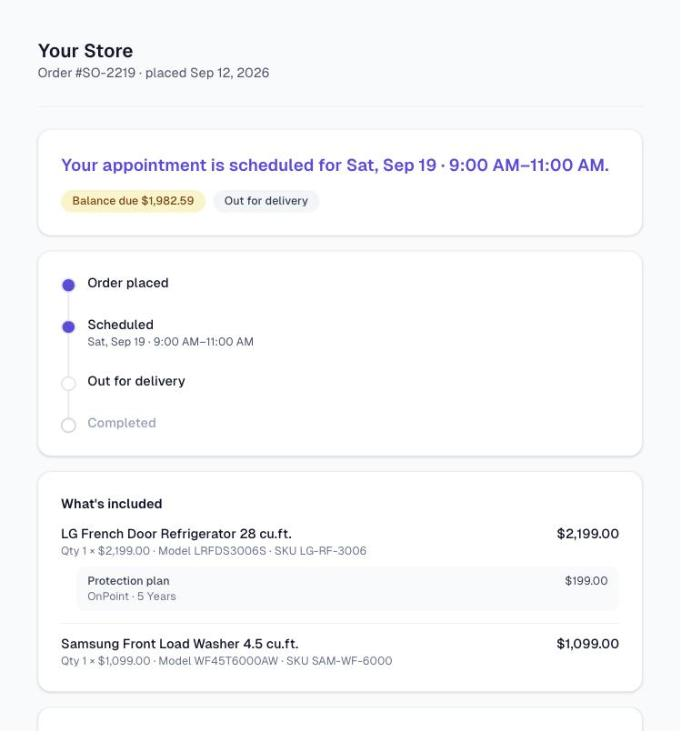
| Status banner | One line saying where the order is, a payment chip (Paid, Balance due $… or Payment pending) and the current step. After a delivery the driver recorded as Not delivered, the line says so ("We couldn't complete your delivery on …") until the order is booked in again |
| Progress timeline | Four steps: Order placed → Being prepared or Scheduled → In progress or Out for delivery → Completed. Hidden on cancelled and refunded orders; a quote shows only the first step. A delivery or mixed order whose appointments are done but which still has a product to hand over, with no delivery booked, stops short of Completed — the same orders your Routes board lists under Unscheduled orders |
| What's included | What they bought, with any Protection plan shown under its item |
| Invoice & balance | Total, Paid, Balance due, the list of payments and, when card payments are set up, a Pay $… button for the full balance |
| Receipt | View receipt, an itemized receipt they can print |
| Appointments | The booked delivery window (or the order's delivery date), a delivery the driver recorded as Not delivered, and any service appointments, or "Date to be confirmed" |
| Delivery scheduling | Pick or change a delivery window, when self-scheduling is on and the order is a delivery or mixed order with something still to deliver |
| Contact the store | Your phone, email and address, and Request a change |
Dates and times follow your store's time zone, and technicians appear by first name only. Leaving a review happens on a separate page, reached only from a review invitation. It is not a card on the order page.
Request a change does not edit the order. It does three things: it adds a line to the order's Internal Notes (order window → Notes tab), it emails your store so somebody knows to call back — to your store's email address, or the first location that has one; with neither, nothing is emailed and the Customer Portal settings card says so — and it puts the request on a blue card at the top of Orders that stays there until somebody clicks Handled. A customer can send up to 3 a day per order, counted in your store's own time zone, and sending the same words twice in a day is one request, not two. The only thing a customer can change by themselves is a delivery window, and only inside the days, windows, lead time, horizon, blackout dates and capacity you set.
Self-scheduling, in the customer's hands
With Customer self-scheduling (portal) on in Settings → Delivery & Routes (it starts off), delivery and mixed orders with a product still to deliver get a Delivery scheduling card. An order that is Delivered or Completed, is marked delivered, or has every product handed over or returned is offered no windows. It offers only the windows that are actually open: your delivery days, your time windows, after your lead time, inside your booking horizon, avoiding blackout dates, and only on days with capacity left (up to 12 windows at a time). A visit the driver recorded as Not delivered does not use up a day's capacity.
The customer picks one and presses Book my delivery. The booking is saved as Confirmed straight away: it appears on the Routes board with no confirming step, the order's delivery date updates, and the customer gets a confirmation email (and a text if they accept texts). They can Reschedule online until 24 hours before the window, as long as the driver has not started. After that the card says "Need a change? Call the store." If a delivery visit could not be completed (the driver recorded it as Not delivered), that visit is no longer the customer's booking: the card says "We couldn't complete your delivery on …" and offers new windows, and the window they book replaces the failed visit on your Routes board. If nothing is open the portal says "No windows are open right now — please call the store." rather than offering a slot you cannot serve.
Paying from the portal
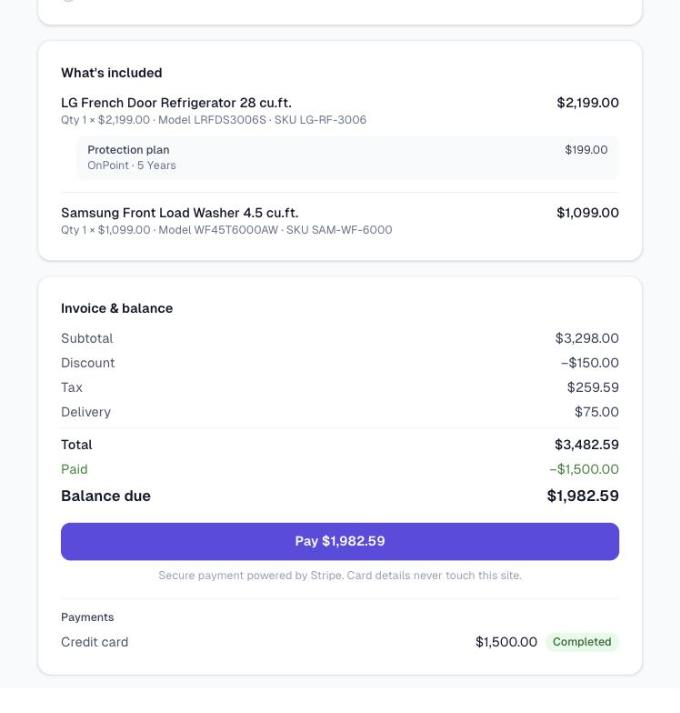
The Pay $… button takes the customer, in the same browser tab, to a secure Stripe checkout page for the full balance. They cannot choose a smaller amount. Card details never touch the portal page or UpChannels. When Stripe confirms the payment it lands on the order like any other and the balance updates. Once the order is fully paid, the Payment received email goes out if that switch is on.
The button shows only on sale orders (not quotes, cancelled or refunded orders) with at least $0.50 owing, and only when card payments are set up. See Accept Payments.
Reviews
A review invitation opens its own small page: a 1 to 5 star rating, an optional comment, and Send feedback. After sending, every customer, whatever their rating, sees Review us on Google, provided a Google review link is saved on the order's location or another active location (Settings → Locations). Without one, the button does not appear.
Invitations go out two ways:
- Automatically, with Review request after completion on: about a day after the order is delivered or completed.
- By hand, from the order window's Send → Request review, on Delivered or Completed orders. This works whether or not the automatic switch is on. An order gets one invitation, and clicking again asks that customer again — up to the two reminders the store allows.
Either way, up to 2 reminders follow three days apart while Remind customers who have not answered is on, which it is unless you turn it off.
Ratings and comments land in the Review requests card on Growth → Reviews, which appears once your first invitation exists.
Tips
- Save a Google review link on each store location before you switch on review requests, so every reviewer has somewhere to go next.
- Keep customers' emails on their records. Every automatic message goes to the primary email, and orders with no customer get nothing.
- Change requests are emailed to the store and written into the order's Internal Notes. Keep an email address on your store or a location, otherwise only the note is left.
- Links last 60 days. For a long-running order, send a fresh link instead of re-sending an old one.
Troubleshooting
| Problem | Why | What to do |
|---|---|---|
| Portal link… is missing from Send | The portal is off, or the plan is Basic. The Send button itself is hidden while the order is being edited and on scrap orders | Owner: check Sales → Customer Portal; upgrade from Basic |
| The customer sees "This link isn't valid" | The link was cut short when copied, or the order no longer exists | Send a fresh link |
| The customer sees "This link has expired" | Order links last 60 days, review links 30 days | Send a fresh link |
| The customer sees "Portal unavailable" | The portal is switched off, or the plan no longer includes it | Turn it back on, or upgrade. Links already sent start working again |
| No Pay button | Card payments are not fully set up, the order is not a sale, it is a quote, cancelled or refunded, or less than $0.50 is owing | See Accept Payments |
| No Delivery scheduling card | Self-scheduling is off; or the order is not a delivery or mixed order, is a quote, cancelled or refunded, or has nothing left to deliver (Delivered, Completed, marked delivered, or every product handed over or returned) — and has no delivery booked | Check Settings → Delivery & Routes |
| No Review us on Google button | No Google review link is saved on a location | Add one in Settings → Locations |
| A deposit was paid but no Payment received email went out | That email waits until the order is fully paid | Nothing to fix |
What's next
- Take the payment: Accept Payments
- Give them a delivery window: Delivery & Routes
- Where reviews land: Growth → Reviews
- Every link you send customers: Links you send customers & staff
Detailed reference
Every button, icon, field and message on this page, for when you need the exact detail. Each panel starts closed — open the one you need.
Page header and toolbar
Store side: how staff reach the portal
| Control | Where | What it does | Notes |
|---|---|---|---|
| Customer Portal (globe icon) | Sidebar, last item in the Sales section | Opens the Customer Portal settings page | Shown to everyone Settings opens for (the Owner switch, the owner role and the store's only active member), and only when the portal switch is on or the plan includes the portal (Pro, Premium or a trial). A small Pro tag can appear beside it when your plan does not open the page |
| Customer Portal (globe icon) | Settings left rail, between SMS and Delivery & Routes | Shows the same Customer Portal settings inside Settings | Settings opens for the store's owner, anyone with the owner role and the store's only active member; everyone else lands on Shortcuts |
| Send (paper-plane icon, down arrow) | Order window header, top right | Opens the Send menu that holds Portal link… and Request review | Hidden while the order is being edited and on scrap orders |
Customer order page: header and footer
| Control | Where | What it does | Notes |
|---|---|---|---|
| Store logo | Header, left | Shows your uploaded logo. Not clickable | Only when a logo is set in Settings → Organization |
| Store name | Header | Your store's name. Not clickable | Always |
| "Order #… · placed …" (for example "Order #SO-2219 · placed Sep 12, 2026") | Header, under the name | The order number and the date it was created, in your store's time zone | "· placed …" is left out when the date is missing |
| "Secure link provided by …" | Footer | Text only | Always |
| No login, no menu | Whole page | The customer pages sit outside the app: there is no sidebar and no sign-in, and search engines are told not to list them | Also true of the receipt and review pages |
Section: Settings → Customer Portal
The same panel opens from the sidebar (Sales → Customer Portal) and from the Customer Portal item in the Settings rail. Every switch saves the moment it is flipped. There is no Save button.
| Control | Where | What it does | Notes |
|---|---|---|---|
| Heading Customer Portal (globe icon) and "Give your customers a login-free link where they can see their order, track its status, view appointments, and pay their balance online." | Panel header | — | Always, once loaded |
| "Loading portal settings…" (spinner) | Panel | Shown while the settings load | — |
| Red error box (for example "Failed to load portal settings") with Retry | Panel | Retry loads the settings again | When loading fails |
| Plan card The customer portal is included in Pro and Premium — "Your current plan does not include the Customer Portal." | Under the heading, in place of the switches | Explains why the portal cannot be turned on | Shown instead of the switches when the plan is not Pro, Premium or a trial (for example Basic) |
| "Upgrade to Pro or Premium to turn the portal on here." plus "It is switched on for your store, so links your staff already sent show an unavailable page until you upgrade." | Plan card | — | The second sentence appears only while the portal switch is still on |
| Upgrade plan | Plan card | Opens Settings → Plan & Billing | Owner only |
| Turn off the portal (outlined) | Plan card | Switches the portal off at once, with no confirmation step. Message "Customer portal turned off." | Only while the portal is on, for the owner. Greyed out while saving. Turning off never needs the plan |
| Green or red message | Under the header (on the plan card: green or red text inside the card) | Shows the result of the last change | After a change |
| Card Enable customer portal — "On for every store on Pro or Premium. Staff get a "Portal link" action on orders to copy or text a secure, expiring link to the customer; turn it off and that action goes away." | Panel | — | Pro, Premium or a trial |
| Switch, label Enabled / Disabled | Enable card | On: customer links work, and staff see Portal link… and Request review on orders. Message "Customer portal enabled — staff can now send portal links from orders." Off: links show Portal unavailable and the order actions disappear. Message "Customer portal disabled. Existing links show an unavailable page until re-enabled." | Owner only. Greyed out for anyone else and while saving. No confirmation step. Turning it on checks the plan again |
| "Only the organization owner can change this." | Beside the Enabled / Disabled switch | Explains why nothing on the pane can be changed | Anybody who can open Settings but does not have the Owner switch — someone with the owner role alone, or the store's only active member. The one place it appears; the other switches are only greyed out |
| See what the customer sees (opens a sample page) (link) | Bottom of the Enable card | Opens the sample customer order page in a new tab | Pro, Premium or a trial. See the Demo mode panel |
| Card Automatic customer notifications — "Email your customers their portal link at key moments. Checked events send automatically — each at most once per order." | Panel | — | Only while the portal switch is on |
| Switch Payment received — "Send a receipt link once the order is fully paid. A deposit or part-payment on its own sends nothing." | Notifications card | Sends once the order is fully paid, not on every payment | Default On |
| Switch Appointment scheduled — "Send the date and portal link when an appointment is booked." | Notifications card | Service appointments (Schedule jobs) only, not deliveries | Default On |
| Switch Day-before reminder — "Remind the customer the evening before their appointment, from 5pm in your store's timezone (5pm UTC if you have not set one). It also covers confirmed deliveries, which additionally need Delivery & Routes and its own Day-before delivery reminder switched on." | Notifications card | Covers service appointments and confirmed deliveries happening tomorrow, both sent from 5pm the evening before | Default On. Service reminders are this switch's alone. For deliveries, this switch, Enable Delivery & Routes and Day-before delivery reminder must all be on. As with deliveries, an appointment booked after about 11:55pm for the next day is too late to be reminded |
| Switch Order completed — "Send a wrap-up with the receipt when the order is done." | Notifications card | Sends when the order is Delivered or Completed | Default On |
| Switch Ready to schedule — "When every item in a delivery order is in stock, invite the customer to pick their own delivery date. Requires self-scheduling (Delivery & Routes settings)." | Notifications card | Invites the customer to book a delivery window | Default On. Does nothing unless Customer self-scheduling (portal) is on |
| Switch Review request after completion — "Invite the customer to leave a review about a day after the order completes. Once they rate, every customer is offered your Google review link, whatever score they gave." | Notifications card | Sends review invitations automatically | Default Off. It decides only whether invitations are created for you. The Google button appears after the customer rates, and only when a location has a Google review link saved |
| Switch Remind customers who have not answered — "Follow up a review invitation up to 2 times, 3 days apart, until they answer. Covers invitations you send by hand from an order or from Growth → Reviews, not only the automatic ones." | Notifications card | Turns review follow-ups on or off | Default On, and independent of the switch above it. It governs the follow-ups only: an invitation still runs out after 30 days with it off, so Request review on that order can always make a fresh one |
| Amber note "No Google review link is saved yet, so customers who leave a review will not be offered one. Add one in Settings → Locations." | Under Review request after completion, or under Remind customers who have not answered when the first switch is off | Warns that review invitations will go out with nowhere to send a happy customer next | Only when no active location has a Google review link saved and one of the two review switches is on. It is a note, not a block: invitations still go out |
| Amber note "No email address is saved for your store, so a customer asking for a change is only written into the order’s notes — nobody is told. Add one in Settings → Organization, or on a location." | Under the Enabled switch on the Customer Portal card | Warns that Request a change has nowhere to go but the order's notes | Only while the portal is switched on, on a plan that includes it, and neither your organization nor any active location has an email address. A note, not a block: the request is still saved on the order |
| Switch Also send by text (SMS) — "Requires the customer's SMS consent. Each text counts against your plan's monthly SMS quota." | Notifications card, below a divider | Adds a text alongside each automatic portal email | Default Off |
| All notification switches | Notifications card | Each flip saves that one setting at once | No success message; errors show in the red box. Greyed out for non-owners and while a save is running |
Section: Automatic notifications — what customers receive
- When they run: about every 5 minutes. Payment received, Appointment scheduled and Order completed look back 48 hours, and never at anything from before your store signed up. Within those 48 hours every one is found, however many: when a lot of orders are paid, booked or completed close together, each of those customers is sent theirs, 50 messages a run. Ready to schedule checks every open delivery order, however many, oldest first, and the day-before reminder checks everything booked for tomorrow, however many and however long ago it was booked — appointments and deliveries alike, from 5pm in your store's time zone (5pm UTC if none is set). At 5pm the two share the 50-message run, so some reminders go out a run or two later. Only stores with the portal on and a Pro, Premium or trial plan are included. Up to 50 messages go out per run, and every store gets a turn: each store first sends up to 10 customers' worth of each kind of message it owes, day-before reminders first, and no more than 25 messages in all (half a run), then whatever the run has left goes to the stores that have more. So at least half of every run reaches the other stores, and a long ready-to-schedule queue, or a lot of orders completed at once, never holds up another store's messages or the same store's other messages, and the rest follow on the next runs. A customer with no email or texting number does not use up one of the 10. Each run starts with a different store, stores with only Delivery & Routes on included, so when many stores are busy at once, no store is always last.
- Email first: it goes to the primary email on the customer record. Orders with no customer get nothing.
- Texts: only with Also send by text (SMS) on, and only when the customer accepts texts, has a phone number, has not opted out, your plan's SMS quota allows it, and the store has an active texting number. A text refused because the customer opted out — in the app, or by replying STOP to your number — is not tried again, and nor is one to a number the text provider says cannot take texts (not a mobile number, or not a valid one). When the plan, the quota or the texting number refuses one, or the text provider refuses the store's own login, the store sends no more texts in that run, and the next run tries again, so a text still owed goes once the quota, number or login is sorted. Emails still go either way.
- Addresses: an email the email service refuses because the address itself is invalid is not tried again for that message. Messages that fail for any other reason are tried again on the next run. After three failed emails, or three failed texts, in one store's run, that store's run sends no more of that kind; the rest wait for the next run, so an email or text service having a bad spell is not retried for every customer every 5 minutes.
- Two exceptions: a Ready to schedule invitation is offered once, so once its email has gone (or been refused), a text that could not go with it is not tried again. Review invitations are sent their own way: one refused or failed is tried again with the reminders, 3 days later, and only while Remind customers who have not answered is on — but not when every way it was tried was refused for a reason about the customer (opted out, an email address or phone number that cannot be used); Request review still tries it.
- Once each: every event sends at most once per order per channel. Switching Payment received, Appointment scheduled or Order completed on does not catch up on events older than 48 hours.
- Footer: every email ends "Sent by … via UpChannels."
| Event (switch) | When it sends | Email subject / heading / text / button |
|---|---|---|
| Payment received | A completed payment in the last 48 hours, and the order is now fully paid | "Payment received — order #…" / "Payment received" / "We received your payment for order #…. Thank you!" / View your receipt (opens the portal order page) |
| Appointment scheduled | A service appointment on the order in Scheduled status, changed in the last 48 hours. Skipped when Delivery & Routes already sent a delivery-scheduled message for that order. When that cannot be checked, the order waits for the next run rather than risk a second message | "Your appointment is scheduled — order #…" / "Your appointment is scheduled" / "Your appointment for order #… is scheduled for ….", or "…has been scheduled." when there is no date detail / View details |
| Day-before reminder (service) | A service appointment scheduled for tomorrow, in your store's time zone. Sent from 5pm the evening before in your store's time zone (5pm UTC when no time zone is set), the same time as the delivery reminder. A visit booked during the day for tomorrow gets its Appointment scheduled message straight away and this one at 5pm | "Reminder: your appointment is tomorrow" / "Your appointment is tomorrow" / "A friendly reminder: your appointment for order #… is tomorrow (…)." / View details |
| Day-before reminder (delivery) | A confirmed delivery starting tomorrow, sent from 5pm the evening before in your store's time zone (5pm UTC when no time zone is set), with Enable Delivery & Routes and Day-before delivery reminder on as well as this switch. When the portal is off or your plan does not include it, those two Delivery & Routes switches govern it alone, it links to the delivery tracking page, and no text is sent | "Reminder: your delivery is tomorrow" / "Your delivery is tomorrow" / "A friendly reminder: your delivery for order #… is tomorrow (…)." / View details |
| Order completed | The order is Delivered or Completed and was last changed in the last 48 hours. Skipped when Delivery & Routes already sent its delivery-completed message. When that cannot be checked, the order waits for the next run | "Your order #… is complete" / "Your order is complete" / "Your order #… is complete. You can view your receipt anytime." / View your order |
| Ready to schedule | Self-scheduling on; the order is Pending or Processing, a delivery or mixed order, has a customer, has no delivery booked, and every remaining product is in stock at the order's location (or your first store). A visit the driver recorded as Not delivered is not a booking, but an order whose customer was already sent Delivery & Routes' missed-delivery message for that visit is not invited as well — that message already offers a new time. Each order is invited once | "Your order #… is ready — pick a delivery date" / "Your order is ready!" / "Good news — everything in your order #… is ready. Pick a delivery date that works for you." / Choose a delivery date |
| Review request after completion | The order is Delivered or Completed and was last changed 24 to 72 hours ago, and the customer has an email or phone. An order whose invitation is already out and unanswered is left to the reminder below | "How did we do? — …" / "Thanks for choosing …!" / "How did we do with your order #…? We'd love your feedback — it takes under a minute." / Leave a quick review |
| Review reminder (same switch) | The invitation went out but has had no answer: every 3 days, up to 2 reminders. A reminder carries a fresh link when the old one is close to expiring | "How did we do? — …" / "How did we do?" / "A quick reminder from … — we'd love your feedback on order #…. It takes under a minute." / Leave a quick review |
| Delivery booked or moved in the portal (no switch) | Straight after Book my delivery or Confirm new window | "Your delivery is scheduled — …" with "…is scheduled for …", or "Your delivery was rescheduled — …" with "…has been moved to …" / View details. Sent whatever the switches say: by email when the customer has one, and by text whenever the customer accepts texts, even with Also send by text (SMS) off |
Review invitations try email first and fall back to a text only when no email went out and the customer accepts texts. That fallback also ignores the Also send by text (SMS) switch.
Section: Status banner and progress timeline
| Control | Where | What it does | Notes |
|---|---|---|---|
| Status headline (in indigo) | First card | One sentence saying where the order is (wording below) | Always |
| Payment chip Paid (green) | Status banner | The order is marked paid, or something was paid and nothing is owed | — |
| Payment chip Balance due $… (amber) | Status banner | Money is still owed | — |
| Payment chip Payment pending (amber) | Status banner | Nothing is owed but nothing has been paid either, for example a $0.00 order | Mark the order paid if that is right |
| Step chip (grey), for example Scheduled or Out for delivery | Status banner | Names the step the order has got to, and reads Completed only once it is. While the last step is merely the next one, the chip names the step before it, so it matches the headline | Hidden on cancelled and refunded orders |
| Step 1 Order placed | Timeline | Always done | — |
| Step 2 Being prepared / Scheduled, with a detail line such as "Sat, Sep 19 · 9:00 AM–11:00 AM" | Timeline | Reads Scheduled once a date exists: a booked delivery window, the next service appointment not yet done (the first one, once all are done), or the order's delivery or expected delivery date. Otherwise Being prepared. The window of a delivery visit the driver recorded as Not delivered is not a booked window: it is never shown here. Nor is the order's delivery or expected delivery date while it falls on or before that visit (a booking made in the portal sets the order's delivery date to the window booked); a later date still shows | Counts as reached when a date exists or the order is Processing, Shipped, Delivered or Completed |
| Step 3 In progress / Out for delivery, with a detail such as "Out for delivery 1:05 PM", "Arrived 2:15 PM", "Technician on the way 9:14 AM" or "Technician arrived 9:40 AM" | Timeline | Out for delivery on delivery, shipping and mixed orders, or when a delivery is booked, as long as the order has no service appointment; otherwise In progress. An order with a service appointment as well as a delivery always reads In progress here, whoever is on the way, and the detail line says who is coming (a driver or a technician). It reads In progress on an order held short of completion because goods are still owed with no delivery booked (see Step 4) — nothing is out for delivery then. The detail comes from the driver app, and it says which one is moving: a driver's taps read as a delivery, a technician's taps read as a visit. A technician's tap counts only until that visit is done: a finished visit never leaves the order reading as on its way. Likewise a driver's tap counts only until the driver records the visit as Not delivered: after that nobody is on the way until the next booked visit's driver sets off | Reached when a service appointment is In progress or completed, the order is marked shipped, or the driver or the technician is on the way or has arrived |
| Step 4 Completed, with a detail such as "Delivered 2:15 PM" | Timeline | Final step. Only a driver's completed stop shows the "Delivered …" line — a finished service visit never claims the goods arrived | Reached when the order is marked delivered, the status is Delivered or Completed, the driver completed the stop, or every service appointment is completed and nothing is still out for delivery. Finished visits alone never complete an order that has a delivery window booked and not yet delivered — the customer keeps seeing where the goods are. Nor do they complete a delivery or mixed order that has a product line with more ordered than delivered and no delivery booked (never booked, or the booking was cancelled): that is exactly when your Routes board lists the order under Unscheduled orders, so the customer's page and your queue agree. Booking the delivery, recording it delivered, or completing the order moves it on. Pickup and installation orders are not held this way |
| Dots | Each step | Filled indigo dot = done, indigo ring = current, grey ring and grey text = still to come | Reaching a later step marks every earlier step done |
| Whole timeline card | Under the banner | — | Hidden on cancelled and refunded orders (the headline says so instead). A quote shows only Order placed |
Status headlines:
| Headline | When |
|---|---|
| "We're getting your order ready." | No date is set yet and the order is not yet Processing, Shipped, Delivered or Completed |
| "Your appointment is scheduled for …." / "Your delivery is scheduled for …." | A date is set and step 3 is not reached yet; the appointment wording is used when the order has service appointments |
| "Your order is in progress." | The order is Processing but has no date yet |
| "Your order is out for delivery." / "Your order is in progress." | Step 3 reached. It follows the step's name, so an order with a service appointment as well as a delivery reads "Your order is in progress." even once the driver has set off |
| "We couldn't complete your delivery on …. We'll be in touch to book another." | The driver recorded the last delivery visit as Not delivered, nothing has been booked in its place, and a product is still to hand over. It names the window that was attempted. Your Routes board lists the order under Unscheduled orders as Failed — reschedule at the same time; booking it again (from the board, or by the customer in Delivery scheduling) replaces the headline with the new window. Takes precedence over the line below |
| "Your appointment is complete. We'll be in touch about the rest of your order." | Every service appointment is done, but the order still has a product to hand over and no delivery is booked (Step 4). It does not say the delivery needs booking, because some stores deliver through a service visit and record no delivered quantity. The step chip reads In progress |
| "Your order is complete. Thank you!" | Every step done |
| "This order was cancelled." / "This order was refunded." | Cancelled or refunded orders (no timeline) |
| "This is a quote — contact the store to confirm it." | Quotes. Convert the quote to a sale for the full portal |
Section: What's included
| Control | Where | What it does | Notes |
|---|---|---|---|
| Heading What's included | Card title | Lists every line on the order | The card is hidden when the order has no items |
| Item name | Each row | The product name, else the line description, else the service name, else the SKU, else "Item" | — |
| "Qty … × $… · Model … · SKU …" | Under each item name | Quantity, unit price, model and SKU | The unit price is hidden when it is $0; model and SKU only when known |
| Line total | Each row, right | The line total in dollars | — |
| Protection plan sub-row | Indented under an item | Shows "provider · plan · period", or "Included with this item" when there are no details. The plan price shows on the right when above $0 | Only on items with a protection plan or warranty |
Section: Invoice & balance
| Control | Where | What it does | Notes |
|---|---|---|---|
| Heading Invoice & balance | Card title | — | Always |
| Green note "Payment received — this page will update shortly. Refresh in a moment to see it reflected." | Top of card | Confirms the customer came back from a successful Stripe payment | Only on the return from Stripe. The balance may not have changed yet, because the payment is recorded when Stripe confirms it |
| Subtotal, Discount (shown as −$…), Tax, Delivery | Totals | The order's totals | Discount, Tax and Delivery rows appear only when above $0 |
| Total | Totals | Grand total | Always |
| Paid (green, shown as −$…) | Totals | The sum of completed payments only | Only when something has been paid |
| Balance due | Totals | Total minus paid, never below $0 | Always |
| Pay $… (for example Pay $1,982.59) | Under the totals | Takes the customer, in the same tab, to Stripe's secure checkout for the full open balance. While it loads it reads "Opening secure checkout…" and is greyed out. Cancelling at Stripe returns them to the order page | Shown only when all of these hold: the Card Payments add-on is on, Enable card payments is on and Stripe can take charges; the order is a sale; it is not a quote, cancelled or refunded; and at least $0.50 is owing. The Stripe checkout page expires after 24 hours |
| "Secure payment powered by Stripe. Card details never touch this site." | Under Pay | Text | With the Pay button |
| Red error text | Under Pay | Why checkout could not start (see Messages) | After a failed attempt. The button works again |
| Payments list: "method · date", amount and a status chip | Bottom of card | Every payment on the order. Chip colours: green Completed, blue Refunded, red Failed or Cancelled, amber for anything else such as Pending | Only when the order has payments. Method names are made readable, for example "Credit card" or "Store credit" |
Section: Receipt and Appointments
Receipt
| Control | Where | What it does | Notes |
|---|---|---|---|
| Heading Receipt and "View or print an itemized receipt for this purchase." | Card | — | Always |
| View receipt | Card, right | Opens the printable receipt in the same tab (see Sub-page: Printable receipt) | Uses the same link |
Appointments
| Control | Where | What it does | Notes |
|---|---|---|---|
| Heading Appointments | Card title | — | Shown when the order has a service appointment or a booked delivery window, or when your business type has appointment booking or service management turned on. Even then it hides when there is no service appointment and no delivery line (below) |
| Missed delivery row: Delivery, the window that was attempted (for example "Tue, Sep 22 · 9:00 AM–12:00 PM"), and a red chip Not delivered | First row | The visit the driver recorded as Not delivered | Only while the status banner says "We couldn't complete your delivery on …": nothing is booked in its place and a product is still to hand over. It goes once the order is booked in again or marked delivered |
| Delivery row: Delivery, the booked window in your store's time zone (for example "Sat, Sep 19 · 9:00 AM–11:00 AM") — or, with nothing booked, the order's delivery date ("Sat, Sep 19"), with "(estimated)" when only an expected date exists — and a chip Scheduled or Completed | Next row | The delivery the order is waiting on | A window booked by staff or by the customer is shown as booked. An order date on or before a visit recorded as Not delivered is the day that went wrong, so it is not listed as Scheduled. The chip reads Completed once the order is marked delivered — and an order handed over another way after a failed visit shows Completed with the day it was marked delivered, or with no date line when no delivery time was recorded |
| Service appointment row: "title · #work order", then "date · time window · Technician: first name", and a status chip | One row per appointment | Each service job on the order. A job with no title reads "Appointment". With no date it reads "Date to be confirmed". The technician part is left out when nobody is assigned | Chip colours: green Completed, blue In progress, grey Cancelled or No show, amber for anything else such as Scheduled or Rescheduled |
Section: Delivery scheduling
| Control | Where | What it does | Notes |
|---|---|---|---|
| Heading Delivery scheduling | Card title | — | Appears when self-scheduling is on in Settings → Delivery & Routes and the order's fulfilment is Local Delivery or Mixed (Delivery + Service), it is not a quote, cancelled or refunded, and it still has something to deliver — not Delivered or Completed, not marked delivered, and a product line with more ordered than delivered — or when the order already has a delivery booked. On an order with nothing left to deliver, a booking it already has still shows, with no windows offered. Otherwise the card never shows, and a loading problem also keeps it hidden |
| Green note "You're booked! We've saved your delivery window." | Top of card | Confirms a booking or a reschedule | After a successful booking |
| Amber note "We couldn't complete your delivery on …" | Top of card | Names the window of a visit the driver recorded as Not delivered | Only while self-scheduling is on and nothing else is booked. The picker shows below it, and booking a window cancels that visit on the Routes board |
| Current window, for example "Sat, Sep 19 · 9:00 AM–11:00 AM" | Card | The booked window, in your store's time zone | When a delivery is booked, by staff or by the customer. A visit recorded as Not delivered is not shown here |
| Reschedule (outlined) | Right of the current window | Opens the window picker | Only when self-scheduling is on, the driver has not started, and the window starts more than 24 hours from now |
| "Need a change? Call the store." | Right of the current window | Text, in place of Reschedule | When online changes are not allowed |
| "Choose a delivery window that works for you:" / "Pick a new delivery window:" | Picker | Prompt | First booking / reschedule |
| Day heading (for example "Thu, Jul 23") and time buttons (for example "9:00 AM–12:00 PM") | Picker | Clicking a time selects it (it fills in indigo). Nothing is saved yet | Up to 12 windows, built from your delivery days, time windows, lead time, booking horizon and blackout dates, skipping full days. Defaults: Monday to Friday, 9–12 and 1–5, lead time 1 day, horizon 21 days |
| "No windows are open right now — please call the store." | Picker | Text | When no window is available |
| Book my delivery / Confirm new window ("Booking…" while saving) | Picker, bottom | Books or moves the delivery to the chosen window. It is saved as Confirmed at once and appears on the Routes board, the order's delivery date updates, and the customer gets a confirmation email (and a text if they accept texts) | Greyed out until a window is picked, and while saving. The window and capacity are checked again; if the window has gone, an error shows and a fresh list loads |
| Keep current | Picker, bottom | Closes the picker with no change | Only when rescheduling. Greyed out while saving |
| Red error text | Picker | See Messages | After a failed booking |
Section: Contact the store and Request a change
| Control | Where | What it does | Notes |
|---|---|---|---|
| Heading Contact the store | Card title | — | Always |
| Phone number (underlined link) | Card | Starts a phone call | From your organization contact details (Settings → Organization), else the first active location that has a phone or email (else your first location). Hidden when neither has one |
| Email address (underlined link) | Card | Opens the customer's email app | Same source as the phone |
| Address line | Card | Text | Your business address, else the location address |
| "Reach out to the store where you placed this order." | Card | Text | Only when no phone, email or address is known |
| "Need a different date or have a question about this order?" | Card | Text | Always |
| Request a change (outlined) | Card | Opens a message box | Replaced by the thank-you note once a request is sent |
| Message box — "Tell the store what you'd like to change (e.g. a different day or time)…" | Card | Free text | Up to 500 characters. Line breaks and formatting are removed when saved |
| Send request ("Sending…") | Under the box | Adds a line to the order's Internal Notes (order window → Notes tab), in the form "[Portal date and time in UTC] Customer requested a change: …", and emails the store with the customer's name, the order number, what they wrote and a link to the order. The order itself is not changed | Greyed out until something is typed, and while sending. The email goes to the store's own email address, or the first active location with one; with neither on file only the note is written. Up to 3 requests per order per day, in the store's time zone. Tapping Send request twice with the same words on the same store day reaches the store once — a second, differently worded request is treated as a new one and is sent |
| Cancel | Under the box | Closes the box. The typed text is kept if they reopen it | Greyed out while sending |
| Red error text | Above the buttons | Why the request was not saved (see Messages) | After a failed attempt. The box stays open with the text kept |
| Green note "Thanks — we've sent your request to the store." | In place of the button | Confirmation | After a successful request. True whether or not the store has an email address on file — the request is always on the order |
Dialog: Send menu (portal items)
| Control | Where | What it does | Notes |
|---|---|---|---|
| Email invoice… / Text invoice… | Send menu, first two items | Not portal actions: they email or text the invoice | Listed here for orientation only |
| Portal link… (globe icon) | Send menu, third item | Opens the Customer portal link dialog | Only while the portal is live: switch on and a Pro, Premium or trial plan. Otherwise the item is simply absent. Any team member who can open the order can use it. Also available on quotes, which show a quote headline and no Pay button |
| Request review (star icon), "Requesting…" while working | Send menu, last item | Creates a review invitation for this order and sends it: email first, a text only when no email went out and the customer accepts texts. See Messages for the results | Only while the portal is live and the order is Delivered or Completed. Works whether or not Review request after completion is on, and its reminders follow unless Remind customers who have not answered is off. Greyed out while working. Clicking again asks the same customer again on the same invitation, without waiting for the three-day reminder rhythm, until they have been asked as many times as the store allows |
Dialog: Customer portal link
| Control | Where | What it does | Notes |
|---|---|---|---|
| Title Customer portal link | Dialog header | — | — |
| X (close) | Top-right corner | Closes the dialog | — |
| "Creating link…" (spinner) | Dialog body | A new 60-day link is being made | Every time the dialog opens |
| Failure text with Open portal settings | Dialog body | Opens the Customer Portal settings page | When the portal has been switched off |
| Failure text with Upgrade to Pro | Dialog body | Opens Settings → Plan & Billing | When the plan no longer includes the portal |
| Link (read-only) | Body | The full link. Clicking in it selects all of it | After the link is made |
| Copy (copy icon) | Right of Link | Copies the link. "Link copied" with the address, or "Copy failed" — "Select and copy the link manually." | — |
| "The customer can open this link without logging in. It expires automatically." | Under Link | Helper text | — |
| To — placeholder "Customer phone number" | Body | The number to text | Filled in from the customer's phone. Editable |
| Message | Body | Filled in with "Hi …, view your order #…, track status and pay online here: …" | Editable. With no customer on the order the greeting reads "Hi Customer Name" |
| Start a new conversation (switch) | Body, under Message | On: closes the customer's current text conversation and sends this message in a new one. The closed conversation keeps its messages in Messages, marked Closed | Off every time the dialog opens. Turn it on when a send is refused because the customer's number is held by another conversation |
| Close (outlined) | Footer | Closes the dialog. Nothing is sent | — |
| Send by text ("Sending..." while working) | Footer | Texts the message from the store's number. On success "SMS Sent" — "Portal link sent successfully." and the dialog closes | Greyed out when To or Message is empty, and while sending. Needs a plan that includes texting and quota left (otherwise the Upgrade required message). If the customer is not opted in to texts, Confirm SMS consent opens |
Dialog: Confirm SMS consent
| Control | Where | What it does | Notes |
|---|---|---|---|
| Title Confirm SMS consent and "This customer isn't marked as opted in to SMS." | Dialog | — | Opens when Send by text is refused because the customer has not opted in |
| Amber box "Only continue if this customer has agreed to receive text messages from you. Confirming sends this message and, once it has gone out, records their SMS opt-in. If they previously texted STOP, the carrier will still block delivery until they text START." | Dialog | Warning | — |
| X (close) | Top-right corner | Closes. Nothing is sent | Does nothing while sending |
| Cancel | Footer | Closes. Nothing is sent | Greyed out while sending |
| Confirm opt-in & send ("Sending…") | Footer | Sends the text, then records the customer's SMS opt-in | The opt-in is only recorded once the text has actually gone out; a refused send leaves it as it was. Greyed out while sending. The dialog closes when it finishes, and the result shows as "SMS Sent" or "SMS Failed" |
Sub-page: Printable receipt
| Control | Where | What it does | Notes |
|---|---|---|---|
| ← Back to your order | Top left | Returns to the order page | Hidden when printing |
| Top right | Opens the browser's print dialog | Hidden when printing | |
| Invoice | Page | The same invoice layout staff print: letterhead, items, totals and payments | — |
| Problem screens | Page | The same invalid, expired and unavailable screens as the order page | The unavailable screen here says "This store…" instead of naming the store |
Sub-page: Review page
Reached only from a review invitation (email or text). The first time the link is opened, the invitation shows as Link clicked in the Review requests card on Growth → Reviews.
| Control | Where | What it does | Notes |
|---|---|---|---|
| Store logo and store name | Header | — | Logo only if one is set |
| "How was your experience with …?" | Form | The question | Before sending |
| Five star buttons ("1 star" to "5 stars") | Form | Hovering lights the stars up to that point; clicking sets the rating | A rating is required |
| Comment box — "Tell us more (optional)…" | Form | Optional comment | Up to 1,000 characters. Line breaks and formatting are removed when saved |
| Red error text | Under the comment box | Why the review was not saved (see Messages) | After a failed attempt |
| Send feedback ("Sending…") | Form | Saves the rating and comment. Staff see them in Review requests. If the order has a completed service appointment, the rating and comment are copied onto it too | Greyed out until a star is chosen, and while sending |
| "Thanks for the feedback!" — "We really appreciate you taking the time." | In place of the form | Confirmation | After sending, or if it had already been sent |
| Review us on Google | Thank-you panel | Opens your Google review page in a new tab | Shown for every rating, but only when a Google review link is saved on the order's location or any active location (Settings → Locations) |
| "Thanks for the feedback!" — "You've already shared your experience with us." (with Review us on Google) | Page | Shown when the link is opened again after sending | — |
| "Secure link provided by …" | Footer | Text | — |
Sub-page: Link problem screens
| Screen title | Text | When |
|---|---|---|
| This link isn't valid | "The link may have been copied incompletely. Contact the store for a new one." | The link was cut short or altered, or the order or invitation no longer exists. All of these look the same on purpose |
| This link has expired | "For your security, portal links expire after a while. Contact the store for a new one." | After 60 days for an order link, 30 days for a review link |
| Portal unavailable | "… doesn't have the customer portal turned on right now. Contact the store directly about your order." ("This store…" when the name is not known) | The owner switched the portal off, or the plan no longer includes it (for example after moving to Basic). The wording is the same in both cases, so customers never see a billing message |
Messages you may see
Customer pages
| Message | When it appears | What to do |
|---|---|---|
| "Payment received — this page will update shortly. Refresh in a moment to see it reflected." | Back from Stripe after paying | Refresh after a moment. The payment appears once Stripe confirms it |
| "Could not start the payment" | Pay failed with no specific reason | Try again; check card payments setup |
| "The Stripe payments add-on is not enabled for this organization" | Pay: the Card Payments add-on is off | Contact UpChannels about the add-on |
| "Stripe payments are not enabled for this organization" | Pay: Enable card payments is off | Turn it on in Settings → Accept Payments |
| "Stripe is not ready to take payments yet (finish onboarding first)" | Pay: Stripe setup is not finished | Finish Stripe onboarding |
| "Payment links are only supported on sale orders" | Pay on an order that is not a sale | — |
| "Order status … cannot take a payment" | Pay on a cancelled, refunded or quote order | — |
| "This order has no chargeable balance" | Less than $0.50 owing | — |
| "Could not create the payment link: …" | Stripe refused to start checkout | Try again; check Stripe |
| "The portal is not available for this store" | Pay or sending a review while the portal is off or the plan has lapsed | Owner turns the portal on or upgrades |
| "This link is no longer valid" | Any customer action with a bad or expired link. Booking a delivery or sending a change request also shows it while the portal is off or not in your plan | Send a fresh link, or turn the portal back on |
| "You've already sent a few requests today — please call the store instead." | A 4th Request a change on the same order in one store day | The customer calls. Earlier requests are in the order's Internal Notes, and were emailed to the store |
| "Could not send your request" / "Could not record your request" | Request a change failed | Try again |
| "Thanks — we've sent your request to the store." | Request a change sent | Staff: the email lands in the store's inbox, and the request is on the order's Notes tab under Internal Notes |
| "You're booked! We've saved your delivery window." | A delivery was booked or moved | — |
| "No windows are open right now — please call the store." | No window can be offered | Check delivery days, windows, capacity and blackout dates in Settings → Delivery & Routes |
| "That window is no longer available — pick another" | The chosen window has gone; a fresh list loads | Pick again |
| "That day just filled up — pick another window" | The day reached capacity during booking | Pick again |
| "This delivery can no longer be changed online — please call the store" | Rescheduling within 24 hours or after the driver started | Staff reschedule on the Routes board |
| "This order was just scheduled — refresh to see it" | Two bookings at the same moment | Refresh |
| "Every product line is already delivered" | Nothing is left to deliver | — |
| "Self-scheduling is not available for this store" | Self-scheduling was switched off meanwhile | — |
| "This order cannot be scheduled" / "This order does not have a schedulable delivery" | The order is cancelled, refunded or a quote, or is not a delivery or mixed order | — |
| "This order has nothing left to deliver" | Booking on an order that is Delivered or Completed, is marked delivered, or has every product handed over | — |
| "Could not move your delivery" / "Could not book your delivery" / "Could not book that window" | Saving the booking failed | Try again |
| "Rating must be a whole number from 1 to 5" | A review sent without a valid rating | Choose a star |
| "Could not save your review" | Saving the review failed | Try again |
Settings → Customer Portal
| Message | When it appears | What to do |
|---|---|---|
| "Customer portal enabled — staff can now send portal links from orders." | The switch was turned on | — |
| "Customer portal disabled. Existing links show an unavailable page until re-enabled." | The switch was turned off | — |
| "Customer portal turned off." | Turn off the portal on the plan card | — |
| "Only the organization owner can change portal settings" | A change by someone other than the owner was refused | Ask the owner |
| "The Customer Portal is included with Pro and Premium — upgrade your plan to turn it on" | Turning the portal on without the plan | Upgrade plan |
| "Failed to update portal settings" / "Failed to update notification settings" / "Update failed" / "Something went wrong" | A save failed | Try again |
| "Failed to load portal settings" (with Retry) | The settings did not load | Retry |
| "Only the organization owner can change this." | Beside the Enabled / Disabled switch, for somebody who can open the pane but not change it. The one place it appears — the other switches are only greyed out | — |
Order window: Portal link and Request review
| Message | When it appears | What to do |
|---|---|---|
| "Creating link…" | The Portal link dialog is opening | — |
| "The customer portal is turned off for this organization" | In the Portal link dialog (with Open portal settings), or as a Review request failed message, while the switch is off | Owner turns it on |
| "The Customer Portal is included with Pro and Premium — upgrade your plan to use it" | In the Portal link dialog (with Upgrade to Pro), or as a Review request failed message, on a plan without the portal | Upgrade |
| "Portal links are not configured on this server" | A server setup problem | Contact UpChannels support |
| "Order not found" | The order is not in this store | — |
| "Failed to create the portal link" | Making the link failed with no reason | Try again |
| "Link copied" (with the link) | Copy worked | — |
| "Copy failed" — "Select and copy the link manually." | The browser blocked copying | Select the link text and copy it |
| "SMS Sent" — "Portal link sent successfully." | The text went out | — |
| "SMS Failed" — "…" (usually the reason, else "Failed to send SMS" or, when the connection dropped, "Unable to send SMS") | The text failed | Check the number and your texting setup. When the reason is one of the two below, setup is not the problem |
| "SMS Failed" — "Couldn't add this customer to this conversation, so nothing was sent. Their number is still held by another conversation. Use 'Start a new conversation' on the customer to move them over." | The customer's number is tied to a different conversation, so nothing sent into this one could reach them. Nothing was sent | Turn on Start a new conversation in the same dialog and press Send by text again: the customer moves to a fresh conversation and gets the link. Their earlier messages stay in Messages, marked Closed |
| "SMS Failed" — "This conversation can't reach the customer, so nothing was sent. Open their newest conversation, or use 'Start a new conversation' on the customer." | The conversation no longer holds the customer, and the app could not tell why. Nothing was sent | Try once more first — a brief problem at the texting service shows the same thing. If it repeats, turn on Start a new conversation in the same dialog and send again |
| "Upgrade required" — "Your plan does not include SMS. Upgrade to Pro or Premium to send messages." (or the reason, such as quota reached), with Upgrade | Texting blocked by plan or quota | Upgrade opens Plan & Billing |
| "Review request sent" — "The customer got a link to leave a review by email." (or "by text") | Request review sent an invitation that had not gone out before | — |
| "Review request sent again" — "The customer has been asked again by email." (or "by text") | Request review on an order whose invitation had already gone out | — |
| "Review request sent" — "The last link had run out, so the customer got a new one by email." (or "by text") | Request review on an order whose 30-day link had expired — a fresh invitation replaces it | Any copy of the old link stops working; use Copy link on the new row if you send it by hand |
| "Still could not be sent" — "There is no working email address and no consent to text. The link is on the Reviews page — copy it and send it yourself." | There was no channel to try | The invitation stays Pending and is tried again three days after the last attempt; meanwhile copy its link from Review requests on Reviews. Fixing the customer's email or text consent is usually enough |
| "Still could not be sent" — "The email or text could not be delivered just now. The link is on the Reviews page: copy it and send it yourself, or try again later." | A channel was tried and the provider or the network failed | Try again later; the automatic check tries again three days later |
| "Still could not be sent" — "This customer has opted out of texts from the store, and there is no email address that worked…" | The customer opted out of the store's texts (in the app, or by replying STOP), and no email went | Send the link another way. The automatic check stops asking; Request review still tries |
| "Still could not be sent" — "The email provider will not take this customer’s email address…" | The email address itself was refused | Correct the customer's email. The automatic check stops asking until Request review gets through |
| "Still could not be sent" — "This customer’s phone number cannot take texts…" | The text provider says the number is not a mobile number, or not a valid one | Correct the customer's phone. The automatic check stops asking until Request review gets through |
| "Still could not be sent" — "The store’s plan does not include texting…" / "The store has used this month’s texts…" / "The store’s texting number is not set up, or is not working…" | No email went, and the store could not text | Fix the plan, the text allowance or SMS setup; the automatic check tries again three days later |
| "Still could not be sent" — "The store's details could not be read, so nothing was sent…" | The store record could not be loaded | Try again in a moment |
| "Not sent" — "This customer has already been asked as many times as the store allows. Copy the link from the Reviews page and send it yourself." | The two reminders are used up | Copy the link from Review requests |
| "Nothing to send" — "This customer has already answered, or asked not to be contacted." | The customer reviewed or opted out | — |
| "Review request failed" — for example "This order has no customer to invite", "Customer has no email or phone on file", "The organization has no active location", "Customer not found", "Could not create the review invitation" or "Could not create the review request" | Request review was refused | Add a customer, contact details or an active location |
Who can use what
| Who | Can do |
|---|---|
| Customer (anyone with the link, no login) | View the order page and receipt, pay the full balance, book or move a delivery window, send up to 3 change requests a day. From a review link: rate and comment once |
| Anyone on your team | See the waiting change requests on Orders and mark one Handled |
| Store owner | Everything in Settings → Customer Portal: the portal switch, the notification switches, the SMS switch, Upgrade plan and Turn off the portal |
| People with the owner role but not the Owner switch, and a store's only active member who is not the owner | Can open Settings, and see the sidebar Sales → Customer Portal item, but every portal control is greyed out. "Only the organization owner can change this." sits beside the Enabled / Disabled switch and nowhere else |
| Other team members | Portal link… (copy or text) and Request review from the order window's Send menu. They cannot open Settings |
| Basic plan | No portal: Settings shows the plan card, customer links show Portal unavailable, Portal link… and Request review are hidden, and automatic portal emails stop (the day-before delivery reminder still goes out by email while Delivery & Routes and its own reminder switch are on). Turning the portal off still works |
| Pro, Premium or a free trial | The full portal |
| Pay button | Also needs the Card Payments add-on, Enable card payments on, and a Stripe account that can take charges. See Accept Payments |
| Self-scheduling | Also needs Customer self-scheduling (portal) on in Settings → Delivery & Routes. The Delivery & Routes feature switch itself is not required. See Delivery & Routes |
Demo mode (/portal/demo)
- Open it: See what the customer sees (opens a sample page) in Settings → Customer Portal opens it in a new tab, or use the app address ending in
/portal/demo. It is public: anyone with the address can open it. - Banner: "Demo portal. A sample order — buttons are shown as a customer sees them and do nothing here."
- Disabled: Pay, View receipt, the phone and email links and Request a change are shown but do nothing. Still works: nothing else on the page is clickable anyway.
- Leave: there is no exit button. Close the tab or go back.
- Guided tour: there is no guided tour on this page.
What the sample shows:
| Card | Sample content |
|---|---|
| Header | "Your Store", "Order #SO-2219 · placed Sep 12, 2026" |
| Status banner | "Your appointment is scheduled for Sat, Sep 19 · 9:00 AM–11:00 AM.", chips Balance due $1,982.59 and In progress |
| Progress timeline | Order placed and Scheduled (Sat, Sep 19 · 9:00 AM–11:00 AM) done, In progress current, Completed to come |
| What's included | LG French Door Refrigerator 28 cu.ft. ($2,199.00, Model LRFDS3006S, SKU LG-RF-3006) with Protection plan "OnPoint · 5 Years" $199.00, and Samsung Front Load Washer 4.5 cu.ft. ($1,099.00, Model WF45T6000AW, SKU SAM-WF-6000) |
| Invoice & balance | Subtotal $3,298.00, Discount −$150.00, Tax $259.59, Delivery $75.00, Total $3,482.59, Paid −$1,500.00, Balance due $1,982.59, Pay $1,982.59, and one payment "Credit card" $1,500.00 Completed |
| Receipt | View receipt |
| Appointments | Delivery "Sat, Sep 19 · 9:00 AM–11:00 AM" Scheduled, and "Washer hookup · #WO-1042" — "Sat, Sep 19 · 9:00 AM–12:00 PM · Technician: Marcus" Scheduled |
| Contact the store | (408) 409-4646, hello@example.com, 1820 Market St, Conroe, TX 77301, and Request a change |
| Footer | "Secure link provided by Your Store." |
Differences from the live page: there is no Delivery scheduling card and no "Payment received" return note; the order always shows as not paid; the payment row has no date; times are fixed to US Central time.
The Settings demo lists Customer Portal in its rail; clicking it shows a short sample of that pane — Enable customer portal, shown on. The rest of the portal settings are only on the real page.
Common questions
Does the customer need an account or a password? No. Anyone with the link can open the order page, with no sign-in. Links expire after 60 days (review links after 30), and customer pages are hidden from search engines.
A customer says their link does not work. What do I do? Ask what the page says. "This link isn't valid" means it was copied incompletely; "This link has expired" means it is older than 60 days. For both, open the order, choose Send → Portal link… and send a fresh one. "Portal unavailable" means the portal is switched off or your plan no longer includes it. The owner fixes that in Sales → Customer Portal, and every link already sent starts working again.
Do older links stop working when I send a new one? No. Each Portal link… click makes a new link, and every earlier link keeps working until its own 60 days are up.
Where do I see a customer's change request? Three places. The one to work from is the blue card at the top of Orders: it lists every request nobody has answered yet, says who asked and what they wrote, opens the order when you click the line, and clears that line when you click Handled. A store with nothing waiting sees no card at all, and requests that are already waiting stay on the card even if you later turn the portal off — somebody is still expecting your call. Besides that, an email goes to your store (its own email address, or the first active location that has one) with the customer's name, the order number and what they wrote; and the order window's Notes tab keeps it under Internal Notes, as a line starting "[Portal" and the date. With no email address anywhere on the store the email is skipped — so keep one on file — but the card and the note are still written. The order itself is never changed by a request.
Can a customer pay only part of the balance from the portal? No. Pay always charges the full open balance. For a partial payment, take it from the order's Payment tab instead. See Accept Payments.
The customer paid a deposit but did not get a "Payment received" email. Why? That email only goes once the order is fully paid. A deposit or part-payment alone does not trigger it.
A customer booked a delivery in the portal. Do I need to confirm it? No. Portal bookings are saved as confirmed and appear on the Routes board straight away, and the customer is emailed a confirmation. They can move it online until 24 hours before the window, while the driver has not started.
Can I change the portal's colours, add a welcome message or hide a card? No. There is no setting for these in the app. Every store's portal uses the same colour and shows every card that applies to the order.