Accept Payments (Card)
Card payments put the terminal and the order in the same place: charge the card, and the payment is on the order, in the ledger and in your reports, with no second system to reconcile.
Your store is the merchant of record. Payments settle to your own Stripe account and payouts go to your own bank; UpChannels never holds your money. Onboarding is hosted by Stripe.
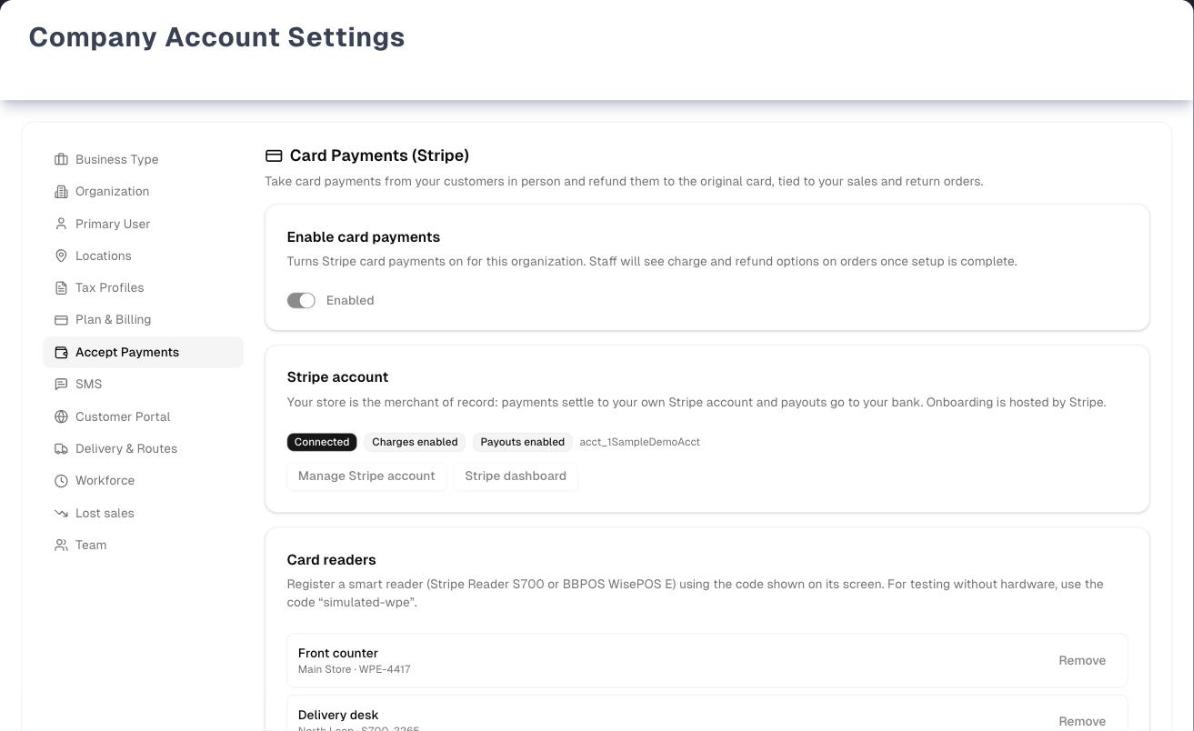
Three things in it are not on the live page or in the sample store: the long acct_… account reference beside the badges, the Stripe dashboard button next to Manage Stripe account, and reader rows with no online / offline badge. The Settings rail in the picture also has no Bank Connections entry, which the live rail has. Everything else matches.
Overview
Card payments live in two places:
- Settings → Accept Payments (Wallet icon in the Settings rail) is where the organization owner sets everything up: the on/off switch, the Stripe account, store locations and card readers. It also shows your Stripe balance, payouts, platform fee and disputes.
- The Payment tab of an order is where your team charges a card and refunds one. Anyone who can open the order can do this — no owner rights needed.
Card payments are gated three times, on purpose:
- The add-on. Card payments (in-person reader charges, payment links and card refunds) is an UpChannels add-on. Until UpChannels enables it for your organization, Settings → Accept Payments shows only "Card payments is an add-on".
- Your own switch. Enable card payments turns it on for your organization. Only the organization owner can change it; anyone else who can open Settings sees it greyed out with "Only the organization owner can change this."
- Stripe's approval. Your Stripe account must show Charges enabled before Take card payment and payment links appear on orders.
The page opens up as you go: the Stripe account card appears once the switch is on, and the locations, readers, payouts, fees and disputes cards appear once a Stripe account is connected.
Step by step: connect Stripe
- Open Settings → Accept Payments and switch Enable card payments on. The green banner reads "Card payments enabled for this organization."
- In the Stripe account card, click Connect with Stripe. UpChannels creates your store's Stripe account (US businesses) and sends you to Stripe, which hosts every step and asks for your business details and bank account.
- When you finish, Stripe brings you back and the badges refresh: Connected, Charges enabled and Payouts enabled. Charges pending or Payouts pending means Stripe still wants something — click Continue Stripe onboarding (it reads Update business details once your details are in) to go back to the right place.
- Manage Stripe account opens the Stripe dashboard in a new tab, where you sign in with your own Stripe login, for anything UpChannels does not show.
The badges show the status UpChannels last heard from Stripe. They refresh when you come back from Stripe's onboarding and whenever Stripe reports a change to your account.
Step by step: set up a counter reader
- In Card-present locations, click Enable next to each store location that takes in-person payments. The location needs a full street address (street, city, state, ZIP) — add it under Settings → Locations first. Once enabled, a location cannot be switched off from this page.
- In Card readers, enter the Registration code shown on the reader's screen, pick the Location (only enabled locations are listed), add an optional Label such as Front counter, and click Register reader.
- Supported readers: Stripe Reader S700 and BBPOS WisePOS E. For testing without hardware, use the code
simulated-wpe. - Remove on a reader's row unregisters it straight away — there is no confirmation. To use that reader again, register it again.
Only smart readers that show a registration code can be registered. The Stripe M2 and other mobile readers are not supported: use a smart reader (S700 or WisePOS E), or take the payment with a payment link.
Step by step: take a card payment on an order
- Open the order (for example from Order Management) and go to its Payment tab. The Take card payment card sits at the top. It appears only on sale orders (not quotes, returns or scrap orders) that still have at least $0.50 to pay and are not cancelled or refunded, only while you are not editing the order, and only once card payments are enabled and Stripe shows Charges enabled.
- Check the Amount (minimum $0.50). It starts at the balance due: the order total minus the payments already completed, so a deposit is already taken off. Lower it to take part of the balance. The field is always there, with or without a registered reader, and it sets both the reader charge and the payment link.
- Choose how to collect it:
- Charge on reader — pick the Reader (the first online reader is pre-selected) and click Charge on reader. The card shows "Waiting for the customer to tap or insert their card…" and you can Cancel while it waits. When it completes you see "Payment of $X completed." and the order reloads.
- Create payment link — makes a secure Stripe checkout link, valid for 24 hours. Then Copy it, or click Email link or Text link, which open the email or text invoice dialog already filled in with the link. Nothing is sent until you click Send Email or Send SMS.
- The payment lands in the order's payments list with its reference, updates the balance and flows into Finance. A payment made through a link shows up once the customer has paid.
The balance due is the order total minus its Completed payments — the same figure as Remaining Balance at the bottom of the Payment tab. Pending, failed and cancelled payments don't count. A return's refund doesn't add to it, because the returned goods come off what the customer owes by the same amount. The Amount you set is used for a reader charge and for a payment link alike, so a store with no reader can still send a link for a deposit. UpChannels never charges more than the balance: a larger amount is cut down to it, and anything under $0.50 is lifted to $0.50 unless the whole balance is already smaller. Once the order is fully paid (or less than $0.50 is owed) the card disappears.
If a reader charge times out, do not charge again blindly: the message tells you to check the payments list, because the charge may have completed at the reader. Reader charges still open after about 10 minutes are checked with Stripe and settled automatically.
You can also add a payment link to an invoice you are sending anyway: Send → Email invoice… and Send → Text invoice… show an Include payment link for $X switch when card payments are ready and the order is a sale with at least $0.50 still owed. $X is the balance due, and the link is always for that whole balance.
Create Order has no card-reader or payment-link option — card methods there only record a payment you took elsewhere. To charge through Stripe, save the order, then use its Payment tab.
Step by step: refund to the card
- Open the order, click ⋯ (More actions) at the top and choose Create return. The Return Items from Order … dialog opens.
- Pick the items, quantities, condition and reason as usual.
- If the order was paid by card through UpChannels (on a reader or with a payment link) and anything is still refundable, a ticked box appears: Refund $X to the customer's card via Stripe, listing each card payment and how much of it is still refundable. Refunds go to the oldest payment first. A card payment you only recorded by hand (a card method such as Visa picked on Create Order) cannot be refunded to the card from here.
- If the return is worth more than the cards can take back, the box says so — "Only $X can go back to the card(s); the rest must be settled separately" — and you pay the rest back by cash, check or another method.
- Untick the box to refund another way and pick the Refund method (Cash, Check or Other). The refund is still recorded against the order, just not to the card.
- Click Process Return.
However much you type, the amount that actually goes back is the amount the system says the order owes, worked out where the returns and the money are recorded rather than on the page — so a retry can never send more than is owed, and on a cancelled order a card refund is not cut short by cash you handed back for items that never left. What a returned item is worth includes its share of any warranty priced on it, so a full return sends back exactly what the customer was billed.
If a card refund fails (a network blip, a Stripe error), the return itself still goes through. If the return went through but the dialog showed an error before the card refund started (for example the connection dropped), clicking Process Return again doesn't return the items twice: it sends the card refund that was never made, and a refund that did go through is never paid twice. The retry is sent exactly as the first try was, even if you changed Return Reason or the refund choice in between. The dialog closes, and a red Return processed, card refund failed message says how much went back to the card and how much is still owed. The order opens on its Payment tab, where the Refund to card card finishes the refund without redoing the return: enter the amount and click Refund to card.
If the cards can't take the whole refund (nothing more is refundable on them), a red Return processed, refund not finished message says how much is still owed. Pay that part back another way, such as cash or check.
Card refunds keep working even if Enable card payments is later switched off, as long as your Stripe account is still connected. Refunds you make directly in the Stripe dashboard are copied onto the order automatically.
Payouts, fees and disputes
| Card | What it shows |
|---|---|
| Balance & payouts | Your Stripe balance (Available and Pending, in US dollars) and up to 10 recent payouts with their date and Stripe status. Card takings settle to your Stripe balance and pay out to your bank on Stripe's schedule; payout details are managed in your Stripe dashboard. If Stripe cannot be read the card stays, says so and offers Try again; it is left out only when your store has no connected Stripe account |
| Platform fees | Your UpChannels platform fee, for example 0.50% + $0.25 per card charge (the default). It is deducted automatically from each card charge. Stripe's own processing fees are billed by Stripe separately |
| Disputes | Chargebacks filed against your payments, with amount, reason, dates and status. Respond with evidence in your Stripe dashboard before the due date — View in Stripe opens that dispute there. UpChannels lists them so you notice, but the evidence goes to Stripe |
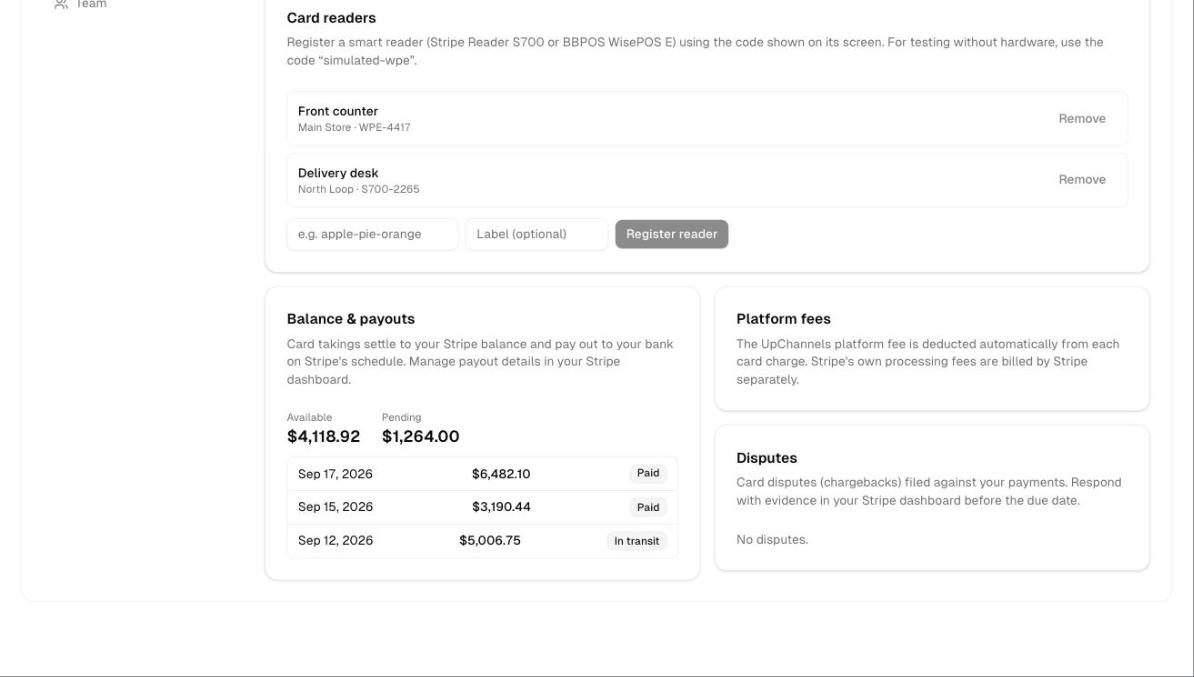
This picture differs from the live page too. On the live page the reader form's three boxes are labelled Registration code, Location and Label (optional); payouts sit under a Recent payouts heading and read amount · date · Stripe's own lower-case status; Platform fees shows your fee rate; and Balance & payouts, Platform fees and Disputes are stacked in one column rather than side by side. The Card-present locations card, which the live page shows above Card readers, is missing from the picture entirely.
Tips
- Give each reader a Label (for example Front counter): the label is what staff pick in the order's Reader list.
- The reader badge (online / offline) is refreshed from Stripe each time the page loads. A charge needs an online reader that is not busy.
- For phone orders, Create payment link then Text link is the quickest way to get paid.
- Each Create payment link click makes a new link. Older links are not cancelled; they stop working 24 hours after they were made.
Troubleshooting
| Problem | What to do |
|---|---|
| Take card payment is missing on an order | Check that the order is a sale (not a quote, return or scrap order) that is not cancelled or refunded and still has at least $0.50 owed, that you are not editing it, that the add-on is enabled, that Enable card payments is on, and that the Stripe account shows Charges enabled |
| "No card readers registered. Register one in Settings → Accept Payments to charge a card in the shop; a payment link works without one." | If Settings opens for you, Settings → Accept Payments in the message is a link — click it to register a reader. If it does not, the message ends "Ask the owner to register one." Either way you can set the Amount and use Create payment link instead; the link can be for part of the balance |
| Enable on a location fails with the street-address message | Complete the street, city, state and ZIP under Settings → Locations, then click Enable again |
| "Failed to register the reader: …" | Stripe's reason follows the colon. Re-read the code on the reader's screen and try again |
| "Timed out waiting for the reader…" | Do not charge again. Check the payments list — if the charge went through it appears there shortly |
| "Could not start the reader payment: …" | Check the reader shows online and is not in the middle of another payment, then retry |
| "This order has no chargeable balance" | The order is already paid, or less than $0.50 is owed |
| Badges still say pending | Click Continue Stripe onboarding to see what Stripe still needs. Charges unlock once Stripe finishes its review |
What's next
- Match takings against your bank feed: Bank Reconciliation
- Every payment and refund in one list: Transactions
- Let customers pay themselves: Customer Portal
- Everything else in Settings: Settings
Detailed reference
Every button, icon, field and message on this page, for when you need the exact detail. Each panel starts closed — open the one you need.
Page header and toolbar
The card payments panel sits in Settings (page title "Company Account Settings") and has no toolbar of its own.
| Control | Where | What it does | Notes |
|---|---|---|---|
| Accept Payments (Wallet icon) | Settings rail, after Plan & Billing | Opens the card payments panel | Always listed, even when the add-on is off (the panel then only explains the add-on). Direct link: /settings?tab=payments |
| Heading Card Payments (Stripe) (card icon) and "Take card payments from your customers in person and refund them to the original card, tied to your sales and return orders." | Top of the panel | Heading only | Shown once the settings have loaded, including when the add-on is off. Not shown while loading or after a load failure |
| Access check: "Loading..." then "Redirecting..." | Whole Settings area, except Plan & Billing | Settings opens for the store's owner and the store's only active member (someone switched off or removed in Team doesn't count). Everyone else is sent to Shortcuts; signed-out users go to sign-in. Plan & Billing is the exception: it opens for anyone signed in, so a store whose trial has run out can still pay. Opening a page is not the same as being allowed to save on it, and the two rules are set separately. A billing change is accepted only from the store's owner; anyone else is refused with "Only the store owner can change billing. Ask your owner to make this change.", and the store's only active member is pointed at UpChannels support instead. The card payment settings on this panel need the Owner switch too, so anyone else who can open Settings sees Enable card payments greyed out and the Stripe, location and reader buttons hidden | See the Who can use what panel |
| "Loading payment settings…" (spinner) | Panel | Shown while the settings load | First load |
| Red box and Retry | Panel | Retry loads the settings again | Shown when loading fails, with the reason or "Failed to load payment settings" |
| Green banner | Above the cards | Confirms the last action (see Messages you may see) | Stays until your next action |
| Red banner | Above the cards | Why the last action failed: the reason, or "Something went wrong" | Stays until your next action |
| Card payments page on its own (no Settings rail) | Where Stripe sends you back after onboarding | The same panel on a page of its own. Arriving from Stripe re-reads your account live, so the badges are current | It opens for the same people as the rest of Settings, and saving on it needs the Owner switch just the same. Open Settings → Accept Payments to get the rail back |
Section: Add-on not enabled
| Control | Where | What it does | Notes |
|---|---|---|---|
| Card Card payments is an add-on: "Stripe card payments (in-person Terminal charges, payment links, and card refunds) is an UpChannels add-on that is not enabled for your organization yet." | Only card on the panel | Explains why nothing else is shown | Shown until UpChannels enables the add-on |
| "Contact UpChannels to add card payments to your plan. Once the add-on is enabled, the setup options appear here." | Same card | What to do next | There are no controls in this state. Only UpChannels can switch the add-on on; it also sets your platform fee rate |
Section: Enable card payments
| Control | Where | What it does | Notes |
|---|---|---|---|
| Card Enable card payments: "Turns Stripe card payments on for this organization. Staff will see charge and refund options on orders once setup is complete." | First card | — | Shown whenever the add-on is on |
| Switch with label Enabled / Disabled | Same card | Turns card payments on or off for the whole organization, with no confirmation. On: "Card payments enabled for this organization." and the Stripe account card appears. Off: "Card payments disabled for this organization." and every card below this one is hidden | Owner only; greyed out for anyone else and while saving. Turning it on without the add-on is refused. Off also hides Take card payment and Include payment link on orders; card refunds keep working |
| "Only the organization owner can change this." | Next to the switch | Explains the greyed-out switch | Shown to people who can open Settings but are not the organization owner |
Section: Stripe account
| Control | Where | What it does | Notes |
|---|---|---|---|
| Card Stripe account: "Your store is the merchant of record: payments settle to your own Stripe account and payouts go to your bank. Onboarding is hosted by Stripe." | Second card | — | Only while Enable card payments is on |
| Badge Connected / Not connected | Badge row | Whether a Stripe account exists for your store | Connected means the account was created, not that Stripe has finished onboarding |
| Badge Charges enabled / Charges pending | Badge row | Whether Stripe lets the account take card charges | Only once connected. Needed for Take card payment, payment links and the customer portal Pay button |
| Badge Payouts enabled / Payouts pending | Badge row | Whether Stripe will pay out to your bank | Only once connected |
| Connect with Stripe (indigo) | Card body | Creates your store's Stripe account (US) on first use, then takes you to Stripe's hosted onboarding | Owner only, shown until connected. Spinner and greyed out while starting. Errors show in the red banner |
| Manage Stripe account (external-link icon) | Card body | Opens the Stripe dashboard in a new tab. Stripe asks for your store's own Stripe login | Once connected. Shown to everyone who can see the page |
| Continue Stripe onboarding / Update business details | Beside Manage Stripe account | Takes you back into Stripe's hosted onboarding | Owner only, once connected. Reads Update business details once Stripe has your details, Continue Stripe onboarding before that. Spinner while starting |
| "Stripe is still reviewing this account. Charges unlock once the requirements are complete." | Under the buttons | Explains the pending state | Connected, but charges not yet enabled |
| Coming back from Stripe | Card payments page | Re-reads your account live from Stripe and refreshes the badges | A normal visit shows the last stored status, which Stripe also updates when your account changes. If Stripe's onboarding link expired, you land back here and click Continue Stripe onboarding again — nothing restarts on its own |
Section: Card-present locations
| Control | Where | What it does | Notes |
|---|---|---|---|
| Card Card-present locations (map-pin icon): "Each store location that takes in-person card payments needs a Stripe Terminal location. The location must have a full street address." | Third card | — | Only when card payments are on and Stripe is connected |
| "No locations found. Add a location in Settings first." | Card body | — | Your organization has no store locations yet. Add one under Settings → Locations |
| Location row: the name, then "Terminal enabled (…)" with Stripe's location ID, or "Not enabled for card-present payments" | One row per location, sorted by name | Shows whether the location can take reader payments | Every location is listed, including inactive ones |
| Enable | Right of a row that is not enabled yet | Creates the Stripe Terminal location from the location's name and address. Banner "Location enabled for card-present payments." | Owner only; spinner while working. Needs street, city, state and ZIP, otherwise "This location needs a full street address (street, city, state, ZIP) before it can accept card-present payments." If Stripe refuses: "Failed to create the Terminal location". There is no Disable button |
Section: Card readers
| Control | Where | What it does | Notes |
|---|---|---|---|
| Card Card readers (phone icon): "Register a smart reader (Stripe Reader S700 or BBPOS WisePOS E) using the code shown on its screen. For testing without hardware, use the code “simulated-wpe”." | Fourth card | — | Only when card payments are on and Stripe is connected |
| Reader row: the label (or the device type, or Stripe's reader ID), and under it the device type (or "reader") · Stripe's reader ID | One row per reader, in the order they were registered | Lists your registered readers | No message when there are none |
| Status badge online / offline / unknown | Right of the row | Stripe's status for the reader: dark when online, grey otherwise | Refreshed from Stripe each time the page loads |
| Remove | Right of the row | Unregisters the reader here and at Stripe at once. Banner "Reader removed." | Owner only. No confirmation. Greyed out while removing. Register it again to use it again |
| Registration code (placeholder "e.g. apple-pie-orange") | Register form | The code shown on the reader's screen | Required. The form is shown to the owner only. Cleared after a successful registration |
| Location (placeholder "Select location") | Register form | Which location the reader belongs to | Required. Lists only locations marked Terminal enabled |
| Label (optional) (placeholder "Front counter") | Register form | A friendly name, shown on the reader row and in the order's Reader list | Optional. Cleared after a successful registration |
| Register reader | Register form | Registers the reader with Stripe at the chosen location. Banner "Reader registered." | Greyed out until a code and a location are entered, and while registering. Failure: "Failed to register the reader: …" with Stripe's reason |
| "Enable a location for card-present payments first." | Under the register form | Explains why Location is empty | No location is enabled yet |
Section: Balance & payouts
| Control | Where | What it does | Notes |
|---|---|---|---|
| Card Balance & payouts: "Card takings settle to your Stripe balance and pay out to your bank on Stripe's schedule. Manage payout details in your Stripe dashboard." | Fifth card | Read live from Stripe | Only when card payments are on and Stripe is connected. The card is left out only when there is no connected Stripe account — if Stripe cannot be read it stays and shows the message below |
| Available / Pending | Card body | Your Stripe balance available now and still pending | US dollars only |
| Recent payouts: amount · date · status badge | Card body | Up to the 10 most recent payouts. The date is the arrival date, or the date the payout was created if Stripe gives none. The status is Stripe's own word, such as paid, pending, in_transit, failed or canceled | Dark badge for paid, grey otherwise. Read-only; no links |
| "No payouts yet." | Card body | — | No payouts so far |
| "Loading your balance…" with a spinner | Card body | The balance is being read from Stripe | Also while Try again is working |
| "Couldn't load your balance and payouts from Stripe." with the reason, and Try again | Card body | Stripe would not answer. No figures are shown, and none are wrong — nothing is guessed | Try again re-reads only the balance and payouts; the rest of the page is left alone. The reason is Stripe's own, for example "Failed to load payout information"; "Stripe did not answer." when the answer carried no reason (a session that has ended, say); "Stripe could not be reached." when the request never got there |
Section: Platform fees
| Control | Where | What it does | Notes |
|---|---|---|---|
| Card Platform fees: "The UpChannels platform fee is deducted automatically from each card charge. Stripe's own processing fees are billed by Stripe separately." | Sixth card | — | Only when card payments are on and Stripe is connected. If the fee and dispute details cannot be read the card stays, says so and offers Try again; it is left out only when your store has no connected Stripe account |
| Fee figure, e.g. 0.50% + $0.25 "per card charge" | Card body | Your store's platform fee rate | 0.50% + $0.25 unless UpChannels set a different rate for your store. The fee never takes a whole charge: your store always keeps at least 1¢ |
| "Loading your fee schedule…" with a spinner | Card body | The fee is being read | Also while Try again is working |
| "Couldn't load your platform fees and disputes." with the reason, and Try again | Card body | The read failed. No rate is shown, and none is guessed | Try again re-reads only the fees and disputes; the rest of the page is left alone. Disputes shows the same message at the same time, because the two come from one read |
Section: Disputes
| Control | Where | What it does | Notes |
|---|---|---|---|
| Card Disputes (shield icon): "Card disputes (chargebacks) filed against your payments. Respond with evidence in your Stripe dashboard before the due date." | Seventh card | — | Only when card payments are on and Stripe is connected. If the details cannot be read the card stays, says so and offers Try again — a dispute has a deadline on it, so it is never removed quietly. It is left out only when your store has no connected Stripe account |
| "Loading your disputes…" with a spinner | Card body | The list is being read | Also while Try again is working |
| "Couldn't load your platform fees and disputes." with the reason, and Try again | Card body | The read failed. An empty list is never shown in its place | Check your disputes in your Stripe dashboard if it keeps failing |
| "No disputes." | Card body | — | None on record. Shown only once the read has succeeded |
| Dispute row: amount · reason (e.g. "Fraudulent", "Product not received"), and "Opened … · evidence due …" | Card body, newest first | One row per dispute, up to 50 | Filled in automatically from Stripe. The evidence date appears only when Stripe gives one |
| Status badge: Needs response, Warning needs response, Under review, Warning under review, Warning closed, Won, Lost or Charge refunded | Right of the row | The dispute's stage at Stripe | Red for Needs response, Warning needs response and Lost; dark for Won; grey for the rest |
| View in Stripe (external-link icon) | Right of the row | Opens that dispute in the Stripe dashboard in a new tab, where you submit evidence | Everyone who can see the page |
Section: Take card payment (order Payment tab)
Open an order and go to its Payment tab (the tab is not shown on quotes and scrap orders). The card appears only on sale orders that are not cancelled or refunded and still have at least $0.50 to pay, only when the add-on is on, Enable card payments is on and Stripe shows Charges enabled, and only while the order is not being edited. The balance due is the order total minus the order's Completed payments.
| Control | Where | What it does | Notes |
|---|---|---|---|
| Card Take card payment (card icon, indigo) | Payment tab, top | Collects money by card, on a reader or with a payment link | Anyone who can open the order can use it |
| "No card readers registered. Register one in Settings → Accept Payments to charge a card in the shop; a payment link works without one." | Card body, under Amount | Shown in place of Reader and Charge on reader. Settings → Accept Payments is a link for everyone Settings opens for; for anyone else it is plain text and the message adds "Ask the owner to register one." | No readers registered. Amount and Create payment link are still there, so you can still send a link for a deposit or part of the balance |
| Reader (placeholder "Select reader") | Card body | Picks the reader. Each option shows the label (or device type) and its status, e.g. "Front counter (online)" | The first online reader is pre-selected, else the first reader. Locked while a charge is running |
| Amount and "Balance due: $X" | Card body | The amount to charge, starting at the balance due (order total minus Completed payments). It sets the reader charge and the payment link alike. Typed values are kept between $0.50 and the balance due; clearing the field puts the balance due back | Always there, with or without a registered reader. Goes back to the new balance after a payment lands. The charge is always capped at the balance due. Locked while a charge is running |
| Charge on reader (indigo) | Card body, right | Sends the charge to the reader and shows "Waiting for the customer to tap or insert their card…" (spinner). Checks for the result every few seconds for up to 2 minutes. Starting a new charge first cancels any unfinished reader charge on the same order | Greyed out until a reader is selected and there is something to charge. The charge is added to the payments list as Pending straight away and turns Completed when Stripe confirms it. If the reader cannot start, the attempt is added as Cancelled |
| Cancel | In place of Charge on reader while waiting | Cancels the prompt on the reader and the charge. Red "Payment cancelled." | If the card already went through: "Could not cancel the payment: Payment already completed — refund it instead. The reader may still complete the charge — check the payments list." |
| Result line | Under the inputs | Green "Payment of $X completed." (the order reloads, so the payment and balance update), or red "Payment failed: …", "Payment was cancelled." or the timeout message | Closing the order stops the checking, but the payment is still recorded when Stripe confirms. Reader charges still open after about 10 minutes are settled automatically |
| Create payment link and "Send a secure Stripe checkout link for $X (valid 24h)" | Lower part of the card, under a dividing line | Creates a Stripe checkout link for the Amount | Works with or without a registered reader, and takes the Amount either way, so a store with no reader can still ask for a deposit. $X is the Amount, or the balance due when it has not been changed. Spinner and greyed out while creating, and greyed out when there is nothing to charge. The link is never for more than the balance due. Each click makes a new link; earlier links are not cancelled. Nothing is added to the payments list until the customer pays |
| Link box | Under Create payment link | Shows the link; clicking in it selects the whole link | Clears when the link expires, once the balance reaches zero, or after a reader payment completes on this card |
| Copy → Copied! | Link box | Copies the link | If the browser blocks copying: "Copy failed — select the link text and copy manually" |
| Email link (envelope icon) | Link box | Opens Send Invoice via Email filled in with the link | Nothing is sent until Send Email |
| Text link (speech-bubble icon) | Link box | Opens Send Invoice via SMS filled in with the link | Nothing is sent until Send SMS |
| "Link expires …" | Under the link box | Date and time the link stops working | 24 hours after it was made |
| Red link error | Under the link section | Why the link could not be made (see Messages you may see) | — |
Section: Refund to card (order Payment tab)
| Control | Where | What it does | Notes |
|---|---|---|---|
| Card Refund to card (circular-arrow icon, orange): "This order still owes the customer money. If the card refund failed (or was skipped) during the return, issue it here — the amount is what the order owes, capped at what is still refundable on the original card payment." ("payments" when there are several) | Payment tab, under Take card payment | Issues, or retries, a card refund | Shown when your store has a connected Stripe account (the Enable card payments switch does not matter), the order is a sale, it has card payments with something left to refund, and the order still owes the customer money. How much is owed is worked out by the system, not the page, and it is the same figure the refund itself uses on every order: the money the customer has actually paid, less what they are still keeping the goods for and less every refund already given — in cash, on a card, or back as store credit (cancelling an order gives its loyalty credit back as points and records a store-credit refund for it, so that part stops counting as money owed). So an order that was never paid, or paid with a deposit that the returned goods have already used up, owes nothing. A return already paid back in cash shows nothing. Hidden while editing |
| Lines "Card payment $X (STRIPE-…) — $Y refundable" | Card body | Each card payment and what is still refundable, oldest first | — |
| Amount and "Still owed to the customer: $X" (plus " — $Y can go back to the card" when the cards cannot cover it all) | Card body | How much to refund. Starts at the most allowed and is kept between 0 and that | Hidden when nothing is refundable. Locked while refunding. Refund to card stays greyed out until the amount owed has loaded, and the card is read again after every refund, so the same money can't be sent twice |
| Refund to card (orange) | Card body, right | Refunds to the card payments, oldest first, stopping at the first failure. Green "Refunded $X to the customer's card." | Greyed out while refunding or when the amount is 0. On failure: "$A was refunded, but the refund of $B on STRIPE-… failed: …" (it starts "the refund of …" when nothing went through) |
Section: Card payments in the order's payments list
| Control | Where | What it does | Notes |
|---|---|---|---|
| Row "Payment N" with a status pill | Payment tab, payments list | Each card charge, attempt and card refund is its own row | Pills: Completed green, Processing blue, Pending and Refunded amber, Failed red, Cancelled grey. Failed and Cancelled rows stay in the list but do not count toward what is paid |
| Status meanings | Status pill | Pending = reader charge in progress. Processing = card refund on its way. Completed = money taken. Refunded = a refund row. Failed or Cancelled = an attempt that took no money | — |
| Method "Card (Stripe)" | Payment row | How card payments taken through Stripe are labelled | On a reader or with a payment link alike |
| Reference "STRIPE-…" or "RETURN-STRIPE-…" | Payment row | Stripe's payment ID for a charge; card refunds carry "RETURN-STRIPE-" and Stripe's refund ID | The same "STRIPE-…" reference appears in the refund boxes |
| Notes | Payment row | Why a charge failed (Stripe's decline message, "Reader action failed" or "Payment failed"), or a refund note: "Return refund" (with the return reason in brackets), "Card refund from Payment tab (return refund retry)", or "Stripe refund (…)" for a refund made in the Stripe dashboard with a reason | Refunds made in Stripe are copied onto the order automatically; one made without a reason has no note |
| "No payment records found for this order" | Payment tab | — | No payments yet |
| Remaining Balance | Payment summary, bottom of the tab | The order total minus completed payments | The same figure as the card's "Balance due" |
Dialog: Send Invoice via Email
Opened from Send → Email invoice… at the top of the order, or from Email link in Take card payment.
Fields:
| Field | Required | Default | Rules and error text |
|---|---|---|---|
| To (placeholder "customer@example.com") | Yes | The customer's primary email | Left empty, sending fails with "Email Failed" and "Missing required fields" |
| From | — | Your business name | Read-only; tooltip "Invoices are always sent from your business name" |
| Subject | Yes | "Invoice #… from …"; from Email link: "Payment link for Invoice #… from …" | Editable. Left empty, sending fails with "Missing required fields" |
| Message | No | From Email invoice…: "Hello," then "Please find your invoice attached as a PDF. Thank you for your business!" and "Best regards," with your business name and "Team". From Email link: "Hello," then "Amount due: $X. Pay securely online:" with the link and "(link expires …)", then "Your invoice is attached for reference. Thank you for your business!" and the same sign-off | Editable |
| Send a copy to my business email (…) | No | Off | Only when your business has an email on file. Greyed out while sending |
| Include payment link for $X (switch) | No | Off; on when opened from Email link | Shown only when card payments are ready and the order is a sale. On: makes a link for the whole open balance (or reuses the one from Email link) and adds "Amount due: $X. Pay securely online: … (link expires …)" to the message. Off: removes that block. Spinner while creating; greyed out while creating or sending. Failure: "Payment Link Failed" with the reason. $X is the balance due (order total minus Completed payments). Not shown once less than $0.50 is owed or on a cancelled or refunded order |
Buttons:
| Control | Where | What it does | Notes |
|---|---|---|---|
| Invoice Preview | Dialog body | A scaled preview of the invoice attached to the email | "Preparing preview…" while it loads |
| Cancel | Footer | Closes without sending | — |
| Send Email → "Sending..." | Footer | Sends the email with the invoice attached. "Invoice Sent" / "The invoice email was sent successfully." | Failure: "Email Failed" with the reason |
Dialog: Send Invoice via SMS
Opened from Send → Text invoice… at the top of the order, or from Text link in Take card payment. Text invoice… first makes the online invoice link; if that fails, a red "Text invoice not ready" message shows the reason (or "Failed to prepare SMS") and the dialog does not open.
Fields:
| Field | Required | Default | Rules and error text |
|---|---|---|---|
| To (placeholder "Customer phone number") | Yes | The customer's phone | Send SMS stays greyed out while it is empty |
| Message | Yes | From Text invoice…: "Hi …, here is your invoice #…:" with a link to the online invoice, then "Thank you!". From Text link: "Hi …, here is your payment link for invoice #…. Pay $X securely online: … (link expires …)" then "Thank you!" | Helper "A link to the online invoice is included. Standard SMS rates may apply." |
| Include payment link for $X (switch) | No | Off; on when opened from Text link | Same rules as the email switch. Adds "Pay $X securely online: … (link expires …)" to the message; off removes it. Failure: "Payment Link Failed" with the reason |
| Start a new conversation (switch) | No | Off | Closes the current text conversation with this number (its messages stay in Messages) and sends this text in a new one. Not specific to card payments |
Buttons:
| Control | Where | What it does | Notes |
|---|---|---|---|
| Cancel | Footer | Closes without sending | — |
| Send SMS → "Sending..." | Footer | Sends the text. "SMS Sent" / "Invoice link sent successfully." | Greyed out while the number or the message is empty. May first ask you to confirm the customer agreed to texts, or show an SMS plan notice. Failure: "SMS Failed" with the reason |
Dialog: Return Items from Order … (card refund parts)
Opened from ⋯ (More actions) → Create return at the top of the order. Offered on every order except returns, quotes and scrap orders. Only units that left the store can come back, and a cancelled order takes no return at all — return the delivered items before cancelling what is left (see Order Management).
| Control | Where | What it does | Notes |
|---|---|---|---|
| Refund $X to the customer's card via Stripe (checkbox) | Box above the footer | Ticked: once the return is processed, the card refund is sent to the card payments, oldest first | $X is the figure shown as Total Refund Amount just above — the value of the ticked items, with tax. What reaches the card is often less: the store sends only the money it is holding beyond what the customer still owes for the goods they keep, less every refund already given, and less any share a loyalty credit paid (that comes back as points instead). The message after Process Return names the amount that went. Shown when the order has completed card payments taken through Stripe (reference "STRIPE-…") with something still refundable, whether or not Enable card payments is on. The refund itself needs your Stripe account to still be connected. Ticked each time the dialog opens |
| Lines "Card payment $X (STRIPE-…) — $Y refundable" | Same box | Each card payment's remaining refundable amount | — |
| "Only $X can go back to the card(s); the rest must be settled separately." (orange) | Same box | The value of the items coming back is more than the cards can take back | Pay the rest another way. The comparison uses the value of the goods, so the note can appear even when the money the order actually owes would fit on the card |
| Refund method: Cash, Check or Other (default Cash), with "How the $X refund is paid back to the customer." | Box under the card box | Records how a refund that is not going to the card was paid | Only when the card box is unticked, or the order has no refundable card payment. The $X in that line is the value of the items coming back, the same figure as Total Refund Amount; what is actually recorded can be less (see Process Return). It sets how the money part is paid: where a loyalty credit paid part of the order, that share always comes back as store credit and points, never as cash |
| Cancel | Footer | Closes the dialog | Greyed out while processing |
| Process Return → "Processing..." (orange) | Footer | Processes the return (restock and refund record), then refunds the card if the box is ticked | Greyed out while processing, while the dialog is still reading what can be returned, on an order that takes no return, and until a line is ticked with a quantity above 0. The dialog then closes and one message says what happened to the money: "Return Processed" when the whole refund went through, or a red "Return processed, card refund failed" / "Return processed, refund not finished" with the amount still owed. The amount in that message is the money half — where a loyalty credit paid part of the order, its share is named separately as points, because it never went to the card and never comes out of the drawer. After a failed card refund the order opens on its Payment tab; finish from Refund to card |
Sub-page: Where customers pay
| Control | Where | What it does | Notes |
|---|---|---|---|
| Stripe checkout from a payment link | Customer's browser | The customer pays on Stripe's secure page; afterwards Stripe returns them to your online invoice | The payment appears on the order, as Completed, once Stripe confirms it. See Links You Send Customers & Staff |
| Pay $X button ("Opening secure checkout…" while busy) and "Secure payment powered by Stripe. Card details never touch this site." | Customer portal order page | Sends the customer to Stripe checkout for the open balance | Only on a sale order that is not cancelled or refunded, when card payments are ready and at least $0.50 is owed. See Customer Portal |
| Pay link in the delivery-completed message: " Balance due — pay securely here (link valid 24h): …" | Text or email sent when a delivery is marked completed | Lets the customer pay the balance | Added only when the order is unpaid and card payments are ready; otherwise the message goes without it. See Delivery |
Messages you may see
| Message | When it appears | What to do |
|---|---|---|
| "Loading payment settings…" | Card payments panel is loading | Wait |
| "Failed to load payment settings" (with Retry) | The settings could not be loaded | Click Retry. If it keeps failing, reload the page |
| "Card payments is an add-on" | The add-on is not enabled for your organization | Contact UpChannels |
| "Only the organization owner can change this." | You can open Settings but are not the organization owner | Ask the owner to make the change |
| "Card payments enabled for this organization." | The switch was turned on | Next: Connect with Stripe |
| "Card payments disabled for this organization." | The switch was turned off | Charge options disappear from orders. Card refunds still work |
| "The Stripe payments add-on is not enabled for this organization — contact UpChannels to activate it" (or the same without the last part) | Turning the switch on, connecting, charging or making a link without the add-on | Contact UpChannels |
| "Only the organization owner can change payment settings" / "Only the organization owner can connect Stripe" / "Only the organization owner can configure Terminal" / "Only the organization owner can register readers" / "Only the organization owner can remove readers" | Someone other than the owner tried an owner action | The owner must do it |
| "Failed to update payment settings" / "Update failed" | Saving the switch failed | Try again |
| "Failed to start Stripe onboarding" / "Could not start Stripe onboarding" | Connect with Stripe or Continue Stripe onboarding failed | Try again later |
| "Stripe payments are not enabled for this organization" | Connecting, charging or making a link while the switch is off | Turn Enable card payments on |
| "Stripe is still reviewing this account. Charges unlock once the requirements are complete." | Connected, but charges not enabled yet | Click Continue Stripe onboarding to see what Stripe needs |
| "No locations found. Add a location in Settings first." | Your organization has no store locations | Add one under Settings → Locations |
| "Location enabled for card-present payments." | Enable worked | Register a reader next |
| "This location needs a full street address (street, city, state, ZIP) before it can accept card-present payments." | Enable on a location with an incomplete address | Complete the address under Settings → Locations, then click Enable again |
| "Failed to create the Terminal location" / "Linking failed" | Stripe refused the location | Check the address is a valid US address, then retry |
| "Connect Stripe before configuring Terminal" / "Connect Stripe before registering readers" | A location or reader action before Stripe is connected | Connect Stripe first |
| "Enable a location for card-present payments first." | No location is enabled for readers | Click Enable on a location |
| "Reader registered." | Registration worked | — |
| "Failed to register the reader: …" / "Registration failed" | Stripe refused the code | Re-read the code on the reader's screen and try again |
| "Link this location to Terminal first" / "Location not found" | The chosen location is not enabled, or no longer exists | Reload the page and pick an enabled location |
| "Reader removed." | Remove worked | — |
| "Reader not found" / "Remove failed" | Removing or charging with a reader that no longer exists | Reload the page |
| "No payouts yet." | No payouts on your Stripe account | — |
| "Couldn't load your balance and payouts from Stripe." followed by the reason: "Failed to load payout information", "Stripe did not answer." or "Stripe could not be reached." | The balance could not be read | Try again in the same card. If it keeps failing, check your balance in your Stripe dashboard |
| "Couldn't load your platform fees and disputes." followed by the reason, or "Stripe did not answer." / "Stripe could not be reached." | The fee schedule and dispute list could not be read. Both cards say it | Try again in either card re-reads both. Your disputes are also listed in your Stripe dashboard |
| "No disputes." | No disputes on record | — |
| "Something went wrong" | An unexpected error on a Settings action | Try again |
| "No card readers registered. Register one in Settings → Accept Payments to charge a card in the shop; a payment link works without one." (plus "Ask the owner to register one." for anyone Settings does not open for) | Take card payment with no reader registered | Click Settings → Accept Payments in the message to register one, or set the Amount and use Create payment link |
| "Balance due: $X" | Under the card Amount | Nothing to do — it is the order total minus the payments already completed. Amount starts there and can be lowered; nothing above it is ever charged |
| "Waiting for the customer to tap or insert their card…" | Reader charge in progress | The customer taps or inserts their card on the reader. Cancel to stop |
| "Payment of $X completed." | Reader charge succeeded | — |
| "Payment failed: …" / "Payment failed" | Card declined or reader error | Try again, with another card, or take another payment method |
| "Payment was cancelled." | The charge was cancelled at the reader or at Stripe | Start again if needed |
| "Payment cancelled." | You clicked Cancel | — |
| "Timed out waiting for the reader. Check the Payments list — if the charge went through it will appear there shortly." | No result after 2 minutes | Do not charge again. Check the payments list; an open charge is settled automatically after about 10 minutes |
| "Could not cancel the payment: …. The reader may still complete the charge — check the payments list." / "Could not cancel the payment (server unreachable). The reader may still complete the charge — check the payments list." | Cancel failed | Check the payments list before charging again |
| "Payment already completed — refund it instead" | Cancelling a charge that already went through | Use Create return to refund it |
| "Could not start the reader payment: …" | The reader is offline or busy, or Stripe refused | Check the reader shows online and is free, then retry |
| "Could not start the reader payment" / "Could not reach the server" | A network error | Try again |
| "Stripe is not ready to take payments yet (finish onboarding first)" | Charging or making a link while charges are pending | Finish Stripe onboarding |
| "This order has no chargeable balance" | Charging or making a link when less than $0.50 is owed, for example a fully paid order | Nothing to collect |
| "Order status … cannot take a payment" | The order is cancelled or refunded, or is a quote | — |
| "Card charges are only supported on sale orders" / "Payment links are only supported on sale orders" | A return, quote or scrap order | — |
| "Order not found" | The order no longer exists | Reload the page |
| "Send a secure Stripe checkout link for $X (valid 24h)" | Next to Create payment link | — |
| "Link expires …" | After a link is made | Make a new link after it expires |
| "Copied!" | The link was copied | — |
| "Copy failed — select the link text and copy manually" | The browser blocked copying | Select the link and copy it by hand |
| "Could not create the payment link" / "Could not create the payment link: …" | Link creation failed | Try again. Check the switch and the Stripe badges |
| "Payment Link Failed" with the reason | The Include payment link switch could not make a link | See the reason |
| "Invoice Sent" / "The invoice email was sent successfully." | Email sent | — |
| "Email Failed" with the reason | The email could not be sent | Check the address and try again |
| "Missing required fields" | Send Email with an empty To or Subject | Fill both in and send again |
| "Text invoice not ready" — "Failed to prepare SMS" (or the reason it gives) | Send → Text invoice… could not make the online invoice link | Try again |
| "SMS Sent" / "Invoice link sent successfully." | Text sent | — |
| "SMS Failed" with the reason | The text could not be sent | Check the number and your SMS setup |
| "A link to the online invoice is included. Standard SMS rates may apply." | Under the SMS message | — |
| "Refund $X to the customer's card via Stripe" | Return dialog on a card-paid order | Leave ticked to refund to the card |
| "Only $X can go back to the card(s); the rest must be settled separately." | The return is worth more than the cards can take back | Pay the rest by cash or check |
| "How the $X refund is paid back to the customer." | Return dialog, refund not going to a card | Pick Cash, Check or Other |
| "Return processed, card refund failed" (red) — "Items returned for order …. $A was refunded to the customer's card, but the card refund of $B on STRIPE-… failed: …. $C is still owed to the customer. Retry it with Refund to card on the Payment tab." (starts "The card refund of …" when nothing went through; adds "$D of loyalty credit went back as points and is not part of that." where a loyalty credit paid part of the order) | A card refund failed during a return. The order opens on its Payment tab | Payment tab → Refund to card |
| "Return processed, refund not finished" (red) — "Items returned for order …. $A was refunded to the customer's card. The other $C could not go back to the card because nothing more is refundable on it, so it is still owed to the customer. Pay it back another way, such as cash or check." (adds "$D of loyalty credit went back as points and is not part of that." where a loyalty credit paid part of the order) | The cards could not take the whole refund | Pay the rest another way |
| "Return Processed" — "Items returned for order …. $X was refunded to the customer's card." Where a loyalty credit paid part of the order the sentence goes on ", and $Y of loyalty credit went back as points." | The whole card refund went through. $X is the money the card took back; the credit's share never reached the card, so it is settled as points and named apart | — |
| "Return Processed" — "Items returned for order …. A $X cash refund was recorded." (or check, or other; "No refund was due." when nothing was booked) | The refund was not going to a card. $X is the money half only. It is what the return actually booked: the value of the items coming back — their own discount and their share of an order-wide discount taken off, the share of a warranty priced on them and the tax charged on them included — but never more than the money the store is holding beyond what the customer still owes for the goods they keep, less every refund already given, whether that went back as money or as credit. So an order that was never paid, or paid with a deposit the kept goods have used up, books nothing. Where a loyalty credit paid part of the order the sentence goes on ", and $Y of loyalty credit went back as points." — that part is not cash and must not be paid out of the drawer. Where the credit paid for all of it the whole sentence reads "$Y of loyalty credit went back as points, and no money was refunded." | — |
| "… Damaged or defective items are held back, not available to sell. …" | Part of the return messages when a line came back Damaged or Defective | — |
| "Return already recorded" — "This return was already recorded for order …, so nothing was returned or refunded again. Its $X cash refund is on the Payment tab." (or check, or other; "Its $X cash refund and the $Y of loyalty credit it gave back as points are both on the Payment tab." where a loyalty credit paid part of the order; "No refund was due." when the first try booked none) | Process Return clicked again for the same items after an error, the first try had gone through, and its refund was cash, check or other (booked by that first try). The retry follows the first try's refund choice even if it was changed in between | Check the Payment tab |
| "This return was already recorded with other details, so it was not sent again. Close this window and check the Payment tab: a card refund that did not go through can be sent there with Refund to card." | Rare: a retry after an error that matches none of the window's earlier tries | Payment tab → Refund to card if a card refund is still owed |
| The same message plus "The order details could not be refreshed: close and reopen this order." (red) | The return went through but the order did not reload | Close and reopen the order |
| "Still owed to the customer: $X — $Y can go back to the card" | Refund to card card | — |
| "Refunded $X to the customer's card." | A retry refund worked | — |
| "$A was refunded, but the refund of $B on … failed: …" | A retry refund failed part way | Try again, or refund the rest another way |
| "Refund failed: …" / "Card refund failed" | Stripe refused the refund | See the reason (for example, the charge is disputed) |
| "Only completed Stripe card payments can be refunded here" / "This payment has already been fully refunded" / "This order has no returned items to refund" / "The returned amount on this order is already fully covered by refunds" / "No connected Stripe account for this organization" / "Could not load the order to size the refund" / "Refund amount must be positive" / "Payment not found" | A card refund was refused | Card refunds cover what the order still owes and need a connected Stripe account. "No returned items" is only said about an order that is still live — a cancelled order can owe money with nothing marked returned |
| "Opening secure checkout…" / "Secure payment powered by Stripe. Card details never touch this site." | Customer portal Pay button | — |
| "This link is no longer valid" / "The portal is not available for this store" / "Could not start the payment" | The customer's portal Pay button failed | Send the customer a fresh link |
Who can use what
| Action | Organization owner | The organization's only active user, when not the owner | Other staff |
|---|---|---|---|
| Open Settings → Accept Payments | Yes | Yes | No — sent to Shortcuts |
| Enable card payments switch | Yes | Greyed out with "Only the organization owner can change this." | — |
| Connect with Stripe, Continue Stripe onboarding, Update business details | Yes | Hidden | — |
| Enable a location, Register reader, Remove a reader | Yes | Hidden | — |
| Manage Stripe account, View in Stripe | Yes | Yes | — |
| See payouts, fee and disputes | Yes | Yes | — |
| Take card payment, Create payment link, Include payment link | Yes | Yes | Yes |
| Card refund (return dialog, Refund to card) | Yes | Yes | Yes |
- Owner means your organization's designated owner. Settings also opens for an organization's only active user (people switched off or removed in Team don't count), but only the designated owner can change card payment settings. Team roles are managed in Settings → Team.
- Staff means anyone signed in to your organization who can open the order. There is no separate card-payment permission.
- The add-on is set per organization by UpChannels, together with your platform fee rate. Without it, onboarding, location and reader setup, charges and links are refused.
- Enable card payments is needed for onboarding, enabling locations, registering readers, reader charges, payment links, the customer portal Pay button and pay links in delivery messages.
- Charges enabled at Stripe is needed for reader charges, payment links and the portal Pay button.
- Card refunds need only a connected Stripe account — not the add-on and not the switch.
- Card payments are not tied to a plan tier.
Demo mode (/settings/demo)
- Open it: go to
/settings/demoin your browser's address bar. There is no Demo button on the Settings page, and it opens for the same people as the rest of Settings. - Header: "Company Account Settings — Demo" with "A sample store's settings, populated with demo data. All actions are disabled."
- Banner: "Demo settings. A sample store — the numbers, the plans and the Stripe account are invented, and every control is disabled."
- Disabled: every button and field. Still works: the Settings rail, and a guided tour. Every rail entry has sample content of its own. It opens on Business Type.
- Leave: Exit Demo Mode (top right) goes to Settings, which opens on Business Type.
The screenshots on this page come from this demo, which matches the live Accept Payments pane card for card, apart from:
| Demo shows | Live page |
|---|---|
| A sample store's Stripe account, readers, payouts and fee rate | Your own, read live from Stripe |
| Every button and field disabled | The controls work for the owner |
| A fee rate of "0.50% + $0.25 per card charge" | Whatever UpChannels has set for your store |
| Manage Stripe account and a greyed Update business details | Manage Stripe account, plus Continue Stripe onboarding or Update business details depending on what Stripe still wants |
The pictures on this page differ from both the demo and the live page:
| The pictures show | The demo and the live page show |
|---|---|
| An acct_… account reference beside the badges | No account reference |
| A Stripe dashboard button | No such button — Manage Stripe account is the way to Stripe |
| No Card-present locations card | The Card-present locations card, with Enable per location |
| Reader rows as a location name and serial number, with no status badge | Device type · Stripe's reader ID, with an online / offline badge |
| Two unlabelled boxes and Register reader | Labelled Registration code, Location and Label (optional) |
| Payouts as date · amount · a capitalised status, with no heading | Amount · date · Stripe's lower-case status, under Recent payouts |
| Platform fees with no figure | The fee rate, for example "0.50% + $0.25 per card charge" |
| Payouts, fees and disputes side by side | Stacked in one column |
Common questions
Why don't I see Take card payment on an order? It shows only when all of these are true: UpChannels has enabled the add-on, Enable card payments is on, your Stripe account shows Charges enabled, the order is a sale (not a quote, return or scrap order) that is not cancelled or refunded, at least $0.50 is still owed, and you are viewing the order rather than editing it. Look on the order's Payment tab. A fully paid order doesn't show it.
Does "Balance due" take off a deposit the customer already paid? Yes. It is the order total minus every Completed payment on the order — the same figure as Remaining Balance at the bottom of the Payment tab — and the Amount box starts there, the payment link takes whatever that box says, and Include payment link for $X is always the whole balance. Pending, failed and cancelled payments don't count. UpChannels never charges more than the balance due.
The reader timed out. Did the customer pay? Maybe. Do not charge again. Check the order's payments list: if the charge went through it appears there shortly as Completed. A reader charge that is still open after about 10 minutes is checked with Stripe and settled automatically.
A card refund failed during a return. What now? The return itself went through, and the red "Return processed, card refund failed" message says how much is still owed. The order opens on its Payment tab: use the Refund to card card there to send the money back.
Can staff take card payments, or only the owner? Anyone who can open the order can charge a card, send a payment link and refund to a card. Only the organization owner can change the setup in Settings → Accept Payments.
Where is the Stripe dashboard button? There isn't one, on the live page or in the demo. Use Manage Stripe account on the Stripe account card; it opens the Stripe dashboard, where you sign in with your own Stripe login. For a dispute, View in Stripe opens that dispute directly. A Stripe dashboard button does appear in the pictures on this page; neither the demo nor the live page has one.
I finished Stripe onboarding but the badges still say pending. Stripe may still be reviewing your account ("Stripe is still reviewing this account. Charges unlock once the requirements are complete."). Click Continue Stripe onboarding to see whether Stripe needs anything else. The badges refresh when you come back from Stripe and whenever Stripe reports a change.
If I switch Enable card payments off, can I still refund card payments? Yes. Card refunds on returns keep working as long as your Stripe account is still connected. Turning the switch off hides charging and payment links, and hides the Stripe cards in Settings.