Income Tax Prep
The Income Tax Preparation page is a signpost for tax season. Automated tax preparation isn't available yet, so the page shows no tax figures. It points you to the two reports most tax prep starts from: Profit & Loss for pre-tax income and the Expenses Report for your recorded expenses.
Open Finance → Income Tax Prep in the sidebar, at the bottom of the Finance group. The Finance Guide & Tips page also links to it.
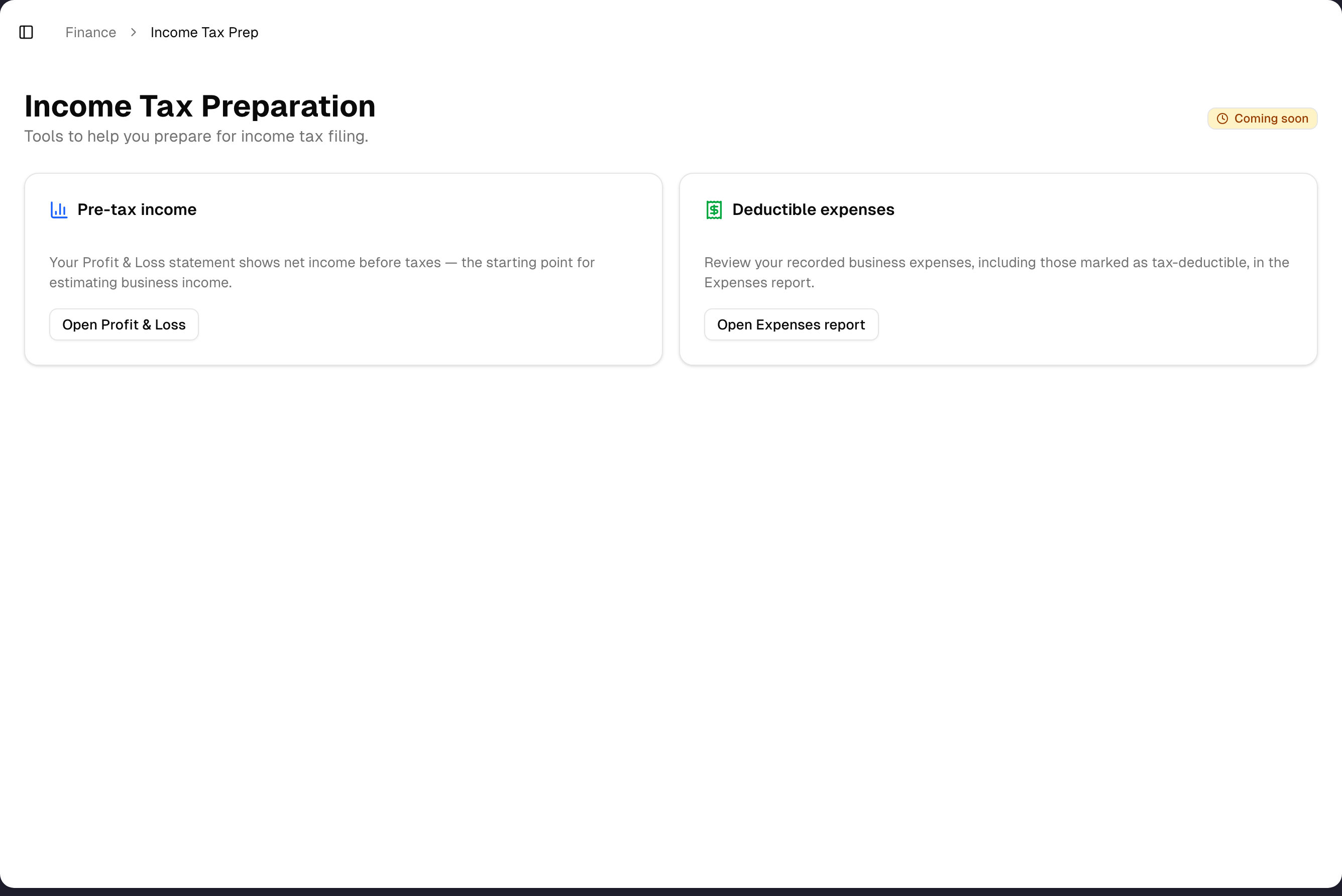
What's on the page
- A Coming soon badge. It is a label only. There is no waitlist or notify-me button.
- An amber notice: "Automated tax preparation isn’t available yet." The page does not show an estimated tax liability, because that number would not come from your actual books.
- Two cards, Pre-tax income and Deductible expenses. Each has a button that opens the matching report.
There's nothing else: no date picker, no export, no tax forms, no quarterly payment tracker and no Save button. Everyone in your store sees the same page on every plan, and there's no Demo for it.
What to use in the meantime
| Card | Button | Opens | What you get there |
|---|---|---|---|
| Pre-tax income | Open Profit & Loss | Reports → Profit & Loss | Net income before taxes for one month, plus the year to date |
| Deductible expenses | Open Expenses report | Reports → Expenses Report | Totals for the expenses in a date range: total amount, spending by category and a month-by-month trend over that range, plus Export CSV. It has a Tax deductible filter and a Tax Deductible card, and it opens on the last 30 days |
Both reports need a Pro or Premium plan, or a free trial. On the Basic plan the report opens behind an Unlock Pro & Premium Features box, and the figures behind it are sample numbers, not yours.
Get a year's pre-tax income
- Click Open Profit & Loss.
- In Month:, choose December of the tax year. The list goes back 24 months.
- Read the NET INCOME row in the Year to Date column. With December chosen, that column covers January 1 to December 31.
Profit & Loss has no fiscal-year or custom date range. The Previous Year column is the same month one year earlier, not the whole prior year. If your tax year doesn't start in January, choose each month in turn and add up NET INCOME from the Selected Range column.
Get your deductible expenses
- New expenses start as Tax Deductible. For spending that isn't deductible, untick Tax deductible on Create Expense, or put No in the Tax Deductible column of a Bulk Import file. To change an expense later: Finance → Expenses → Expenses Records → click the expense → Edit → change Tax Deductible → Save Changes.
- For a list of deductible expenses, open the Expenses Report, set the date range to the tax year and set Tax deductible to Tax deductible. The cards, charts and Export CSV then cover only those expenses; that export needs Premium or a free trial. Expenses Records is the other route: it has the same Tax deductible filter, and its Export CSV (Premium or a free trial) downloads exactly the expenses left on screen, with a Tax Deductible column.
- For totals by category, use the Expenses Report and widen its date range to the tax year. Its dollar totals and Spending by Category chart already leave out Rejected claims, as Profit & Loss does. Its Monthly Expense Trend chart follows the same range, one point per month, so a full tax year draws all twelve months.
Tips & best practices
- When you record spending that isn't deductible, untick Tax deductible on Create Expense (or put No in the import file). Left as it is, it is saved as deductible.
- For a calendar tax year, pick December on Profit & Loss and read Year to Date. Don't use Previous Year, which covers one month only.
- Keep expense categories consistent. Each category feeds a fixed line in the Profit & Loss operating expenses.
- The expense lists and the Expenses Report all open on the last 30 days. Widen the date range before you export or total anything for the year.
Troubleshooting
| Problem | What's happening | What to do |
|---|---|---|
| I can't find Income Tax Prep in the menu | It is the last item in the Finance group. If it isn't there, the owner has hidden it for you | Ask the owner to turn it back on in Settings → Team |
| There's no estimated tax, quarterly payments or tax forms | The page shows no tax figures on purpose, because they wouldn't be calculated from your books | Use Profit & Loss and your expense records, and give those numbers to your tax preparer |
| After I click a button I see Unlock Pro & Premium Features | Both reports need Pro, Premium or a free trial | Upgrade in Settings → Plan & Billing. Only the store's owner can change the plan — everyone else sees that page read-only and has to ask the owner |
| After I click a button I see 403 - Forbidden | The owner hid Profit & Loss or Expenses Report from your menu. This only happens in stores with more than one active person | Ask the owner to turn the item back on in Settings → Team |
| You want only the deductible expenses on the Expenses Report | The report opens on every expense in the range | Set Tax deductible to Tax deductible in its filter bar. The Tax Deductible card shows their total whatever that filter is set to |
| Profit & Loss only shows one month | Its Month: picker covers one calendar month | Pick December and read the Year to Date column |
What's next
- Review profitability: Reports → Profit & Loss
- Track spend: Reports → Expenses Report
- Record expenses and set Tax Deductible: Finance → Expenses
- See the rest of Finance: Finance overview
Detailed reference
Every button, icon, field and message on this page, for when you need the exact detail. Each panel starts closed — open the one you need.
Page header and toolbar
| Control | Where | What it does | Notes |
|---|---|---|---|
| How you reach the page | Left sidebar | Finance → Income Tax Prep, the last item in the group (Guide & Tips, Expenses, Assets & Liabilities, Bank Reconciliation, Transactions, Income Tax Prep) | The Income Tax Prep card on Finance Guide & Tips also opens it. There is no shortcut tile for it. Unlike the rest of Finance it carries no plan tag — it opens on every plan |
| Sidebar toggle (panel icon, screen-reader label "Toggle Sidebar") | Header bar, far left | Collapses or expands the left sidebar | Always. Cmd+B (Mac) or Ctrl+B (Windows) does the same on every page |
| Breadcrumb Finance | Header bar, after the toggle | Plain text, not a link | There is no Finance landing page. Hidden on narrow screens |
| Breadcrumb Income Tax Prep | Header bar, current crumb | Plain text, not clickable | Always |
| Title Income Tax Preparation | Top of content, left | Heading only | Always |
| Subtitle "Tools to help you prepare for income tax filing." | Under the title | Text only | Always |
| Badge Coming soon (clock icon, amber) | Top of content, right, level with the title | A status label. Not clickable | Always shown. It doesn't depend on any setting or plan. There is no waitlist or notify-me action |
| No Demo, Export, date picker, filters or Save | — | The page has no other controls. It loads none of your data and shows no tax figures | There is no estimated liability, quarterly payment tracker, deduction list or tax form on the page |
Section: Notice banner
| Control | Where | What it does | Notes |
|---|---|---|---|
| Info icon + bold line "Automated tax preparation isn’t available yet." | Amber card under the header | Text only, not interactive | Always |
| Text "We don’t show an estimated tax liability here because it would not be computed from your actual books. In the meantime, the two reports below give you the real numbers most tax prep starts from." | Same card | Text only | Always |
Section: Card "Pre-tax income"
| Control | Where | What it does | Notes |
|---|---|---|---|
| Card title Pre-tax income (blue bar-chart icon) | Left card (first card on phones) | Heading only | Always |
| Text "Your Profit & Loss statement shows net income before taxes — the starting point for estimating business income." | Card body | Text only | Always |
| Open Profit & Loss (outline button) | Card body, bottom | Opens Profit & Loss Statement (Pre-Tax) in the same tab | Always shown, never greyed out. What happens next depends on the report's own rules (next rows) |
| At Profit & Loss: Basic plan | Destination | The report opens behind Unlock Pro & Premium Features. The figures behind the box are sample numbers | Not shown during a free trial, or when the plan can't be determined |
| At Profit & Loss: menu item hidden | Destination | "403 - Forbidden" | Only in stores with more than one active person, when the owner hid Profit & Loss for this user |
| At Profit & Loss: Month: dropdown | Destination, toolbar | Picks one calendar month from the last 24 months | Opens on the current month. Choose December of the tax year for a full calendar year |
| At Profit & Loss: columns Selected Range, Previous Month, Change, Year to Date, Previous Year | Destination, table | Selected Range is the chosen month. Year to Date runs from January 1 to the end of the chosen month. Previous Year is the same month one year earlier | No fiscal-year or custom range. For a tax year that doesn't start in January, add up each month's Selected Range figure |
| At Profit & Loss: NET INCOME row | Destination, bottom of table | Net income before taxes | Called "Net Income (Pre-Tax)" on the summary card. Revenue is the money received on sales, less sales tax, in the month each payment came in, whatever the order's status, with refunds taken off in the month they went back; cost of goods is booked when the goods leave, so the two can fall in different months. Sales booked before your store switched to counting revenue this way stay in the month each became a sale. The report has no revenue options |
| At Profit & Loss: Export CSV and Download PDF | Destination, toolbar | Download the statement | Premium or a free trial. Other plans get Unlock Premium Features. See Profit & Loss |
Section: Card "Deductible expenses"
| Control | Where | What it does | Notes |
|---|---|---|---|
| Card title Deductible expenses (green receipt icon) | Right card (second card on phones) | Heading only | Always |
| Text "Review your recorded business expenses in the Expenses report. Its Tax deductible filter narrows the list, the totals and the CSV to the deductible ones." | Card body | Text only | The Expenses Report's Tax Deductible card shows deductible spend for whatever is on screen, and its Tax deductible filter narrows every card, chart and the CSV to those expenses |
| Open Expenses report (outline button) | Card body, bottom | Opens Expenses Report in the same tab | Always shown, never greyed out |
| At Expenses Report: Basic plan | Destination | The report opens behind Unlock Pro & Premium Features over sample figures | Not shown during a free trial, or when the plan can't be determined |
| At Expenses Report: menu item hidden | Destination | "403 - Forbidden" | Only in stores with more than one active person, when the owner hid Expenses Report for this user |
| At Expenses Report: date range button (calendar icon) | Destination, first filter | Opens on the last 30 days | Widen it to the tax year |
| At Expenses Report: All Statuses filter | Destination, filters | Shows one status at a time: Submitted, Approved, Rejected or Reimbursed, or Counts as spending (excludes Rejected) for every status the money figures count | Starts on All Statuses |
| At Expenses Report: Total Amount card and Spending by Category chart | Destination, below the filters | Dollar totals for the expenses that match the filters | Rejected claims are left out, as on Profit & Loss. The Total Expenses card is a count and does include them |
| At Expenses Report: Monthly Expense Trend chart | Destination, below the cards | Spending per month | One point per month of the date range you picked, past tax years included. Labels carry the year once the range crosses one |
| At Expenses Report: Export CSV | Destination, filter bar | Downloads the expenses that match the filters, Rejected included and marked No under Counts as spending | Premium or a free trial; on Pro it opens Unlock Premium Features instead. Greyed out while loading or when no expenses match. The file has a Tax Deductible column of Yes or No and ends with the on-screen totals. See Expenses Report |
Related: setting Tax Deductible on Finance → Expenses
Where you set whether an expense is tax-deductible. These controls live on Finance → Expenses, which needs Pro, Premium or a free trial.
| Control | Where | What it does | Notes |
|---|---|---|---|
| Checkbox Tax deductible | Create Expense tab, under Description | Saved with the new expense | Ticked to start with. Untick it for spending that isn't deductible |
| Column Tax Deductible | Bulk Import file (Excel or CSV template) | Yes or No for each row | Optional. Blank, or a file without the column, means Yes. Anything other than Yes or No stops that row: "Use Yes or No" |
| Click an expense | Expenses Records tab, the list | Opens Expense Details (read-only) | The Tax Deductible checkbox shows the current setting, greyed out |
| Edit (pencil icon, blue) | Expense Details, footer | Switches the dialog to Edit Expense and unlocks the fields | — |
| Checkbox Tax Deductible | Edit Expense, flags block, under Is Reimbursable | Marks or unmarks the expense as tax-deductible | Greyed out until you click Edit |
| Tax deductible drop-down | Expenses Records tab, Advanced Filters row, last | Tax deductible: All (the default), Tax deductible or Not tax deductible. Narrows the list, the cards above it and Export CSV | Works on every plan that can open the page; only the export needs Premium or a trial |
| Save Changes (save icon, green) | Edit Expense, footer | Saves the change and returns to Expense Details. Toast "Success" / "Expense updated successfully." | Amount must be above 0 and Description can't be empty, or you get a Validation Error toast |
| Cancel / Close (X icon) | Footer | Cancel discards your edits and returns to Expense Details. Close shuts the dialog | Reads Cancel while editing and Close otherwise |
| Export CSV (download icon) | Expenses Records toolbar, next to Refresh | Downloads every expense that matches the current filters. The file has a Tax Deductible column with Yes or No | Premium or a free trial. Other plans get Unlock Premium Features. The list opens on the last 30 days, so widen the date range first. The file includes Rejected claims (see its Status column). Set the Tax deductible filter first and the file covers only those expenses |
Related page: Finance Guide & Tips
A help page inside the app. It loads none of your data and saves nothing. Its five cards start closed.
| Control | Where | What it does | Notes |
|---|---|---|---|
| Green ? icon (tooltip "Open Guide & Tips") | Left sidebar, right end of the Finance section header | Opens Finance Guide & Tips | Clicking the icon doesn't expand or collapse the Finance section. Shown when your menu has a Guide & Tips item under Finance (the standard menu does). The icon is hidden when the owner hid Guide & Tips for you (the page itself then answers "403 - Forbidden") |
| Finance section header (tooltip "Manage financial operations and reports.") | Left sidebar | Expands or collapses the Finance list | Doesn't open the guide |
| Sidebar toggle, breadcrumbs Finance › Guide & Tips | Header bar | Same as on Income Tax Prep: toggle collapses the sidebar, Finance is plain text, Guide & Tips is plain text | Finance crumb hidden on narrow screens |
| Title Finance Guide & Tips and subtitle "Track spending and manage the balance sheet. Expand any module for its workflow, key features, and the accounting rules behind the numbers." | Top of content | Text only | — |
| Badges Updated and Finance | Under the subtitle | Labels, not clickable | — |
| Card Expenses (blue receipt icon): "Record, categorize, import, and track operating expenses through approval."; chips Expenses Records, Create Expense, Bulk Import | 1st card | Click the header row (or Tab to it and press Enter or Space) to expand or collapse it; the chevron flips | Chips are labels, not links, named after the page's own tabs |
| Expenses → Workflow | Inside the card | "Create or import (form • Excel or CSV) → Categorize (vendor • category • receipt) → Filter records (date • category • status) → Track status (submitted → reimbursed)" | Text only |
| Expenses → Key features | Inside the card | "Expenses Records / Create Expense / Bulk Import tabs", "Excel (.xlsx) or CSV import with category mapping", "Approval status workflow", "Receipt attachments", "Filters", "Groupable & pivot views" | Labels, not clickable |
| Expenses → Tips | Inside the card | "Import in batches — Backfill history from an Excel or CSV file; aliases like “Fuel” auto-map to standard categories." / "Categorize consistently — Clean categories keep your P&L and tax prep accurate." / "Rejected claims don’t count — Only Submitted, Approved, and Reimbursed expenses reach operating expenses." | The Rejected tip matches how Profit & Loss counts expenses |
| Card Assets & Liabilities (green wallet icon): "Track assets, liabilities, and equity with journal-derived balances and auto-depreciation."; chips Live Accounts, Add Assets, Liabilities & Equity | 2nd card | Expands or collapses | The page's own tab names |
| Assets & Liabilities → Workflow | Inside the card | "Pick period (as-of date) → Review balances (assets • liabilities • equity) → Add / edit account (type • terms) → Auto-calc & export (depreciation • CSV)" | Text only |
| Assets & Liabilities → Key features | Inside the card | "Live Accounts + Add Assets, Liabilities & Equity tabs", "Journal-derived balances", "Depreciation & amortization auto-calc", "Period selector", "Balance adjustments post journal entries", "CSV export" | Labels |
| Assets & Liabilities → Tips | Inside the card | "Balances come from the journal — Editing a balance posts a balancing entry — nothing is overwritten silently." / "Let it depreciate — Turn on auto-calc to age fixed assets and amortize loans automatically." / "Equity ties to your Profit & Loss — A Retained Earnings line — cumulative net income worked out from your books — is added for you, so Assets = Liabilities + Equity. Auto-calc estimates are not posted to your books, so a sheet that uses them can still read Out of balance." | Both the page and the report add the Retained Earnings line. See Assets & Liabilities and the Assets & Liabilities report |
| Card Income Tax Prep (rose calculator icon) with pill Coming soon: "Automated tax preparation isn’t live yet — this page points you to the real source numbers instead of estimating."; chips Pre-tax income, Deductible expenses | 3rd card | Expands or collapses | Nothing else on the guide links here |
| Income Tax Prep → Workflow | Inside the card | "Open page (no figures invented) → Pre-tax income (→ Profit & Loss) → Deductible expenses (→ Expenses Report)" | The arrows are text, not links |
| Income Tax Prep → Key features | Inside the card | "Links to Profit & Loss", "Links to Expenses Report", "No fabricated figures" | Labels |
| Income Tax Prep → Tips | Inside the card | "Use the real sources — Pull pre-tax income from Profit & Loss, and deductibles from the Expenses Report with its Tax deductible filter." / "No invented numbers — The page intentionally avoids estimates until real tax wiring is in place." | The Expenses Report's Tax deductible filter narrows every card, chart and the CSV to deductible expenses, and its Tax Deductible card totals them |
| Open Income Tax Prep (link, arrow icon) | Inside the card, below Tips | Opens this page | Every expanded card on the guide ends with one |
| Cards Bank Reconciliation (teal; chips Suggested, Matched, Unmatched — bank, Unmatched — book, Needs attention — the page's tabs) and Transactions (indigo; chips Filters, Daily in and out, Transaction history — the page's sections, as it has no tabs) | 4th and 5th cards | Expand or collapse the same way | Each ends with its own Open link |
| No card for card payments | — | — | The guide has no card for card payments, and none for Profit & Loss (that is in the Reports guide) |
Messages you may see
| Message | When it appears | What to do |
|---|---|---|
| "Coming soon" (amber badge, clock icon) | Always, top right of Income Tax Prep | Nothing. Automated tax prep isn't available. Use the two report buttons |
| "Automated tax preparation isn’t available yet." with "We don’t show an estimated tax liability here because it would not be computed from your actual books. In the meantime, the two reports below give you the real numbers most tax prep starts from." | Always, amber notice | The app shows no tax estimate on purpose. Open Profit & Loss for pre-tax income and your expense records for deductible spending |
| "Coming soon" (small pill) | Income Tax Prep card on Finance Guide & Tips | Same meaning as the page badge |
| "Loading..." | Briefly, while the app checks whether you may open a page | Wait. If it never clears, reload |
| "403 - Forbidden" / "You do not have permission to view this page. Contact your organization owner." | Income Tax Prep itself, Profit & Loss, Expenses Report or Finance Guide & Tips, when the owner hid that item from your menu (stores with more than one active person only). Income Tax Prep has its own item under Finance, so hiding it closes this page too | Ask the owner to turn the item back on in Settings → Team |
| "Unlock Pro & Premium Features" / "SMS, insights, finance tools & more", with Check Details | After Open Profit & Loss or Open Expenses report on the Basic plan with no free trial. Also on Finance → Expenses | Check Details, the card's only button, opens Plan & Billing, where only the store's owner can upgrade to Pro or Premium |
| "Unlock Premium Features" / "Advanced reporting & data export", with Check Details | Export CSV or Download PDF on Profit & Loss, or Export CSV on the Expenses Report or Expenses Records, without Premium or a free trial | Upgrade to Premium. The X beside Check Details, the Esc key or a click outside the box closes it |
| "No Data" / "No expenses found to export." | Export CSV on Expenses Records when nothing matches the filters | Widen the date range or clear filters |
| "Success" / "Expense updated successfully." | After Save Changes in Edit Expense | Done. The Tax Deductible change is saved |
| "Validation Error" / "Please enter a valid amount greater than 0." | Save Changes with an amount of 0 or less | Enter an amount above 0 |
| "Validation Error" / "Please enter a description." | Save Changes with an empty description | Add a description |
| "Update Failed" / "Failed to update expense. Please try again." | The save didn't go through | Try again |
| "Redirecting..." (then Plan & Billing opens) | Any page, when your free trial has ended and there's no paid plan | Pick a plan on Plan & Billing |
| "Redirecting to onboarding..." | Any page, when your account isn't linked to a store yet | Finish Onboarding |
Who can use what
| Who or what | Income Tax Prep page | Notes |
|---|---|---|
| Owner, manager, staff | Same page for everyone | No owner-only or role-based parts |
| Basic, Pro, Premium, free trial | Opens on every plan | No plan gate on the page itself |
| The two reports it opens | Pro, Premium or a free trial | Basic gets Unlock Pro & Premium Features over sample figures. On Basic, both reports also carry a small Pro tag in the sidebar menu |
| Exports | Profit & Loss Export CSV and Download PDF: Premium or trial. Expenses Report Export CSV: Premium or trial. Expenses Records Export CSV (the one with the Tax Deductible column): Premium or trial | — |
| Menu visibility (owner hides items per person) | Can block Income Tax Prep, like any other menu item: the row goes and the page answers "403 - Forbidden" | The same goes for Profit & Loss, Expenses Report and Finance Guide & Tips, in stores with more than one active person. The store's only active member is never blocked — people switched off or removed in Team don't count towards that |
| Demo | None | Income Tax Prep and Finance Guide & Tips have no Demo button, demo banner or guided tour. Profit & Loss and Expenses Report have their own demos |
Common questions
Why doesn't the page show my estimated tax or quarterly payments? Automated tax preparation isn't available. The page deliberately shows no tax figure, because it wouldn't be calculated from your books. Use Profit & Loss for pre-tax income and your expense records for deductible spending.
How do I get my pre-tax income for last year? Click Open Profit & Loss, choose December of that year in Month:, and read the NET INCOME row in the Year to Date column. There's no fiscal-year option. For a tax year that doesn't start in January, add up each month's Selected Range figure.
How do I mark an expense as tax-deductible? New expenses start as Tax Deductible, so you only act on the ones that aren't: untick Tax deductible on Create Expense, or put No in the Tax Deductible column when you import. To change one later (or tick it again), go to Finance → Expenses → Expenses Records, click the expense, click Edit, change Tax Deductible and click Save Changes.
How do I see only the deductible expenses on the Expenses Report? Set Tax deductible to Tax deductible in its filter bar. Every card, both charts and Export CSV then cover only those expenses, and the file (Premium or a free trial) has a Tax Deductible column of Yes or No. Finance → Expenses → Expenses Records → Export CSV (Premium or a free trial) is the other route.
Do Rejected expense claims count in my totals? Not in Profit & Loss, and not in the Expenses Report's dollar totals or charts. Both exports, the Expenses Report's and the Expenses Records one, still list Rejected claims. In the Expenses Report's file each row says Yes or No under Counts as spending and the summary at the end repeats the on-screen totals; for the Expenses Records file, filter the Status column in your spreadsheet.
Where is Income Tax Prep in the menu? In the sidebar, at the bottom of the Finance group, after Transactions. The Income Tax Prep card on Finance Guide & Tips (green ? on the Finance menu header) opens it too. If the row isn't there, the owner has hidden it for you in Settings → Team.
Can I click "Coming soon" to get notified? No. It's a label only. There is no waitlist or notification sign-up.
Is there a demo of this page? No. Profit & Loss and the Expenses Report each have their own Demo button.