Transactions
Every other finance page answers what did we earn. This one answers what actually moved: the tenders. Open Finance → Transactions — the header carries a Demo button.
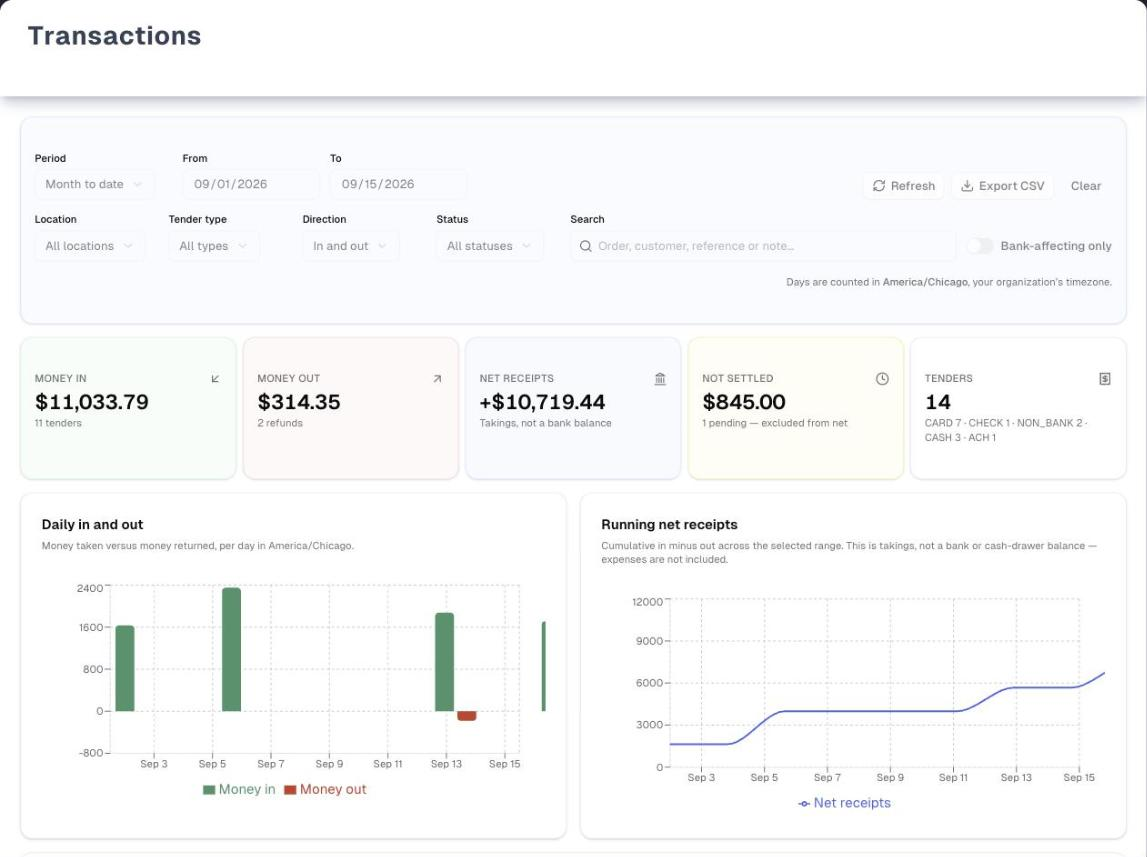
Overview
- What it lists: one row for every payment recorded on an order, in every form — card, cash, check, bank transfer, PayPal or Venmo, Zelle or Cash App, and tenders that never reach a bank (store credit, gift cards, lender financing, trade-in credit). Refunds are rows too: a payment given back from an order's Payment tab is its own refund row, on the day the money went back, and the payment it gives back stays listed as money in on its own day.
- The list behind revenue. Revenue on the Sales Report and Profit & Loss is the money received on sales, and this page lists that money payment by payment, by the day it moved. The two differ in two ways: this page also lists money on purchase orders, which is never revenue, and a payment that finishes off a sale booked before your store switched to counting revenue as the money received is listed here but not counted as revenue again (that sale was counted on the day it became one).
- How a row counts: Completed is money in. Refunded is money out. Pending and Processing are Not settled — money that has started but not landed — and have a card of their own. Failed and Cancelled are Void: they will never arrive, so they stay out of Not settled. Not-settled and void tenders are listed and counted as tenders, but never added to Money in, Money out or Net receipts.
- Read-only. Nothing on this page creates, changes or deletes a payment, and rows don't open. To fix a payment, open the order from Sales → List (Order Management).
- Plans: Pro, Premium or a free trial. On Basic the page is greyed out behind an upgrade card and the sidebar shows a small Pro tag next to Transactions. The Demo button still works. Export CSV needs Premium or a free trial; on Pro it opens an Unlock Premium Features card instead of downloading. The page waits until your plan has been checked before it reads a single tender, so a Basic store never sees its own payments here, even for a moment; if the check cannot be completed the page carries on after a few seconds rather than leaving you on the spinner.
- Who sees it: everyone in the store who can open it sees every location's tenders. An owner can hide it from one person's menu: see Team & menu visibility.
- Demo: the amber Demo button opens a read-only sample month with a 6-step guided tour, on every plan. See Demo mode.
The five numbers at the top
| Card | What it shows | Caption |
|---|---|---|
| Money in | Total of the completed tenders shown | "… tenders" |
| Money out | Total of the refunds shown, as a positive figure | "… refunds" |
| Net receipts | Money in minus money out, with a + or − sign | "Takings, not a bank balance" |
| Not settled | Total of the pending and processing tenders — money on its way. Failed and cancelled tenders are left out | "… pending or processing — excluded from net", plus "· … failed or cancelled not counted" when there are any |
| Tenders | How many tenders are shown, not-settled and void ones included | The split by tender type, for example "Card 7 · Check 1 · Non-bank 2 · Cash 3 · ACH 1" |
All five follow every filter, so narrowing the list moves them with it.
Net receipts is what your tills and card terminals took, not what is in the bank. Fees have not been deducted, card payouts may not have landed yet, and nothing here knows about the rent going out. It also starts from $0 at the beginning of the period — there is no opening balance. For the bank's version, use Bank Reconciliation.
Filters
The filter bar has three rows, and everything below it — the cards, both charts, the day-by-day table and the history — is worked out from the rows that pass every filter.
- Period, From and To, then Refresh, Export CSV and Clear.
- Location, Tender type, Direction, Status, Search and the Bank-affecting only switch.
- A chip for each narrowing filter you have set (its X removes it), and a note naming the time zone days are counted in.
| Filter | Options |
|---|---|
| Period | Today, Last 7 days, Last 30 days (the default), Month to date, Last 90 days, Custom range. Every preset ends today. Changing the From or To date switches it to Custom range |
| Location | All locations, or one of your locations. It follows the order's location |
| Tender type | All types, or one of the types present in the loaded range: Card, Cash, Check, ACH, Processor, Zelle / Cash App, Non-bank. What each covers is in the Tender types panel under Detailed reference |
| Direction | In and out, Money in, Money out, Not settled, Failed or cancelled |
| Status | All statuses, or one of Completed, Refunded, Pending, Processing, Failed, Cancelled |
| Search | Order number, customer, reference, note, payment method or tender type (for example "visa", "apple pay" or "card") |
| Bank-affecting only | Hides tenders that never touch a bank account — store credit, gift cards, lender financing, trade-in credit. Cash and checks stay, because they are deposited |
Period, the dates, Location and Bank-affecting only reload the data (a spinner shows). Tender type, Direction, Status and Search narrow what is already loaded, instantly. Clear puts everything back to Last 30 days with no filters, Refresh re-reads (use it after recording a payment in another tab), and Export CSV downloads exactly the rows in the history table.
Days are counted in your store's time zone, set by an owner in Settings → Organization → Business Timezone (Settings). If none is set, the note says the page is falling back to each viewer's browser time zone, so two people can see different days and totals. For the moment it takes the page to look the zone up, the note just names the zone.
Daily in and out
Directly under the five cards, above the history:
- Daily in and out — green bars for money in each day, red bars below the line for refunds.
- Running net receipts — a line of the cumulative net, starting from $0 on the first day shown.
- Day by day — a table of Day, Tenders, In, Out, Net and Running, ending with a bold Closing row for the whole range.
The days run across the whole range you picked, and a quiet day still gets a row (dashes, and $0.00 net) — including quiet days at the very start or end of the range. The table shows how many tenders each day had, not the tenders themselves — to see one day's tenders, set From and To to that day. The section is hidden when nothing is shown.
Transaction history
One row per tender, newest first: Date (with the time), Order (with its location), Customer, Method (with its tender type, which reads Non-bank when it never reaches a bank), Status, Direction (In, Out, Pending or Void), Amount and Reference (with the payment note). Money in is green with a +, refunds red with a −, and not-settled and void amounts grey with no sign, because they moved no total.
The count beside the heading, for example "12 of 40", is how many tenders are shown out of everything loaded for the period, location and bank setting. Rows don't open, the order number isn't a link, and there is no sorting or paging.
Empty states say which kind of empty it is — "No payments were taken in this period." versus "No transactions match these filters." — so you know whether to widen the period or clear the filters. Neither is shown when the read failed: you then get the red card and nothing else, because the page has no idea what the period holds.
Export CSV
Export CSV downloads the rows in the history table, every filter and the search applied, as transactions-2026-09-01-to-2026-09-15.csv (your From and To dates). It has 14 columns — Date, Time, Order, Customer, Method, Type, Status, Direction, Amount, Signed amount, Bank affecting, Location, Reference, Note — with dates and 24-hour times in your store's time zone. It is greyed out when no rows are shown.
In a spreadsheet, Amount and Signed amount are numbers you can total straight away — a refund's Signed amount is a real negative figure, for example -129.99, so summing that column gives net money in. Amount is always positive; use it with the Direction column (IN, OUT, PENDING or VOID) when you want the two sides separately. Failed and cancelled tenders say VOID, not PENDING.
Tips & best practices
- Set the Business Timezone before you rely on "Today" or a daily figure, so everyone in the store sees the same days.
- Comparing with a bank statement? Turn on Bank-affecting only and pick a Tender type, then finish the match in Bank Reconciliation.
- To see payments that failed or were cancelled, set Direction to Failed or cancelled. They are kept out of Not settled because they will never arrive.
- Search by method however it reads to you — "apple", "apple pay" and "apple_pay" all find Apple Pay, and "card" finds every card tender.
- On a busy store, keep the range to 10,000 tenders or fewer, or the totals cover only the newest 10,000.
Troubleshooting
| Issue | Fix |
|---|---|
| The page is greyed out under Unlock Pro & Premium Features | Transactions needs Pro, Premium or a free trial. Check Details opens Plan & Billing, or use Demo to look around |
| "403 - Forbidden" | An owner has hidden Transactions from your menu. Ask them to switch it back on for you |
| Two people see different totals for the same day | No business time zone is set, so each browser uses its own. An owner sets Business Timezone in Settings → Organization |
| A payment you just recorded is missing | Click Refresh. Check its date — the report uses the day the payment was taken. Only payments recorded on an order appear |
| Not settled looks too high | It counts only Pending and Processing tenders. Set Direction to Not settled and look at the Status and Date columns for transfers that never finished; fix them on the order's Payment tab |
| "No payments were taken in this period." | Widen the period, choose All locations, or turn off Bank-affecting only |
| "No transactions match these filters." | Remove the chips, or click Clear |
| "Could not load transactions" | Click Retry. The cards, the daily chart and the history are not shown at all until the read succeeds, so nothing on screen claims a figure the page could not read. Export CSV is greyed out meanwhile |
| Amber notice that the range has more tenders than the report loads at once | Narrow the dates. Totals and the CSV cover only the newest 10,000 tenders |
| A tender type is missing from Tender type | The list only offers types present in the loaded range. Widen the dates |
What's next
- Reconcile against the bank: Bank Reconciliation
- Where card takings come from: Accept Payments
- Record, change or refund a payment on an order: Order Management
- Profitability rather than cash movement: Reports → Profit & Loss
Detailed reference
Every button, icon, field and message on this page, for when you need the exact detail. Each panel starts closed — open the one you need.
Page header and toolbar
| Control | Where | What it does | Notes |
|---|---|---|---|
| Sidebar Finance → Transactions (credit-card icon) | Sidebar, Finance group, after Bank Reconciliation | Opens this page | On Basic a small Pro tag shows beside it. No tag during a free trial or while the plan is still loading. Missing for anyone an owner has hidden it for |
| Title Transactions and "Every payment taken and refunded, with daily in/out and a running net." | Header, left | Page heading | Always shown |
| Demo (Play icon, amber) | Header, right | Opens the sample-data copy with a guided tour, in the same tab | Shown when the page is unlocked. See the Demo mode panel |
| Demo (Play icon, amber), floating copy | Top-right corner, above the upgrade card | Same as above | Only while the page is locked on Basic, because nothing under the upgrade card can be clicked |
| Loading spinner | Where the cards, charts and tables sit | Shows while tenders load. The cards, charts and both tables are hidden until it finishes | On first open and on every reload: Period, From, To, Location, Bank-affecting only, Refresh, Clear, Retry |
| Error card "Could not load transactions" | Under the filter bar | Red card with the reason on a second line. See Messages you may see | Only when loading fails |
| Retry | Error card, right | Loads the tenders again, the same as Refresh | Only on the error card |
| Amber notice about too many tenders | Under the filter bar | See Messages you may see | Only when the range holds more than 10,000 tenders |
The page has no tabs, no dialogs, no row menus and no pop-up forms. The only menus are the five drop-downs in the filter bar and your browser's date pickers.
Section: Filter bar, row 1 — Period, dates and actions
| Control | Where | What it does | Notes |
|---|---|---|---|
| Period drop-down | Row 1, first | Picks the date range and reloads. Options, in order: Today, Last 7 days, Last 30 days, Month to date, Last 90 days, Custom range | Default Last 30 days. Every preset ends today and is counted in the store's time zone: Today = today only; Last 7 days = today and the 6 days before; Last 30 days = today and the 29 before; Last 90 days = today and the 89 before; Month to date = the 1st of this month to today. Custom range keeps the dates already in From and To |
| From (date picker) | Row 1 | First day of the range, from midnight store time. Changing it switches Period to Custom range and reloads | Can't be set later than To |
| To (date picker) | Row 1 | Last day of the range — the whole day is included. Changing it switches Period to Custom range and reloads | Can't be set earlier than From |
| Refresh (circular-arrows icon) | Row 1, right | Re-reads the tenders for the current filters | Greyed out while loading, and the icon spins. Use it after recording a payment in another tab |
| Export CSV (download icon) | Row 1, right | Premium or a free trial: downloads the rows in the history table. See the Export CSV panel. Pro: opens Unlock Premium Features and downloads nothing | Greyed out when no rows are shown or while the page is locked. No message after the download |
| Clear | Row 1, far right | Resets every filter: Period Last 30 days, All locations, All types, In and out, All statuses, empty search, Bank-affecting only off. Reloads | No confirmation |
Section: Filter bar, row 2 — narrowing filters
| Control | Where | What it does | Notes |
|---|---|---|---|
| Location drop-down | Row 2, first | All locations (default) or one location. Reloads, showing only tenders whose order belongs to that location | Lists every location in the store A to Z, including ones with no tenders. A location with no name shows as Unnamed location. Tenders on orders with no location appear only under All locations. If the list can't load, only All locations is offered, with no message |
| Tender type drop-down | Row 2 | All types (default) or one tender type. Instant, no reload | Offers only the types found in the loaded tenders, A to Z, by name (see the Tender types panel). The list changes with the dates, location and bank setting. If your chosen type isn't in a new range, the filter stays on (its chip still shows) and the history is empty until you remove it |
| Direction drop-down | Row 2 | In and out (default), Money in, Money out, Not settled, Failed or cancelled. Instant | Money in = Completed. Money out = Refunded. Not settled = Pending and Processing. Failed or cancelled = Failed and Cancelled |
| Status drop-down | Row 2 | All statuses (default), then Completed, Refunded, Pending, Processing, Failed, Cancelled. Instant | Always all six, even when no tender has that status |
| Search (magnifier icon), placeholder "Order, customer, reference, note or method…" | Row 2, widest | Narrows as you type. Matches anywhere in the order number, customer name, reference, note, payment method or tender type. Instant | Not case-sensitive; spaces at either end are ignored. The method matches both ways round, so "apple", "apple pay" and "apple_pay" all find the same tenders, and the tender type under it matches by name or code ("card", "cash app", "non-bank", "non_bank"). Lender financing has no tender type of its own — it is Non-bank — so "financing" finds Snap, Acima and the rest by their method. Doesn't search amounts or location names |
| Bank-affecting only switch | Row 2, right end | On: reloads showing only tenders that move a bank balance, hiding the Non-bank type. Off (default): every tender | Clicking the words also flips it. Cash, checks, cards, bank transfers, processors and Zelle or Cash App stay. The totals, charts and the Tender type list all change |
Section: Filter bar, row 3 — chips and time zone
| Control | Where | What it does | Notes |
|---|---|---|---|
| Filter chips (grey) | Row 3, left | One per narrowing filter you have set. Labels: the location's name (or "Location" if it isn't known), the tender type (for example Card), the direction as Money in, Money out, Not settled or Failed or cancelled, the status (for example Refunded), Bank-affecting only, and your search text in curly quotes (for example “Smith”) | Period and dates never get a chip |
| X on a chip (label "Remove filter …") | Right side of each chip | Clears that one filter | Removing the Location or Bank-affecting only chip reloads; the others are instant |
| Time zone note while the page is still looking the zone up: "Days are counted in …." | Row 3, right | Names the time zone in use without saying whether it is your store's | For a moment on load. It never claims that no zone is set before it knows |
| Time zone note, zone set: "Days are counted in …, your organization’s timezone." | Row 3, right | Names the time zone that decides "today" and where each day starts and ends | When a Business Timezone is set in Settings → Organization |
| Time zone note, no zone set: "Days are counted in … — no timezone is set for your organization, so this falls back to your browser. Set one in Settings so everyone sees the same day." | Row 3, right | Warns that each viewer's own browser time zone is being used | Two people in different time zones can see different days and totals. An owner fixes it in Settings → Organization → Business Timezone |
Section: Tender types — what each one covers
The Tender type drop-down, the chips, the Tenders card and the line under each method show these names. The CSV's Type column carries the code beside each one.
| Name | Code (CSV) | What it covers | Reaches a bank? |
|---|---|---|---|
| Card | CARD | Visa, Mastercard, American Express, Discover, JCB, Diners Club, UnionPay, other credit cards, debit cards, Apple Pay, Google Pay, Samsung Pay | Yes |
| Cash | CASH | Cash | Yes |
| Check | CHECK | Checks | Yes |
| ACH | ACH | ACH, bank transfer, wire transfer | Yes |
| Processor | PROCESSOR | External payment gateway, PayPal, Venmo | Yes |
| Zelle / Cash App | WALLET_FAST | Zelle, Cash App | Yes |
| Non-bank | NON_BANK | Store credit, gift card, loyalty points, trade-in credit, warranty claim, insurance payout, barter, consignment payout, refund offset, internal adjustment, Other, lender financing (Snap, Okinus, Acima, Progressive, American First, Katapult, FlexShopper, other financing) and generic digital wallets | No — hidden by Bank-affecting only |
| Needs classification | NEEDS_CLASSIFICATION | A payment method UpChannels can't place | Treated as yes |
Financing and generic digital wallets are Non-bank unless your store has been set up to count them as bank deposits, in which case financing shows as ACH and generic wallets as Zelle / Cash App. There is no switch for this in the app.
Section: Summary cards
All five follow every filter. Amounts are in US dollars ($1,234.56). The cards are display-only.
| Control | Where | What it does | Notes |
|---|---|---|---|
| MONEY IN (arrow pointing down-left, green) | Card 1 | Total of the Completed tenders shown. Caption "… tenders" is how many ("1 tender" for one) | — |
| MONEY OUT (arrow pointing up-right, red) | Card 2 | Total of the Refunded tenders shown, as a positive figure. Caption "… refunds" ("1 refund" for one) | — |
| NET RECEIPTS (bank-building icon, blue) | Card 3 | Money in minus money out, with + when positive (for example +$10,719.44) and − when refunds are bigger. Caption "Takings, not a bank balance" | Card fees, pending transfers, expenses, purchases and payroll are not in it |
| NOT SETTLED (clock icon, amber) | Card 4 | Total of the Pending and Processing tenders shown. Caption "… pending or processing — excluded from net", followed by "· … failed or cancelled not counted" when any Failed or Cancelled tender is shown | Failed and Cancelled tenders are never in this total. Never added to Money in or Net |
| TENDERS (receipt icon) | Card 5 | Count of every tender shown, not-settled and void ones included. Caption: the split by tender type, for example "Card 7 · Check 1 · Non-bank 2 · Cash 3 · ACH 1", biggest net first | Caption hidden when nothing is shown |
Section: Daily in and out and Day by day
The whole section sits between the cards and the history, and is hidden when no tenders are shown at all. Days are your store's time-zone days and run across the range you picked, so a Month to date range starting on the 1st still starts on the 1st even if the first sale was on the 2nd. A day with a tender outside the range — after a filter has narrowed the list — keeps its row too. Over a custom range longer than about a year the quiet days are dropped and only the days with tenders are listed, so the table stays readable.
| Control | Where | What it does | Notes |
|---|---|---|---|
| Daily in and out chart, "Money taken versus money returned, per day in …." | Left, or full width on narrower screens | One pair of bars per day: green Money in above the line, red Money out below it, so a heavy refund day stands out | Only completed and refunded tenders move the bars |
| Hover on a bar | Daily in and out chart | Shows the day (for example Sep 11), "Money in : …" and "Money out : …" | Dollars to the cent, such as "Money out : $129.99": the red bar sits below the line, so the amount is shown without a minus. The side axis is in short dollars ("$1.2K", "-$500"). Clicking the legend does nothing |
| Running net receipts chart, "Cumulative in minus out across the selected range. This is takings, not a bank or cash-drawer balance — expenses are not included." | Right, or under the first chart on narrower screens | Blue Net receipts line of the cumulative net, day by day | Starts from $0 on the first day shown — no opening balance |
| Hover on the line | Running net receipts chart | Shows the day and "Net receipts : …" | Dollars to the cent, negative with a minus ("-$40.00"). The side axis is in short dollars. Clicking the legend does nothing |
| Day by day table | Full width under the two charts | One row per day | Scrolls inside its own box about 380 px tall, with the column headings staying put. Rows don't open |
| Column Day | Day by day | The day, for example Sep 11 | — |
| Column Tenders | Day by day | How many tenders that day, not-settled ones included | "—" when none |
| Column In | Day by day | Money in that day, green | "—" when none |
| Column Out | Day by day | Refunds that day, red and negative (for example -$129.99) | "—" when none |
| Column Net | Day by day | In minus out for the day, signed (for example +$389.99) | $0.00 on a day with only not-settled tenders or none |
| Column Running | Day by day | The running net up to and including that day | Can go negative |
| Closing row (bold, shaded) | Last row | Totals for the range: tenders, total in, total out (negative), Net = the closing figure with its sign, Running = the same figure without the + | Always the last row |
Section: Transaction history
| Control | Where | What it does | Notes |
|---|---|---|---|
| Heading Transaction history and "… of …" | Above the table | Tenders shown out of tenders loaded | "12 of 40" means Tender type, Direction, Status or Search hide 28 of the 40 loaded for the period, location and bank setting |
| Column Date | Column 1 | The day the payment was taken (for example Sep 15, 2026) with the time under it (for example 04:10 PM), in the store's time zone | Rows are newest first. This is the day the money moved, not the day the payment was keyed in — the income list, the Profit & Loss and the ledger entry behind it all use that same day, so a back-dated payment sits in one period everywhere |
| Column Order | Column 2 | Order number, or "—", with the order's location under it | Not a link. To open the order, search the number in Sales → List |
| Column Customer | Column 3 | The customer's display name, else first and last name, else business name | "—" when there is none |
| Column Method | Column 4 | Payment method with spaces for underscores (for example APPLE PAY, FINANCING SNAP, STORE CREDIT). Under it, the tender type (for example Card); Non-bank when it never reaches a bank | See the Tender types panel |
| Column Status | Column 5 | Badge: Completed (filled), or Refunded, Pending, Processing, Failed, Cancelled (outlined) | — |
| Column Direction | Column 6 | In (green, down-left arrow) for Completed, Out (red, up-right arrow) for Refunded, Pending (grey, clock) for Pending and Processing, Void (grey, crossed circle) for Failed and Cancelled | — |
| Column Amount | Column 7, right-aligned | Money in green with + (for example +$389.99). Refunds red with − (for example -$129.99). Pending and void grey with no sign (for example $845.00) | Grey amounts moved no total |
| Column Reference | Column 8 | The reference (auth code, check number, drawer, refund id) or "—", with the payment note under it on one line | Long notes are cut off with "…" and can't be expanded. Card refunds made through UpChannels carry a reference starting "RETURN-STRIPE-" |
| Clicking or hovering a row | Any row | Nothing — rows are display-only | No row menu, edit or delete. Payments are changed on the order: Order Management |
| Sorting and paging | — | None | The table scrolls sideways on narrow screens |
| Empty state "No payments were taken in this period." | In place of the table | The read succeeded and found nothing for the period, location and bank setting | Widen the period, choose All locations, or turn off Bank-affecting only. Not shown when the read failed — only the red card is. It does show behind the lock on Basic, over the sample-free page |
| Empty state "No transactions match these filters." | In place of the table | Tenders exist but Tender type, Direction, Status or Search hide all of them | Remove the chips or click Clear |
Section: Export CSV file
- Which rows: exactly the rows in the history table, every filter and the search applied.
- File name:
transactions-+ From +-to-+ To +.csv, dates as year-month-day (for exampletransactions-2026-09-01-to-2026-09-15.csv). - Format: every cell is in double quotes. A text cell that starts with
=,+,-or@gets an apostrophe in front, so spreadsheets don't treat it as a formula. Amount and Signed amount are exempt, so a refund stays a number.
| Column | What it holds |
|---|---|
| Date | The day the payment was taken, year-month-day, in the store's time zone |
| Time | 24-hour time, for example 16:10 |
| Order | Order number, blank when none |
| Customer | Customer name, blank when none |
| Method | The payment method's code, for example APPLE_PAY |
| Type | Tender type code, for example CARD |
| Status | COMPLETED, REFUNDED, PENDING, PROCESSING, FAILED or CANCELLED |
| Direction | IN, OUT, PENDING (pending or processing) or VOID (failed or cancelled) |
| Amount | Always positive, two decimals |
| Signed amount | Positive for money in, negative for a refund (for example -129.99), 0.00 for pending and void. A number in Excel and Google Sheets, so the column totals correctly |
| Bank affecting | yes or no |
| Location | The order's location, blank when none |
| Reference | The reference, blank when none |
| Note | The payment note, blank when none |
Dialog: Unlock Pro & Premium Features (Basic plan)
On Basic with no free trial, the page stays visible but greyed out and unclickable, with this card in the middle. No tenders are loaded behind it: the cards show $0.00, the history says "No payments were taken in this period." and Export CSV is greyed out.
| Control | Where | What it does | Notes |
|---|---|---|---|
| Heading "Unlock Pro & Premium Features", "SMS, insights, finance tools & more" (lock icon) | Card header | — | — |
| Check Details (green) | Card header | Opens Settings → Plan & Billing | The card header's only button. See Plan & Billing |
| Pro list | Card body, left | "500 SMS/month + a dedicated phone #", "SMS campaigns & review invites", "Ads-vs-store insights", "Finance: expenses, assets, reports", "Customer Portal: tracking, payments, scheduling" | Transactions isn't named, but opens on Pro |
| Premium list | Card body, right | "Everything in Pro", "2,000 SMS/month", "Advanced reporting (grouped/pivot)", "CSV / PDF data export", "Workforce: time clock, timesheets, pay runs" | Export CSV on this page is one of those Premium exports |
| Floating Demo | Top-right corner | Opens the demo | Apart from the card's two buttons, the only thing on the page that still works |
Dialog: Unlock Premium Features
Opens when a store below Premium, and outside a free trial, clicks Export CSV. Nothing is downloaded. It is a small card in the middle of a dimmed page.
| Control | Where | What it does | Notes |
|---|---|---|---|
| Lock icon, Unlock Premium Features, "Advanced reporting & data export" | Card header | — | — |
| Check Details (green) | Card header, right | Closes the card and opens Settings → Billing | — |
| Premium chip and list: "Everything in Pro", "2,000 SMS/month", "Advanced reporting (grouped/pivot)", "CSV / PDF data export" | Card body | What the plan adds | Read-only |
| X (header, right of Check Details), the Esc key, or a click on the dimmed area outside the card | Header or anywhere outside | Closes the card. Nothing is downloaded | — |
Messages you may see
| Message | When it appears | What to do |
|---|---|---|
| "Could not load transactions", with the error text under it (or "Failed to load transactions") | Red card under the filter bar when loading fails. It is the only thing below the filter bar: no cards, no daily chart, no history, and Export CSV greyed out | Click Retry on the card. If it keeps failing, pass the second line to support |
| "This range has more tenders than the report loads at once. The totals below cover only what is shown — narrow the date range for an exact figure." | Amber, under the filter bar, when the range holds more than 10,000 tenders. Only the newest 10,000 load, so the totals, charts and CSV are partial | Shorten the period |
| "No payments were taken in this period." | Nothing loaded for the period, location and bank setting | Widen the period, choose All locations, or turn off Bank-affecting only |
| "No transactions match these filters." | Tender type, Direction, Status or Search hide every loaded tender | Remove the chips or click Clear |
| "Days are counted in …, your organization’s timezone." | A business time zone is set | — |
| "Days are counted in … — no timezone is set for your organization, so this falls back to your browser. Set one in Settings so everyone sees the same day." | No business time zone is set | An owner sets Business Timezone in Settings → Organization |
| "Takings, not a bank balance" | Always, under Net receipts | For the bank's view use Bank Reconciliation |
| "… pending or processing — excluded from net" | Always, under Not settled | Counts Pending and Processing tenders only |
| "· … failed or cancelled not counted" | After that caption, when any Failed or Cancelled tender is shown | Set Direction to Failed or cancelled to list them |
| "… tenders" / "… refunds" | Under Money in and Money out | — |
| "Non-bank" | Under a method that never reaches a bank | Turn on Bank-affecting only to hide these |
| "Money taken versus money returned, per day in …." | Subtitle of Daily in and out | — |
| "Cumulative in minus out across the selected range. This is takings, not a bank or cash-drawer balance — expenses are not included." | Subtitle of Running net receipts | — |
| Status badges Completed, Refunded, Pending, Processing, Failed, Cancelled | Status column | Completed is money in, Refunded money out; the other four move no totals |
| "403 - Forbidden" — "You do not have permission to view this page. Contact your organization owner." | An owner has hidden Transactions from your menu (stores with more than one active person) | Ask an owner to switch it back on for you |
| "Loading..." | Briefly, while your access to the page is checked | — |
| "Unlock Pro & Premium Features" — "SMS, insights, finance tools & more" | Basic plan with no free trial | See the upgrade panel above |
| "Demo mode — a sample month of takings for one store. All actions are disabled." | On the demo page | — |
The page shows no pop-up success or error messages.
Who can use what
| Who or what | What changes |
|---|---|
| Basic plan, no free trial | The page is greyed out under Unlock Pro & Premium Features and loads no data. On the page, only the floating Demo button and the card's two buttons work. The sidebar shows a Pro tag next to Transactions |
| Pro plan | The full live report. Export CSV opens Unlock Premium Features instead of downloading |
| Premium plan, or a free trial | Everything, including Export CSV |
| Free trial | Everything. A store that already picked a plan during its trial gets that plan straight away — picking Basic locks the page |
| Plan still loading, or can't be determined | The page opens |
| Owner, manager or staff | No difference. Everyone who can open the page sees every location's tenders and can export. Nobody can change anything here |
| Menu visibility | In a store with more than one active person, an owner can hide Transactions for someone in Settings → Team (their User Visibility Settings, Finance tab). That person loses the sidebar item and gets "403 - Forbidden" on the page, whether they click through or type the address. You can't hide it from the owner: with the Owner switch on, their switches are locked. The store's only active member is never blocked either — people switched off or removed in Team don't count towards that. See Team & menu visibility |
| Business time zone | Only the store's owner can set it, in Settings → Organization. The store's only active person, when not the owner, can open Settings but gets "You don't have permission to update this organization. …" when they save |
| Demo page | Everyone, on every plan — including anyone an owner has hidden Transactions from. A hidden menu item never closes a demo, so the demo address still opens |
Demo mode (/finance/transactions/demo)
- Open it: Demo (Play icon, amber) at the right of the Transactions header, or the floating copy at the top-right when the page is locked on Basic. Works on every plan.
- Header: "Transactions — Demo" — "Every payment taken and refunded, with daily in/out and a running net. Sample data; all actions are disabled."
- Banner: "Demo mode — a sample month of takings for one store. All actions are disabled." with Take the tour (question-mark icon), which restarts the tour at step 1.
- Leave: Exit Demo Mode (left arrow), header right, goes to the live Transactions page.
- Tour: starts by itself the first time you open the demo. Progress dots and "… of 6", Back (from step 2), Skip (closes), Next, and Got it! on the last step. Clicking the dark backdrop closes it. Keys: Esc closes, right arrow or Enter goes on (and closes on the last step), left arrow goes back. If a step's target doesn't appear within about 3 seconds, the tour moves on.
- Disabled: the whole filter bar — Period, From, To, Refresh, Export CSV, Clear, Location, Tender type, Direction, Status, Search, Bank-affecting only and chip X buttons. They look real but can't be clicked or tabbed to. The filters are fixed at Month to date, Sep 1 to Sep 15, 2026, everything else "all", and the note reads "Days are counted in America/Chicago, your organization’s timezone."
- Still works: hovering the charts, Take the tour, Exit Demo Mode. Rows don't open, just as on the live page.
| # | Tab | Tour step | What it points at |
|---|---|---|---|
| 1 | — | One Range, One Question — "Pick a period — today, the last 7 or 30 days, month to date, or your own dates — then narrow by location, tender type, direction or status. Days are counted in your store’s timezone rather than the browser’s, so a 9pm Saturday sale stays on Saturday for everyone. Bank-affecting only hides store credit, gift cards and lender-funded tenders, and Export CSV downloads exactly the rows you are looking at." | The whole filter bar |
| 2 | — | What the Period Took — "Money in, money out, and the net of the two across every tender shown. These are the table’s own totals, so narrowing the filters moves them with the list. Net receipts is takings, not a bank balance — expenses, purchases and payroll are not in this report." | The five summary cards |
| 3 | — | Not Settled Stays Separate — "A bank transfer that has been started but has not landed is still activity, so it appears in the list and in the tender count. It is deliberately left out of money in and out of the net, so money you have not actually received cannot flatter the day." | The Not settled card |
| 4 | — | Day by Day, With a Running Net — "Green bars are money taken, red bars money returned, and the line is the running net across the range. The table underneath repeats it in figures — tenders, in, out, net, and a running column that carries down to the closing total. Days with no trading are shown as zeros instead of being skipped, so a quiet week reads as a quiet week." | Both charts and the Day by day table. Every day in the range gets a row, quiet ones with dashes — in the demo that includes 1 September, which had no trading |
| 5 | — | Every Tender, Newest First — "The order, the customer, how they paid, the status and the signed amount. Refunds are red and carry a minus sign, so a return can never read as income. Under each method is the rail it settles on, with the ones that never touch a bank account marked as non-bank." | The Transaction history table |
| 6 | — | This Is Sample Data — "None of these payments belong to your store, and no control on this page writes anything. Exit Demo Mode takes you to Transactions, where the same report is built from the tenders your team has actually recorded." | The Exit Demo Mode button |
Sample data: one store in the America/Chicago time zone with two locations, Main Showroom and Outlet Annex, Month to date from Sep 1 to Sep 15, 2026. 14 tenders: 11 money in for $11,033.79; 2 refunds for $314.35 (ORD-1046, Priya Raman, washer pedestal, -$129.99; ORD-1041, Marisol Vega, ice-maker kit, -$184.36); and 1 not-settled ACH of $845.00 (ORD-1058, Owen Pruitt, Processing, "Transfer initiated, not yet settled"). Net receipts +$10,719.44. Tenders 14, "Card 7 · Check 1 · Non-bank 2 · Cash 3 · ACH 1". The two non-bank tenders are store credit (ORD-1055) and Snap financing (ORD-1053). Tender type offers ACH, Card, Cash, Check and Non-bank. Day by day runs Sep 2 to Sep 15 (Sep 1 has no tender). The history heading reads "14 of 14".
Differences from the live page: nothing is loaded, so there is no spinner, error card, too-many-tenders notice, time zone warning or upgrade card. The filters can't be changed, so "No transactions match these filters." can't appear. The summary cards and daily figures use the same arithmetic as the live page.
Common questions
Why doesn't Net receipts match revenue on the Sales Report? Revenue is the money received on sales; Net receipts is every tender on every order. Filtered to the same days, the difference is money on purchase orders and payments that finish off sales booked before your store switched to counting revenue as the money received — those sales were counted when they became a sale. As those older sales are paid off, the difference winds down.
Why doesn't Net receipts match my bank balance? It is takings, not a bank balance. It counts completed tenders minus refunds for the period, starting from $0, including cash still in the drawer and card takings before fees and payout. Expenses, purchases and payroll aren't in it. Use Bank Reconciliation for what actually hit the bank.
Are failed or cancelled payments counted under Not settled? No. Not settled is only Pending and Processing tenders — money that has started but not landed. Failed and Cancelled tenders will never arrive: they show as Void in the Direction column, are counted in the Not settled caption as "failed or cancelled not counted", and are listed with Direction set to Failed or cancelled. None of them move Money in or Net receipts. When an order's payments are edited, the payments it replaces are marked Cancelled, so they appear here as Void.
How do I see just the cash we took? Set Tender type to Cash and Direction to Money in. The Money in card is your cash takings for the period, and Export CSV downloads those rows.
How do I change or delete a payment I see here? Not on this page — it is read-only and rows don't open. Search the order number in Sales → List and open the order: its Payment tab lists the payments, and you change them through Edit. The change shows here after Refresh. Correcting the amount or the method moves this row and the income and accounting entries behind it to the new figures, so a corrected payment is never counted at its old amount. A manager or the owner can move a completed payment to another day of the current month, up to today, with Taken on in the order's Edit → Payment; this row, its income and its accounting entries move with it. Card payments taken through Stripe, the payments the app writes (a return's refund, loyalty or store credit, a payment given back) and payments from an earlier month keep their day, so months already reported stay as reported. See Order Management.
Why do two of us see different totals for Today? No business time zone is set, so each browser counts days in its own time zone. The note under the filters says so. An owner sets Business Timezone in Settings → Organization.
How do I total refunds in the CSV?
Add up Signed amount: refunds are negative numbers there, so the total is net money in. If you want the two sides apart, add up Amount grouped by Direction (IN minus OUT). Only Amount and Signed amount are treated as numbers; text columns such as Reference and Note still get an apostrophe in front when they start with =, +, - or @, which stops a spreadsheet running them as a formula.
Why doesn't the Day by day table start on the first day of my period? The table and charts run across the whole range you picked. A quiet day gets a row with dashes and a $0.00 net, wherever it falls — start, middle or end. When nothing at all was taken in the range the section is hidden instead.
Why can't I open Transactions? On Basic without a trial, the page is locked behind Unlock Pro & Premium Features — it needs Pro, Premium or a trial. If you see "403 - Forbidden" instead, an owner has hidden it from your menu.