Routes Board
Routes is the dispatcher's day. Open it from Sales → Routes in the sidebar, from the Routes board link on an order's Delivery tab (shown while the order has no delivery yet), or by clicking a delivery chip on the Schedule calendar. The page header carries a Demo button — a sample delivery day with a guided tour, which works even while the feature is switched off.
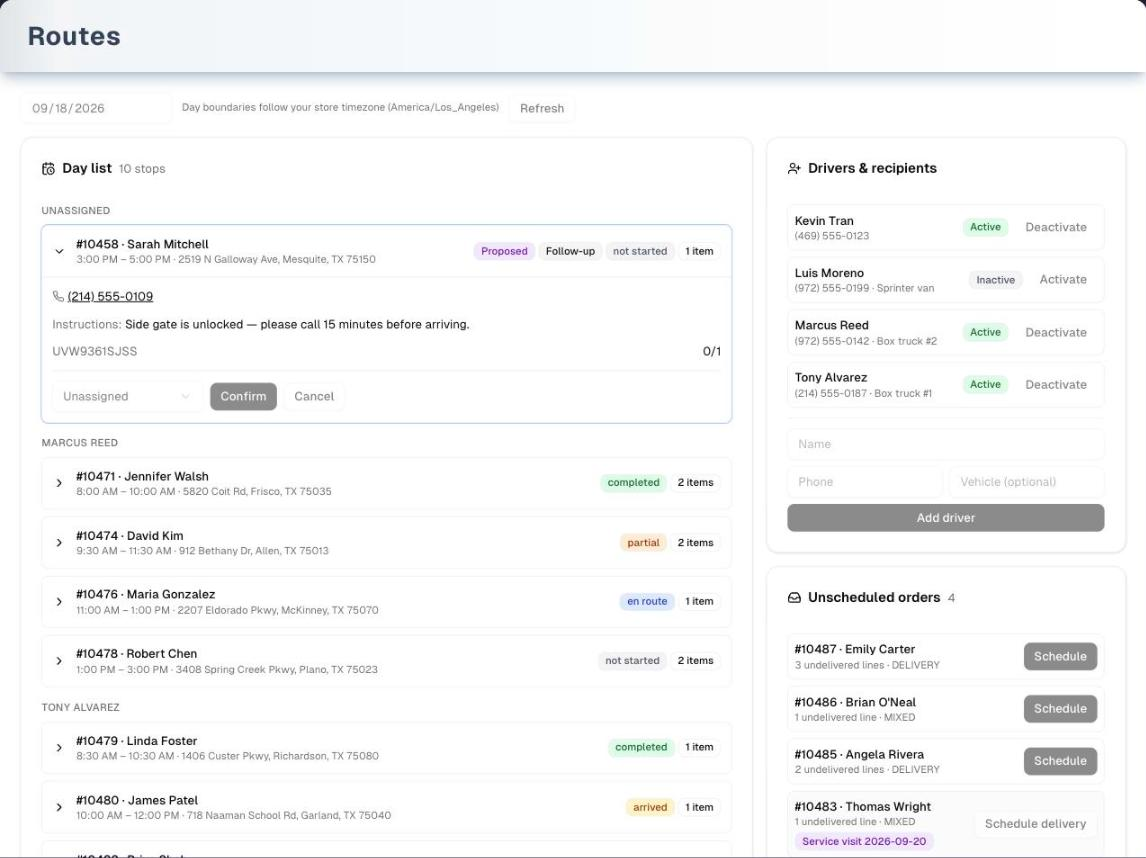
Overview
At the top: a date picker, a caption naming the time zone that decides where the day starts and ends, and Refresh. Everything below is that one day — except Unscheduled orders, which counts every delivery order still waiting, whatever its date or age, and lists failed delivery attempts first, then the rest newest first, with Load more for the rest.
The board is two columns. On a phone or a narrow window the cards stack in this order.
| Column | Cards |
|---|---|
| Left (wide) | Day list — every stop for the day, grouped by driver · Route arranger — build, reorder and dispatch routes · Day map — the routed stops as numbered pins |
| Right | Drivers & recipients · Unscheduled orders · Driver activity |
The board refreshes itself after every action, every 30 seconds while the browser tab is in front, and within a second of any driver tap, note or proof of delivery — so a driver's progress arrives without you clicking anything.
Anyone on your team who has Routes in their sidebar can use everything on the board; there is no owner-only control on it. If the owner has switched Delivery & Routes off, the page shows "Delivery & Routes is turned off" instead of the board, and the sidebar item disappears.
If your store has no time zone set, every time on the board follows the computer of whoever is looking, and an amber warning next to the date says so — two people in different zones then see different days. Set it in Settings → Organization (Business Timezone).
Step by step: schedule an order
- Find the order in Unscheduled orders on the right. Each row shows the order number, the customer, how many product lines are still undelivered, and the fulfillment type (DELIVERY or MIXED).
- Click Schedule.
- In Schedule delivery, set the Date (it starts on the day the board is showing), the Window from and Window to times (9:00 to 12:00 to start with), optionally a driver in Driver (optional), and Driver instructions (optional) — the gate code, the stairs, "call on arrival". Leave the instructions blank and the notes saved on the customer's delivery address (access code, buzzer, parking) are used instead.
- Click Schedule. Everything still undelivered on the order goes onto one delivery, the customer's delivery address is copied onto it with its map location, and the customer gets a "delivery scheduled" text (if they accept texts) or email — unless that notice is turned off in Delivery & Routes settings. The stop appears in the Day list under its driver, or under Unassigned, on the date you picked — switch the date picker to see it if that is another day.
A row with a purple Service visit badge (with the visit's date) already has a service visit booked on the Schedule page, but its product lines still have no delivery appointment — its button reads Schedule delivery so the goods get a manifest and a proof of delivery of their own.
A row with a red Failed — reschedule badge is an order whose last delivery visit the driver recorded as Not delivered; the line under the badge gives the day and the reason ("Not delivered Mon, Sep 21 · Not home"). These rows come first. Schedule books the next attempt and, in the same step, cancels the failed visit: it comes off that day's route and out of the Day list, exactly as Cancel on it would. The dialog says so above the date.
When every delivery order is scheduled the card says "Every delivery order is scheduled."
Step by step: arrange and dispatch the day
- In Route arranger, optionally pick a driver in the list next to Arrange day (it reads Driver (optional) until you choose), then click Arrange day. UpChannels gathers the day's confirmed deliveries and scheduled service visits that are not on a route yet, looks up a map location for any service visit that lacks one, puts the stops in a sensible order starting from your first active store location, and saves a new route named "Route" and the date. Deliveries marked Proposed are left out until you confirm them. A stop with no map location goes to the end, marked by an amber pin icon (hover it: "No location — placed at the end").
- Check the order. The up and down arrows on a stop move it one place and save the whole route in one go.
- Pick the driver in the route's own driver list, in the route header (it reads Assign driver until a driver is set), if you have not already. Choosing a driver there also moves every delivery stop on that route to that driver.
- Dispatch it:
- Copy link puts the driver's route link on your clipboard — valid for 48 hours. It needs a driver on the route.
- Text link texts the link straight away to the route's driver. With no driver on the route, it opens a row where you type any Phone number (and optionally a name) and click Send; a new number is added to Drivers & recipients once the text is on its way, and a number already on the list is used as it is rather than added again. The route and every delivery stop on it move to whoever got the link, so the Day list shows them under that person. If the text is refused or fails, nothing changes: no recipient is added, and the route and its stops keep the drivers they had.
- Watch the stops. Each stop carries the live driver status, and Driver activity on the right collects the status taps and the notes from the road.
- The trash icon (Dissolve route) deletes the route and returns its stops to the un-routed pool if the plan changes. The deliveries themselves are not cancelled.
Each click of Arrange day makes a separate route from whatever is not on a route yet — it never adds to, or re-orders, an existing route. To re-plan the whole day, dissolve the route and arrange again.
A route link can go to any phone: a hired van, a one-off helper or the owner's own phone. Copy link works on every plan. Text link sends a real text message, so it needs a plan with texting (Pro, Premium or a free trial), texts left this month, and your store's own texting number set up (SMS setup). Either way the link stops working after 48 hours, as soon as that recipient is deactivated, or if the owner switches Delivery & Routes off.
Day list in detail
The card header shows one total — every delivery plus every service visit on the day. If the store has a Daily delivery capacity and more deliveries than that are booked (service visits do not count), an amber Over capacity (n/limit) badge appears — a warning, never a block.
Deliveries are grouped under Unassigned first, then under each driver by name. Each row shows the order number, the customer, the time window (in the store's time zone) and the address, plus badges:
| Badge | Means |
|---|---|
| Proposed | UpChannels suggested this slot itself — the next day, same window — for goods still owed after a partial delivery or goods that were not on the truck. It needs Confirm, and Arrange day skips it until then. Customer bookings from the portal arrive already confirmed |
| Follow-up | UpChannels created this appointment itself, not a person |
| status | The live driver status: not started, en route, arrived, completed, partial or failed |
| Nothing left to deliver | Every item on the stop is already marked handed over: taken at the counter, delivered on an earlier visit, or the order was completed in the office. Open the row: cancel the stop if the goods left another way, or keep it if they are on the truck |
| Check whether the customer has the goods | The same kind of stop, recorded Not delivered, while every item on it is still marked handed over. Call the customer and, if they do not have the goods, arrange the next delivery by hand |
| n items | How many lines are on the manifest |
Cancelled deliveries drop off the Day list.
Click a row to open it (one at a time): the phone number as a tap-to-call link, the driver instructions, each item's delivered/planned count with the outcome the driver recorded, and the row's actions:
- Driver list (shows Assign driver or the stop's driver) — choosing a driver re-assigns the stop at once. Not available once the stop is completed or partial. Nobody is messaged.
- Confirm — only on Proposed rows. Opens Confirm follow-up with the suggested day and window filled in: keep them or correct them, then Confirm delivery. The customer gets the "delivery scheduled" message.
- Reschedule — on a stop the driver has not started yet (not a Proposed one, which uses Confirm). Opens Reschedule delivery with the day, window and driver instructions it has now, and Save new window moves the same delivery. The customer gets a "delivery rescheduled" message.
- Cancel — asks "Cancel this delivery appointment?", then cancels it, takes it off its route and puts the order back in Unscheduled orders. The customer is not messaged. Hidden once the stop is completed or partial, because proof of delivery exists.
Reschedule moves the delivery you already have, so the order keeps one delivery with its whole history. Once the driver has tapped On the way, it is gone — cancel the stop and schedule the order again instead.
A row that says No location — the address could not be geocoded. has no map position: it is left off the map and placed last by Arrange day. The address is copied onto the delivery when it is scheduled, so fixing the customer's address afterwards does not fix this stop — correct the address, then cancel the stop and schedule it again.
Service visits for the day are listed underneath with their status and an Open schedule button — they are booked and managed on the Schedule page, and shown here because they are on the road too.
Drivers & recipients
Add a driver with a Name, a Phone and an optional Vehicle, then Add driver. Adding somebody here does not create a user account or a login — a driver never signs in to UpChannels. Phone numbers texted from Text link are added here automatically, once their text has gone.
The phone is tidied into one standard shape as it is saved, so the same person cannot end up on the list twice: type a number that is already there, in any format, and an amber note names who it belongs to instead of adding a second entry. That holds however long the list is, and when two people add the same new number at the same moment: the second gets the first one's entry. US numbers are shown as "(469) 555-0123".
Drivers can be deactivated and reactivated; there is no edit or delete. Only active drivers are offered in the driver lists (a stop or route that already has a deactivated driver still names them, marked "(deactivated)"), and deactivating somebody immediately stops any route link already sent to them. If the switch cannot be saved, the red box says why and the badge stays as it was.
Day map
The Day map draws the day's routed stops as numbered pins coloured by status — grey not started, blue en route, amber arrived, green completed, orange partial, red failed. Click a pin for the customer, time, status, address and phone. An indigo dot shows a driver's last known position from their most recent status tap — not live GPS — for up to 4 hours after that tap. Stops that are not on a route yet, or have no location, are not drawn; with nothing to draw, the card says so.
Driver activity
Everything a driver does on their route link — status taps (on the way, arrived), proof of delivery (completed, partial delivery, failed), damage reports, haul-away and signed waivers — and every note a driver sends from the road, newest first, for the selected day. Changes made in the office are not listed here.
Tips
- Confirm follow-ups before you arrange. Arrange day skips Proposed deliveries, so confirm them first or they stay off the route. The suggested slot is only a guess — Confirm opens it so you can correct the day and window before you accept it.
- Move a delivery rather than replacing it. Reschedule on the open row keeps the same delivery, its history and the order's one appointment; cancelling and booking again starts a new one.
- Arrange once the day is settled. A late booking goes into its own small route on the next Arrange day. For one clean route, dissolve and arrange again.
- Keep Copy link in mind. When texting is not available — plan, monthly limit or texting setup — Copy link still works; paste the link into any messenger.
- The dialog works in the store's clock. The Date, Window from and Window to in Schedule delivery are read in your store's time zone, which the dialog names under the times, so a window you type from another zone is the window the board shows and the customer is told. With no store time zone set, it reads and names this computer's zone instead.
Troubleshooting
| Problem | What to do |
|---|---|
| Arrange day says "No un-routed stops for this day" | Every stop is already on a route, or the remaining ones are Proposed. Confirm them, or dissolve the route and arrange again |
| Text link fails with a plan, subscription, limit or texting-setup message | Use Copy link instead, or fix the cause in Plan & Billing or SMS setup. The route is untouched — it still has whatever driver it had, and the board shows that straight away |
| A scheduled order is not in the Day list | The board shows one date. Switch the date picker to the day you scheduled |
| A stop is not on the map | It is not on a route yet (click Arrange day), or its address has no location |
| The driver says the link does not work | It is older than 48 hours, the driver was deactivated, or Delivery & Routes was switched off. Send a new link |
| A red error is at the top of the board | Read it, then try the action again: it clears as soon as an action works, when you press Refresh, and when you change the date |
| A delivery is at the wrong time | Open the row and click Reschedule. Once the driver has started the stop, cancel it and schedule the order again |
| A stop reads Nothing left to deliver | Everything on it is already marked handed over — taken at the counter, or the order was completed in the office. If the goods left that way, open the row and Cancel the stop. If they are on the truck, keep it: the driver records the handover as usual and the customer gets the "delivered" message |
| A stop reads Check whether the customer has the goods | A stop with nothing left was recorded Not delivered, and its items are still marked handed over, so the order comes back to Unscheduled orders only if something else on it is still to be delivered. Call the customer; if they do not have the goods, arrange the next delivery by hand |
| Windows show hours earlier or later than you typed | Windows are read and shown in your store's time zone, which the dialog names under the times; with none set, each computer uses its own. Check Business Timezone in Settings → Organization, then open the row and click Reschedule to put the window right. Once the driver has started the stop, cancel it and schedule the order again |
What's next
- What the driver sees, and what they capture: Driver link & proof of delivery
- Turn on self-scheduling, capacity, auto-close and zone fees: Delivery & Routes settings
- Service visits and the calendar's delivery chips: Schedule
- Where the delivery record lands — the order's Delivery tab: Order Management
Detailed reference
Every button, icon, field and message on this page, for when you need the exact detail. Each panel starts closed — open the one you need.
Page header and toolbar
| Control | Where | What it does | Notes |
|---|---|---|---|
| Title Routes and "Schedule deliveries, optimize the day's route, and dispatch it to any driver's phone." | Header | Page heading | Shown in every state: loading, switched off, board |
| Demo (Play icon, amber) | Header, right | Opens the sample delivery day with a guided tour | Everyone. Shown even when Delivery & Routes is off. See the Demo mode panel and Demo mode |
| "Loading…" with a spinner | Body | Shown while the page checks whether Delivery & Routes is on | First open only |
| Error text and Retry | Body, instead of the board | Shows why that check failed ("Failed to load", "Unauthorized" or another message). Retry checks again | Only when the check fails |
| Card "Delivery & Routes is turned off" — "It is part of every UpChannels plan and on for every store unless the owner turns it off — which is the case here." | Body, instead of the board | Explains that the feature is off | When the owner's Delivery & Routes switch is off. The sidebar item is hidden too |
| "Turn it on in Settings → Delivery & Routes." | Switched-off card | Tells the owner where the switch is | Owner only |
| "Ask the organization owner to turn it on in Settings → Delivery & Routes." | Switched-off card | Tells staff that only the owner can turn it on | Everyone except the owner |
| Open delivery settings | Switched-off card | Opens Settings → Delivery & Routes | Owner only |
| Date picker (no label) | Toolbar, left | Chooses the day for the Day list, Route arranger, Day map and Driver activity. Changing it reloads them with a spinner | Opens on today in your store's time zone, or on the date in the link you arrived from. Looking from another zone late in the day, the board may show your own today for a moment and then settle on the store's. Clearing the field is ignored |
| Caption "Day boundaries follow your store timezone (…)" | Toolbar | Names the time zone that decides where the day starts and ends | Reads "Day boundaries follow this computer's timezone (…)", naming your own zone, when the store has none set |
| Amber "Your store has no timezone set — this board follows whoever is looking, while the driver link, arranged routes and the customer's page fall back to UTC. Set it in Settings so everyone sees the same day." | Toolbar | Warns that this screen follows the viewer's own zone while the driver link, arranged routes and the customer's page fall back to UTC | Only when the store has no time zone |
| Refresh | Toolbar | Reloads the day, and clears the red banner | Greyed out during the first load of a day. Rarely needed |
| Spinner | Toolbar, after Refresh | The day is loading | First load of a day only; later reloads are silent |
| Red error banner | Under the toolbar | Shows a board loading error, or the error from a Day list action (assign, Confirm, Reschedule, Cancel) | A loading error clears on the next successful load. An action error clears as soon as the next action works, when you press Refresh, and when you change the date |
| Automatic refresh (nothing to click) | Whole board | Reloads every 30 seconds while this browser tab is in front, straight away when you come back to the tab, after every action, and within about half a second of any driver tap, note or proof of delivery | A tab in the background skips the 30-second reload |
| Highlighted stop (blue outline) | Day list | When you arrive from a delivery chip on the Schedule calendar, that stop is outlined in blue and opened | The chip picks the delivery's own day in your store's time zone, so the stop is on the day the board opens on |
Section: Day list
| Control | Where | What it does | Notes |
|---|---|---|---|
| Title Day list (calendar-clock icon) and "N stops" | Card header | The count is every delivery plus every service visit on the day | One total, not per driver. Cancelled deliveries are not counted |
| Over capacity (n/limit) (amber) | Card header | Warns that more deliveries are booked than the Daily delivery capacity | Only when a capacity is set. Service visits do not count. Never blocks anything |
| "Nothing scheduled for this day yet — pick an order from the queue." | Card body | Empty state | No deliveries and no service visits that day |
| Group headings Unassigned, then each driver's name | Card body | Deliveries grouped by driver: Unassigned first, then drivers by name | Only groups that have stops. A deactivated driver's existing stops still show under their name |
| Stop row (arrow icon) | Each group | Click to open or close the row | One row open at a time |
| "#… · …" (first line) | Stop row | Order number and customer | Customer falls back to the name on the delivery address, then "—" |
| "… – … · …" (second line) | Stop row | The delivery window in the store's time zone, then the address | The address is the one captured when the stop was scheduled |
| Proposed (purple) | Stop row, right | A slot UpChannels suggested for goods still owed after a partial delivery or goods that were not on the truck — the next day, same window. Needs Confirm | Arrange day skips it until confirmed |
| Follow-up (grey) | Stop row, right | UpChannels created this appointment itself | Shown on automatic follow-ups, next to Proposed until you confirm, and on its own afterwards |
| Status badge: not started (grey), en route (blue), arrived (amber), completed (green), partial (orange), failed (red) | Stop row, right | The driver's live progress | Shown in lower case. Cancelled deliveries are not listed at all |
| Nothing left to deliver (amber) | Stop row, right | Every product line on the stop is already marked handed over — counted the way proof of delivery counts it, so a line without inventory tracking that is marked delivered counts too | Only on stops not yet done. The open row adds "Every item on this stop is already marked handed over. Cancel the stop from the Day list if the goods left another way; keep it if they are on the truck." Not shown when everything on the order came back (the driver's phone refuses that stop instead) or on a stop carrying only service lines |
| Check whether the customer has the goods (amber) | Stop row, right | A stop with nothing left that was recorded Not delivered | The open row adds "Every item on this stop is marked handed over, but the visit was recorded Not delivered. Call the customer, and if they do not have the goods, arrange the next delivery by hand." The order's activity carries the same advice |
| N items (outline) | Stop row, right | Number of lines on the delivery manifest | Hidden when the manifest is empty |
| Phone number (phone icon) | Open row | Tap or click to call | Only when the delivery has a phone |
| "Instructions: …" | Open row | Driver instructions | What was typed when scheduling or, if nothing was typed, the delivery notes, access code, buzzer and parking notes from the customer's address |
| "No location — the address could not be geocoded." (amber pin icon) | Open row | The stop has no map position: it is not on the map and Arrange day places it last | Editing the customer's address later does not update the stop — cancel and schedule it again |
| Item lines "… — …/… · …" | Open row | Each line: the item (SKU, model or description), delivered out of planned, and the driver's outcome in capitals (for example DELIVERED or DAMAGED) | The outcome appears once the driver records one |
| Driver list (shows Assign driver or the stop's driver; offers Unassigned and active drivers) | Open row, action bar | Choosing a value re-assigns the stop at once — there is no Save | Greyed out while another action runs and once the stop is completed or partial. Only active drivers can be picked; a stop whose driver was deactivated still shows that driver's name with "(deactivated)" after it. Nobody is messaged |
| Confirm | Open row, action bar | Opens Confirm follow-up, filled in with the suggested day and window. Confirm delivery accepts it — with whatever you corrected — and sends the customer the "delivery scheduled" message (text if they accept texts and have a phone, otherwise email) | Only on Proposed rows. Greyed out while another action runs. No message if the store turned that notice off. In the demo the button does nothing |
| Reschedule (outline) | Open row, action bar | Opens Reschedule delivery, filled in with the day, window and driver instructions the stop has now. Save new window moves the same delivery and sends the customer a "delivery rescheduled" message | Only on stops the driver has not started, and not on Proposed rows (those use Confirm). Greyed out while another action runs. In the demo the button is not shown |
| Cancel (outline) | Open row, action bar | Asks "Cancel this delivery appointment?" in a browser box (OK / Cancel). On OK the delivery is cancelled, taken off its route, and the order returns to Unscheduled orders | Hidden on completed or partial stops. Greyed out while another action runs. The customer is not messaged |
| Heading Service visits | Card body, under the deliveries | The day's service visits booked on the Schedule page (scheduled, rescheduled, in progress or completed) | Read-only here. Only when the day has service visits |
| Service visit row (wrench icon, purple) "… · … · #…" and "… · … · …" | Service visits | Title (or "Service visit"), customer and order number; then the time booked on the Schedule page, the address (or "no address") and the phone | The phone is a tap-to-call link |
| Service visit status badge | Service visit row | not started (scheduled or rescheduled), en route or arrived (from the driver's taps), arrived (in progress), completed | — |
| Open schedule | Service visit row, right | Opens the Schedule page | Opens the page, not that particular visit |
Section: Route arranger
| Control | Where | What it does | Notes |
|---|---|---|---|
| Title Route arranger (route icon) and spinner | Card header | Spinner on the first load of a day | — |
| "One click arranges the day's un-routed deliveries and service visits into an optimized stop order." | Card header | Description | — |
| Green notice | Card body, top | The result of the last successful arrange, copy or text | Replaced by the next notice; cleared when Arrange day is clicked again |
| Red error | Card body, top | The error from the last arranger action | Cleared when the next action starts |
| Driver list (shows Driver (optional) until you pick; offers No driver yet and active drivers) | Toolbar row, left | Picks the driver for the route Arrange day is about to create. That driver is also put on every delivery stop in the new route | Optional. Keeps your choice for the next Arrange day. Service visits keep their own technician |
| Arrange day (sparkles icon) | Toolbar row | Gathers every stop on the day that is not on a route yet — confirmed deliveries and service visits that are scheduled or rescheduled — looks up a map location for any service visit that lacks one (a delivery keeps the location found when it was scheduled), orders the stops starting from the store's first active location, and saves a new route named "Route" and the date, status planned | Reads Arranging… while it arranges. Greyed out, without that word, while any other arranger action runs (a move, copy, text, driver change or dissolve). Each click creates a separate route. Proposed deliveries are skipped. Time windows are not enforced — stops that may be late are only counted in the notice. Which kinds of stop are gathered depends on your store's industry (see Who can use what) |
| "No routes for this day yet." | Card body | Empty state | No route on this day |
| Route header "Route …", status badge and "N stops · … km · … min" | Each route | Route name, status and total distance and drive time ("—" when unknown) | Status: planned, then active from the driver's first status tap, then completed when the route is closed |
| Route closing (nothing to click) | Each route | Open routes close by themselves overnight, or at the Route auto-close time set in Delivery & Routes settings. Unfinished stops come off the closed route so they can be arranged again, and a delivery still showing en route or arrived more than 12 hours after its window ended is reset to not started | See Delivery & Routes settings |
| Route driver list (shows Assign driver or the route's driver; offers Unassigned and active drivers) | Route header, right | Choosing a driver assigns the route and moves every delivery stop on it to that driver. Unassigned clears the route's driver but leaves each stop's driver as it was | Greyed out while any arranger action runs. A route whose driver was deactivated still shows that driver's name with "(deactivated)" after it. A stop that is already completed or partial keeps the driver who delivered it |
| Copy link (link icon; tooltip "Copy the driver route link") | Route header, right | Creates the driver's route link for this day and copies it. Notice: "Route link copied — valid for 48 hours." | Needs a driver on the route. Works on every plan — no text is sent |
| Text link (speech-bubble icon; tooltip "Text the route link") | Route header, right | With a driver on the route: texts the link to that driver at once — no confirmation, no number to pick. With no driver: opens the "text to any phone" row under the header; click again to close it. Either way the route and its delivery stops move to whoever got the link — including on a second text to the driver the route already has, which picks up any stop that was left behind | Needs a plan with texting (Pro, Premium or a free trial), texts left this month and the store's own texting number. To text a different number, first set the route to Unassigned. Greyed out while any arranger action runs. A stop that is already completed or partial keeps the driver who delivered it |
| Trash icon (label "Dissolve route") | Route header, far right | Asks "Dissolve this route? Stops return to the un-routed pool." in a browser box (OK / Cancel). On OK the route is deleted and its stops can be arranged again | The deliveries are not cancelled. There is no check for stops already done. Greyed out while any arranger action runs |
| Stop number (1, 2, 3…) | Stop row, left | Position in the route | Each route numbers from 1 |
| Delivery (teal) or Service (purple) | Stop row | Kind of stop | — |
| "… · Deliver #… · #…" or "… · Service: … · #…" | Stop row | Customer, what the stop is, and the order number | — |
| Status badge (not started, en route, arrived, completed, partial, failed, cancelled) | Stop row | The stop's live progress | cancelled only if the delivery was cancelled after routing |
| "… · …" (second line) | Stop row | The start of the booked window (not a worked-out arrival time) in the store's time zone, then the address ("no address" when missing) | — |
| Phone and items ("1× …, …") | Stop row, third line | Tap-to-call phone and the goods on the truck for this stop | Service stops list the linked order's product lines |
| Nothing left to deliver / Check whether the customer has the goods (amber), with a line under the stop | Stop row | The same marks and advice as on the Day list | Delivery stops only |
| Amber pin icon (hover "No location — placed at the end") | Stop row, right | The stop has no map location and was put at the end of the route | The text is a hover tooltip only |
| Up arrow (label "Move up") | Stop row, far right | Swaps the stop with the one above and saves the whole new order in one step | Greyed out on the first stop and while any arranger action runs |
| Down arrow (label "Move down") | Stop row, far right | Swaps the stop with the one below and saves | Greyed out on the last stop and while any arranger action runs |
Section: Day map
| Control | Where | What it does | Notes |
|---|---|---|---|
| Title Day map (map icon) and spinner | Card header | Spinner while the map data reloads | — |
| "Sequenced stops colored by progress; the driver dot is their last known position from status taps (not live tracking)." | Card header | Description | — |
| "No mapped stops for this day — arrange a route to see it here." | Card body | Empty state | Only stops on a route and with a location are drawn |
| "Loading map…" | Card body | The map is loading | If it never finishes, maps may be blocked in this browser |
| Numbered pins | Map | One per routed stop; the number is its position in the route. Colours: grey not started, blue en route, amber arrived, green completed, orange partial, red failed, light grey cancelled | Each route numbers from 1, so two routes can both show a "1". Stops without a location are skipped |
| Pin details (click a pin) | Map | Shows "N. customer", the window start time and status, the address, and the phone as a call link | Close it with the X in the box |
| Driver dot (indigo, light ring; hover "… — last seen …") | Map | The driver's last known position, from their most recent status tap that sent a location | Only for up to 4 hours after that tap. Not live GPS |
| Zoom (+ and −) and full screen | Map corner | Standard map controls | No street view or map-type buttons. The map fits all pins by itself, but only when the set of positions changes, so it does not jump while you pan |
Section: Drivers & recipients
| Control | Where | What it does | Notes |
|---|---|---|---|
| Title Drivers & recipients (person-plus icon) | Card header | — | — |
| Red error | Card body, top | "Name and phone are required", "Enter a valid phone number", or the reason adding or switching somebody failed | — |
| Amber note | Card body, top | "That number is already on the list as …" — the number you typed belongs to somebody already on the list, so nobody was added. When that person is switched off it reads "…, but they are deactivated — switch them back on to send them a route." | Clears on the next add or switch |
| "No drivers yet — add your first below." | Card body | Empty state | — |
| Driver row "…" and "… · …" | List | Name, then phone and vehicle | Active and inactive, by name. US and Canadian numbers are shown as "(469) 555-0123", however they were saved; other countries' numbers as stored (for example "+442079460958"). People added by Text link appear here too — but only once their text was accepted |
| Active (green) or Inactive (grey) | Driver row | Status | — |
| Deactivate / Activate | Driver row, right | Switches the person between active and inactive at once, with no confirmation. Deactivating removes them from every driver list and stops any route link already sent to them from working | Greyed out while an add or switch is running. If it cannot be saved, the red box at the top of the card says why and the badge does not change. There is no edit or delete |
| Name | Add form | The person's name | Required |
| Phone | Add form | The person's phone, tidied into one standard shape as it is saved | Required. A 10-digit number, or 11 digits starting with 1, is read as a US number; a number starting with + is kept as an international one; the 00 people dial in front of a country code is dropped, so "0044 20 7946 0958" is saved and texted as "+442079460958". Something with fewer than 7 or more than 15 digits is refused with "Enter a valid phone number". A number already on the list is not added again — an amber note names who it belongs to, and says so if they are deactivated. That includes a number someone else added at the same moment, and a list of any length. Two numbers only count as the same one when they match in full, including the country code. Any other wrong number still fails at the text provider when a route link is texted to it ("This number cannot take texts…") |
| Vehicle (optional) | Add form | Free text, for example "Box truck #1" | Optional |
| Add driver | Add form | Adds the person as active and clears the form | Greyed out while busy. No user account or login is created. A number the store already has is not added twice |
Section: Unscheduled orders
| Control | Where | What it does | Notes |
|---|---|---|---|
| Title Unscheduled orders (inbox icon) and count | Card header | How many orders are waiting for a delivery appointment, in total | Not tied to the date picker. This is the real count, not the number of rows on screen |
| "Every delivery order is scheduled." (followed by a party emoji) | Card body | Empty state | Shown only when the queue really was read and is empty. If it could not be read, the red line below takes its place instead |
| "Could not load the unscheduled orders — this list may be incomplete." and Retry (red box) | Card body, above the rows | The queue could not be read. Retry reads it again on its own, without reloading the rest of the board | Reads "Loading…" while it retries. Any rows already on screen stay where they are |
| Which orders appear (nothing to click) | — | Orders with Delivery or Mixed fulfillment, not marked delivered, not cancelled or refunded, with at least one product line not fully delivered, and with no open delivery (proposed, confirmed or rescheduled). Units that came back on a return are not waiting to be delivered, so an order whose goods all came back is not listed even while it stays Completed for a delivery fee the customer kept. A visit the driver recorded as Not delivered is not an open delivery, so its order is listed again | Service-only orders never appear. Every open delivery order in the store is considered, however old — failed attempts first, then the newest, 50 on screen and the rest behind Load more. An order whose customer record is gone still appears, without a name |
| "#… · …" | Row, first line | Order number and customer | — |
| "N undelivered lines · …" | Row, second line | Product lines still to deliver, and the fulfillment type shown as DELIVERY or MIXED | — |
| Failed — reschedule (red; hover "The driver recorded the last visit as Not delivered. Schedule books a new delivery and cancels that visit.") and "Not delivered … · …" under it | Row | The order's last delivery visit handed nothing over. The line names the day it was attempted, in your store's time zone, and the reason the driver picked: Not home, Refused or Damage — aborted. The row has a red border | Only while that visit is still open under its date. With two failed visits open, the later one is named. A failed visit that also has a new booking beside it is not listed — the order is booked |
| Service visit … (purple; hover "A service visit is scheduled for this order, but its product lines still have no delivery appointment (manifest + proof of delivery).") | Row | The order has an open service visit on that date, but its goods have no delivery appointment. The row is shaded | Open visits only (scheduled, rescheduled or in progress); the latest date is shown |
| Schedule (filled) or Schedule delivery (outline, on rows with the Service visit badge) | Row, right | Opens Schedule delivery for that order | On a Failed — reschedule row the button is filled, and scheduling also cancels the failed visit |
| "Showing the first N of M" and Load more | Card footer | Loads the next 50 oldest waiting orders under the ones already listed | Only when there are more than are on screen. Reads "Loading…" while it fetches. The board's own refresh (every 30 seconds, and when a driver does something) keeps as many orders on screen as you had loaded. If somebody else schedules those orders while you read, the page comes back empty and the count stays as it was rather than dropping to zero |
Section: Driver activity
| Control | Where | What it does | Notes |
|---|---|---|---|
| Title Driver activity (radio icon) and count | Card header | Number of driver events on the selected day | Up to the 100 most recent |
| "Status taps and notes from the road, for this day." | Card header | Description | — |
| "No driver activity for this day yet." | Card body | Empty state | — |
| Scrolling list | Card body | Newest first; scroll inside the card | The card stops growing at about half the screen height |
| Event row: driver name (or "Driver"), a badge, "#…" and the time | List | One row per action on the driver's link. Badges: on the way, arrived, completed, partial delivery, failed (coloured like the stop status), damage reported in amber, and in grey pod captured (proof of delivery saved), waiver signed and haul away | Time in the store's time zone. A proof of delivery adds two rows (pod captured plus the result), and these rows show "Driver" instead of the person's name. Only actions taken on the driver's link are listed, not changes made in the office |
| Text under an event row | List | What the driver wrote — a note, or a property-damage report's description — and, on a damage report, how many photos came with it | Shown in full, on as many lines as it needs |
| Note row: speech-bubble icon, "… left a note" and the note | List | A note the driver sent to the office from the road | When a proof of delivery's overall result does not match the item results, an automatic note is added too ("driver outcome … disagrees with derived status …"), shown under "Driver" |
Dialog: Schedule delivery — #…
Opened by Schedule or Schedule delivery on an Unscheduled orders row. The same dialog opens from Schedule delivery… in an order's window (there the date starts on today).
Fields:
| Field | Required | Default | Rules and error text |
|---|---|---|---|
| Date | Yes | The day the board is showing | Left empty, Schedule shows "Pick the delivery date." |
| Window from | Yes | 09:00 | Read in your store's time zone, named under the two boxes: "Times are in your store's time zone (America/Chicago)." Left empty, Schedule shows "Pick a start and end time for the window." |
| Window to | Yes | 12:00 | Must be after Window from: "The window end must be after its start" |
| Amber note under the times, for example "Sunday is not one of your delivery days. You can still book it." | — | — | Only while Customer self-scheduling (portal) is Enabled in Settings → Delivery & Routes, and only when the day, the date or the window falls outside what it offers (delivery days, blackout dates, time windows). With self-scheduling off there is no offer to fall outside, so nothing is shown. It is a note either way — staff bookings are never blocked by those settings |
| Driver (optional) (Unassigned and active drivers) | No | Unassigned | Only active drivers are offered |
| Driver instructions (optional) (placeholder "Gate code, stairs, call on arrival…") | No | Empty | Left blank, the delivery notes, access code, buzzer and parking notes saved on the customer's address are used |
Buttons:
| Control | Where | What it does | Notes |
|---|---|---|---|
| X (close) | Top right | Closes without saving | Esc and clicking outside also close |
| Red error | Top of the form | Shows the validation or server error | See Messages you may see |
| Red note "Not delivered … · …. Scheduling books a new delivery and cancels that visit." | Top of the form | Says the order is back after a failed visit, and what Schedule will do with it | On a Failed — reschedule row, and in the order window's Schedule delivery… when the order's last delivery visit was recorded as Not delivered and nothing else is booked |
| Cancel (outline) | Footer | Closes without saving | Greyed out while scheduling |
| Schedule | Footer | Creates a confirmed delivery for everything still undelivered on the order's product lines, captures and maps the address, closes, and refreshes the board. Sends the customer the "delivery scheduled" message (text if they accept texts and have a phone, otherwise email). If the order's last visit was recorded as Not delivered, that visit is cancelled once the new delivery is saved — taken off its route and logged as cancelled, replaced by the new one | Reads Scheduling… while busy. The whole remainder is scheduled — there is no choice of quantities here. The board stays on its date, so a delivery on another day shows once you switch to it. No message if the store turned that notice off. If the new delivery cannot be saved, the failed visit is left as it was |
Dialog: Reschedule delivery — #… / Confirm follow-up — #…
The same boxes as Schedule delivery, opened by Reschedule or Confirm on an open Day list row. They edit the delivery you already have rather than making another one, so the order keeps one delivery with its whole history and the customer is told it moved.
Fields:
| Field | Required | Default | Rules and error text |
|---|---|---|---|
| Date | Yes | The day the delivery is on now, read in your store's time zone | Left empty: "Pick the delivery date." |
| Window from | Yes | The window's start, read in your store's time zone | Named under the two boxes: "Times are in your store's time zone (America/Chicago)." Left empty: "Pick a start and end time for the window." |
| Window to | Yes | The window's end | Must be after Window from: "The window end must be after its start" |
| Driver instructions (optional) | No | The instructions the delivery has now | Reschedule only. Clearing the box removes them |
| "The driver stays as it is — change it in the stop's driver list." | — | — | The driver is not changed here; the row's own driver list does that |
Buttons:
| Control | Where | What it does | Notes |
|---|---|---|---|
| Save new window | Footer, Reschedule delivery | Moves this delivery to the new day and window, records the move on the delivery, and sends the customer a "delivery rescheduled" message | Reads Saving… while busy. If the new day is a different store day, the stop comes off that day's route and Arrange day can place it on the new one. Refused once the driver has started the stop. No message if the store turned that notice off |
| Confirm delivery | Footer, Confirm follow-up | Accepts the suggested slot — with whatever you corrected — and sends the customer the "delivery scheduled" message | Reads Saving… while busy. Refused if somebody already confirmed or cancelled it |
| Cancel (outline) | Footer | Closes without saving | Greyed out while saving |
Dialog: Text link to any phone (row under a route)
Opens under a route's header when you click Text link on a route with no driver.
Fields:
| Field | Required | Default | Rules and error text |
|---|---|---|---|
| Phone number | Yes | Empty | A 10-digit number, or 11 digits starting with 1, is read as a US number; a number starting with + is kept as an international number. Fewer than 7 or more than 15 digits: "Enter a full phone number to text the route link to." Any other length is sent with a + in front, so a mistyped number fails at the text provider ("This number cannot take texts…"). A number already on the list, in any format, uses that person, including one someone else added a moment earlier |
| Name (optional) | No | Empty | Used only for a new number. Left blank, the new recipient is named "Driver" and the last 4 digits |
Buttons:
| Control | Where | What it does | Notes |
|---|---|---|---|
| Send | Row | Texts the route link. A number that matches an existing recipient uses that person; a new number is added to Drivers & recipients as active. The route is put on that person, and the row closes with "Route link texted to … (…)." | Greyed out until a phone is typed and while any arranger action runs. The route and every delivery stop on it move to that person once the text is on its way. If the text is refused or fails, nothing changes: no recipient is added, and the route and its stops keep the drivers they had. A number already on the list matches however it was written, for example "(469) 555-0123" |
| "Any phone works — contractors get a recipient record automatically." | Row | Helper text | — |
| Text the driver receives: "…: your route for … is ready. Open your stops here: … (link expires in 48h)" | Driver's phone | Store name, the date, and the link | Counts toward the store's monthly texts |
Sub-page: The driver's route link
What Copy link and Text link produce. The full driver view is on Driver link & proof of delivery.
| Part | What it does | Notes |
|---|---|---|
| Opening it | Shows that driver's route for that one day — or, if no route was arranged, that driver's deliveries for the day | No app and no sign-in. Valid for 48 hours from when it was made |
| "This link has expired — ask for a new one" | The link is more than 48 hours old | Copy or text a new link |
| "This link is no longer active" | The recipient was deactivated | Activate them in Drivers & recipients, or send the route to someone else |
| "Delivery is not enabled for this organization" | The owner switched Delivery & Routes off | The owner turns it back on in Settings → Delivery & Routes |
| "Invalid link" | The link was changed or cut short | Send a new link |
Messages you may see
| Message | When it appears | What to do |
|---|---|---|
| "Loading…" | The page is first opening | Wait |
| "Failed to load", "Unauthorized" or another message, with Retry | The check whether Delivery & Routes is on failed | Click Retry; sign in again after "Unauthorized" |
| "Delivery & Routes is turned off" | The owner switched the feature off | Owner: Open delivery settings. Staff: ask the owner |
| "Your store has no timezone set — this board follows whoever is looking, while the driver link, arranged routes and the customer's page fall back to UTC. Set it in Settings so everyone sees the same day." | The store has no time zone | Set it in Settings → Organization |
| "No organization" | The board could not tell which store you are in | Sign out and in again; contact support if it repeats |
| "Failed to load the board" or a database message | The board data did not load | Click Refresh, or reload the browser page |
| "Nothing scheduled for this day yet — pick an order from the queue." | Day list is empty | Schedule an order from Unscheduled orders, or pick another date |
| "Over capacity (n/limit)" | More deliveries than the Daily delivery capacity | A warning only. Move some deliveries, or raise the capacity in Delivery & Routes settings |
| "No location — the address could not be geocoded." | The stop has no map position | Fix the customer's address, then cancel the stop and schedule it again |
| "Cancel this delivery appointment?" | Cancel on a stop | OK to cancel |
| "Appointment is CANCELLED" or "Appointment is COMPLETED" | Assigning a driver to a stop that is no longer open | Refresh; the stop cannot be re-assigned |
| "Appointment is …, not PROPOSED" | Confirm delivery on a stop someone already confirmed or cancelled | Refresh the board |
| "The driver has already started this stop — cancel and create a new appointment instead" | Save new window after the driver tapped On the way | Cancel the stop and schedule the order again |
| "Invalid window" | Save new window or Confirm delivery with an end at or before the start | Correct the times |
| "Failed to update the appointment" | The new window could not be saved | Try again; contact support if it repeats |
| "This delivery already has proof of delivery — it cannot be cancelled" | Cancelling a completed or partial stop from an out-of-date screen | Refresh; it cannot be cancelled |
| "Driver not found" | Assigning or scheduling with a driver who no longer exists | Refresh and pick another driver |
| "Appointment not found" | Acting on a stop that was removed | Refresh |
| "Failed to assign the appointment", "Failed to confirm the appointment" or "Failed to cancel the appointment" | The change could not be saved | Try again; contact support if it repeats |
| "Request failed" or "Action failed" | An action failed without a reason | Try again |
| "Delivery & Routes is disabled for this organization" | Any action after the owner switched the feature off | The owner turns it back on |
| "Unauthorized" or "No organization associated with this account" | Any action after your sign-in expired, or from an account with no store | Sign in again |
| "The window end must be after its start" | Schedule delivery: Window to is not after Window from | Fix the times |
| "Pick the delivery date." | Schedule delivery: the Date box is empty | Pick a date |
| "Pick a start and end time for the window." | Schedule delivery: Window from or Window to is empty | Fill both times |
| "Order not found" | Scheduling an order that was deleted | Refresh |
| "Cannot schedule a CANCELLED order" or "Cannot schedule a REFUNDED order" | Scheduling a cancelled or refunded order | Nothing to deliver |
| "Only DELIVERY or MIXED fulfillment orders can be scheduled for delivery" | The order's fulfillment was changed to pickup or service | Change the order's fulfillment type first |
| "This order already has an active delivery appointment" | The order was scheduled elsewhere (portal, order window, another tab). A visit recorded as Not delivered does not count — scheduling replaces it | Refresh and find it in the Day list of its date |
| "Every product line is already delivered" | Nothing is left to deliver | No action needed |
| "Everything on this order has come back to the store, so there is nothing to deliver." | Every product on the order was returned in full. The order can still read ✅ Completed when the delivery fee was kept | Nothing to schedule. If the customer is getting a replacement, add it to the order (or a new one) and schedule that |
| "The location this delivery is booked from is not one of your store's. Pick one of your own locations and save again." | A booking sent (by an integration or a script) naming a location that belongs to another store. The board itself never sends one | Book it from one of your own locations |
| "Failed to create the appointment", "Failed to create the appointment manifest" or "Failed to schedule" | Scheduling failed | Try again; contact support if it repeats |
| "N stops arranged (optimized)" or "(Google-optimized)", sometimes followed by "· N without location (placed last)" and "· N may miss their window" | Arrange day worked | Check the flagged stops; reorder with the arrows if needed |
| "No un-routed stops for this day" | Arrange day found nothing new: everything is routed, only Proposed stops are left, or the day is empty | Confirm the Proposed stops, or dissolve and arrange again |
| "Failed to create the route", "Failed to persist the route stops" or "Arrange failed" | Arrange day failed | Try again |
| "No routes for this day yet." | Route arranger is empty | Click Arrange day |
| "This route changed since you opened it. Reload the page and move the stop again." | Moving a stop on an out-of-date screen — a stop was added, removed or moved in another tab or by another dispatcher | Reload the page (or click Refresh) and move it again |
| "This route no longer exists. Reload the page to see the day as it is now." | Moving a stop on a route that was dissolved in another tab | Reload the page |
| "The new stop order could not be saved. Try again.", "Update failed" or "Failed to update the route" | A move or a route driver change failed | Try again |
| "Dissolve this route? Stops return to the un-routed pool." | The trash icon on a route | OK to dissolve |
| "Failed to dissolve the route" or "Dissolve failed" | Dissolving failed | Try again |
| "Assign a driver first, or use "Text link" with a phone number." | Copy link on a route with no driver | Pick a driver for the route, or use Text link |
| "Route link copied — valid for 48 hours." | Copy link worked | Paste it to the driver |
| "Driver not found or inactive" | Copy link on a route whose driver was deactivated | Activate the driver, or pick another |
| "Copy link failed" or a browser clipboard message | The browser would not allow copying | Allow clipboard access, or try another browser |
| "Assign a driver or enter a phone number to text the link to." | Text link with no driver and no phone | Type a phone number |
| "Route link texted to … (…)." | Text link or Send worked | — |
| "Enter a full phone number to text the route link to." | The typed number has fewer than 7 or more than 15 digits | Enter the full number: 10 digits for a US one |
| "This recipient is deactivated" | Text link on a route whose driver was deactivated, or a typed number whose only entry on the list is inactive (an active entry for the same number is used instead) | Activate them in Drivers & recipients, or pick another driver |
| "This recipient has no valid phone number" | The driver's saved phone has no digits in it | Add the person again with a correct number (there is no edit) |
| "Route not found for this date" | Texting a route that was dissolved, or after the date changed | Refresh |
| "Failed to create the recipient" | Adding a new recipient from Send failed | Try again. The route is untouched |
| "Could not build the route link — the route was left with its previous driver" | The link could not be made after the checks passed | Try again, or use Copy link |
| "Your plan does not include SMS. Upgrade to Pro or Premium to send messages." | Text link on a plan without texting. Shown as an Upgrade required pop-up with an Upgrade button, as for every other text the app sends | Use Copy link, or click Upgrade (Plan & Billing) |
| "No active subscription. Subscribe to Pro or Premium to send SMS." | Text link with no subscription (the same Upgrade required pop-up) | Use Copy link, or subscribe |
| "Your subscription is inactive or your trial has expired. Update billing to send SMS." | Text link with lapsed billing (the same Upgrade required pop-up) | Update billing, or use Copy link |
| "Monthly SMS limit reached (…/…). Upgrade your plan or wait for the next billing cycle to send more." | This month's texts are used up (the same Upgrade required pop-up) | Use Copy link, or upgrade |
| "Messaging is not configured for your organization. Contact UpChannels support to set up texting." or "This store has no texting number to send from yet. Contact UpChannels support to connect one, or use Copy link meanwhile." | The store's own texting number is not set up | Ask UpChannels to connect it (the Contact Sales form on SMS setup); use Copy link meanwhile |
| "This number cannot take texts (it is not a mobile number, or not a valid one). Check the number, or use Copy link. The route was left with its previous driver." | The texting service says the number is not a valid or mobile number | Check the number, or use Copy link. Nothing was changed: the route still has the driver it had, and a number you typed was not added to Drivers & recipients |
| "This number has replied STOP to your store's texts, so the route link could not be texted. Use Copy link and send it another way. The route was left with its previous driver." | The person texted STOP to your store's number | Use Copy link and send it another way. Nothing was changed, as above |
| "The texting service refused this store's texting credentials. Check SMS setup in Settings, or use Copy link meanwhile. The route was left with its previous driver." | Your texting connection's credentials were refused | Check SMS setup in Settings, or use Copy link. Nothing was changed, as above |
| "The route link could not be texted just now. Try again, or use Copy link. The route was left with its previous driver." | The text failed for another reason | Try again, or use Copy link. Nothing was changed, as above |
| "Text link failed" | Texting failed without a reason | Try again, or use Copy link |
| "Name and phone are required" | Add driver with the name or phone empty | Fill in both |
| "Enter a valid phone number" | Add driver with a phone of fewer than 7 or more than 15 digits | Type the full number, with its country code if it is not a US one |
| "That number is already on the list as …" | Add driver with a number the store already has, in any format | Nobody was added — use the person already on the list. If they are deactivated the note says so; switch them back on |
| "That driver is no longer in this store" | Deactivate or Activate on somebody who has since been removed | Refresh the board |
| "Failed to update the driver" | The switch could not be saved | Try again; contact support if it repeats |
| "No drivers yet — add your first below." | No recipients yet | Add a driver |
| "Every delivery order is scheduled." | The queue is empty, and was read successfully | — |
| "Could not load the unscheduled orders — this list may be incomplete." | The unscheduled-orders queue could not be read | Click Retry in the red box. If it keeps failing, reload the page |
| "No mapped stops for this day — arrange a route to see it here." | No routed stops with a location | Click Arrange day |
| "Loading map…" | The map is loading | Wait; if it never loads, maps may be blocked in this browser |
| "No driver activity for this day yet." | No driver taps or notes that day | — |
| Customer message, default wording: subject "Your delivery is scheduled — order …", text "…: your delivery for order … is scheduled for …. Track it here: …" | After Schedule or Confirm delivery | The store can turn this notice off in Delivery & Routes settings |
| Customer message, default wording: subject "Your delivery was rescheduled — order …", text "…: your delivery for order … was moved to …. Details: …" | After Save new window | The store can turn this notice off in Delivery & Routes settings |
Who can use what
| Who or what | Rule |
|---|---|
| Delivery & Routes switch | One switch, the owner's, in Settings → Delivery & Routes. On by default and part of every plan. When it is off, the page shows the switched-off card, the sidebar item is hidden, every action on the board is refused with "Delivery & Routes is disabled for this organization", and driver links stop working |
| Plan | No plan gate on the board. Only Text link needs texting: Pro, Premium or a free trial, texts left this month, and the store's own texting number. Copy link works on every plan |
| Owner and staff | Every control on the board — schedule, assign, confirm, cancel, arrange, reorder, copy and text links, dissolve, add and deactivate drivers — is open to any signed-in member of the store. Only Open delivery settings on the switched-off card, and turning the feature on, are for the owner |
| Menu visibility | If the owner hides Routes for a team member in Settings → Team, that person does not see it in the sidebar and opening the page shows "403 - Forbidden" |
| Drivers | Drivers and recipients are not users and never sign in. They only get a link |
| Industry | Which stops Arrange day gathers follows the industry set for your store: deliveries for stores that manage inventory (the default), service visits for stores that do service work or book appointments. A store with no industry set gets both |
Demo mode (/routes/demo)
- Open it: Demo (Play icon, amber) in the Routes header. It works even while Delivery & Routes is switched off.
- Header: "Routes — Demo" — "Sample delivery day populated with demo data. All actions are disabled." Exit Demo Mode (left arrow, blue) goes back to Routes.
- Banner: "Demo mode — a sample delivery day with two trucks on the road. All actions are disabled." with Take a Tour, which restarts the tour at step 1.
- Tour: starts by itself the first time you open the demo. Progress dots and "… of 8", Back (from step 2), Skip (closes), Next, and Got it! on the last step. Clicking the dark backdrop closes it. Keys: Esc closes, right arrow or Enter goes on (and closes on the last step), left arrow goes back. If a step's card cannot be found within about 3 seconds, the tour moves on.
- Still works: the Day map (pan, zoom, full screen, pin details, driver-dot hover), scrolling Driver activity, Take a Tour and Exit Demo Mode. "Loading…" shows briefly while the sample day is built.
- Disabled: the date and Refresh; the Day list (rows cannot be opened or closed — the pre-opened follow-up, outlined in blue, stays open; driver list, Confirm and Cancel do nothing); everything in Route arranger (driver lists, Arrange day, Copy link, Text link, dissolve, move arrows); Drivers & recipients (inputs, Add driver, Deactivate / Activate); Schedule and Schedule delivery.
The page has no tabs, so every step is on the one board.
| # | Tab | Tour step | What it points at |
|---|---|---|---|
| 1 | — | One Day at a Time — "Pick a day to see all of its deliveries. Day boundaries follow your store’s timezone, and the board updates on its own as drivers tap through their stops, so you never need to refresh." | The date bar: date, time-zone caption and Refresh |
| 2 | — | Day List — "Every stop for the day, grouped by driver with unassigned stops first. Each row shows the delivery window, the driver’s live status, and the item count. The expanded row is a follow-up the system booked for the rest of an earlier partial delivery. Confirm it and assign a driver. Service visits booked on the Schedule page show up here too." | The Day list card |
| 3 | — | Route Arranger — "The Arrange day button gathers the day’s confirmed deliveries and service visits into an optimized stop order in one click. Each route shows its stop count, distance, and drive time, and you can move any stop up or down to reorder it." | The Route arranger card |
| 4 | — | Dispatch to Any Phone — "Assign a driver, then copy the route link or text it straight to their phone. The link opens their stop list with no app to install and no login, and it expires after 48 hours. Texting a new number adds that person as a recipient automatically, so contractors work too." | The first route's driver list, Copy link, Text link and dissolve button |
| 5 | — | Day Map — "Stops are numbered in route order and colored by progress: gray is not started, blue is on the way, amber is arrived, green is completed, and orange is partial. The indigo dot is each driver’s last known position from their status taps, not continuous GPS tracking. Click a pin to see the stop’s details." | The Day map card |
| 6 | — | Drivers & Recipients — "Your drivers and delivery contractors. A name and phone number is all it takes, with no user account needed. Deactivate someone to remove them from the assignment lists." | The Drivers & recipients card |
| 7 | — | Unscheduled Orders — "Delivery orders with items still waiting for an appointment land here. Schedule opens a quick dialog to pick the day, time window, and driver. Orders already booked as a service visit are flagged so their items still get a delivery appointment." | The Unscheduled orders card |
| 8 | — | Driver Activity — "Status taps and notes from the road stream in as they happen, like the note explaining why a dryer came back on the truck." | The Driver activity card |
Sample data: today, in your computer's time zone (not the store's). Drivers Kevin Tran (active, no vehicle), Luis Moreno (inactive, "Sprinter van"), Marcus Reed ("Box truck #2") and Tony Alvarez ("Box truck #1"). Two routes, both named "Route" and today's date and both active: Marcus Reed — 5 stops, 58.4 km, 142 min; Tony Alvarez — 4 stops, 46.1 km, 118 min; together they mix Delivery and Service stops in every status (completed, partial, en route, arrived, not started). The Day list shows "10 stops" — 8 deliveries and 2 service visits — against a capacity of 10, so no Over capacity badge. Sarah Mitchell's #10458 under Unassigned is open, with Proposed and Follow-up badges and the instructions "Side gate is unlocked — please call 15 minutes before arriving." Unscheduled orders lists 4 orders (#10487, #10486, #10485, #10483); Thomas Wright's #10483 carries a Service visit badge dated two days ahead and a Schedule delivery button. Driver activity holds 14 events, including two notes: "Dryer has a dent on the left side panel — customer refused it. Washer is installed; the dryer is back on the truck." and "Customer asked us to take the old washer too — it is on the truck."
Differences from the live page: no switched-off card, loading or error banners, time-zone warning or Refresh spinner. The Route arranger has no notice or error boxes, no empty state, no "text to any phone" row and no amber no-location icon, and its phone numbers are plain text rather than call links. The Day map never shows its empty state, its pin-detail phone is plain text, and every route's driver dot shows regardless of the 4-hour limit. Unscheduled orders has no empty state and no hover text on the Service visit badge. The Day list, Drivers & recipients and Driver activity are the real cards fed with sample data.
Common questions
Why did Arrange day leave some stops out? It only gathers stops that are not on a route yet: confirmed deliveries and service visits that are scheduled or rescheduled. Proposed follow-ups are skipped until you click Confirm on them in the Day list. Stops already on another route of the day stay where they are. Your store's industry also decides whether deliveries, service visits or both are gathered.
A new order came in after I arranged the day. How do I get it onto the route? Clicking Arrange day again makes a second, separate route containing only the new stops — it never adds to an existing route. To have everything in one optimized route, dissolve the old route (trash icon) and click Arrange day again. The deliveries themselves are not affected by dissolving.
Why does Text link fail when Copy link works? Text link sends a real text, so it needs a plan with texting (Pro, Premium or a free trial), texts left this month, and your store's own texting number set up. Copy link needs none of that — copy the link and send it any way you like. Both need an active driver on the route (or, for Text link, a typed phone number when the route has no driver).
The driver says the route link does not work. Why? A route link lasts 48 hours. It also stops working as soon as that driver is deactivated in Drivers & recipients, or if the owner switches Delivery & Routes off. Send a fresh link with Copy link or Text link.
How do I change the time of a delivery? Open the row and click Reschedule: the day, window and driver instructions come up as they are, and Save new window moves the same delivery — the order keeps one delivery with its whole history, and the customer is told it moved. On a Proposed follow-up, Confirm opens the same boxes so you can correct the suggested slot before accepting it. Once the driver has tapped On the way the window is fixed: cancel the stop, which puts the order back in Unscheduled orders, and Schedule it again.
Why is an order missing from Unscheduled orders? The queue only shows orders with Delivery or Mixed fulfillment that are not cancelled, refunded or marked delivered, that still have a product line to deliver (units that came back on a return don't count), and that have no open delivery. If it already has one — including a Proposed follow-up — find it in the Day list of its date. A stop the driver recorded as Not delivered is not an open delivery: the order comes back to the top of this queue with a Failed — reschedule badge straight away, and Schedule books the next attempt and cancels the failed one. Service-only orders never appear. Age is not a reason: every open delivery order in the store is counted, however old, with 50 on screen and the rest behind Load more.
I clicked a delivery on the Schedule calendar and the times look shifted. Why? The board opens on that delivery's own day, worked out in your store's time zone, with the stop outlined in blue. The times are not shifted either: Schedule delivery reads what you type in the store's time zone, and says so under the boxes. If a window still looks wrong, open the row and Reschedule it.
Is the Online Dispatch link on the Schedule page the same as the route link? No. Online Dispatch on the Schedule page creates a link to a read-only list of service jobs, and that link lasts 7 days. The route link from Copy link or Text link here is the driver's stop list for one day, where they tap statuses and capture proof of delivery, and it lasts 48 hours.