SMS Campaigns
SMS Campaigns texts a message, or a picture message (MMS), to the customers in one or more marketing groups. You write it once with personal touches like the customer's first name. The app checks consent and your monthly SMS allowance, then sends it now or at the time you pick. The same list also shows the texts UpChannels writes by itself from Lost Sales.
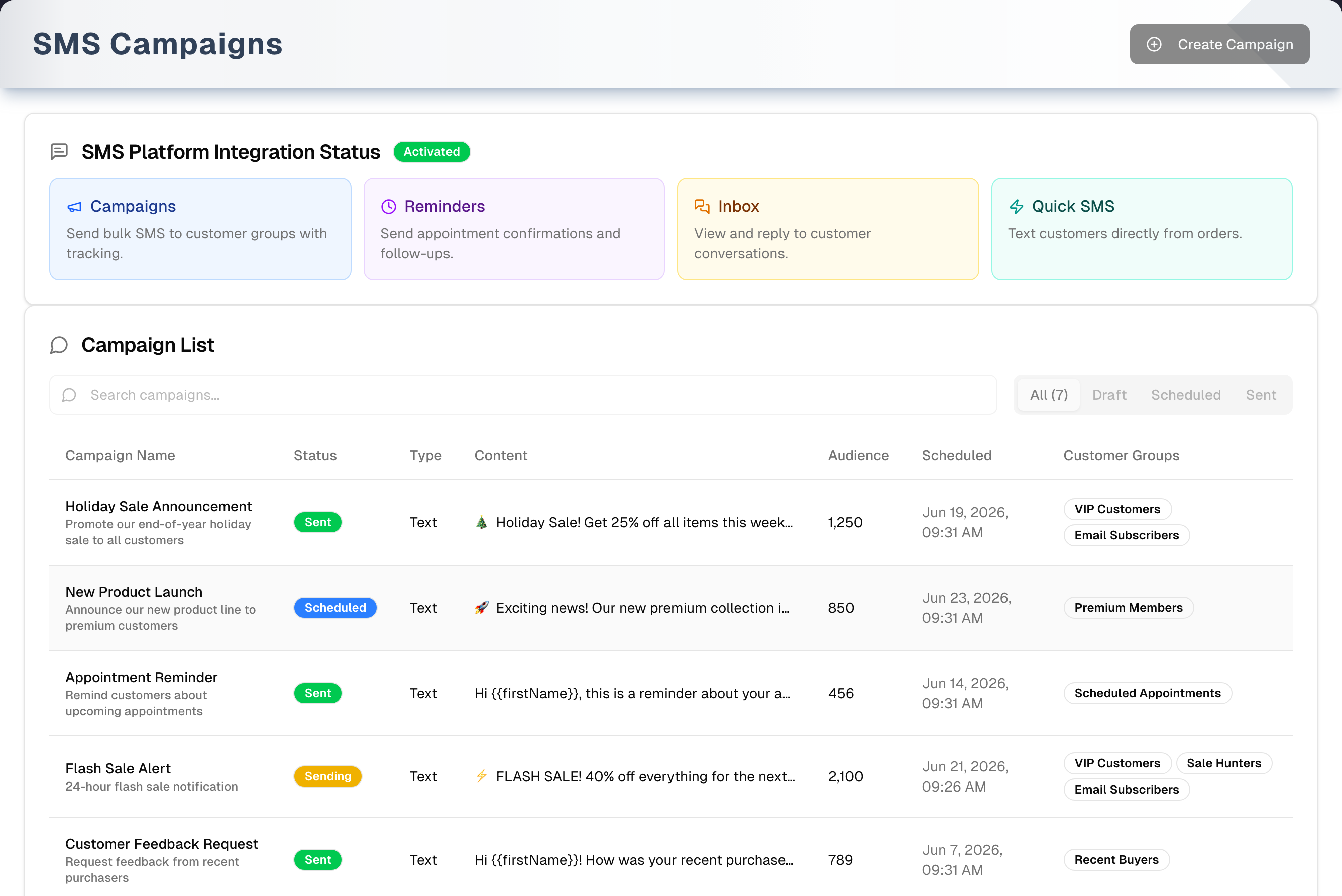
Overview
- The page has two cards: SMS Platform Integration Status (is texting set up for your store, plus four shortcuts) and Campaign List.
- The list shows the newest campaigns first, 10 per page. You can't sort the columns. Search by name or description, filter by status (All · Draft · Scheduled · Sent) and by who wrote the campaign (All · Typed · Automatic).
- While a campaign on the page is Scheduled or Sending, an Auto-refresh badge appears and the list reloads every 30 seconds.
- Click any row to open that campaign's detail dialog.
- On the Basic plan with no trial, the page shows sample campaigns behind an Unlock Pro & Premium Features box. Only Demo and the upgrade buttons work. The Create Campaign builder shows the same box, so a campaign cannot be written on Basic and then refused at the send.
Campaign statuses
| Status | What it means |
|---|---|
| Draft | Saved with Save as draft. It keeps the name, message, picture, schedule and chosen groups. Open it again with Edit in builder, then send or schedule it. |
| Scheduled | Waiting for its send time. Sending starts within a minute of that time. A large campaign goes out in batches over several minutes and shows Sending meanwhile. A Send now campaign is Scheduled only for the moment before its first batch goes out. |
| Sending | Texts are going out. |
| Sent | Finished. A campaign is marked Sent once nobody is left to text, even if every text failed. Open it to see who got the text. |
| Paused | Sending stopped because texting isn't set up, the plan or monthly limit blocked it, or there was a problem with the sending number. This applies to Send now and scheduled campaigns alike. Everyone not yet texted is marked as failed, and so is anyone a send took charge of more than a few minutes ago and never reported back on — unless the phone network had already accepted their text, which counts as Sent, and can still turn into Delivered when the receipt arrives. A text a send took charge of in the last few minutes is left alone so that send can finish it; if it never reports back, the automatic sender settles that person a few minutes later the same way, so nobody is left waiting on a Paused campaign. You can't do anything with a Paused campaign. |
| Cancelled | Stopped by you. |
| Stuck | Shown when a campaign has been Sending for more than 10 minutes. Open it to Retry Campaign or Cancel Campaign. |
Automatic campaigns
Campaigns tagged Automatic · Back in stock or Automatic · Estimate follow-up were written by UpChannels, not by a person. Back-in-stock texts go to people who asked for an item that is now in stock (see Walk-ins and Lost Sales Report). Follow-ups go to customers who declined an estimate, on the days set in Settings › Lost sales. They need only SMS opt-in. Campaigns you write need both SMS and marketing opt-in.
Tabs in detail
Status and source tabs
- All · Draft · Scheduled · Sent filters by stage. The tab on show carries the count, e.g. All (12) or Draft (3). Sending, Paused and Cancelled campaigns appear only under All.
- All · Typed · Automatic filters by who wrote the campaign: a person, or UpChannels.
- The search box matches the campaign name or description.
Create Campaign (the builder)
Create Campaign opens one page with four numbered steps. On Basic with no trial it opens behind the Unlock Pro & Premium Features box, the same as the campaign list.
- Campaign Details: a name (filled in for you, e.g. "Campaign Sep 18 02:30 PM") and an optional description.
- Target Audience: tick one or more existing marketing groups. + New Marketing Group builds a group from purchase history (product keywords, purchase dates, order value, marketing opt-in), adds exactly the customers the Estimated reach number counted, and ticks it for you. Marketing groups are the only way to choose recipients.
- Message Content: pick one of nine Quick Templates (this replaces the whole message) or type your own. Insert Variable adds
{{firstName}},{{lastName}}or{{businessName}}. A counter shows characters and segments. Add Poster/Image attaches a JPEG, PNG or GIF and turns the text into an MMS. If the message has a Google review link, a Business Profile (for Review Link) picker appears so the link points to the right location. - Schedule: Send Immediately or Schedule for Later. The date and time you pick are in your store's time zone, and must be at least 5 minutes ahead.
Texts always go from your store's own sending number, shown as From: at the top of the builder (or through your store's messaging service, if it has one). You can't pick a different number.
When you click Send now or Schedule Campaign, you may see two dialogs:
-
Consent check. A customer counts as consented only when both SMS and marketing opt-in are on. If the audience includes customers who have a valid phone but haven't fully opted in, a Confirm SMS consent dialog appears. Yes — they consented, include N turns on SMS and marketing opt-in on those customer records and adds them to the send. No — text only the N consented skips them (it reads No — cancel when nobody is consented). Only click Yes if those customers really agreed to receive texts, because it changes their customer records.
-
Confirmation. The last dialog is titled Confirm send or Confirm schedule. It shows:
- how many consented people will get the text, and the number it comes from
- how many were skipped, and why (no consent, or an invalid phone)
- your plan's SMS use this month
- a preview of the first recipient's message
If your plan can't cover the send (your plan has no SMS, there's no subscription, the subscription is inactive or the trial has expired, or it would go over the monthly limit), the send button is replaced by Upgrade plan. When only the monthly limit is the problem, Buy 2,000 credits also appears. It opens the Add SMS credits? question first — nothing is charged until you confirm — and then adds a recurring credit add-on to your subscription, with the extra messages counting straight away. Both are billing changes, so both show only for the store's owner — the person marked as the owner in Team. Anyone else sees "Only the store owner can change billing. Ask your owner to make this change." instead, and only Cancel at the bottom. If you are the only active person in the store and are not the owner, the sentence names support instead: "Only the store owner can make this change. Contact UpChannels support if this store has no owner."
-
Send now saves the campaign with each person's finished, personalised text — the store writes that text itself, from your message and the customer's name as your records hold it — then sends it in batches while a Sending Campaign progress window shows the running counts. Each person is texted once, with their name filled in. If you leave the page early, the automatic sender (runs every minute) finishes the rest the same way, and nobody who already got the text gets it again.
-
Schedule locks in today's consented recipients. Anyone who opts out before the send time is skipped automatically.
Campaign detail dialog
Click a row to see:
- status, recipient count, send date and customer groups
- type, From number and dates
- the message and any picture
- up to 100 recipients (click a name to open that customer in a new tab)
- Delivery Rate, once something has been sent
For Draft, Scheduled and Stuck campaigns you can also:
- Change the send time. It must be at least 5 minutes ahead, in your store's time zone, the same as the builder. Then click Save.
- Update Status to Draft (takes a scheduled campaign off the queue), Scheduled, Mark as Sent (only changes the label and sends nothing) or Cancel, then click Save.
- Send Now: after you confirm, a scheduled campaign goes out within a minute.
Sent, Sending, Paused and Cancelled campaigns are read-only. There is no Approve, Pause or Archive button. Each recipient shows what happened to their text: Sent once it has left, Delivered once the phone network confirms it arrived, Failed with the reason the network gave, Opted out for somebody skipped, and Pending only for somebody not texted yet.
Platform status card
The badge shows Checking..., then Activated or Not setup. There are four shortcuts:
- Campaigns: the builder
- Reminders: Schedule
- Inbox: Messages
- Quick SMS: Order Management
When the badge says Not setup, Contact Sales opens a short form that goes to the UpChannels team. The Get SMS set up buttons elsewhere on the page and in the builder bring you back to this card with that form already open — connecting a number is done by the UpChannels team, not in the app.
Step by step: create and send
- Put the customers you want to text in a marketing group (Customers → Marketing Groups), or build one in step 3. To pick up a campaign you saved earlier, open it with Edit in builder and carry on from step 5.
- Click Create Campaign.
- Name the campaign, then tick groups under Target Audience or click + New Marketing Group.
- Write the message or pick a template. Add an image if you want to send an MMS.
- Choose Send Immediately, or Schedule for Later and pick a date and time.
- Click Send now or Schedule Campaign. If the consent question appears, click Yes only if those customers agreed to texts.
- Check the numbers in Confirm send or Confirm schedule, then click Send to N people or Schedule for N people.
- Follow progress in the list, and open the campaign to see each recipient's status.
Tips & best practices
- Save as draft keeps everything: the name, description, message, picture, schedule and the groups you ticked. Pick the draft up later with Edit in builder — on the campaign row or in the campaign's dialog — and send or schedule it from there. Saving again edits that same draft rather than creating another one. If the send time you saved has already passed by the time you reopen it, the time is cleared and you're asked to pick a new one, so a stale draft can't go out the moment you schedule it. Once a campaign has been sent, scheduled or cancelled it is no longer a draft, so a builder window you left open from before can't turn it back into one — the store checks that when it saves, not the window, and says "This campaign is no longer a draft…" if you try.
{{businessName}}is filled in with your store's name, in the preview and in the text customers receive. If your store has no name saved, texts say "Our Business" instead — set your store name in Settings.- Keep messages under 160 characters so each recipient costs one segment. One emoji or special character shortens every segment to 70 characters; the counter applies that rule and says UCS-2 when it does, so watch the segment number rather than the character count. Your monthly allowance counts one message per recipient.
- Everyone gets the text at the one time you pick, in your store's time zone — recipients' own time zones are not taken into account, so pick an hour that suits the furthest of them. The builder's own advice is to send between 10am and 8pm.
- Pick a time at least 5 minutes from now. On today the Time box won't go earlier, and Schedule Campaign refuses a time that is too soon with "Scheduled time must be at least 5 minutes in the future."
- The builder notes that a picture message (MMS) costs about 2.5 times as much as a text. Against your monthly allowance, a picture message still counts as one message per recipient.
Troubleshooting
| Issue | Fix |
|---|---|
| Status card shows "Not setup", or the builder shows "Not Connected" and greyed-out steps | Texting isn't set up for your store. Click Get SMS set up on any greyed-out step (or Contact Sales on the status card) and send the form. Background reading: SMS Campaigns Setup. |
| "No audience selected. Tick at least one customer group." | Tick at least one group in Target Audience. |
| "No eligible recipients" | Nobody in the chosen groups has a usable phone number (or, if you clicked No — cancel, nobody has consent). Fix phone numbers on the customers, or choose other groups. |
| Confirm dialog says "This send exceeds your plan's SMS limit" | Buy credits (Pro or Premium), upgrade, or wait for the next billing cycle. The Basic plan has no SMS. Only the store's owner can buy credits or upgrade; anyone else asks the owner, and the store's only active person is pointed at UpChannels support. |
| Campaign shows Stuck | Open it and click Retry Campaign or Cancel Campaign. Retry puts it back in the queue, and the automatic sender resumes it within a minute. It works even when there is nobody left to text, which is what happens when the send stopped just after the last person: the sender picks it up, finds nothing to do and closes the campaign with the totals it really sent. People who already got the text are not texted again, and texts that were still going out when you pressed Retry are left to finish rather than counted as failed. |
| Campaign shows Paused | Sending stopped (texting not set up, plan or monthly limit). Fix billing or setup, then build a new campaign. |
| "No recipients to send" when you click Send Now on a draft | A draft has no locked-in recipient list yet — that is built when you send or schedule. Click Edit in builder, check the groups in step 2, then use Send now or Schedule Campaign. |
| Review link in the text still says PLACE_ID | Select a profile in the Business Profile (for Review Link) card before sending. If the card says it could not work out which store you are signed in to, click Try again; if that still fails, sign out and back in. |
| Picture didn't go out | A campaign with a picture is never sent as text-only: if the picture can't be uploaded, nothing is sent and the message says so. Remove the picture to send it as a text, or attach a smaller JPEG or PNG and send again. |
| "Send failed — All N messages failed to send." | Open the campaign to see who wasn't texted and why, then check your SMS setup. The campaign is still marked Sent with nothing sent. |
| "Still sending — N of M sent so far…" | The page stopped waiting (another sender was busy with the campaign, the connection kept failing, or the page was turned away, for example after you were signed out). The rest go out automatically within a few minutes. Don't send it again. Watch the list. |
What's next
- First-time setup: SMS Campaigns → Setup
- Build target groups: Growth → Customers
- Handle replies: Growth → Messages
- Drive reviews via SMS: Growth → Reviews
- Where automatic texts come from: Lost Sales Report
- Try it with sample data: Demo mode
Detailed reference
Every button, icon, field and message on this page, for when you need the exact detail. Each panel starts closed. Open the one you need.
Page header and toolbar
| Control | Where | What it does | Notes |
|---|---|---|---|
| Title SMS Campaigns, subtitle "Create and manage SMS marketing campaigns." | Page header | Page heading | Always |
| Demo (Play icon, amber button) | Header, right, left of Create Campaign | Opens the sample page with a guided tour | Shown whenever the page isn't locked by the plan (Pro, Premium or a free trial). See the Demo mode panel |
| Demo (Play icon, floating amber button) | Top-right corner, above the upgrade box | Opens the same sample page | Only when the page is locked by the plan (Basic, no trial). It is the only clickable thing on the page apart from the upgrade box |
| Create Campaign (plus icon) | Header, right | Opens Create SMS/MMS Campaign | Can't be clicked while the page is locked |
| Card SMS Platform Integration Status (message icon) | First card | Heading of the status card | Always |
| Badge Checking... (spinner, grey) | Next to the card title | The app is checking whether texting is set up for your store | Briefly, when the page loads |
| Badge Activated (green) | Next to the card title | Texting is set up: your store's texting account and default sending number are saved | Also always shown on the locked sample view |
| Badge Not setup (red) | Next to the card title | Texting isn't set up for your store, or the check failed | Any error during the check also shows Not setup |
| Tile Campaigns (megaphone, blue): "Send bulk SMS to customer groups with tracking." | Card body, first tile | Opens the Create Campaign builder | Clickable even when Not setup. None of the four tiles can be clicked while the page is locked |
| Tile Reminders (clock, purple): "Send appointment confirmations and follow-ups." | Second tile | Opens Schedule | Always |
| Tile Inbox (speech bubbles, amber): "View and reply to customer conversations." | Third tile | Opens Messages | Always |
| Tile Quick SMS (lightning, teal): "Text customers directly from orders." | Fourth tile | Opens Order Management | Always |
| Contact Sales | Below the tiles | Replaces itself with the Contact Sales form (see its panel) | Only when the badge says Not setup. Arriving from a Get SMS set up button scrolls to this card and opens the form for you |
| Card Campaign List (message icon) | Second card | Heading of the list | Always |
| Auto-refresh badge (pulsing green dot) | Next to "Campaign List" | Shows that the list reloads itself every 30 seconds | Only while at least one campaign on the current page is Scheduled or Sending. Never on the locked sample view |
| Search box Search campaigns... | Toolbar, left | Filters as you type by campaign name or description (contains, not case-sensitive). Commas and % signs are ignored. Jumps back to page 1 | Always |
| Status tabs All · Draft · Scheduled · Sent (the one on show with its count) | Toolbar, middle | Filter by stage. See the Status filter panel | Always |
| Source tabs All · Typed · Automatic | Toolbar, right | Filter by who wrote the campaign. See the Source filter panel | Always |
Tab: Status filter (All / Draft / Scheduled / Sent)
| Control | Where | What it does | Notes |
|---|---|---|---|
| All | Status tabs | Shows campaigns in every status | Default. While it is on show it reads All (N): N is the number that match your current filters (search and Typed/Automatic), so it changes as you filter. On another status tab, that tab carries the count and All has none |
| Draft | Status tabs | Only Draft campaigns | Jumps back to page 1 |
| Scheduled | Status tabs | Only campaigns waiting for their send time | Jumps back to page 1 |
| Sent | Status tabs | Only Sent campaigns | There is no tab for Sending, Paused, Cancelled or Stuck. Those appear only under All |
Tab: Source filter (All / Typed / Automatic)
| Control | Where | What it does | Notes |
|---|---|---|---|
| All | Source tabs | Campaigns written by people and by UpChannels | Default |
| Typed | Source tabs | Only campaigns someone built in the builder | Jumps back to page 1 |
| Automatic | Source tabs | Only campaigns UpChannels wrote from Lost Sales: back-in-stock alerts and declined-estimate follow-ups | Jumps back to page 1 |
Section: Campaign list (table and pages)
| Control | Where | What it does | Notes |
|---|---|---|---|
| "Loading campaigns..." (spinner) | Table area | Shown while the list loads | — |
| "No SMS campaigns found", "Get started by creating your first SMS campaign" and Create Campaign button | Table area | The button opens the builder | No campaigns match and the search box is empty |
| "No SMS campaigns found", "Try adjusting your search terms" | Table area | No button | Nothing matches the text in the search box |
| Column headers Campaign Name, Status, Type, Content, Audience, Scheduled, Customer Groups | Table header | Labels only. You can't sort by clicking them | The list is always newest-created first |
| Row click (whole row) | Any campaign row | Opens the Campaign detail dialog | Any status |
| Campaign Name cell | Column 1 | The name, with the description in small grey text underneath, and Edit in builder under that on drafts | Description only if one was entered. Edit in builder opens the draft in the campaign builder instead of the dialog; it isn't shown on automatic campaigns |
| Chip Automatic · Back in stock, Automatic · Estimate follow-up or Automatic (tooltip "Written by UpChannels, not by a person") | Next to the campaign name | Marks campaigns UpChannels wrote by itself from Lost Sales | Automatic campaigns only |
| Status badge Draft (grey) | Column 2 | Saved draft | — |
| Status badge Scheduled (blue) | Column 2 | Waiting for its send time | — |
| Status badge Sending (yellow) | Column 2 | Texts are going out | — |
| Status badge Sent (green) | Column 2 | Finished | — |
| Status badge Paused (orange) | Column 2 | Sending stopped because the store couldn't send | See Messages you may see |
| Status badge Cancelled (red) | Column 2 | Stopped | — |
| Status badge Archived (light grey) | Column 2 | Archived campaign | Nothing on these pages archives a campaign |
| Status badge Stuck (dark red) | Column 2 | The campaign has been Sending for more than 10 minutes since it last changed | Worked out when the page loads, not saved |
| "(Click to retry)" (red text) | Next to a Stuck badge | A hint. Clicking the row opens the dialog with Retry Campaign and Cancel Campaign | Stuck only |
| Type cell Text or Image | Column 3 | Image means a picture (MMS) is attached | — |
| Content cell | Column 4 | The start of the message as written, cut off to fit. Variables like {{firstName}} are not filled in here. "—" when empty | — |
| Audience cell | Column 5 | For a scheduled campaign: the number of consented people locked in. For Send now campaigns and drafts: the number of different customers in the chosen groups when the campaign was built, including people later skipped for consent or phone | 0 when nothing was recorded |
| Scheduled cell | Column 6 | The send time. For a Send now campaign that is when you sent it. When there is none, it shows the time the campaign was created | Shown in your store's time zone, with the zone abbreviation. A draft saved with Schedule for Later shows the time you picked; it only goes out once you open the draft and schedule it |
| Customer Groups cell | Column 7 | Up to three group chips, then "+N" | No groups when none are linked. A draft shows the groups it was saved with. Automatic campaigns show No groups |
| Previous | Page bar under the table | Goes to the previous page | Greyed out on page 1. The page bar appears only when more than 10 campaigns match |
| Page numbers (first, previous, current highlighted, next, last, with "…" gaps) | Page bar | Jumps to that page | — |
| Next | Page bar | Goes to the next page | Greyed out on the last page |
| "Page X of Y • Showing A of B" | Under the page bar | Where you are in the list | Only when the page bar is shown |
Section: Contact Sales form (on the status card)
Opens inside the status card (not a pop-up) when you click Contact Sales. Heading: "Contact Sales", "Interested in SMS campaigns? Fill out the form and we'll get back to you."
Fields:
| Field | Required | Default | Rules and error text |
|---|---|---|---|
| Company Name ("Your company name") | Yes | Your store name | Every field is marked with a red star. If one is empty, your browser asks you to fill it in before sending |
| Business Location ("e.g., San Francisco, CA"; hint "City, State or full address") | Yes | Empty | — |
| Your Name ("Your full name") | Yes | Your profile name | — |
| Phone Number ("+1 (555) 123-4567") | Yes | Your profile phone | Digits with spaces, dashes, brackets, dots and a plus sign in front only, and 7 to 20 digits. Otherwise "Please provide a valid phone number. Digits and + ( ) - . only, and no extension." shows under the box and nothing is sent |
| Email ("you@company.com") | Yes | Your sign-in email | Your browser also checks it looks like an email address |
| Business Challenges & Goals ("Tell us about your business challenges and what you're hoping to achieve...") | Yes | Empty | Your username (or email) is added when it's sent |
| Previous Vendor ("What software/vendor are you currently using?") | Yes | Empty | — |
Buttons:
| Control | Where | What it does | Notes |
|---|---|---|---|
| Close Form | Top-right of the form | Hides the form and brings back the Contact Sales button | — |
| Submit (reads "Submitting..." while working) | Bottom of the form | Sends your request to the UpChannels sales team | Greyed out while sending |
| "Thank you!", "We've received your message and will get back to you shortly.", "A copy has been sent to …" or "No confirmation email was sent …", and Close | Replaces the form | Confirms it was sent and says whether a copy was emailed to you. Close hides it | After a successful send. A copy goes only to the email you sign in with, at most once a day |
| Red error box (the reason it failed, for example "Your request didn't reach UpChannels. Check your connection and try again.") | Above Submit | Explains why it didn't send. Your answers stay in the form so you can try again | On failure |
Dialog: Campaign detail (click a campaign row)
| Control | Where | What it does | Notes |
|---|---|---|---|
| Title = campaign name, plus the Automatic chip | Dialog header | Shows which campaign you opened | The Automatic chip shows on automatic campaigns only |
| Explainer line: "Written by UpChannels when this item came back in stock. The recipients are the people who asked for it and agreed to a text." / "Written by UpChannels to follow up a declined estimate, on the days set in Settings › Lost sales." / "Written by UpChannels, not by a person." | Under the title | Explains why an automatic campaign exists | Automatic campaigns only |
| Description | Under the title | The campaign description | Only if one was entered |
| Status and badge | Top of the body | Current status, or Stuck | Stuck means Sending for more than 10 minutes |
| Campaign Stuck alert: "This campaign has been in "Sending" status for too long and may have encountered an error. You can retry sending it or cancel the campaign." | Below the status | Warning | Stuck only |
| Retry Campaign (circular arrows; reads "Retrying..." while working) | Inside the Stuck alert | Puts the campaign back to Scheduled, due now, so the automatic sender (runs every minute) picks it up. Toast "Campaign Queued for Retry". Closes the dialog and reloads the list | Stuck only, and checked again when you press it: a campaign that has started moving again is refused rather than restarted. Works for Send now and scheduled campaigns. Unlike Send Now, Retry never refuses for having nobody left to text — a campaign that stopped just after the last person is exactly what it is for, and retrying it lets the sender finish the campaign off and give it its real totals. Only people who haven't been texted are sent to. Anyone whose text was cut off mid-send is marked failed and not texted again, so nobody gets it twice — unless the phone network had already taken their text, in which case it counts as sent |
| Cancel Campaign (red outline) | Inside the Stuck alert | Sets the campaign to Cancelled straight away (no confirmation). Toast "Campaign Cancelled". Closes the dialog and reloads the list | Stuck only. Greyed out while another action is running. A campaign that has already finished, been cancelled or been archived is refused |
| "N recipients" (people icon) | Summary row | The audience number saved with the campaign (same as the list's Audience column) | — |
| Date (clock icon) | Summary row | The send time, or the created time if there is none | Store time zone |
| Customer Groups chips | Below the summary | The groups the campaign targeted | Only if groups are linked |
| Campaign Type | Details box | Image or Text | Read-only |
| From Number | Details box | The number the texts come from, or "—" | Read-only |
| Scheduling Type | Details box | Immediate, Scheduled, or Triggered for automatic campaigns | Read-only |
| Scheduled At | Details box | The send time, or the created time if there is none | The box gets a dashed blue outline when you can change it |
| Created At / Updated At | Details box | When the campaign was created and last changed | Updated At only if set |
| Change (calendar icon, blue) | Beside Scheduled At | Opens the Change Schedule panel, filled in with the current send time or one hour from now | Draft, Scheduled or Stuck only. Each campaign starts from its own send time — nothing carries over from the campaign you looked at before. On a Draft the new time is saved but the campaign stays a Draft; use Edit in builder to send or schedule it |
| Cancel (in Change Schedule) | Change Schedule panel, top-right | Closes the panel and puts the time back to the campaign's own, so the time you just picked is discarded | Clicking Save afterwards reports "Nothing changed" |
| Date and time button ("Pick a date and time", or the chosen date and time, e.g. "Saturday, September 26, 2026 at 10:00 AM"), with a calendar and a Time box | Change Schedule panel | Choose the new day (days before the store's today are greyed out) and time | "Times are your store's (America/Chicago (CDT))." The store's time zone, the same as the builder's Schedule step, wherever you are. Until it is known, "Loading your store's time zone…" shows in place of the button and no zone is named. The message after Save gives the time in the store's zone too |
| "Scheduled time must be at least 5 minutes in the future." | Change Schedule panel | Shown when you click Save with a time less than 5 minutes ahead | Also shows a toast "Invalid Schedule" |
| SMS Content or MMS Content | Body | The message as written, with variables not filled in. "Loading content…" while loading | MMS Content when a picture is attached |
| "Attached Image:" | Under the content | Shows the picture | MMS only |
| Recipients (N) list: status icon, name, phone and a Delivered, Sent, Failed, Opted out or Pending badge | Body, scrolls | One row per person, up to 100 | Delivered (green tick) once the phone network confirms it arrived. Sent (yellow clock) while it is on its way. Failed (red) with the network's own reason on the row beneath. Opted out (grey) for somebody skipped because their consent had gone. Pending (grey clock) only for somebody who has not been texted yet |
| Recipient row click (name turns blue, link icon on hover) | Recipients list | Opens that customer's record in a new browser tab | Only rows linked to a customer record. Enter or Space also works |
| Drafts' recipient area | Recipients list | A draft has no locked-in list yet, so it shows the members of its saved groups, all as Pending | "No customer groups selected for this campaign." when the draft was saved without a group |
| "No recipients found. The selected customer groups may be empty." / "Loading recipients..." | Recipients area | Empty and loading states | — |
| Performance Metrics: Delivery Rate | Body | Delivered ÷ sent, as a percentage, with the caption "Delivered ÷ sent (carrier receipts)" | Only once something was sent. Delivered counts only texts the phone network has confirmed, so while none has been confirmed the tile reads — and "Awaiting carrier receipts" rather than 0%. Receipts arrive within seconds to a few minutes of a send, and keep counting after the campaign has finished, so reopening it a few minutes later shows the rate. Fifteen minutes after a campaign finished with nothing confirmed, the caption changes to "No carrier receipts for this send". For those fifteen minutes after a campaign is paused, cancelled or finished, the automatic sender also checks its sent and delivered figures against its recipient list every minute and puts them right if they differ, so a count that could not be saved the moment it stopped is not kept for good. There is no click or conversion rate for SMS |
| Update Status box: dropdown (shows the current status; on a Stuck campaign "Stuck while sending — choose a new status") with Draft, Scheduled, Mark as Sent, Cancel. Helper text "You can only change the status for Draft or Scheduled campaigns." | Yellow box near the bottom | Pick a new status, then click Save. Draft takes a scheduled campaign off the queue (set it back to Scheduled to queue it again). Scheduled needs a locked-in recipient list, otherwise you get "No recipients to send" and are pointed at Edit in builder. Mark as Sent only changes the label and sends nothing. Cancel stops a scheduled send | Draft, Scheduled or Stuck only |
| Overlay "Complete SMS setup to enable editing" and Get SMS set up | Over the Update Status box | The button closes the dialog and takes you to the SMS Platform Integration Status card on SMS Campaigns, with the Contact Sales form already open | Only when texting isn't set up. The box is greyed out |
| Close | Footer | Closes the dialog. Esc, clicking outside or X also close it | Always |
| Send Now (reads "..." while working) | Footer | Checks the campaign has locked-in recipients, asks "Send this campaign to N people now? Texts go out within a minute." (browser OK / Cancel), then queues it. Toast "Sending now" | Draft, Scheduled or Stuck only. Greyed out while saving or when texting isn't set up. A draft has no list yet, so it says "No recipients to send" and points at Edit in builder |
| Edit in builder | Footer, beside Close | Closes the dialog and opens this draft in the campaign builder, with its name, message, picture, schedule and groups filled in. Send or schedule it from there | Drafts only, and not on automatic campaigns. A saved send time that has already gone by is cleared, and the builder asks for a new one |
| Browser OK / Cancel | Browser's own pop-up | OK queues the send. Cancel does nothing | After Send Now |
| Save (reads "Saving..." while working) | Footer | Saves the new status and/or send time, then closes. Toast "Campaign updated: …" naming the new status, the new send time, or both. If nothing changed: toast "Nothing changed" | Draft, Scheduled or Stuck only, checked again when you press it. Greyed out while saving or when texting isn't set up. If somebody else changed the campaign while your dialog was open, the save is refused and says so rather than overwriting what they did |
Dialog: Unlock Pro & Premium Features (plan lock)
| Control | Where | What it does | Notes |
|---|---|---|---|
| Box with lock icon: "Unlock Pro & Premium Features", "SMS, insights, finance tools & more", a Pro list (starts "500 SMS/month + a dedicated phone #", "SMS campaigns & review invites") and a Premium list (starts "Everything in Pro", "2,000 SMS/month") | Centre of the page | Explains what upgrading unlocks. The page behind shows sample campaigns and can't be clicked | Basic plan with no free trial. A trial gets full access. If your plan can't be read, the page stays open |
| Check Details (green) | Top of the box | Opens Billing | Locked page only. The box's only button |
| Pro tag beside SMS Campaigns | Left sidebar | Signals that this page needs Pro | Basic plan, no trial |
Dialog: Create Marketing Group From Segments (builder, + New Marketing Group)
Fields:
| Field | Required | Default | Rules and error text |
|---|---|---|---|
| Marketing Group Name ("e.g. High Value Recent Buyers") | Yes | "Marketing Group" plus today's date and time | Create Group is greyed out while the name is blank |
| Color (round colour swatch) | — | Indigo | Opens 20 colour circles. The chosen one gets a ring |
| Description ("Describe this audience-derived group") | No | "Marketing group created from audience segment filters" | — |
| Marketing Opt-in: "Opted in, Any, or only those not opted in", with Opted in, Any and Not opted in buttons | — | Opted in highlighted | Opted in counts only customers who allowed marketing. Any drops the marketing rule and counts both. Not opted in counts only customers who have not allowed marketing. All three still require the customer to allow texts |
| Product Keywords ("e.g. HVAC, tune-up"), badge "N sales" | No | Empty | Matches sales with an item whose description or SKU contains the text (not case-sensitive). The whole text is treated as one phrase, so commas don't split it into separate keywords. The badge shows how many sales matched |
| Recent Purchase (date range): start date and end date | No | The last 30 days to today, on your store's clock | Only sales count as a purchase: a sale that is saved, a draft, pending, being processed, awaiting delivery, shipped, delivered or completed. Quotes and cancelled or refunded orders are left out. A quote turned into a sale counts from the day it became a sale, not the day it was quoted. A quote with no recorded conversion day counts from the day it was quoted. Both days are read on your store's own clock, so a sale made late in the evening falls on the day the store had, and everyone building the same segment gets the same people. If the start is after the end, they are swapped |
| Purchase Value ($): Min and Max | No | Empty | Each sale's total must be between them. A quote's total never matches |
The box above the filters reads "Build Audience" and "Set the filters below. The count updates by itself as you change them, and Create Group adds exactly the customers it counts."
Buttons and read-outs:
| Control | Where | What it does | Notes |
|---|---|---|---|
| "Estimated reach: N customers", "Updated automatically as you change filters" ("Calculating" spinner while working) | Under the filters | Counts matching customers who allow texts and pass the Marketing Opt-in rule, leaving out archived customers and partners | Worked out when the dialog opens (last 30 days), and again by itself shortly after you change any filter. Every matching sale is read and every customer who qualifies is counted, however many there are. These are exactly the people Create Group adds. If you change a filter while it is still counting, only the newest count is shown: one started for the earlier filters that finishes late is dropped, as is its error, so the number and Create Group always match the filters on screen |
| Search (reads "Searching…" while working) | Under the estimate, right | Recounts with the current filters | Greyed out while counting. Optional, because the count also updates by itself |
| Red error box | Top of the dialog | Shows the reason the group couldn't be created, or "Failed to create group from segments" | After a failed Create Group |
| Cancel | Dialog footer | Closes without creating a group | Greyed out while creating |
| Create Group (N) (reads "Calculating…" or "Creating..." while working) | Dialog footer | Creates the marketing group and adds exactly the N customers in Estimated reach. Toast "Marketing group created" names the group and how many customers it has. Then it closes the dialog, reloads the Step 2 group list and ticks the new group | Greyed out while counting or creating, while the name is blank, and whenever N is 0. The members are the same set the number counts: a matching sale, allows texts, passes the Marketing Opt-in rule, not archived, not a partner. The group is filled once, when it is created. If the group is created but some members can't be added, the red box reads "Added X of Y customers to “…”. The group was created — try again to add the rest." and the dialog stays open; clicking Create Group again fills that same group instead of making a second one. |
Dialog: Confirm SMS consent (builder)
| Control | Where | What it does | Notes |
|---|---|---|---|
| "N customers in this audience have a valid phone number but aren't marked as SMS-opted-in, on top of M already consented." | Dialog body | Explains who isn't consented yet. A customer counts as consented only when both SMS opt-in and marketing opt-in are on | Appears after Send now or Schedule Campaign when at least one customer with a valid phone isn't fully consented. The "on top of" part shows only when M is more than 0 |
| Amber note: "Only confirm if these customers have agreed to receive text messages from you. Confirming records SMS consent on their customer profiles and includes them in this send." | Dialog body | Warning | — |
| No — text only the M consented | Footer | Skips the customers who aren't consented and opens Confirm send or Confirm schedule, which shows a "skipped — no SMS consent / partner" line | Label when M is more than 0 |
| No — cancel | Footer | Stops. Toast "No eligible recipients" | Label when nobody is consented |
| Yes — they consented, include N (reads "Updating…" while working) | Footer | Turns on both SMS and marketing opt-in on those N customer records, adds them to the send, shows toast "Consent recorded", then opens the confirmation | Greyed out while working. The change to the customer records is permanent |
| Close (X, Esc or clicking outside) | Dialog | Abandons the send. Nothing changes | — |
Dialog: Confirm send / Confirm schedule (builder)
| Control | Where | What it does | Notes |
|---|---|---|---|
| Title Confirm send or Confirm schedule | Header | — | Confirm schedule when Schedule for Later was chosen |
| "You are about to text N consented people from …." / "You are about to schedule a text to N consented people from … for …." | Body | Summary of the send | The "from" part is "Messaging Service" when your store sends through a messaging service. Otherwise it's your default number, or "default number" |
| "Recipients are locked in from today's consented audience; anyone who opts out before … is automatically skipped at send time." | Body | At send time, anyone who has lost SMS or marketing consent, been deleted or become a partner is skipped | Scheduled sends only |
| Green note "N customers just marked as SMS-consented and included." | Body | Confirms the consent you just recorded | After Yes — they consented |
| "N skipped — no SMS consent / partner" and "N skipped — invalid phone" | Body | Who won't be texted. A valid phone is a 10-digit US number, 11 digits starting with 1, or an international number starting with + (11 to 15 digits). The primary phone is used if there is one, otherwise the mobile. A number shared by several customers is texted once | Each line only when its count is more than 0 |
| Plan line "… plan", "used/quota SMS used this month" and "N remaining" | Body | Your monthly SMS allowance, including any credits you bought. Each recipient counts as one message | Shown when your plan has a known allowance. "N remaining" shows only when the send is allowed |
| Grey note "Your SMS allowance could not be checked right now … The send is still checked against your plan when it goes out." ("Your session has expired … Sign in again before sending." when you were signed out) | Body | The allowance check itself failed. It does not block: the send button stays, and the plan limit is still applied when the texts go out | Only when the check fails |
| Amber block "This send exceeds your plan's SMS limit", the reason, then "Add more messaging credits or upgrade your plan to continue." or "Upgrade your plan to continue." (for the store's owner), "Only the store owner can change billing. Ask your owner to make this change." (for everyone else), or "Only the store owner can make this change. Contact UpChannels support if this store has no owner." (for the store's only active person) | Body | Explains why sending is blocked. See Messages you may see for the reasons | When the check says the send isn't allowed |
| Preview | Body | The first recipient's personalised message | — |
| Cancel | Footer | Closes. Nothing is sent. X, Esc or clicking outside do the same | Greyed out while sending or buying credits |
| Buy 2,000 credits — $…/month (reads "Adding credits…" while working) | Footer | Opens the Add SMS credits? confirmation. Confirming adds a recurring messaging-credit add-on to your subscription (the message count, price and billing period are on the button), or one more pack if you already have it. The credits count straight away and the check runs again, so the send button comes back once the send fits. Toast "Credits added" | Nothing is charged until you confirm, and a plan already set to end is not restarted by buying credits — the confirmation says so. Only when the monthly limit is the only problem and the add-on is available (Pro or Premium). Shown only to the store's owner; hidden for everyone else, the store's only active person included. If your owner access is removed while the dialog is open, the purchase fails with "Only the store owner can change billing. Ask your owner to make this change." |
| Upgrade plan | Footer | Opens Billing | When the send is blocked, and only for the store's owner. Hidden for everyone else, the store's only active person included |
| Send to N people (send icon) | Footer | Creates the campaign with each person's personalised text, then texts everyone now, showing the Sending Campaign window | Send Immediately. Greyed out while the allowance check is loading or while sending. Hidden when blocked. Each person gets this campaign's text once, even if you close the page or the automatic sender takes over. Sending the same message again, for example from the builder in another tab, creates a second campaign and texts everyone again |
| Schedule for N people (clock icon) | Footer | Creates the campaign as Scheduled with a locked-in list of personalised messages. The automatic sender (runs every minute) texts them at the chosen time | Schedule for Later. Greyed out while the allowance check is loading. Hidden when blocked |
Dialog: Sending Campaign (Send now progress)
| Control | Where | What it does | Notes |
|---|---|---|---|
| "Sending Campaign", "Please wait while we deliver your messages..." | Full-screen window | Shows that the texts are going out, about 50 at a time | Send now only. There is no cancel button. The automatic sender may send some of the batches; the window counts those too |
| Progress bar, "N still to send" and "done / total" | Window body | How far the send has got, counted from the campaign's own recipient list | — |
| "Sent: N" | Window body | Texts sent so far | — |
| "Failed: N" | Window body | Texts that failed, plus people skipped because they opted out in the meantime | Only when at least one failed |
| End of send | — | A toast shows the result and you go back to the campaign list | If you leave the page mid-send, the automatic sender (runs every minute) finishes the rest with each person's personalised text. Nobody already texted is texted again. If the window waits more than about 4 minutes for another sender, the connection keeps failing, or the page is turned away (for example you were signed out), it closes with "Still sending" and the automatic sender finishes |
Sub-page: Create SMS/MMS Campaign (header, footer, Review Boost)
The builder page is not locked by plan, but the send check blocks plans without SMS (see Who can use what). All four steps are on one page. Pressing Enter never sends.
| Control | Where | What it does | Notes |
|---|---|---|---|
| Back to Campaigns (left arrow) | Top-left | Returns to the list. Nothing is saved | Always |
| Title "Create SMS/MMS Campaign", "Set up a new marketing campaign. Add an image to send as MMS." | Blue banner | Page heading | Reads "Edit Draft Campaign", "Everything you saved is here. Send it now, or schedule it." when you arrived from Edit in builder |
| Badge Opening draft... (spinner) | Banner, right | The draft you asked for is being loaded | Only while a draft opens |
| Badge Loading... | Banner, right | Checking whether texting is set up | While the page loads |
| Badge Connected (green) | Banner, right | Texting is set up | — |
| Badge From: … | Banner, right | Your store's default sending number. Campaigns always use it, and there is no number picker | When a default number is saved |
| Badge Messaging Service Enabled | Banner, right | Your store sends through a messaging service. The confirmation then shows "Messaging Service" as the sender | When set |
| Badge Not Connected (red) | Banner, right | Texting isn't set up. Every step is greyed out and the footer buttons don't work | — |
| SMS/MMS Campaign Best Practices card (light bulb): "Keep it short — 160 characters max, one clear call-to-action"; "Personalize — Use customer name and relevant details"; "Timing matters — Send between 10am-8pm in recipient's timezone"; "Limit frequency — 1-2 messages per week to avoid fatigue"; "Add value — Exclusive deals, early access, or useful updates"; "Target wisely — Segment by purchase history and behavior"; "Use images (MMS) — Posters boost engagement by up to 300%" | Under the banner | Advice only | Always |
| Overlay on each step "Complete SMS setup above to enable this feature", Get SMS set up and (when your store has a help site) How setup works | Over each step card | Get SMS set up goes to the SMS Platform Integration Status card on SMS Campaigns with the Contact Sales form already open. How setup works opens SMS Campaigns Setup in a new tab | Only when Not Connected |
| Save as draft (outline) | Footer | Checks the name and message, uploads any picture, saves the campaign as a Draft and shows toast "Draft saved", then returns to the list. If the picture can't be uploaded, nothing is saved and "Save failed" says why | Greyed out while saving or when Not Connected. The name, description, message, picture, schedule and the groups you ticked are all kept, so the draft can be reopened with Edit in builder and sent. Saving a reopened draft edits that same campaign instead of creating a second one, and clears any list of people waiting from before, so nothing goes out saying what the campaign used to say. Anyone a send already picked up is left alone and is never texted a second time |
| Send now (send icon) | Footer | Checks the form, works out recipients from the ticked groups, then shows Confirm SMS consent (if needed) and Confirm send | Shown with Send Immediately. Greyed out while working or when Not Connected. With no group ticked: "Audience Error" toast |
| Schedule Campaign (clock icon) | Footer | Same checks, then Confirm schedule | Shown with Schedule for Later. Greyed out until a date or time is picked, while working, or when Not Connected |
| Review Boost button on Reviews (tooltip "Create an SMS campaign to request more customer reviews"), or the New Review Boost Campaign shortcut on Shortcuts | Other pages | Opens the builder with the review-request message filled in | See the next row |
Review Boost message "Hi {{firstName}}! Thanks for your recent visit. Could you share your feedback? It really helps us grow:" followed by a Google review link | Step 3 | Fills in the message, names the campaign Google Review Request, shows the Business Profile card and picks a profile for you (your selected profile, or the first one), which fills in the review link | The name and the message are filled in only while they are untouched — the generated "Campaign …" name counts as untouched, anything you typed does not — and a draft reopened from Edit in builder keeps its own |
Sub-page: Create Campaign, Step 1: Campaign Details
Fields:
| Field | Required | Default | Rules and error text |
|---|---|---|---|
| Campaign Name ("Summer Sale SMS Campaign"; helper "Auto-generated name. Feel free to change it.") | Yes | "Campaign" plus today's month, day and time at the store, e.g. "Campaign Sep 18 02:30 PM" — the store's date and clock, wherever you are | "Campaign name is required". Greyed out when Not Connected |
| Description (Optional) ("Describe the purpose and goals of this campaign") | No | Empty | Shown under the name in the list and in the detail dialog |
Sub-page: Create Campaign, Step 2: Target Audience
Heading: "Target Audience", "Select which marketing groups will receive this campaign".
| Control | Where | What it does | Notes |
|---|---|---|---|
| + New Marketing Group (purple), caption "Filter by purchase history" | Step header, right | Opens Create Marketing Group From Segments. This is the only way to target by purchases: you create a group from filters and it is ticked for you | Greyed out when Not Connected. The new group holds exactly the customers Estimated reach counted |
| "Select an existing customer group" and Search groups... | Left column | Filters the group list by group name or description | — |
| Group rows: tick box, group name and member count (green) | Left column list (scrolls) | Tick to add the group to the audience, untick to remove it | The count leaves out archived customers, who stay in the group but are never texted. Newest groups first. "Loading customer groups..." while loading. Empty: "No customer groups found", "Create customer groups in the Customers page first" |
| "Selected groups (N)" ("No groups selected" when empty) | Right column | Lists the ticked groups, each with a member count | — |
| × | Each selected group | Unticks that group | — |
| "Total estimated reach: N customers" | Right column, bottom | The number of different customers across the ticked groups (someone in two groups counts once), archived customers left out | Includes people who may later be skipped for consent or phone. Archived customers are not counted, not offered for consent capture and not texted. Shown when at least one group is ticked |
Sub-page: Create Campaign, Step 3: Message Content
Heading: "Message Content", "Write your message text. Use templates or personalization variables."
Business profile (review link) controls:
| Control | Where | What it does | Notes |
|---|---|---|---|
| Business Profile (for Review Link) card | Top of Step 3 | Picks which Google Business location the review link points to | Only when the message has a Google review link, or you came from Review Boost |
| Profile cards (name, "✓ Verified", address, "Place ID: …") | Inside the card | Click to select (blue outline), click again to deselect. With only one profile it is selected for you. Selecting fills the location into a review link that still says PLACE_ID | The list holds the locations Growth → Reviews Booster tracks, so it matches the reviews you answer. Before any location has been picked there, it lists every location on the connected Google account. Messages: "Loading...", "Could not work out which store you are signed in to" (with a Try again button), "Google Business not connected", "Failed to load profiles", "No profiles found.", and "Please select a business profile from the list above." when there are several and none is selected |
| Clear | Card, bottom-right | Deselects the profile. A link already in the message doesn't change | Greyed out when nothing is selected |
| "Review link will use Place ID: …" | Under the card | Confirms which location the link uses | When the selected profile has a Place ID |
Templates and variables:
| Control | Where | What it does | Notes |
|---|---|---|---|
| Quick Templates and Search templates... | Left column | Filters the template list by name. "No templates found" when nothing matches | — |
| Promotional (megaphone) | Template list | Replaces the message with Hi {{firstName}}! 🎉 Exclusive offer just for you: Get 20% off your next order. Use code SAVE20. Valid until Sunday! | The chosen template is highlighted. All templates are greyed out when Not Connected |
| Reminder (bell) | Template list | Replaces the message with Hi {{firstName}}, just a friendly reminder about your appointment tomorrow at 2 PM. Reply YES to confirm or STOP to opt out. | — |
| Review Request (star) | Template list | Replaces the message with the review-request text and a Google review link | Uses the selected profile's Place ID. With no profile selected the link says PLACE_ID and won't work if sent |
| Welcome (party popper) | Template list | Replaces the message with Welcome to {{businessName}}, {{firstName}}! 🎊 As a new member, enjoy 15% off your first order with code WELCOME15 | — |
| Follow-up (speech bubble) | Template list | Replaces the message with Hi {{firstName}}, just checking in to see how everything went with your recent purchase. Reply with any questions—we're here to help! | — |
| Thank You + Referral (gift) | Template list | Replaces the message with Thanks {{firstName}} for choosing {{businessName}}! If you had a great experience, please refer a friend and both of you get 10% off next time. | — |
| Service Reminder (wrench) | Template list | Replaces the message with Hi {{firstName}}, it's time to service your equipment. Book a quick appointment this week at {{businessName}}. Reply YES and we'll follow up. | — |
| Appointment Follow-up (calendar tick) | Template list | Replaces the message with Hi {{firstName}}, thanks for your visit today. If you need anything else, reply HELP. We appreciate you choosing {{businessName}}! | — |
| Re-engagement (circular arrows) | Template list | Replaces the message with We miss you, {{firstName}}! Come back to {{businessName}} this week and enjoy 15% off your next order. Reply STOP to opt out. | — |
| Insert Variable (variable icon) | Right of "Message Content" | Opens "Personalization Variables": {{firstName}} First Name, {{lastName}} Last Name, {{businessName}} Business Name. Click one to insert it where your cursor is | Greyed out when Not Connected |
Message box ("Type your SMS message here... Use {{variableName}} for personalization") | Right column | The message | Required: "SMS content is required". No length limit |
| Counter "N characters • N segment (1 credit)" or "N segments (N credits)", with " • UCS-2 (emoji or special characters)" added when the message is on that encoding. Note beneath: "Counted on the preview, with a sample name in place of each variable. Plain text fits 160 characters in one segment (153 each after that). One emoji or special character — a curly quote, an em dash, an accent GSM has no room for — puts the whole message on UCS-2, where a segment holds 70 characters (67 each after that) and an emoji counts as two. MMS costs ~2.5x SMS." | Under the message box | Counts what actually goes out: the preview, with the sample name filled in, at the encoding the message really uses | A variable such as {{firstName}} counts as the sample name, not as the 13 characters you typed. Adding one emoji can more than double the segment count |
| Add Poster/Image (image icon, dashed) | Right of the counter | Opens a file picker for JPEG, PNG or GIF. The picture is converted to JPEG, shrunk to at most 1920 pixels and about 1 MB, and uploaded when you save or send. The campaign becomes an MMS (Type Image) | Only when no picture is attached. Pick anything that isn't a picture and a red line under the message box says "Only image files (JPEG, PNG, GIF) are supported for MMS" |
| Picture thumbnail, file name and size, with "Compressing...", "Uploading..." or an error over it, and a green ✓ once uploaded | Under the counter | Shows the picture's status | When a picture is attached. A picture still over 5 MB after shrinking shows "Image too large after compression (… MB)" over the thumbnail, and the campaign can't be sent or saved until you remove it or attach a smaller one |
| Red round X (label "Remove image") | Corner of the thumbnail | Removes the picture | Before the upload starts, and after it fails — so a picture that was refused can always be taken off |
| Change image (blue link) | Beside the thumbnail | Removes the picture and opens the file picker again | Before the upload starts, after it succeeds, and after it fails |
| Preview ("Your message preview will appear here..."), "Variables will be replaced with actual recipient data" (plus " • Image will be sent as MMS") | Right column, bottom | A sample preview: {{firstName}} becomes John, {{lastName}} Doe, and {{businessName}} your store's name (the example "ABC Corp" only while the name is still loading, or when your store has no name saved) | Real texts use the first word of the customer's name (or "Customer") as the first name and the rest as the last name, and the same store name the preview shows. A store with no name saved sends "Our Business" |
Sub-page: Create Campaign, Step 4: Schedule
Heading: "Schedule", "Choose when to send this campaign".
| Control | Where | What it does | Notes |
|---|---|---|---|
| Send Time: Send Immediately, "Start sending as soon as campaign is created" | Step 4, left card | The footer shows Send now | Default. Click the card, or press Enter or Space |
| Send Time: Schedule for Later, "Choose a specific date and time" | Step 4, right card | Shows the date and time picker. The footer shows Schedule Campaign | — |
| "Loading your store's time zone…" | Step 4, in place of the picker | Waits the moment it takes to read which zone your store keeps | Only until it arrives. The picker is held back on purpose: a time typed before then would be taken as YOUR clock and then redrawn as the store's, moving the send |
| Schedule Date & Time calendar | Step 4 | Pick the day. Days before today at your store are greyed out, so a store whose day has not turned over yet can still send today. The first pick sets the time to the next full hour | Schedule for Later only |
| Time box | Beside the calendar | Sets the hour and minute, in your store's time zone. "Selected: … at …" confirms your choice in that zone. Helper "Times are your store's (America/Chicago (CDT))" names it | If you type a time without picking a day, today is used. On today the box will not go earlier than 5 minutes from now, and a time already gone shows "Pick a time at least 5 minutes from now." under the picker |
| Alert "Important: everyone is texted at the one time you pick, in your store's time zone (…). Recipients' own time zones are not taken into account, so check the hour suits the furthest of them." | Bottom of Step 4 | Information only | UpChannels does not stagger a campaign by recipient. If quiet hours matter for where your customers are, pick the hour yourself |
Messages you may see
| Message | When it appears | What to do |
|---|---|---|
| "Organization not found" — "Could not determine your organization. Please try logging in again." | The list page can't tell which store you're signed in to | Sign out and back in |
| "Error" — "Failed to load campaigns. Please check your connection and try again." | The list failed to load | Refresh the page |
| Badge "Not setup" / "Not Connected" | Texting isn't set up for your store | Click Contact Sales, or follow SMS Campaigns Setup |
| "Complete SMS setup above to enable this feature" / "Complete SMS setup to enable editing" | Builder steps, or the detail dialog's status box, when texting isn't set up | Click Get SMS set up beside the message: it opens the Contact Sales form on the status card |
| "Error" — "Failed to initialize SMS configuration" | The builder couldn't read your texting setup | Refresh. Contact support if it keeps happening |
| "Configuration Error" — "Twilio is not properly configured" | You tried to save, send or schedule while texting isn't set up for your store (normally the buttons are greyed out first) | Click Contact Sales on the list page, or follow SMS Campaigns Setup |
| "Authentication Error" — "Could not find organization ID. Please login again." | The builder can't tell which store you're signed in to | Sign in again |
| "Campaign name is required" | The name is empty | Enter a name |
| "SMS content is required" | The message is empty | Write a message |
| "Audience Error" — "No audience selected. Tick at least one customer group." | Send now or Schedule Campaign with no group ticked. The same title with a different message means the recipients couldn't be worked out | Tick at least one group in Step 2. For other messages, try again |
| "No eligible recipients" — "No customers in the selected audience have a valid phone number." | Nobody in the chosen groups has a usable phone | Fix the customers' phone numbers |
| "No eligible recipients" — "No customers in the selected audience have SMS consent and a valid phone number." | You clicked No — cancel and nobody was consented | Record consent, or choose other groups |
| "Consent recorded" — "Marked N customers as SMS-consented." | After Yes — they consented | — |
| "Could not update consent" — the error, or "Bulk consent update failed." | Saving the consent failed | Try again |
| "This send exceeds your plan's SMS limit" with "Monthly SMS limit reached (used/quota). Upgrade your plan or wait for the next billing cycle to send more." | The send would go over your monthly allowance | Buy credits (Pro or Premium), upgrade, or wait for the next billing cycle |
| "This send exceeds your plan's SMS limit" with "Your plan does not include SMS. Upgrade to Pro or Premium to send messages." | Basic plan | Upgrade |
| "This send exceeds your plan's SMS limit" with "No active subscription. Subscribe to Pro or Premium to send SMS." | Your store has no subscription | Subscribe |
| "This send exceeds your plan's SMS limit" with "Your subscription is inactive or your trial has expired. Update billing to send SMS." | Lapsed or cancelled subscription, or expired trial | Update billing |
| "Your SMS allowance could not be checked right now …" (grey) | The allowance check failed, for example after a network hiccup. Nothing is blocked | Send as usual; the limit is still applied when the texts go out |
| "Your session has expired, so your SMS allowance could not be checked. Sign in again before sending. …" (grey) | You were signed out while the builder was open | Sign in again, then send |
| Add SMS credits? — "… extra messages a …, for $…/…" and "This adds a recurring charge to your subscription. You are charged now for the rest of this billing cycle, and again every cycle until you remove the credits in Plan & Billing." with Cancel and Add credits | You clicked Buy … credits | Add credits buys one pack; Cancel charges nothing |
| "Your plan already includes … bought credits. This adds another pack on top." | The same confirmation, when a credit pack is already on your subscription | Only confirm if you want a second pack |
| "Your plan is still set to end on …. These credits end with it, and buying them does not keep the plan running." | The same confirmation, when a cancellation is already scheduled | To keep the plan, undo the cancellation in Plan & Billing first |
| "Credits added" — "N messages added to your monthly quota." | After you confirmed Add credits | The send button comes back once the send fits your allowance |
| "Purchase failed" — e.g. "Could not add credits. Please try again.", "Upgrade to Pro or Premium before adding SMS credits.", "The messaging credit add-on is not available.", "No subscription found for your organization" | Buying credits failed | Check Billing, or upgrade |
| "Only the store owner can change billing. Ask your owner to make this change." | In the amber block when a send is blocked and you are not the store's owner. Buy … credits and Upgrade plan are hidden for you | Ask the owner to buy credits or upgrade |
| "Only the store owner can make this change. Contact UpChannels support if this store has no owner." | The same refusal, worded for the store's only active person: there is no owner in the store to ask | Contact UpChannels support |
| "Purchase failed" — "Only the store owner can change billing. Ask your owner to make this change." | You clicked Buy … credits but are no longer the store's owner (for example your owner role was removed while the dialog was open) | Ask the owner to buy the credits |
| "Campaign sent" — "N messages sent." | Send now finished with no failures | — |
| "Campaign sent with errors" — "N messages sent, M failed." | Some texts failed, or people were skipped because they opted out in the meantime | Open the campaign. Each person shows Failed with the reason, or Opted out |
| "Send failed" — "All N messages failed to send." | Send now finished with nobody texted: every person failed or was skipped | Open the campaign to see each person's reason. Check your texting setup, or contact support |
| "Sending stopped" — the reason, then "N messages were sent before it stopped." | Your plan, monthly allowance or texting setup blocked the send partway (or before the first text), or every single text was refused. In both cases the campaign is Paused, not Sent, and the reason quoted is the one the texting provider gave | Fix billing or setup, then build a new campaign for the people who didn't get it |
| "Still sending" — "N of M sent so far. The rest go out automatically within a few minutes, and nobody is texted twice." | The progress window stopped waiting: another sender was working on the campaign for a long time, or the connection kept failing | Watch the list. The campaign shows Sending until the automatic sender finishes |
| "Still sending" — "N of M sent so far. This page couldn't keep sending (the reason, e.g. Unauthorized), but the campaign is saved and the rest go out automatically within a few minutes. Don't send it again." | The page was turned away after the campaign was saved and queued, for example because you were signed out | Don't send it again, or everyone gets a second text. Watch the list. The campaign shows Sending until the automatic sender finishes |
| "Send failed" — the error, or "Could not send the campaign." | The campaign couldn't be saved and queued (for example "The campaign could not be queued for sending. It may already have been sent from another window."), so nothing was sent | Try again |
| "Campaign scheduled" — "Texting N people on …." | Scheduling worked | — |
| "Could not schedule" — e.g. "None of the recipients could be linked to a customer record.", or "Failed to schedule the campaign." | Scheduling failed | Try again, or check the customers in the groups |
| "Draft saved" — "“…” was saved as a draft." | Save as draft worked | — |
| "Save failed" — the error, or "Could not save the campaign." | Saving the draft failed | Try again |
| "Failed to load audience" — the error, "Could not load customer groups. Please retry." or "Could not work out who these filters match. Please retry." | The Step 2 group list, or the estimate in Create Marketing Group From Segments, failed to load. When it is the estimate, it goes back to 0 and Create Group is greyed out, so nothing is built from the filters that worked last time | Refresh the page, or press Search again |
| "Marketing group created" — "“…” now has N customers." | Create Group (N) in Create Marketing Group From Segments worked | The group is ticked for you in Step 2 |
| Red box "Added X of Y customers to “…”. The group was created — try again to add the rest." followed by the reason | The group was created but some members couldn't be added, for example because the connection dropped part-way | The group exists with the members that did go in. Click Create Group again to top up the same group, or add the rest from Customers |
| "Could not work out which store you are signed in to", "Google Business not connected" or "Failed to load profiles" in the Business Profile (for Review Link) card | The card couldn't list your Google Business profiles, so you can't pick one and a review link keeps saying PLACE_ID | Click Try again beside the message. If it persists, sign out and back in, or check your Google Business connection on Reviews |
| Red error text over the picture thumbnail, such as "Failed to upload image", "Upload failed" or "Image too large after compression (… MB)" | The picture couldn't be uploaded when you saved or sent | Nothing was sent or saved. Remove the picture to send it as a text, or attach a smaller JPEG or PNG |
| "Send failed" / "Could not schedule" / "Save failed" — "…. Nothing was sent — remove the picture to send this as a text, or attach a smaller JPEG or PNG." (the draft version says the draft was not saved) | The picture on a picture message couldn't be uploaded, so the campaign was not created | Remove the picture, or attach a smaller JPEG or PNG, then send or save again |
| "Only image files (JPEG, PNG, GIF) are supported for MMS" (red, under the message box) | You picked a file that isn't a picture | Pick a JPEG, PNG or GIF |
| Browser pop-up "Send this campaign to N people now? Texts go out within a minute." | Send Now in the detail dialog | OK to send |
| "No recipients to send" — "This campaign has no pending recipients. Use Edit in builder to pick an audience and schedule it there." | Send Now, or saving as Scheduled, on a draft with no locked-in recipients | Click Edit in builder, check the groups, then send or schedule |
| "No recipients to send" — "This campaign has no pending recipients. Set its status to Draft and save, then use Edit in builder to pick an audience." | Send Now, or saving it as Scheduled, on a scheduled campaign nobody is left to text in | Edit in builder is only offered on a draft, so set Update Status to Draft and Save first, then click Edit in builder |
| "No recipients to send" — "This campaign has no pending recipients left. Use Retry Campaign to finish it." | Send Now on a campaign that is stuck at Sending with nobody left to text | Click Retry Campaign on the Campaign Stuck alert. It finishes the campaign and counts its totals from what was sent |
| "Draft not opened" — "That draft could not be found. It may have been deleted.", "That campaign is no longer a draft, so it can't be edited here. Open it from the campaign list instead." or "That campaign belongs to another store." | Edit in builder on a campaign that has since been deleted, sent or scheduled | You are sent back to the campaign list. Open the campaign from there |
| "Send failed" / "Could not schedule" — "Everyone in this audience has already been texted by this campaign. Build a new campaign to text them again." | You reopened a campaign that had already texted these people and tried to send it again | Build a new campaign for them. Nobody is ever texted twice by one campaign |
| "Send failed" / "Could not schedule" / "Save failed" — "This campaign is no longer a draft. It may have been sent, scheduled, cancelled or deleted in another window. Reload the campaigns page to see where it got to." | You had the same draft open in two windows (or left one open after sending it elsewhere) and tried to send or save it from the stale one. Nothing is changed, and the campaign that is already on its way is left exactly as it is | Reload the campaigns page and carry on from there |
| "Sending now" — "N messages will go out within a minute." | Send Now was accepted | — |
| "Error" — the reason the store gave, or "Failed to start sending. Please try again." | Send Now failed. The reasons you may see are "This campaign can no longer be sent…", "This campaign has no pending recipients…" and "Somebody else changed this campaign while it was open. Reload the page and try again." | Read the reason. Reload the page if somebody else changed the campaign |
| "Nothing changed" — "No changes were made to the campaign." | Save with no changes | — |
| "Invalid Schedule" — "Scheduled time must be at least 5 minutes in the future." | The send time is less than 5 minutes ahead, or in the past. Shown by Change Schedule in the dialog and by Schedule Campaign in the builder | Pick a later time |
| "Pick a new send time" — "The time this draft was saved with has already passed, so it was cleared. Choose when it should go out." | You reopened a draft whose saved send time has gone by | Pick a new time in step 4, or send it now |
| "Success" — "Campaign updated: …" (for example "status to Cancelled" and/or "schedule to …") | Save in the detail dialog worked | — |
| "Error" — the reason the store gave, or "Failed to update campaign. Please try again." | Save failed. The reasons you may see are "You can only change the status for Draft or Scheduled campaigns.", "Scheduled time must be at least 5 minutes in the future.", "This campaign has no pending recipients…" and "Somebody else changed this campaign while it was open. Reload the page and try again." | Read the reason. Reload the page if somebody else changed the campaign |
| "Campaign Queued for Retry" — "The campaign has been reset and will be processed shortly." | Retry Campaign | Watch the list, which reloads by itself |
| "Retry Failed" — the reason the store gave, or "Failed to reset campaign. Please try again." | Retry failed. The reasons you may see are "This campaign is not stuck, so there is nothing to retry.", which means it started moving again while the dialog was open, and "Somebody else changed this campaign while it was open. Reload the page and try again." Having nobody left to text is never one of them | Reload the page and look at the campaign again |
| "Campaign Cancelled" — "The campaign has been cancelled." | Cancel Campaign | — |
| "Error" — the reason the store gave, or "Failed to cancel campaign." | Cancelling failed. "This campaign has already finished." means it finished while the dialog was open | Reload the page |
| "Campaign Stuck" — "This campaign has been in "Sending" status for too long and may have encountered an error. You can retry sending it or cancel the campaign." | The campaign has been Sending for more than 10 minutes | Click Retry Campaign or Cancel Campaign |
| "You can only change the status for Draft or Scheduled campaigns." | Help text in the detail dialog's status box | — |
| Status Paused | Sending stopped, for a Send now or scheduled campaign (texting not set up, plan or allowance block, the sending number isn't on your account, or every text was refused). Recipients whose text never left are marked as failed; anyone whose text the phone network had already accepted stays Sent. A scheduled campaign has no window to show a message in, so open it and read the reason in its dialog | Fix billing or setup, then build a new campaign. Contact support if unsure |
| Recipient shows Failed after a send | The reason beside the badge is the phone network's own words, for example "30003: Unreachable destination handset" | Check the number, then text that person from their order or the inbox |
| Recipient shows Opted out after a send | The customer lost consent before their text went out, so they were skipped | Expected |
| Recipient still shows Sent, never Delivered | Delivery is only known once the phone network reports back, which keeps happening after the campaign is finished. Receipts never arrive if your texting setup cannot be reached from the internet | Wait a few minutes and reopen the campaign. If nothing ever reaches Delivered, contact support |
| Banner "Demo mode — campaigns are populated with sample data. All actions are disabled." | The demo page | — |
Who can use what
| Area | Rule |
|---|---|
| Roles | Every team member who can open SMS Campaigns sees the same buttons: build, send, schedule, change status and record consent. The one exception is a blocked send: Buy … credits and Upgrade plan show there only for the store's owner — the person marked as the owner in Team. Everyone else reads "Only the store owner can change billing. Ask your owner to make this change." in their place, and the store's only active person reads "Only the store owner can make this change. Contact UpChannels support if this store has no owner." |
| Plan: campaign list | Basic plan with no trial: locked behind Unlock Pro & Premium Features, with sample campaigns behind it. Demo still works. Pro, Premium and free trials have full access. If your plan can't be read, the page stays open |
| Plan: builder and sending | The builder opens with the same Unlock Pro & Premium Features panel over it on Basic with no trial, so you learn the boundary before you write a campaign rather than at the send. Pro, Premium and free trials have full access, and an unreadable plan leaves it open. Sending and scheduling are blocked for Basic, for stores with no subscription, and for expired or cancelled subscriptions (see Messages you may see) |
| Monthly allowance | Basic 0 (no SMS), Pro 500 messages a month, Premium 2,000. A free trial gets the Pro allowance unless you've already chosen a paid plan. Each credit add-on (2,000 messages) raises it. Every text or picture message sent counts as one per recipient. Incoming texts are free |
| Texting set up | Activated or Connected needs your store's texting account and default sending number to be saved. Without it the builder is greyed out and the detail dialog's actions are disabled |
| Consent | Campaigns you write need both SMS and marketing opt-in. Automatic (Lost Sales) campaigns need only SMS opt-in. Partners are never texted |
| Sidebar | A Pro tag appears beside SMS Campaigns on the Basic plan with no trial |
| Menu visibility | In a store with more than one active person, the owner can hide SMS Campaigns for someone in Settings → Team. That person then gets "403 - Forbidden" on this page, on the builder and on SMS Campaigns Setup behind it, however they reach them — a link in the app, a bookmark or a typed address. The sidebar row goes for them, and so do all three Shortcuts cards — SMS Campaigns List, New SMS Marketing Campaign and New Review Boost Campaign — and the demo page is exempt, so it still opens. The one active person left in a store is never blocked |
Demo mode (/sms-campaigns/demo)
- Open it: click Demo (Play icon) in the page header. When the page is locked, use the floating Demo button in the top-right corner.
- Header: "SMS Campaigns — Demo", "Sample campaigns populated with demo data. All actions are disabled."
- Banner: "Demo mode — campaigns are populated with sample data. All actions are disabled." Take a Tour at the right end restarts the tour from step 1.
- Disabled: Create Campaign (header and empty state), the search box and the status tabs. The tour says searching and filtering are the live app's and are switched off here.
- Still works: clicking a row opens a read-only detail dialog with only a Close button. The four tiles (Campaigns, Reminders, Inbox, Quick SMS) are still links and take you out of the demo to the builder, Schedule, Messages or Order Management.
- Leave: Exit Demo Mode (left arrow) in the header returns to the live page.
- Tour: starts by itself the first time the demo opens. It shows progress dots and "X of 5", with Back (from step 2), Skip (closes) and Next. On step 5 Next becomes Got it!, which closes the tour. Keyboard: right arrow or Enter for next (closes on the last step), left arrow for back, Esc to close. Clicking the dark background also closes it.
| # | Tab | Tour step | What it points at |
|---|---|---|---|
| 1 | Main view (no tabs) | SMS Platform Status | The SMS Platform Integration Status card. Text: "View your SMS integration status at a glance. Shows whether Twilio is connected and your sending phone number." |
| 2 | Main view | SMS Features | The four tiles. Text: "Quick access to all SMS capabilities: bulk campaigns, appointment reminders, 2-way inbox, and one-click texting from orders." |
| 3 | Main view | Create Campaign | The header Create Campaign button. Text: "In the live app, this opens a step-by-step builder where you choose your audience, write your message with templates and personalization, and pick whether to send immediately or schedule for later. (Disabled in this read-only demo.)" |
| 4 | Main view | Search & Filter | The search box and status tabs. Text: "In the live app you search campaigns by name or description and filter them by status — All, Draft, Scheduled or Sent — and by who wrote them, Typed or Automatic. Both are switched off in this read-only demo." |
| 5 | Main view | Campaign Table | The campaign table. Text: "View all your campaigns with key details: status, type, message content, audience size, schedule, and customer groups. Click any row to see full details and performance metrics." |
Sample data: eight campaigns. Five are Sent ("Stackable washer is back in stock", "Holiday Sale Announcement", "Appointment Reminder", "Customer Feedback Request", "Back in Stock Alert"), one is Scheduled ("New Product Launch"), one is Sending ("Flash Sale Alert") and one is a Draft ("Loyalty Points Reminder").
Differences from the live page:
- The demo has no Typed / Automatic tabs, no Auto-refresh badge, no Stuck status, no page bar (all eight samples show) and no Contact Sales. The status is always Activated.
- "Stackable washer is back in stock" is an automatic sample, but the demo doesn't show its Automatic chip. The locked live page shows the same samples with the chip.
- Dates show without a time-zone abbreviation.
- Both dialogs show only Delivery Rate. The live one replaces its percentage with "Awaiting carrier receipts" until the phone network reports back, or with "No carrier receipts for this send" on a campaign that finished long ago without one; the demo always shows its sample percentage.
- The demo dialog has no Change, Update Status, Send Now, Save, Retry or Cancel controls, no Automatic chip or explainer line, and recipient names don't open the customer.
Common questions
Can a customer get the same campaign text twice? Not from one campaign. Every text is claimed by one sender before it goes out, and a claimed text is never handed out again. This holds when you leave the page during Send now, when the automatic sender (runs every minute) takes over part of the send, and after Retry Campaign. Each Send now creates a new campaign, though: sending the same message again, for example from the builder open in another tab, texts everyone a second time. If sending was cut off for someone mid-send, that person is marked failed rather than texted again, so check the campaign before resending to them. Somebody whose text the phone network had already accepted before the interruption counts as sent, not failed — they did get it.
How do I send a draft I saved? Open it with Edit in builder — the link under the campaign's name in the list, or the button in the campaign's dialog. Everything you saved comes back: name, description, message, picture, schedule and the groups you ticked. Then use Send now or Schedule Campaign, which is where the recipient list is built (with the consent check and your monthly allowance). Send Now in the dialog still says "No recipients to send" on a draft, because a draft has no list until you send or schedule it from the builder.
What do the recipient badges mean? Sent means the text has left UpChannels. Delivered means the phone network has confirmed it reached the handset, which usually follows within seconds. Failed shows the network's own reason beside it. Opted out is somebody skipped because their consent had gone before their text went out. Pending means they have not been texted yet.
Delivery Rate says "Awaiting carrier receipts". What now? Nothing has been confirmed delivered yet. Delivered counts only the texts the phone network has reported back on, so the tile says so instead of showing 0%, which would look like a failed campaign. Give it a few minutes and reopen the campaign: receipts keep arriving and keep counting after the campaign itself has finished.
Delivery Rate says "No carrier receipts for this send". What does that mean? The campaign finished more than fifteen minutes ago and not one of its texts was ever confirmed by the phone network, so nothing more is coming. It also appears when receipts cannot reach your store: a test setup whose UpChannels address is not reachable from the internet never gets any.
Why didn't a customer get my text? They need both SMS and marketing opt-in. You can record this in the consent dialog if they agreed. They also need a usable phone number: 10-digit US, 11 digits starting with 1, or an international number starting with +. Partners are never texted. A phone number shared by several customers is texted once. Anyone who opted out, was deleted or became a partner before their text went out is skipped, for Send now and scheduled campaigns alike.
What does "Yes — they consented, include N" do? It turns on both SMS opt-in and marketing opt-in on those customers' records, permanently, and adds them to this send. Only click it if they really agreed to receive texts from you.
Why does my text say "Our Business" instead of my store name?
{{businessName}} is filled in with your store's name, and the preview shows the same name. "Our Business" appears only when your store has no name saved — add it in Settings, then build the campaign again.
I opened one campaign after another — could the second one have picked up the first one's changes? No. Each campaign opens its own dialog: the message, the recipients, the chosen status and the send time in Change Schedule all belong to the campaign whose row you clicked. Cancel in Change Schedule also puts the time back, so a time you picked and then cancelled is never saved.
What time zone is the schedule in? The builder's Schedule step is your store's time zone, named under the picker — so "Saturday at 10:00" is ten in the morning at the shop, wherever you happen to be sitting. The list and detail dialog show times in the store's zone too, and so does the Change panel in the detail dialog, which names the zone. Everyone is texted at that one moment, whatever their own time zone.
Why did the segment count jump when I added an emoji? One emoji, curly quote, em dash or accented letter the plain text alphabet has no room for switches the whole message to a second encoding, where a segment holds 70 characters instead of 160 (67 instead of 153 once it splits), and an emoji counts as two of them. The counter says UCS-2 when that has happened. Each segment is one credit against your monthly allowance.
How is my monthly SMS limit counted, and what does Buy credits do? Each recipient counts as one message against your plan: Pro 500 a month, Premium 2,000, a free trial gets the Pro amount, and Basic 0. Buy 2,000 credits appears in the confirmation only when the monthly limit is the only thing blocking the send. It asks Add SMS credits? first and charges nothing until you confirm; confirming adds a recurring monthly credit add-on to your subscription at the price shown on the button, and the extra messages count at once. Only the store's owner sees the button and can buy them; anyone else is told to ask the owner, and the store's only active person is pointed at UpChannels support instead. Upgrading from Basic is needed first: credits don't add SMS to a plan without it.
What are Automatic campaigns? Texts UpChannels writes by itself from Lost Sales: back-in-stock alerts to people who asked for an item, and follow-ups on declined estimates. They show an Automatic chip, can be filtered with the Automatic tab, and need only SMS opt-in.