Complaints
A complaint book that is worth keeping is one you can read three months later. UpChannels gives each complaint a number, a category, a severity, an owner and an answer-by date, records the changes that matter in a timeline, and groups complaints so the pattern shows up — which is the thing you can actually fix.
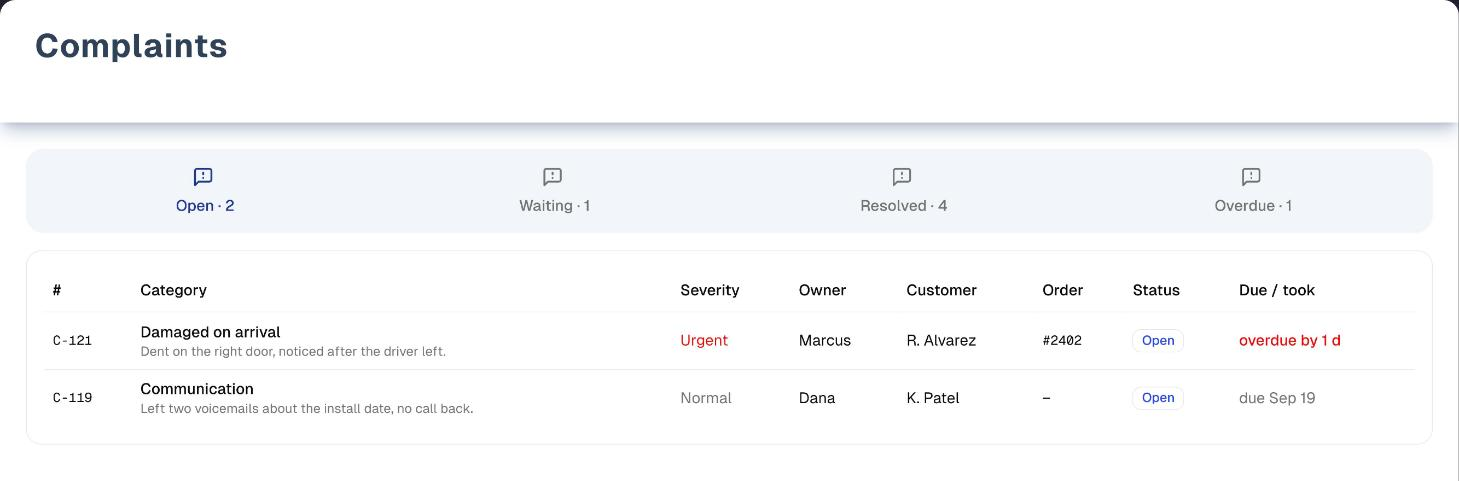
Overview
Open Growth → Complaints. The chips across the top are Open, Waiting, Resolved and Overdue — plus Removed, which only a manager or the owner sees. Under them are three filters (Category, Owner, Severity) and one row per complaint: number, category, severity, owner, customer, order, status, and Due / took. Click a row to open the complaint.
- Open holds complaints that are Open or Escalated. Waiting holds Waiting on customer and On hold. Resolved holds Resolved and Closed.
- Overdue is every complaint past its answer-by date that is not Resolved or Closed. A complaint can be in Open and Overdue at once, or in Waiting and Overdue at once — waiting on the customer does not stop the clock.
- Overdue is worked out from the answer-by date when the list loads, so a complaint turns red on its own — nothing has to run overnight. An open page does not tick over; reload it to see the latest.
Demo in the header opens the page on sample data with a short guided tour. There is no plan or add-on gate on Complaints. Everyone on the team can log, edit, resolve and note a complaint; only a manager or the owner can Remove one or put it back.
Step by step: log a complaint
- Click Log complaint. You can also start one from a customer's record (Complaints tab → Log complaint), from an order's ⋯ menu (Log complaint…), from Open complaint on a review request rated 3 stars or fewer (Growth → Reviews) — a review that already has one shows its number instead and re-opens it — or from Log complaint in the Customer Info panel of a text conversation (Growth → Messages). Each of those fills in what it already knows — the customer, and the order, the review or the text thread.
- Pick the category — one tap, from your own list. The first category shown is picked for you; hidden categories are not offered.
- Set the severity. It decides the answer-by date: Settings → Lost sales holds the days per severity (by default Emergency 1, Urgent 1, High 2, Normal 5, Low 10).
- Choose the owner. Wherever you start from — the Complaints page, a customer's record, an order, a review or a text conversation — you are the owner to begin with, and the whole team is in the list. Pick Nobody yet if it should wait for someone else.
- Write one line in What happened, and click Save. The complaint gets its number (for example C-118) and its due date, and the dialog stays open so you can add a photo or a note straight away.
Save stays clickable, and tells you what is missing. Anything still in the way is listed in red just above the buttons — What happened empty or over 2,000 characters, no category picked, or Status set to Resolved with What was done empty — and clicking Save repeats the first one and puts the cursor in it. The only time Save is greyed out is on a saved complaint you have not changed yet.
Step by step: work it to a close
- Open the complaint. If its category keeps coming up, the amber line at the top says so: "This category, last 90 days: 11 complaints · 8 of them Saturday."
- Add notes as things happen — each one joins the timeline straight away, with who wrote it and when.
- Add a photo if there is damage to show (JPEG, PNG or WebP, up to 10 MB). Photos are private to your business and can only be added once the complaint has been saved. The X beside a photo takes it off again — it asks first, and the picture is then deleted for good.
- When it is settled, write What was done, set the status to Resolved (or Closed), and — this is the part that pays — put one line in Root cause.
- The timeline keeps the story: who opened it, every reassignment, status change, severity and category change, what was done, the root cause and every note. Edits to What happened, Came in by and the customer are not recorded there.
Key features
| Feature | What it does |
|---|---|
| Complaint number | C-118, assigned when you first save. One running sequence for your whole business (all locations share it); numbers are never reused |
| Statuses | Open, Waiting on customer, On hold, Escalated, Resolved, Closed. Resolved needs What was done; Closed does not |
| Answer-by date | Set from the severity when the complaint is saved; overdue is worked out, never stored |
| Timeline | Status changes, reassignments, severity and category changes, what was done, root cause and notes, with who and when. Every date and time on a complaint is in your store's time zone, so everyone on the team sees the same day |
| Photos | Private images on the complaint, opened through a short-lived link |
| Entry points | Complaints page, customer record, order ⋯ menu, low-star review request, text conversation |
| Pattern line | "This category, last 90 days", on the complaint itself |
| Dashboard card | Open complaints, with how many are overdue |
| Report tab | Reports → Lost Sales Report → Complaints: categories, severity, median time to settle, owner load |
Tabs, views & filters
| Control | Options |
|---|---|
| Chips | Open, Waiting, Resolved, Overdue, and Removed for a manager or the owner. A complaint can be in Open or Waiting and in Overdue at the same time. The counts on the chips ignore the filters, and Removed never carries a count |
| Category | Every category, or one visible category |
| Owner | Anyone, or one person. There is no "unassigned" option |
| Severity | Any severity, or one of Low / Normal / High / Urgent / Emergency |
There is no search box, sorting, export or bulk action. The list is newest first. Filters apply on every chip and reset when you reload the page.
Tips & best practices
- Log it even when you fixed it on the spot. One complaint tells you nothing; three months of them tell you what to change.
- Keep the category list short. A category is only useful if you would act on it differently.
- Write the root cause, not the apology. "Saturday route overbooked" is worth more than "customer upset".
- Read the owner table for load, not blame. Somebody holding every overdue complaint needs help.
- Start from the order when there is one. A complaint is linked to an order only when it is started from that order (or from a review request that had one); an order cannot be added later.
Troubleshooting
| Issue | Fix |
|---|---|
| Save is greyed out | Nothing has changed yet on a saved complaint; hover the button and it says so. Anything else that blocks a save is listed in red above the buttons |
| A complaint went overdue the moment I raised its severity | The new due date counts from when the complaint was first opened, not from today. A complaint opened three days ago and raised to Urgent (1 day) is already late |
| I changed the answer-by days, but old complaints kept their due dates | New days apply to complaints saved afterwards, and to a complaint whose severity you change. Existing due dates are not recalculated |
| A Waiting complaint shows as overdue | Waiting on customer and On hold do not pause the clock. Resolve or close it once it is settled |
| The owner list is empty apart from Nobody yet | Your team could not be read just then. Save the complaint anyway, then open it from Growth → Complaints and set the owner |
| Linked order says "None" | There really is no order on this complaint. An order can only be linked by starting the complaint from that order's ⋯ menu (or from a review request that had an order), and it cannot be added afterwards. "Order linked (number unavailable)" means the opposite: an order is attached but its number could not be read |
| "Complaint not found" when you open a row | Someone removed that complaint while your list was on screen. Close the box; the row goes with it. Refresh the page to see the current list |
| A resolved complaint still looks late | It is not: resolved and closed complaints are never counted as overdue. The took figure is how long it actually ran |
| The timeline is empty | A saved complaint always has at least its opening entry, so a blank timeline means its history could not load. Close the complaint and open it again |
| Save is refused ("That customer is not in this store's customer list…", "The owner you picked is not a member of this store any more…" and the like) | The customer, order, owner, thread or review attached to the complaint is no longer one of your store's records — for example a customer archived while the form was open. Re-pick it and save again |
| A photo will not open | Photos are private and links last a few minutes; click again to get a fresh one, and allow pop-ups for the app if nothing opens |
| The wrong photo is on a complaint | Click the X beside it and answer Remove, then add the right one. You can remove a photo you added; a manager or the owner can remove anyone's, including a photo with nobody recorded as the person who added it. Nobody can swap the picture on a photo in place: once added, its picture, file name, date, kind and who can see it stay as they were |
| I removed a complaint by mistake | Open the Removed chip and click Restore on it. The chip and the button are for a manager or the owner |
| Remove is not on the complaint | Removing one is a manager's or the owner's job. Ask one of them |
What's next
- See the pattern: Reports → Lost Sales Report
- Ask for a review after the fix: Growth → Reviews
- Log the visit behind it: Sales → Walk-ins
- Edit categories and answer-by days: Settings
Detailed reference
Every button, icon, field and message on this page, for when you need the exact detail. Each panel starts closed — open the one you need.
Page header and toolbar
| Control | Where | What it does | Notes |
|---|---|---|---|
| Title Complaints and the line "What went wrong, who owns it and whether it is late — so the pattern shows up, not just the apology." | Header | Page heading | Always shown |
| Demo (Play icon, amber) | Header, first button | Opens the page on sample data with a guided tour, in the same browser tab | Everyone. See the Demo mode panel below and Demo mode |
| Log complaint (plus icon) | Header, right | Opens Log complaint for a new complaint, with you preset as owner | — |
| Chip Open (blue) | Chip bar | Shows Open and Escalated complaints. See Tab: Open | Selected when the page opens |
| Chip Waiting (amber) | Chip bar | Shows Waiting on customer and On hold complaints | — |
| Chip Resolved (green) | Chip bar | Shows Resolved and Closed complaints | — |
| Chip Overdue (rose) | Chip bar | Shows every complaint past its due date that is not Resolved or Closed | — |
| Chip Removed (grey) | Chip bar, last | Shows complaints that were removed, whatever status they were in. It is read separately from the rest of the list, so it fills when you open it | Only for a manager or the owner. Never carries a count |
| Restore (undo icon) in the Put back column | Removed chip only, right of each row | Puts the complaint back on the list it came from, and shows "C-118 is back on the list." The row leaves the Removed chip straight away | Only for a manager or the owner. If it is refused the row stays where it is and the reason is shown twice: in a message and in red above the list |
| Count on a chip, e.g. "Open · 3" | Chip labels | How many complaints fall under that chip | Counts every complaint, ignoring the Category, Owner and Severity filters. No number when it is zero. One complaint can count under two chips (Open and Overdue, or Waiting and Overdue), so the counts can add up to more than your total |
| Category filter ("Every category", or one category) | Filter row, first | Narrows the list to one category | Lists only the visible categories from Settings → Lost sales. A complaint filed under a category you have since hidden still shows under Every category but cannot be picked out on its own. Applies on every chip; resets on reload |
| Owner filter ("Anyone", or a team member) | Filter row, second | Narrows the list to complaints owned by that person | No option for unassigned complaints — they only show under Anyone. If the team list cannot load, only Anyone appears. Resets on reload |
| Severity filter ("Any severity", Low, Normal, High, Urgent, Emergency) | Filter row, third | Narrows the list to one severity | Applies on every chip; resets on reload |
| Overdue and Due / took timing | Whole list | Worked out when the list loads | An open page does not tick over. Reload, or save or remove a complaint (which reloads the list), to refresh |
There is no search box, column sorting, export or bulk action on this page. The list is newest first, by when each complaint was opened, and loads up to 5,000 complaints.
Tab: Open
| Control | Where | What it does | Notes |
|---|---|---|---|
| Chip Open | Chip bar | Shows complaints that are neither waiting nor settled: status Open or Escalated | An Open or Escalated complaint past its due date also shows under Overdue |
| Column #, e.g. "C-121" | Table | The complaint number | Same columns on every chip |
| Column Category | Table | The category name, with the start of What happened underneath on one line, cut short | If a category's code is no longer in your list at all, the code shows instead of a name |
| Column Severity | Table | Low, Normal, High, Urgent or Emergency | Low and Normal grey, High amber, Urgent and Emergency red |
| Column Owner | Table | The owner's name, or "—" | "—" when nobody is assigned or the team list could not load. Hidden on phones and small tablets |
| Column Customer | Table | The customer's name (or phone number, or "Customer"), or "—" | Hidden on phones |
| Column Order | Table | "#" and the invoice number (or order number), or "—" | Large screens only |
| Column Status (outlined badge) | Table | Open (blue), Waiting on customer (amber), On hold (amber), Escalated (red), Resolved (green), Closed (green) | — |
| Column Due / took | Table | "due Sep 19" (grey); "due in 5 h" (amber, less than 24 hours left); "overdue by 1 d 2 h" (red, bold); "no due date" (grey); for Resolved and Closed "took 1 d 23 h" (green) or "—" | Spans read "… min", "… h", "… d … h" or "… d" |
| Row click | Any row | Opens the complaint in its dialog | — |
| Empty list (warning icon) "Nothing here. Log a complaint the moment somebody tells you about one — the point is the pattern over months, and it only exists if it is written down." | Table area | Nothing matches Open and the filters | Check the filters |
| "Loading complaints…" | Table area | The list is loading | — |
| "Could not load complaints: …" with Try again | Table area | Try again reloads the list | Only when nothing could be loaded |
Tab: Waiting
| Control | Where | What it does | Notes |
|---|---|---|---|
| Chip Waiting | Chip bar | Shows complaints with status Waiting on customer or On hold | Waiting does not pause the clock: a waiting complaint past its due date also shows under Overdue and reads "overdue by …" |
| Table and row click | Card under the filters | Same columns and row click as Open | — |
| Empty list "Nobody is waiting on a customer right now." | Table area | Nothing matches Waiting and the filters | — |
Tab: Resolved
| Control | Where | What it does | Notes |
|---|---|---|---|
| Chip Resolved | Chip bar | Shows complaints with status Resolved or Closed | Never counted as overdue, however old the due date |
| Column Due / took | Table | "took …" in green: the time from opening to resolving (or closing) | "—" when those times are missing |
| Table and row click | Card under the filters | Same columns and row click as Open | — |
| Empty list "Nothing has been resolved yet." | Table area | Nothing matches Resolved and the filters | — |
Tab: Overdue
| Control | Where | What it does | Notes |
|---|---|---|---|
| Chip Overdue | Chip bar | Shows every complaint whose due date has passed and that is not Resolved or Closed — Open, Escalated, Waiting on customer and On hold all qualify | These complaints also appear under Open or Waiting |
| Column Due / took | Table | "overdue by …" in red, bold | — |
| Table and row click | Card under the filters | Same columns and row click as Open | — |
| Empty list "Nothing is past its due date." | Table area | Nothing is late (or nothing late matches the filters) | — |
Dialog: Log complaint / C-… · category
One dialog, two modes. Log complaint (a new complaint) opens from Log complaint on this page, the customer record, an order's ⋯ menu, a text conversation, or Open complaint on a review request. Clicking a row (here or on a customer's record) opens a saved complaint, titled with its number and category. After the first Save a new complaint stays open in the saved mode, so photos and notes can follow.
Header:
| Control | Where | What it does | Notes |
|---|---|---|---|
| Title "Log complaint" | Dialog header | A new, unsaved complaint | — |
| Title "C-118 · Delivery window" and a status badge (e.g. "Open") | Dialog header | A saved complaint: number, category and its saved status | The badge changes only after you save |
| Line under the title, new complaint | Dialog header | "Category, severity, owner and one line about what happened." — or "Opened from order #2402" when started from an order, or from a review that had one | The order number is looked up as the dialog opens, so it appears a moment after the rest |
| Line under the title, saved complaint | Dialog header | Parts joined with " · ", e.g. "Owner Dana · Order #2402 · J. Lee · opened Sep 13 · resolved Sep 15" | Each part only when it applies: "Owner …" when it has an owner who is still on your team, "resolved …" for Resolved and Closed |
| X (close, labelled Close) | Top-right corner | Closes the dialog | With unsaved changes it asks "Leave without saving?" first. Esc and clicking outside do the same |
| "Loading complaint…" (spinner) | Dialog body | A saved complaint is loading | — |
| Title "Complaint not found", "It is no longer on the list. Someone may have removed it. Close this and refresh the page." with Close | Instead of the whole dialog | The complaint you opened is not there any more — usually removed by somebody else while your list was on screen | No form is shown, so nothing can be saved. Close also takes the link off the row you came from |
| Title "This complaint could not be read", the reason underneath, Try again and Close | Instead of the whole dialog | The complaint could not be read at all | Try again re-reads it |
| Pattern line (amber box) "This category, last 90 days: 11 complaints · 8 of them Saturday." | Top of the body | Shows how often the chosen category has come up | Only when at least 2 complaints in that category were opened in the last 90 days. A complaint opened from a list counts itself, and one you have just saved counts at once, in the category it was saved with. The "· … of them Saturday" part only when 2 or more fell on the same weekday this complaint was opened (today, for a new one). Changes as you tap a different category. Missing if it could not be worked out |
Fields:
| Field | Required | Default | Rules and error text |
|---|---|---|---|
| Customer — button "Search customer" (magnifier icon) | No | Filled in when started from a customer's record, an order, a review or a text conversation | Opens a search box "Search by name, phone, or email...". Needs 2 characters: "Type at least 2 characters to search...", then "Searching your organization..." or "No customers found in your organization." Results show name, phone, delivery address, email, "Source: …" and "ID: …". Picking one closes the search; the button then reads the name, or "Name - phone". Only your own customers, and a new customer cannot be created here. Customers you have archived are still offered, because a complaint is often about a past customer; suppliers and Partners Network contacts are not |
| Clear customer (underlined link) | — | — | Only when a customer is attached. Removes the customer; it is saved when you click Save |
| Linked order | — | "#2402", "Order linked (number unavailable)", or "None — log it from the order to link one" | Read-only. Set only when the complaint was started from an order's ⋯ menu, or from a review request that had an order. It cannot be added, changed or removed here. Started from a review, the number is looked up as the dialog opens ("Order linked — reading its number…" while it does). "Order linked (number unavailable)" means the order is attached but its number could not be read |
| Category (a row of round buttons, one per category) | Yes | The first visible category in your list | One tap picks it (filled dark). Hidden categories are not offered. Default list: Delivery window, Damaged on arrival, Product defect, Wrong item, Pricing / billing, Staff / service, Install / service quality, Communication, Other — your industry profile or Settings → Lost sales may differ. Changing it on a saved complaint adds a timeline entry |
| Severity | Yes | Normal | Low, Normal, High, Urgent, Emergency. Sets the due date: when the complaint was opened plus that severity's Answer by (days) from Settings → Lost sales (defaults Emergency 1, Urgent 1, High 2, Normal 5, Low 10). Changing it on a saved complaint recalculates the due date from the original opening time, so it can become overdue straight away |
| Owner | No | You, wherever the complaint is logged from | Nobody yet plus your team. When the dialog is opened from a customer's record, an order, a review or a text conversation it reads the team and who you are itself, so it may show "Loading…" for a moment first. Reassigning adds a timeline entry |
| Due (text) | — | "due in 5 days" (from the severity) | New complaint: follows the severity as you change it. Saved complaint: the same wording as the list's Due / took column, red when overdue, amber with less than 24 hours left; it does not change until a severity change is saved |
| What happened (placeholder "Dent on the right door, noticed after the driver left.") | Yes | Empty; prefilled from a review ("From a 2/5 review: “…”") | 2,000 characters. Past halfway a count appears beside the label ("1,240 / 2,000") and turns red once it is over, and the red line above the buttons names the limit — nothing is cut off for you, and Save says the same thing if you click it. The start of it shows in the list, on one line. Edits are not recorded in the timeline |
| Status | Yes | Open | Open, Waiting on customer, On hold, Escalated, Resolved, Closed. Resolved needs What was done; Closed does not. Resolved and Closed stop the clock and record the resolved date; setting it back clears that date and the timeline says "Reopened" (for Open), but the original due date stays, so a reopened complaint may already be overdue. A new complaint can be logged straight as Resolved |
| Came in by | No | In store; Text from a text conversation; Review from a review | In store, Phone, Text, Email, Review, Customer portal. Not recorded in the timeline |
| What was done (placeholder "Redelivered Sat 9–11, $50 credit.") | Only when Status is Resolved | Empty | What the store did. Saving new text adds it to the timeline in quotes |
| Root cause (placeholder "Saturday route overbooked.") with the hint "One line here is what turns eleven complaints into one fix." | No | Empty | Why it happened. Saving new text adds "Root cause: …" to the timeline |
Buttons:
| Control | Where | What it does | Notes |
|---|---|---|---|
| Remove (trash icon) | Footer, left | Asks "Remove C-118?" first, saying it comes off the complaint book and out of the counts and that a manager can put it back. Keep it changes nothing; Remove does it, shows "C-118 removed" with "A manager can put it back from the Removed tab." and closes the dialog | Saved complaints only; hidden from anyone below manager. A manager or the owner can restore it from the Removed chip |
| Photo (camera icon; spinner while uploading) | Footer, left | Opens your device's file picker, the same as Add photo | Saved complaints only; greyed out while a photo uploads |
| Cancel / Close | Footer, right | Closes without saving | Reads Close until you change something, on a new complaint or a saved one, then Cancel. With unsaved changes it asks "Leave without saving?" first — Keep editing brings you back to the form with everything still typed, Discard changes closes it |
| Save (spinner while saving) | Footer, right | New complaint: creates it, gives it the next number and its due date, shows "C-122 logged" with "Due Sep 20", and keeps the dialog open for photos and notes. Saved complaint: saves the changes, shows "C-118 updated" with the due date, and closes. The list reloads either way | Stays clickable while anything is missing, and names it: the reasons are listed in red above the buttons, and a click repeats the first one and moves the cursor into the box it is about. Greyed out only while a save is running, or on a saved complaint with no changes — hovering it then says "Nothing has changed yet." |
Dialog sections: Photos and Timeline (saved complaints)
These two sections appear below Root cause once the complaint has been saved at least once.
| Control | Where | What it does | Notes |
|---|---|---|---|
| Photos | Section heading | Lists the photos on this complaint, oldest first | — |
| Add photo (camera icon; spinner while uploading) | Photos, right | Opens your device's file picker for one JPEG, PNG or WebP photo, up to 10 MB. It uploads straight to private storage; message "Photo added" | Greyed out while a photo uploads |
| "No photos. A picture of the damage saves a paragraph." | Photos | Shown when there are none | — |
| Photo button (picture icon and file name) | Photos list | Opens the photo in a new browser tab through a private link that lasts 5 minutes | "Could not open that photo." when the link cannot be made. A link is only made for a photo still on one of your store's complaints, so a removed photo cannot be opened again. A pop-up blocker may stop the new tab |
| X beside a photo | Photos list | Asks "Remove <file name>?" — "The picture is deleted for good. The rest of the complaint stays as it is." Keep it changes nothing; Remove takes the photo off the complaint and deletes the picture. Message "Photo removed" | Shown to the person who added the photo, and to a manager or the owner. Greyed out while a photo uploads or another is being removed. On a photo with nobody recorded as the person who added it, only a manager or the owner sees the X |
| Timeline entries, e.g. "Sep 15, 3:04 PM Amy Reassigned Dana → Amy" | Timeline | The history of the complaint, oldest first: date and time, who did it (bold), then what happened | Read-only; entries cannot be edited or deleted. Empty if the history could not load |
| "Nothing recorded yet. Status changes, reassignments and notes appear here as they happen." | Timeline | Shown when there are no entries | Rare — a saved complaint normally has its opening entry |
| Note box (placeholder "Driver confirmed a 2-hour window for the redelivery.") | Under the timeline | Type a note | — |
| Add note (speech-bubble icon; spinner while saving) | Under the note box | Adds "Note: …" to the timeline with your name straight away, separately from Save; clears the box. No confirmation message | Greyed out while the box is empty or a note is saving. Notes are cut to 2,000 characters |
What the timeline says:
| Entry | When |
|---|---|
| "Opened · Normal severity · due Sep 20 · owner Amy" | The first entry. "· owner …" only when an owner was set |
| The new status, e.g. "Waiting on customer", "On hold", "Escalated", "Resolved", "Closed" | Status changed. Setting it back to Open reads "Reopened" |
| "Reassigned Dana → Amy" | Owner changed; "nobody" stands in for no owner |
| "Severity Normal → High · due Sep 17" | Severity changed, with the new due date |
| "Category Delivery window → Wrong item" | Category changed. A category no longer on your list is written out from its code, e.g. MISSING_PARTS reads "Missing parts" |
| The text of What was done in quotes, e.g. "“Redelivered Sat 9–11, $50 credit.”" | What was done changed to new, non-empty text (first 280 characters) |
| "Root cause: …" | Root cause changed to new, non-empty text (first 200 characters) |
| "Note: …" | A note was added |
| Several of the above joined with " · " | Several changes were saved at once |
| Not recorded | Edits to What happened, Came in by or the customer; emptying What was done or Root cause. A complaint logged straight as Resolved shows only its opening entry |
Other places to see or log complaints
| Control | Where | What it does | Notes |
|---|---|---|---|
| Complaints (warning-bubble icon) | Sidebar → Growth | Opens this page | No plan gate |
| Card Open complaints with "… overdue" | Dashboard | Opens this page. The number is every complaint not Resolved or Closed; the hint is how many of those are past due | Includes Waiting on customer and On hold, so it can be higher than the Open chip. The card turns amber when anything is overdue |
| Tab Complaints (reads "Complaints · 2" when there are some) | Customer record | Lists this customer's complaints with the line "Everything … has complained about, and where each one stands." Columns #, Category, Severity, Owner, Order, Status, Due / took; all statuses, no chips or filters. Clicking a row opens the complaint | Empty: "No complaints from this customer. If one comes in, log it here — the categories only tell you anything once there are a few months of them." Error: "Could not load complaints: …" with Try again |
| Log complaint (plus icon) | Customer record → Complaints tab, top right | Opens Log complaint with the customer attached. Owner starts at you, and your team is listed | Saving here shows "C-… logged" (or "C-… updated"), the same message as on this page, and the tab's list reloads |
| Log complaint… in the ⋯ (More actions) menu | Order details, header | Opens Log complaint with the customer, the order and its location attached; the line under the title reads "Opened from order #…" | Any saved order except quotes and estimates (cancelled orders are allowed). Owner starts at you, with the whole team listed |
| Open complaint | Growth → Reviews → Review requests card, last column | Opens Log complaint with the customer, the review and its order attached, Came in by set to Review, and What happened filled with "From a 2/5 review: “…”" (or "From a 2/5 review." with no comment) | Only on requests rated 3 out of 5 or lower. Owner starts at you, with the whole team listed. Linked order shows the order's number as the dialog opens |
| Log complaint (full width) | Growth → Messages → a conversation → Customer Info panel, top | Opens Log complaint with the customer and the text thread attached and Came in by set to Text | Shown once the customer's details have loaded. Owner starts at you, with the whole team listed. When the number is not a saved customer the Customer box starts empty and the complaint saves without one; search for the customer there if you have them under another number |
| Open Complaints link | Reports → Lost Sales Report → Complaints tab | Opens this page | Only when the chosen range has no complaints; not in the report's demo |
| Complaint category list: up and down arrows, the label box, Hide / Show | Settings → Lost sales → Complaints card | Reorders, renames, hides or brings back a category. The order sets the order of the category buttons, and the first visible one is picked for new complaints | The owner. Saved categories are never deleted, only hidden, because saved complaints use them; a category added since the last save shows Remove instead. The card says "Seeded from your industry profile". See Settings |
| New category box ("New category, e.g. Missing parts") and Add complaint category | Settings → Lost sales → Complaints card | Adds a category to the list | The owner. Saved with the Save button at the top of the Lost sales tab |
| Answer by (days) — one box each for Low, Normal, High, Urgent, Emergency | Settings → Lost sales → Complaints card | "A complaint is due this many days after it is logged." Sets the due date for each severity | Whole numbers from 1 to 365, else "Answer-by days have to be whole numbers between 1 and 365 (…)." New days apply to complaints saved afterwards and to severity changes, not to existing due dates |
Messages you may see
| Message | When it appears | What to do |
|---|---|---|
| "C-122 logged" with "Due Sep 20" | A new complaint was saved | The dialog stays open: add a photo or a note, or close it |
| "C-118 updated" with "Due Sep 20" | A saved complaint was changed | — |
| "C-118 removed", with "A manager can put it back from the Removed tab." | After Remove is confirmed | Open the Removed chip and click Restore |
| "C-118 is back on the list." | Restore worked | The complaint is on Open, Waiting or Resolved again, whichever it was |
| "C-118 could not be put back", with the reason under it | Restore was refused. The same reason also stays in red above the list, and the row does not move | Read the reason and act on it; it is one of the sentences below |
| "Only a manager or the owner can remove or restore a complaint." | Remove or Restore was refused | Ask a manager or the owner |
| "That complaint is not on this store any more" | Remove or Restore was refused because the complaint is gone — usually someone else removed it while the list was open | Reload the page |
| "The complaint could not be removed" / "The complaint could not be put back" | Something else went wrong saving it. Nothing changed | Try again; contact UpChannels support if it continues |
| "This review already has a complaint. Close this and open the one on the row." | Two people logged the same review at once | Close the dialog; the row on Growth → Reviews shows the complaint number that won |
| "Another complaint has since been logged from the same review, so this one cannot be put back." | Restore was refused because a newer complaint now holds that review | Work the newer complaint, or remove it first |
| "Leave without saving?", "Your changes to this complaint have not been saved." | X, Esc, a click outside or Cancel with unsaved changes | Keep editing returns to the form with your text intact; Discard changes closes it |
| "Complaint not found", "It is no longer on the list. Someone may have removed it. Close this and refresh the page." | Opening a complaint somebody else has removed | Close the box and refresh the page |
| "This complaint could not be read" with the reason underneath | A complaint could not be read at all | Do what the reason says, then click Try again |
| "Photo added" | A photo finished uploading | — |
| "Remove <file name>?", "The picture is deleted for good. The rest of the complaint stays as it is." | The X beside a photo | Keep it changes nothing; Remove deletes the picture |
| "Photo removed" | A photo was taken off the complaint | — |
| "Only the person who added a photo, or a manager, can remove it." | A removal was refused | Ask a manager or the owner |
| "That photo is not on this complaint." | The photo had already gone, or belongs to another store | Reload the page |
| "The photo could not be removed. Try again." / "The photo could not be read. Try again." | The removal did not go through | Try again; the photo is still there |
| "Could not open that photo." | The private link for a photo could not be made, or the photo has been removed from the complaint since the list was drawn | Click again; allow pop-ups for the app. Reopen the complaint if the photo may have been removed |
| "Only JPEG, PNG or WebP photos are allowed" | The file is another type | Pick or convert to a JPEG, PNG or WebP |
| "Photo too large (max 10 MB)" | The file is over 10 MB | Use a smaller photo |
| "Photo storage is not set up for this store" / "Photo storage is not available right now" | Photo storage is not reachable | Try later; contact UpChannels support if it continues |
| "Could not start the upload." / "The photo did not upload." | The upload failed | Try again |
| "A photo needs a complaint to belong to" | A photo was sent without a saved complaint | Save the complaint first |
| "Unauthorized" / "No organization for this user" | Your session expired while you were adding a photo | Sign in again |
| "A note needs some text" / "Complaint not found" / "Not signed in to an organization" | A note could not be added: it was empty, the complaint was removed, or your session has no business attached | Reload the page; sign in again if it continues |
| "That customer is not in this store's customer list. Pick the customer again.", "The linked order is not one of this store's orders…", "The owner you picked is not a member of this store any more. Pick someone else." (and the same for a location, text conversation or review) | Save was refused because the attached customer, order, owner, text thread or review is not one of your business's saved records — for example a customer archived or removed while the form was open | Re-pick the customer or owner and save again; contact support if it continues |
| "Organization not found." | The app could not tell which business you are signed in to | Sign out and in again |
| "Could not load complaints: …" with Try again | The list or the customer's Complaints tab failed to load | Click Try again |
| "Loading complaints…" / "Loading complaint…" | The list, or one complaint, is loading | — |
| "Write one line about what happened." / "Keep what happened under 2,000 characters." / "Pick a category." / "Say what was done before marking it resolved." | The reasons a save is refused. They are listed in red above the buttons as soon as they apply, and Save repeats the first one | Fill in What happened, shorten it, pick a category, or fill in What was done (or pick a status other than Resolved) |
| "403 - Forbidden" — "You do not have permission to view this page. Contact your organization owner." | Complaints is hidden from your menu, in a store with more than one active person. It shows however you reach the page — a link in the app, a bookmark or a typed address — and the sidebar row is gone. The Shortcuts page has no Complaints card, so nothing changes there | Ask the owner. See Team & menu visibility |
Who can use what
| Who | Can |
|---|---|
| Any team member with Complaints in their menu (owner, manager or staff) | View the list, log complaints, edit every field, reassign, change status, add notes and photos, open photos, and remove a photo they added themselves |
| A manager or the owner | The same, plus Remove, the Removed chip and Restore, and removing a photo somebody else added. Below manager, Remove is not shown, and the business itself refuses the change |
| Someone whose menu hides Complaints | Sees "403 - Forbidden" on the page, however they reach it — a link in the app, a bookmark or a typed address. The sidebar row goes for them as well — the Shortcuts page has no Complaints card to take away — and the demo page is exempt, so it still opens. Only in a store with more than one active person: the one active person left is never blocked, and someone switched off or removed in Team doesn't count as that person. See Team & menu visibility |
| Settings → Lost sales (categories and answer-by days) | Getting in and saving are two different rules. Settings opens for the owner and for the store's only active member (people switched off or removed in Team don't count); everyone else is sent to Shortcuts. Saving needs the owner — a save from anyone else changes nothing and is refused with "Only the owner can change lost-sales settings" |
| Plans and add-ons | None. Complaints is on every plan, with no feature switch |
Demo mode (/complaints/demo)
- Open it: Demo (Play icon, amber) in the Complaints header, left of Log complaint.
- Header: "Complaints — Demo" — "What went wrong, who owns it and whether it is late. Sample data; all actions are disabled." Exit Demo Mode (left arrow) goes back to Complaints.
- Banner (eye icon): "Demo mode — complaints are sample data. All actions are disabled." with Take the tour, which restarts the tour at step 1.
- Tour: starts by itself the first time you open the demo. Progress dots and "… of 4", Back (from step 2), Skip (closes), Next, and Got it! on the last step. Clicking the dark backdrop closes it. Keys: Esc closes, right arrow or Enter goes on (and closes on the last step), left arrow goes back. When a step belongs to another chip, the page switches chip first; if a step's target cannot be found within about 3 seconds, the tour moves on.
- Still works: switching chips, Take the tour, Exit Demo Mode and the tour buttons.
- Disabled or absent: no Log complaint button; no Category, Owner or Severity filters; the rows open nothing (and do not highlight as if they would), so What was done, Root cause, photos and the timeline cannot be seen in the demo.
| # | Tab | Tour step | What it points at |
|---|---|---|---|
| 1 | Open | Four questions, one row of chips — "What is open, what is waiting on the customer, what is settled, and what is late. A complaint can be Open and Overdue at once — overdue is worked out from the answer-by date, never stored." | The chip bar |
| 2 | Open | Number, owner, and how long it took — "Each complaint gets a number when you save it and an answer-by date from its severity. Once it is settled the last column stops counting down and says how long it actually ran." | The complaint table |
| 3 | Overdue | Late, and visible before the customer chases — "The Overdue chip is the one to read first thing. Resolved and closed complaints are never counted here, however old their due date." | The complaint table on Overdue |
| 4 | Resolved | What was done, and why it happened — "Settled complaints stay in the book, with how long each one ran. On the live page, opening one shows what was done and — the part that pays — a root cause. Three months of those turn eleven delivery complaints into one fix." | The complaint table on Resolved |
Sample data: a fixed date (Sep 15, 2026), so the sample never shifts, and a team of Marcus, Dana and Amy. Chips read Open · 2, Waiting · 1, Resolved · 4, Overdue · 1.
| # | Category | Severity | Owner | Customer | Order | Status | Due / took |
|---|---|---|---|---|---|---|---|
| C-121 | Damaged on arrival | Urgent | Marcus | R. Alvarez | #2402 | Open | overdue by 1 d (also under Overdue) |
| C-120 | Delivery window | High | Amy | T. Nguyen | #2398 | Waiting on customer | due Sep 16 |
| C-119 | Communication | Normal | Dana | K. Patel | — | Open | due Sep 19 |
| C-118 | Delivery window | High | Amy | J. Lee | #2381 | Resolved | took 1 d 23 h |
| C-117 | Wrong item | Normal | Marcus | S. Okafor | #2377 | Closed | took 20 h |
| C-116 | Delivery window | Normal | Dana | B. Whitaker | #2369 | Resolved | took 6 h |
| C-115 | Install / service quality | Low | Amy | D. Ramírez | #2361 | Resolved | took 1 d 6 h |
Differences from the live page: category names come from your own Settings → Lost sales list, so if your store's list has no matching category, its code shows instead of a name. Dates are in your store's time zone, as on the live page.
Common questions
Why is Save greyed out? On a saved complaint, until you change something — hover the button and it says "Nothing has changed yet." Otherwise Save is never greyed out: if something is missing it says what, in red above the buttons and again when you click it. The rules are that What happened has text and is 2,000 characters at most, a category is picked, and — with Status set to Resolved — What was done is filled in (or choose Closed, which does not need it).
Who owns a complaint I log from an order, a review or a text? You do, and the whole team is in the Owner list, exactly as on the Complaints page — those screens look your team up for themselves, so the dialog may read "Loading…" for a moment before it opens. Pick Nobody yet if it should wait for someone else.
How do I link an order to a complaint? Start the complaint from the order: open the order, click ⋯ and choose Log complaint…. A complaint opened from a review request is linked to that request's order too. An order cannot be added to a complaint afterwards.
A complaint is "Waiting on customer" but it shows as overdue. Is that right? Yes. Waiting on customer and On hold do not pause the answer-by clock, so a waiting complaint past its due date shows under both Waiting and Overdue. Only Resolved and Closed complaints are never overdue.
I raised the severity and the complaint went overdue at once. Why? The new due date is counted from when the complaint was first opened. If it was opened three days ago and you set it to Urgent (1 day by default), it was due two days ago.
The dashboard says 5 open complaints but the Open chip says 3. Why? The dashboard's Open complaints counts everything not Resolved or Closed, including Waiting on customer and On hold. The Open chip leaves those out — they are under Waiting.
Can I undo Remove, or delete a photo? Remove, yes. It asks before it does anything, and a manager or the owner can put the complaint back from the Removed chip — it returns with its number, its history and everything written on it. A photo can be deleted: click the X beside it and answer Remove. That one cannot be undone — the picture is gone for good — so it asks first.
I renamed a category. Why do older timeline lines use the new name? The timeline shows statuses, severities and categories in the same words as the rest of the complaint, looked up each time you open it — older lines included. So a category renamed in Settings → Lost sales reads with its new name everywhere. A category that is no longer on your list is written out from its stored code, so MISSING_PARTS reads "Missing parts".